1.3 Using Tryton
Operation is the same in all areas of Tryton. The figures show the web client sao; the desktop client has the same structure.
Window Layout
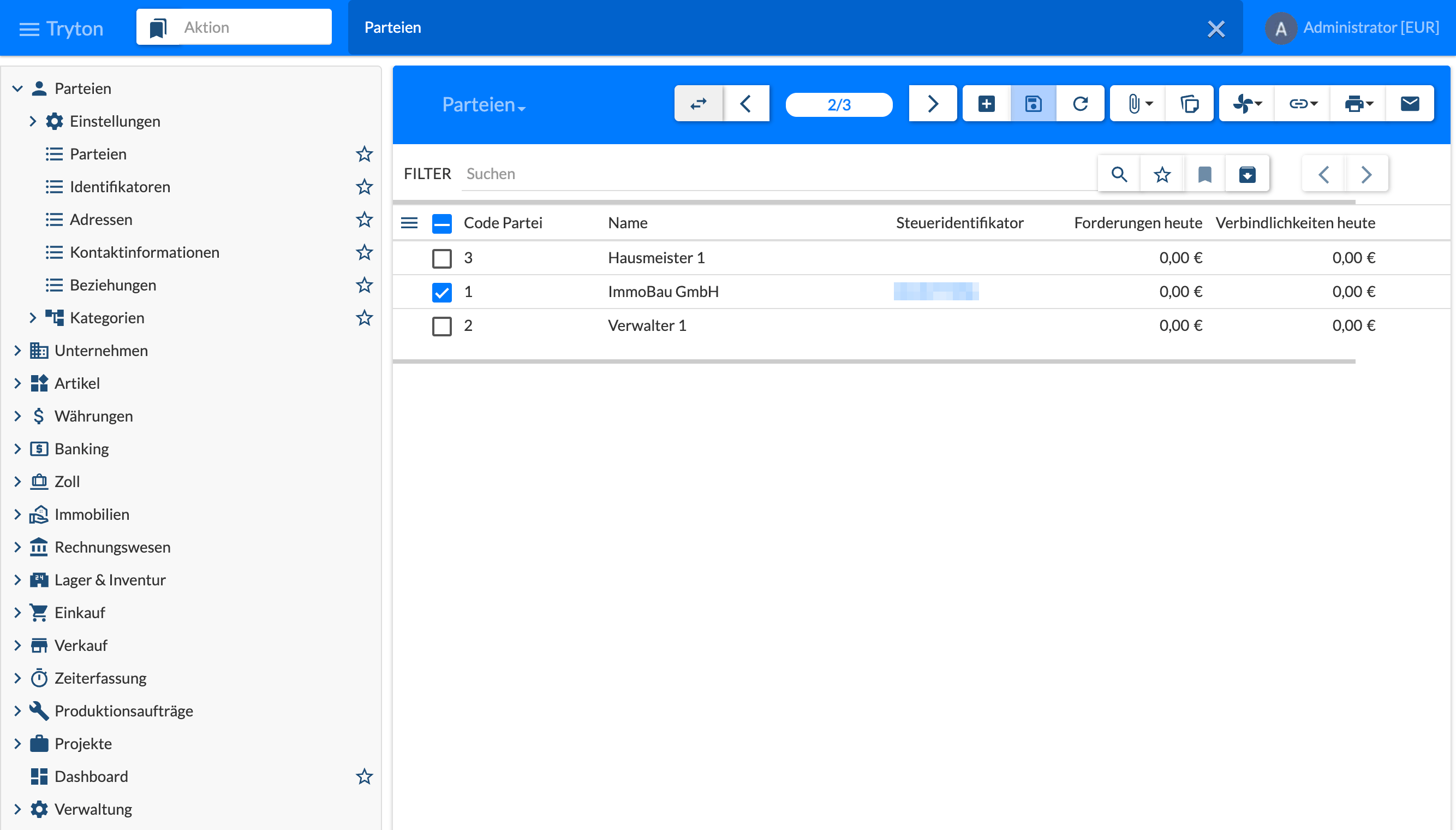
- Menu (left): the areas, e.g. Parteien, Immobilien, Rechnungswesen, Verwaltung. › expands folders, a click on an entry opens it as a tab on the right. The star adds an entry to the favourites.
- Aktion (top): search field for menu entries and favourites – type a name and select it without clicking through the menu. ≡ Tryton shows and hides the menu.
- Tabs: every opened menu entry appears as a tab at the top; × closes it.
- User menu (top right): name and company [currency], below notifications, Einstellungen… (preferences, e.g. language, current company), Hilfe… (help) and Abmelden (log out).
List and Filter
Most menu entries first open a list. A double click on a row opens the form of the record.
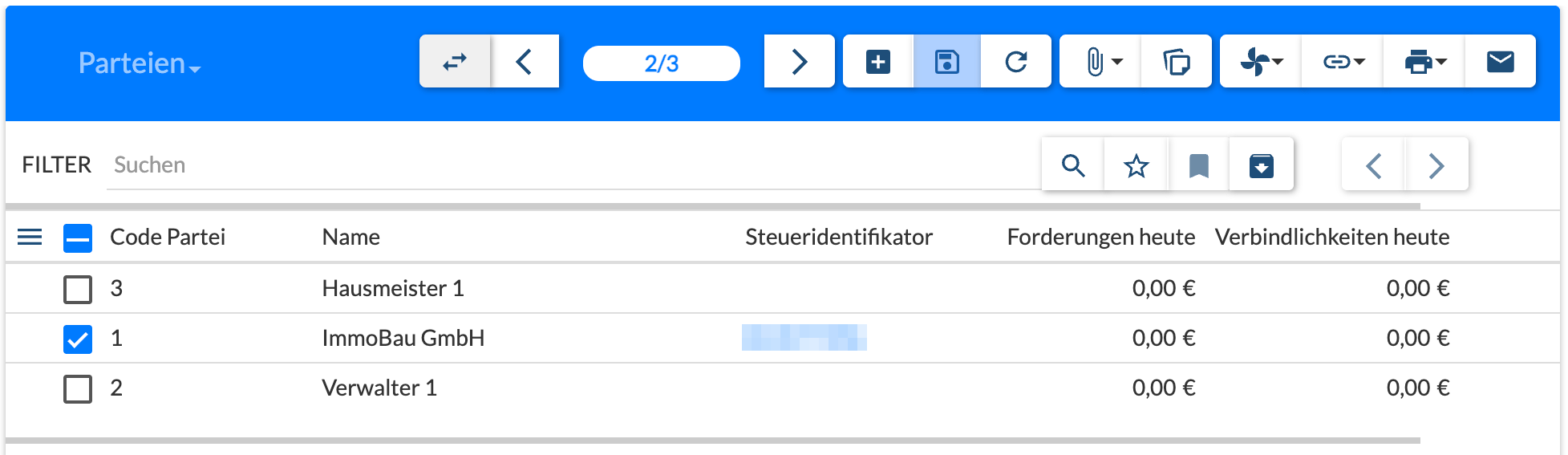
- Filter: enter a search term or condition, e.g. a name or
Name: Immo*; the magnifier searches, matching fields are suggested while typing. - Star: save the current filter as a bookmark; bookmark icon: call saved filters.
- Archive icon: also show inactive (archived) records.
- ‹ › next to the filter: page through long lists.
- ≡ at the left of the column header: show and hide columns; a click on a column header sorts.
- Check boxes: select records – actions, printing etc. then apply to all selected ones.
Toolbar

| Button | Function |
|---|---|
 Ansicht wechseln (switch view) | switch between list and form |
  Vorheriger / Nächster (previous / next) | go to the previous or next record |
 Counter | current record / number in the list |
 Neu (new) | create a new record |
 Speichern (save) | save changes |
 Neu laden/Rückgängig (reload/undo) | reload or discard unsaved changes |
 Anhang (attachment) | show and add attachments (files, links); the number on the icon shows existing attachments |
 Notiz (note) | notes on the record |
 Aktion (action) | wizards and actions of the record, e.g. calculations |
 Verknüpfen (relate) | jump to related records, e.g. from the contract to invoices |
 Drucken (print) | print reports and letters |
 E-Mail | create an e-mail with a report as attachment |
Menu at the Title
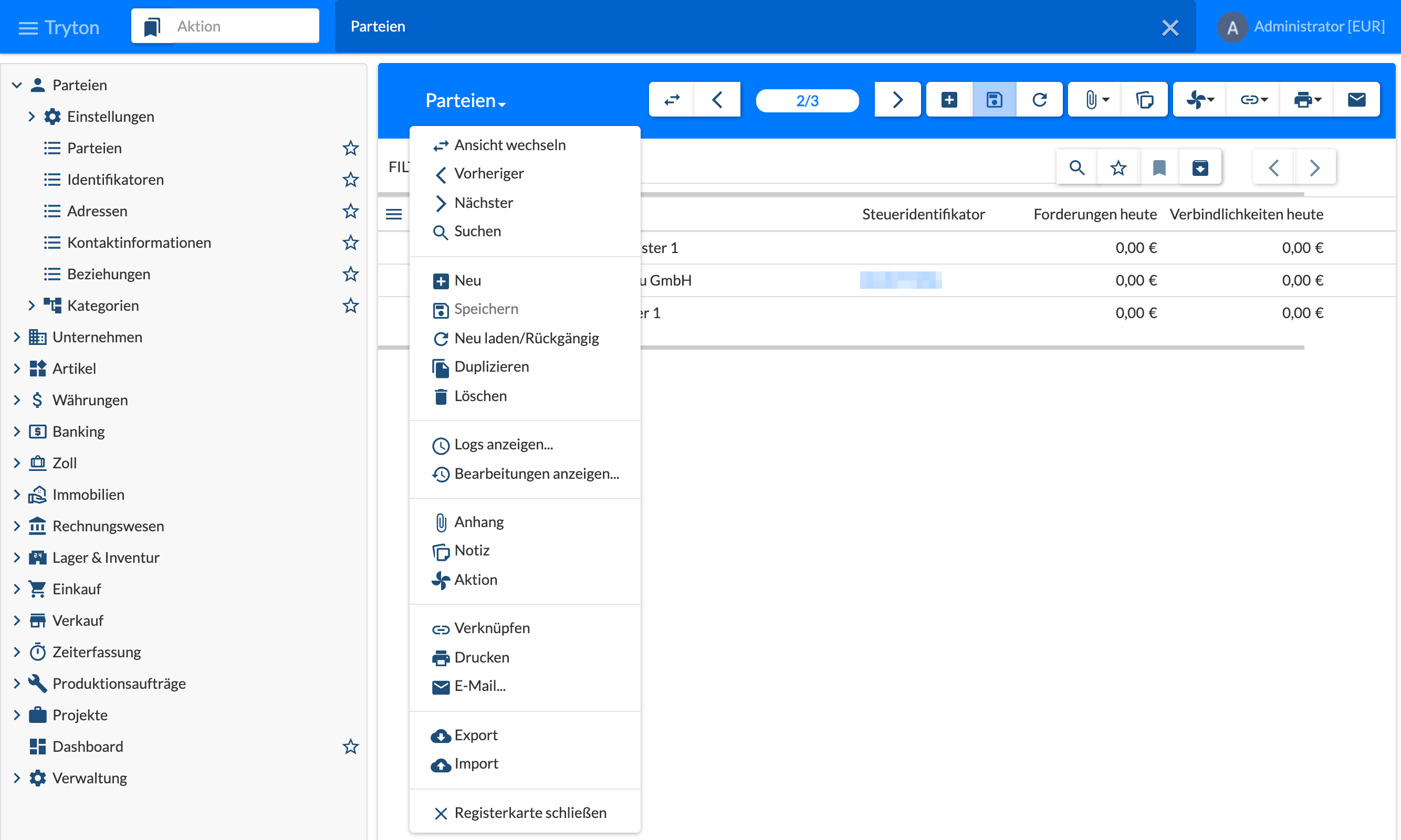
A click on the title of the tab (e.g. Parteien ▾) opens a menu with all functions of the toolbar and some more:
| Group | Functions |
|---|---|
| Navigation | switch view, previous, next, search |
| Editing | new, save, reload/undo, Duplizieren (duplicate), Löschen (delete) |
| Log | Logs anzeigen… (who created or changed when), Bearbeitungen anzeigen… (revisions, if history is active for the model) |
| Extras | attachment, note, action |
| Output | relate, print, e-mail |
| Data | Export (export records e.g. as CSV), Import (import records from CSV) |
| Registerkarte schließen (close tab) |
Duplizieren, Löschen, Logs, Export and Import are only available in this menu.