Subsections of 1 Introduction
1.1 About this Manual
This manual describes working with the Tryton module jankstar_real_estate for real estate management – from master data via contracts, rent adjustments and operating costs to maintenance, tasks and correspondence.
Audience
- Clerks: the main audience. The manual guides through the processes of real estate management from A to Z.
- Administration: installation, modules, users, sequences and settings in chapter 2.
- Accounting: basics in chapter 4 for everyone who also handles the accounting of the properties; the automatic postings of the module are explained with each process.
Structure
| Chapter | Content |
|---|---|
| 1 Introduction | this manual, Tryton, using Tryton, the module at a glance |
| 2 System and Requirements | installation, users, sequences, settings, jobs |
| 3 Business Partners and Companies | parties, companies, party roles |
| 4 Accounting | invoices, payments, postings, closing |
| 5 Real Estate Master Data | property, buildings, rental objects, equipment, meters, option rates |
| 6 Contracts | contract, terms, periodic posting, rent adjustments |
| 7 Operating Costs | billing units to the operating cost settlement |
| 8 Maintenance | inspection plans, inspections, defects |
| 9 Construction and Project System | projects |
| 10 Tasks and Processes | working with tasks and processes |
| 11 Information System and Correspondence | reports and templates |
| Glossary | technical terms German/English |
The manual is extended continuously; chapters and pages without content are still hidden.
Conventions
- Every page starts with the entry (menu, list) and then describes form, tabs and actions; the figures are numbered per page.
- Menu paths are bold with “›”, e.g. Immobilien › Stammdaten › Wirtschaftseinheit.
- Field and button names are bold as they appear in the (German) user interface, followed by the English translation in brackets.
- Topics of standard Tryton (parties, companies, users, accounting) are only described in overview as far as they matter for real estate management; details are in the Tryton documentation.
- The examples come from a demo database; names and numbers are fictitious.
Notes on Creation and Disclaimer
The texts and image editing of this manual were created with the support of AI (Claude, Anthropic). Content and details were reviewed by the author to the best of his knowledge.
Despite the care taken in creating text, figures and program code, no legal responsibility or liability of any kind is accepted for possible errors and their consequences.
TRYTON® is a registered trademark of the Tryton Foundation.
Warning
Installation and configuration in chapter 2 describe a development or test system. Every operator is responsible for the security of their own systems.
1.2 What is Tryton?
Tryton is open source business software (ERP) for companies of any size. It is completely open source under the GPL-3.0 licence and developed by an international community.
Origin
Tryton started in 2008 as a fork of TinyERP 4.2, the predecessor of OpenERP and Odoo. Since 2012 the Tryton Foundation, a Belgian foundation, has backed the project: it runs the tryton.org infrastructure and manages the Tryton trademark and the community. Professional services are offered by a network of providers.
Architecture
Tryton has a three-tier architecture:
| Tier | Implementation |
|---|---|
| Database | PostgreSQL (SQLite for testing) |
| Server | trytond, written in Python; contains all business logic |
| Clients | sao (web client in the browser) and the desktop client tryton |
The functions are organised in modules that are activated as required – accounting, sales, purchasing, stock, production, analytics, projects, CRM, payments and many more. All modules work on the same data, e.g. the same parties and accounts. The module jankstar_real_estate adds real estate management to Tryton and uses the standard modules for it, above all accounting.
Versions
A new version (series) is released every six months and maintained for one year; every fifth series is a long-term support (LTS) release supported for five years – most recently Tryton 8.0 (April 2026). This manual describes Tryton version 8.
Further Information
- tryton.org – project site with demo and download
- docs.tryton.org – documentation of the standard modules
- discuss.tryton.org – community forum
1.3 Using Tryton
Operation is the same in all areas of Tryton. The figures show the web client sao; the desktop client has the same structure.
Window Layout
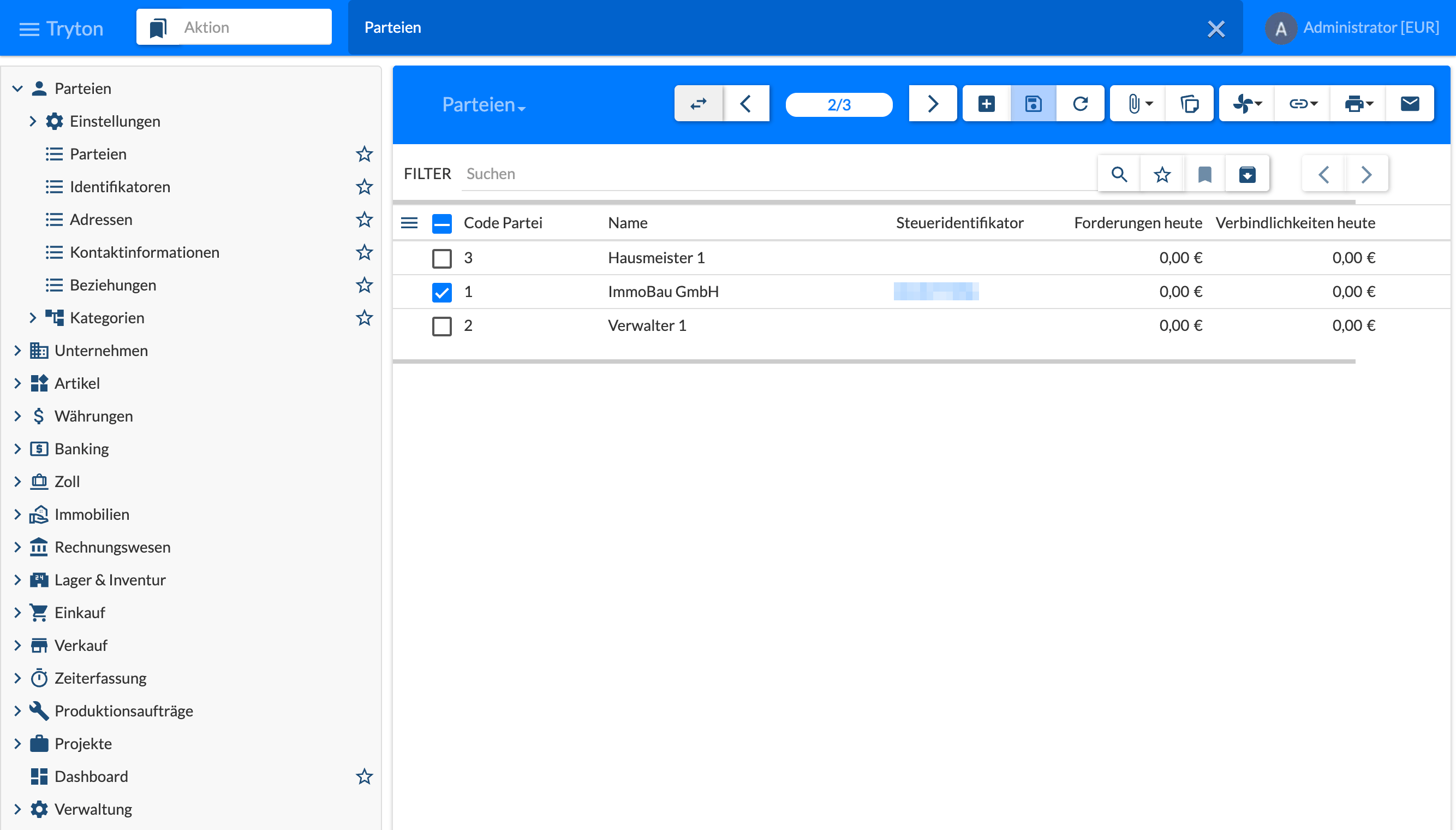
- Menu (left): the areas, e.g. Parteien, Immobilien, Rechnungswesen, Verwaltung. › expands folders, a click on an entry opens it as a tab on the right. The star adds an entry to the favourites.
- Aktion (top): search field for menu entries and favourites – type a name and select it without clicking through the menu. ≡ Tryton shows and hides the menu.
- Tabs: every opened menu entry appears as a tab at the top; × closes it.
- User menu (top right): name and company [currency], below notifications, Einstellungen… (preferences, e.g. language, current company), Hilfe… (help) and Abmelden (log out).
List and Filter
Most menu entries first open a list. A double click on a row opens the form of the record.
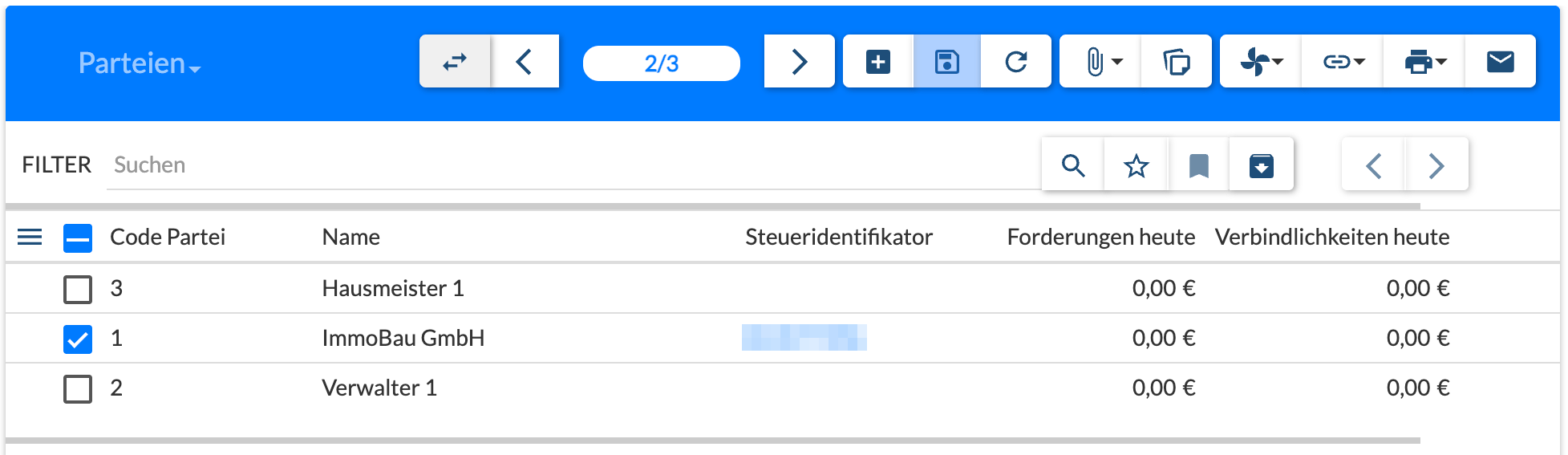
- Filter: enter a search term or condition, e.g. a name or
Name: Immo*; the magnifier searches, matching fields are suggested while typing. - Star: save the current filter as a bookmark; bookmark icon: call saved filters.
- Archive icon: also show inactive (archived) records.
- ‹ › next to the filter: page through long lists.
- ≡ at the left of the column header: show and hide columns; a click on a column header sorts.
- Check boxes: select records – actions, printing etc. then apply to all selected ones.
Toolbar

| Button | Function |
|---|---|
 Ansicht wechseln (switch view) | switch between list and form |
  Vorheriger / Nächster (previous / next) | go to the previous or next record |
 Counter | current record / number in the list |
 Neu (new) | create a new record |
 Speichern (save) | save changes |
 Neu laden/Rückgängig (reload/undo) | reload or discard unsaved changes |
 Anhang (attachment) | show and add attachments (files, links); the number on the icon shows existing attachments |
 Notiz (note) | notes on the record |
 Aktion (action) | wizards and actions of the record, e.g. calculations |
 Verknüpfen (relate) | jump to related records, e.g. from the contract to invoices |
 Drucken (print) | print reports and letters |
 E-Mail | create an e-mail with a report as attachment |
Menu at the Title
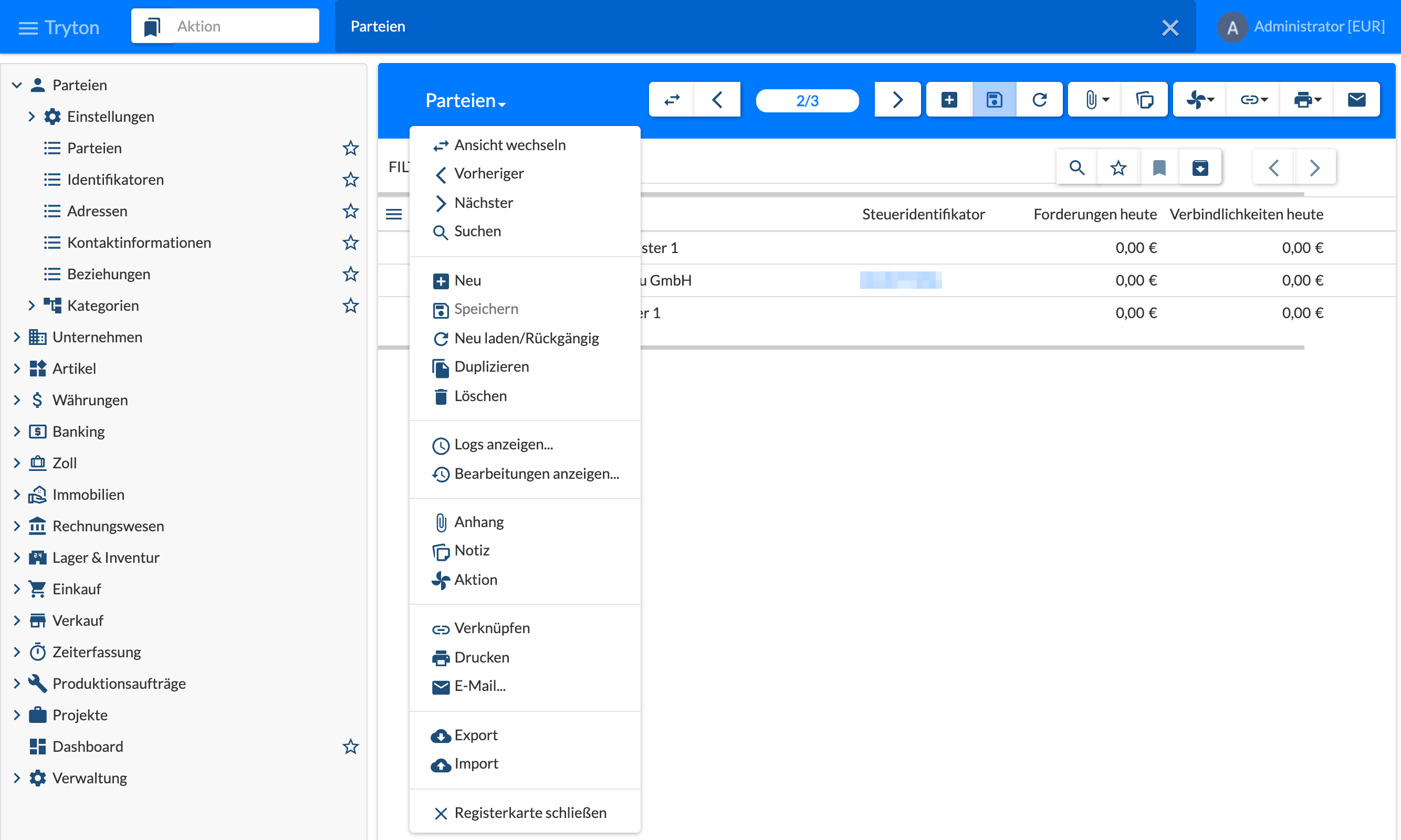
A click on the title of the tab (e.g. Parteien ▾) opens a menu with all functions of the toolbar and some more:
| Group | Functions |
|---|---|
| Navigation | switch view, previous, next, search |
| Editing | new, save, reload/undo, Duplizieren (duplicate), Löschen (delete) |
| Log | Logs anzeigen… (who created or changed when), Bearbeitungen anzeigen… (revisions, if history is active for the model) |
| Extras | attachment, note, action |
| Output | relate, print, e-mail |
| Data | Export (export records e.g. as CSV), Import (import records from CSV) |
| Registerkarte schließen (close tab) |
Duplizieren, Löschen, Logs, Export and Import are only available in this menu.