Subsections of Tryton Real Estate
1 Introduction
Subsections of 1 Introduction
1.1 About this Manual
This manual describes working with the Tryton module jankstar_real_estate for real estate management – from master data via contracts, rent adjustments and operating costs to maintenance, tasks and correspondence.
Audience
- Clerks: the main audience. The manual guides through the processes of real estate management from A to Z.
- Administration: installation, modules, users, sequences and settings in chapter 2.
- Accounting: basics in chapter 4 for everyone who also handles the accounting of the properties; the automatic postings of the module are explained with each process.
Structure
| Chapter | Content |
|---|---|
| 1 Introduction | this manual, Tryton, using Tryton, the module at a glance |
| 2 System and Requirements | installation, users, sequences, settings, jobs |
| 3 Business Partners and Companies | parties, companies, party roles |
| 4 Accounting | invoices, payments, postings, closing |
| 5 Real Estate Master Data | property, buildings, rental objects, equipment, meters, option rates |
| 6 Contracts | contract, terms, periodic posting, rent adjustments |
| 7 Operating Costs | billing units to the operating cost settlement |
| 8 Maintenance | inspection plans, inspections, defects |
| 9 Construction and Project System | projects |
| 10 Tasks and Processes | working with tasks and processes |
| 11 Information System and Correspondence | reports and templates |
| Glossary | technical terms German/English |
The manual is extended continuously; chapters and pages without content are still hidden.
Conventions
- Every page starts with the entry (menu, list) and then describes form, tabs and actions; the figures are numbered per page.
- Menu paths are bold with “›”, e.g. Immobilien › Stammdaten › Wirtschaftseinheit.
- Field and button names are bold as they appear in the (German) user interface, followed by the English translation in brackets.
- Topics of standard Tryton (parties, companies, users, accounting) are only described in overview as far as they matter for real estate management; details are in the Tryton documentation.
- The examples come from a demo database; names and numbers are fictitious.
Notes on Creation and Disclaimer
The texts and image editing of this manual were created with the support of AI (Claude, Anthropic). Content and details were reviewed by the author to the best of his knowledge.
Despite the care taken in creating text, figures and program code, no legal responsibility or liability of any kind is accepted for possible errors and their consequences.
TRYTON® is a registered trademark of the Tryton Foundation.
Warning
Installation and configuration in chapter 2 describe a development or test system. Every operator is responsible for the security of their own systems.
1.2 What is Tryton?
Tryton is open source business software (ERP) for companies of any size. It is completely open source under the GPL-3.0 licence and developed by an international community.
Origin
Tryton started in 2008 as a fork of TinyERP 4.2, the predecessor of OpenERP and Odoo. Since 2012 the Tryton Foundation, a Belgian foundation, has backed the project: it runs the tryton.org infrastructure and manages the Tryton trademark and the community. Professional services are offered by a network of providers.
Architecture
Tryton has a three-tier architecture:
| Tier | Implementation |
|---|---|
| Database | PostgreSQL (SQLite for testing) |
| Server | trytond, written in Python; contains all business logic |
| Clients | sao (web client in the browser) and the desktop client tryton |
The functions are organised in modules that are activated as required – accounting, sales, purchasing, stock, production, analytics, projects, CRM, payments and many more. All modules work on the same data, e.g. the same parties and accounts. The module jankstar_real_estate adds real estate management to Tryton and uses the standard modules for it, above all accounting.
Versions
A new version (series) is released every six months and maintained for one year; every fifth series is a long-term support (LTS) release supported for five years – most recently Tryton 8.0 (April 2026). This manual describes Tryton version 8.
Further Information
- tryton.org – project site with demo and download
- docs.tryton.org – documentation of the standard modules
- discuss.tryton.org – community forum
1.3 Using Tryton
Operation is the same in all areas of Tryton. The figures show the web client sao; the desktop client has the same structure.
Window Layout
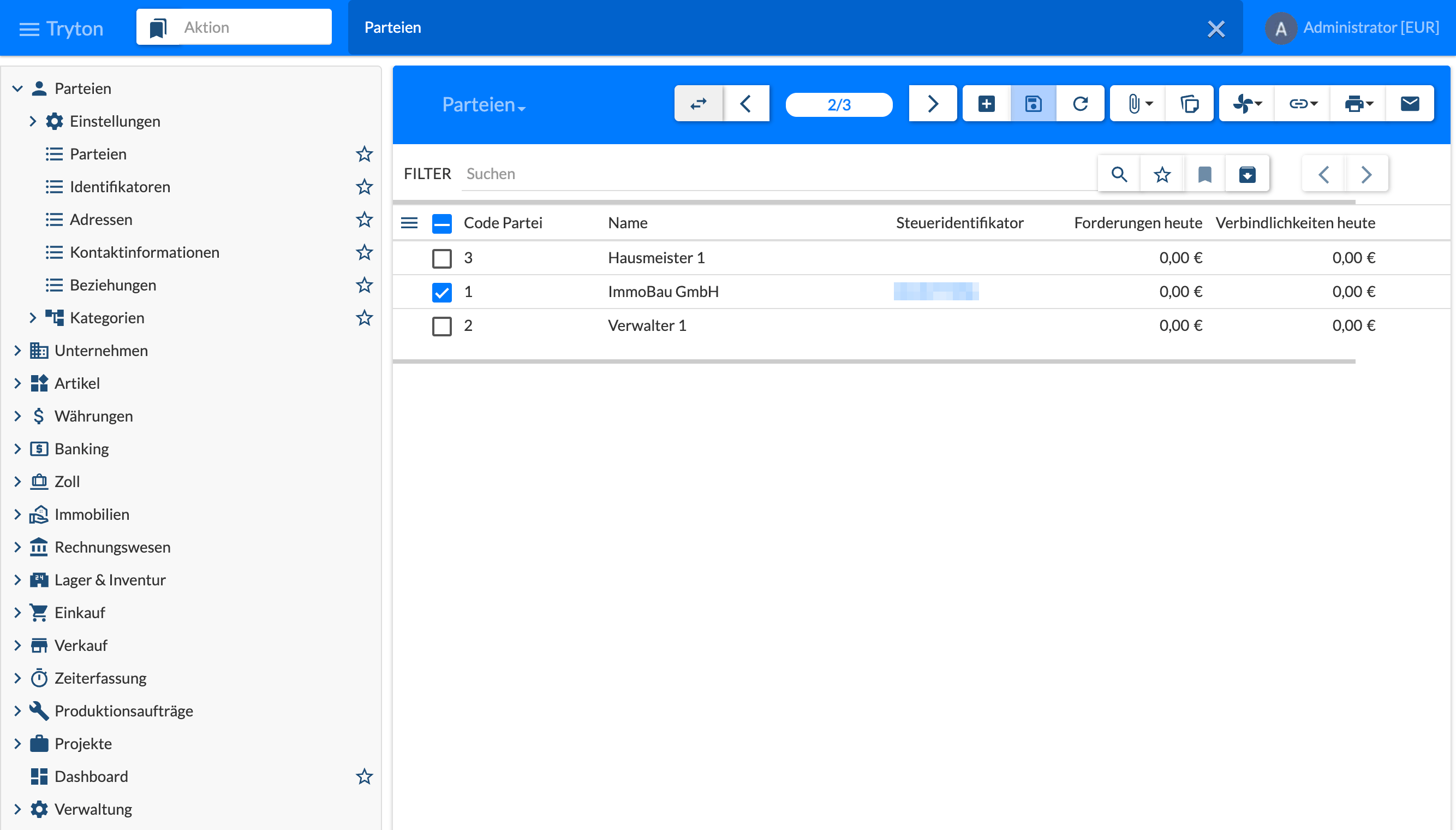
- Menu (left): the areas, e.g. Parteien, Immobilien, Rechnungswesen, Verwaltung. › expands folders, a click on an entry opens it as a tab on the right. The star adds an entry to the favourites.
- Aktion (top): search field for menu entries and favourites – type a name and select it without clicking through the menu. ≡ Tryton shows and hides the menu.
- Tabs: every opened menu entry appears as a tab at the top; × closes it.
- User menu (top right): name and company [currency], below notifications, Einstellungen… (preferences, e.g. language, current company), Hilfe… (help) and Abmelden (log out).
List and Filter
Most menu entries first open a list. A double click on a row opens the form of the record.
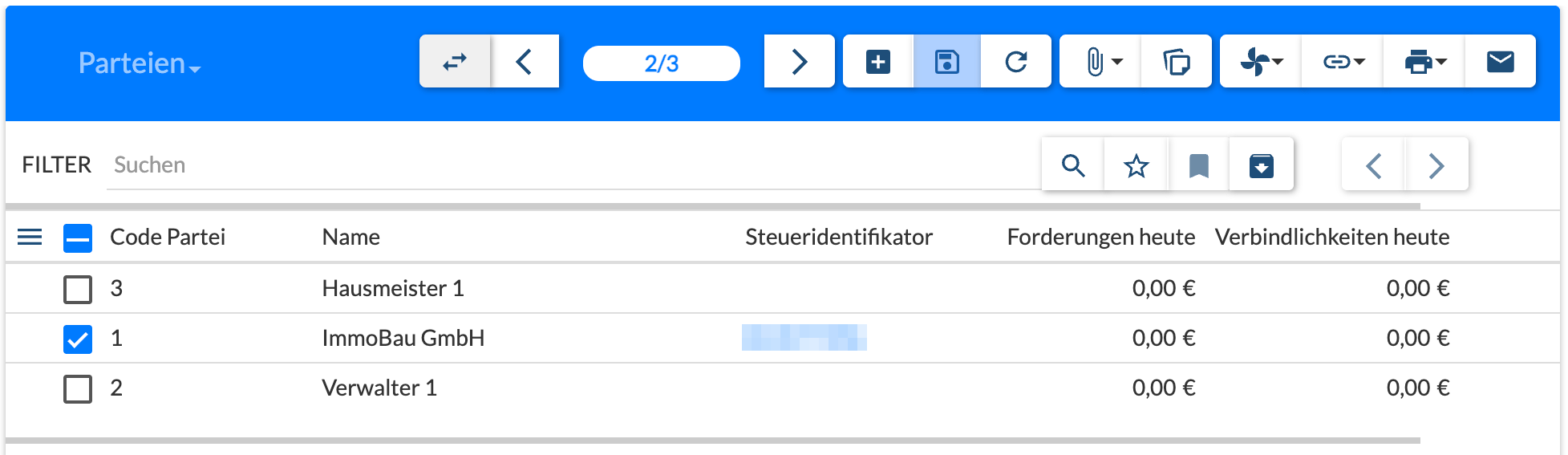
- Filter: enter a search term or condition, e.g. a name or
Name: Immo*; the magnifier searches, matching fields are suggested while typing. - Star: save the current filter as a bookmark; bookmark icon: call saved filters.
- Archive icon: also show inactive (archived) records.
- ‹ › next to the filter: page through long lists.
- ≡ at the left of the column header: show and hide columns; a click on a column header sorts.
- Check boxes: select records – actions, printing etc. then apply to all selected ones.
Toolbar

| Button | Function |
|---|---|
 Ansicht wechseln (switch view) | switch between list and form |
  Vorheriger / Nächster (previous / next) | go to the previous or next record |
 Counter | current record / number in the list |
 Neu (new) | create a new record |
 Speichern (save) | save changes |
 Neu laden/Rückgängig (reload/undo) | reload or discard unsaved changes |
 Anhang (attachment) | show and add attachments (files, links); the number on the icon shows existing attachments |
 Notiz (note) | notes on the record |
 Aktion (action) | wizards and actions of the record, e.g. calculations |
 Verknüpfen (relate) | jump to related records, e.g. from the contract to invoices |
 Drucken (print) | print reports and letters |
 E-Mail | create an e-mail with a report as attachment |
Menu at the Title
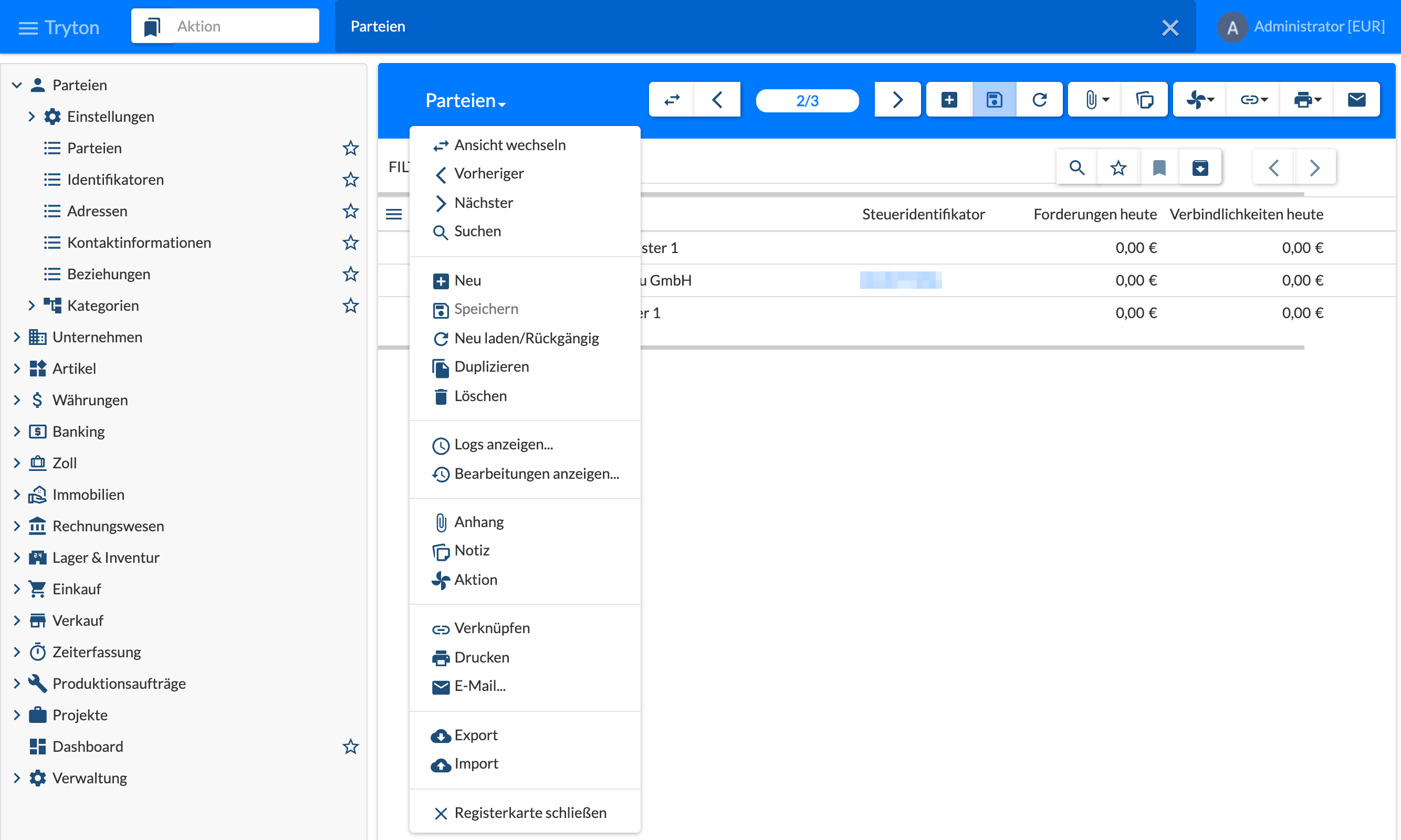
A click on the title of the tab (e.g. Parteien ▾) opens a menu with all functions of the toolbar and some more:
| Group | Functions |
|---|---|
| Navigation | switch view, previous, next, search |
| Editing | new, save, reload/undo, Duplizieren (duplicate), Löschen (delete) |
| Log | Logs anzeigen… (who created or changed when), Bearbeitungen anzeigen… (revisions, if history is active for the model) |
| Extras | attachment, note, action |
| Output | relate, print, e-mail |
| Data | Export (export records e.g. as CSV), Import (import records from CSV) |
| Registerkarte schließen (close tab) |
Duplizieren, Löschen, Logs, Export and Import are only available in this menu.
2 System and Requirements
Subsections of 2 System and Requirements
2.1 System Requirements and Installation
This page describes the installation of the Tryton server (trytond) and the web client sao, the configuration and the setup of the database. Required are Python 3.13, Node.js with npm, git and a PostgreSQL server with a database user tryton.
For development systems only
The descriptions on this page cover a development or test system. Productive operation requires additional measures (among others securing server, database and access, encryption, backups). Every operator is responsible for the security of their own systems.
Install the Tryton Server
Create and enter the project directory:
Create a new Python virtual environment:
Activate the environment:
Install Tryton with all modules via the
requirements.txt:
Install the Web Client sao
Enter the project directory; sao is installed in a directory of its own below it:
The version of sao (here 8.0) must match the version of trytond.
Install the web app in the directory with Node:
Build the web app with Grunt:
Configure the Server
trytond.conf
The file trytond.conf holds the database connection, the web server with the sao directory and the settings of the module, e.g.:
- [queue] worker runs background tasks, e.g. Ausführen (Execute) of an adjustment run.
- [bus] allow_subscribe is needed for notifications in the client.
- [real_estate] genesis_token is the access key for GENESIS-Online (Destatis) used to fetch the price indices, see 6.7.2 Index Rent.
Warning
Comments go on a line of their own starting with #. A comment after a value (root = /path # comment) is read as part of the value. Password and access key belong only in the local file, not in a repository.
Protecting Passwords
Passwords and access keys do not have to be in trytond.conf:
- Database without password: if Tryton and PostgreSQL run on the same machine, trytond connects via the Unix socket (
uri = postgresql:///); PostgreSQL checks the operating system user viapeer(entrylocal … peerinpg_hba.conf). ~/.pgpass: the URI only containspostgresql://tryton@localhost:5432/, the password is in the file~/.pgpassof the user running trytond (localhost:5432:*:tryton:<password>, permissions600).- Environment variables: trytond takes values from variables named
TRYTOND_<SECTION>__<OPTION>, e.g.TRYTOND_DATABASE__URIorTRYTOND_REAL_ESTATE__GENESIS_TOKEN. They are set in the start script, e.g. from the Mac keychain (security find-generic-password … -w) or a password manager. - Containers: mount secrets at runtime as Docker secrets or Kubernetes
Secretand set the environment variables from them – never write them into the image or Dockerfile.
In general trytond.conf belongs only to the user running trytond (permissions 600) and never into a repository. The database user only needs rights on its own database.
logconf.conf
Logging is defined in a file of its own, here rotating daily in tryton.log (30 files) and additionally to the console:
Manage the Database
The database is managed with the PostgreSQL tools; user and name (here both tryton) must match the trytond.conf.
Caution
Run the following actions with care – dropping and restoring in particular overwrite data irrevocably.
| Action | Command |
|---|---|
| Create the database | createdb -U tryton tryton |
| Drop the database | dropdb -U tryton tryton |
| Back up the database | pg_dump -U tryton -Fc -d tryton > tryton_$(date +%Y%m%d_%H%M%S).dump |
| Restore the database | pg_restore -U tryton -d tryton tryton_<date_time>.dump |
The backup creates a dump in PostgreSQL format with the database name and date/time in the file name.
trytond is now installed, the configuration is set and an empty database is set up.
Initialise the Database and Start the Server
On a new database
trytond-admincreates all tables and initialises Tryton:The shell asks for the e-mail address and the password of the user admin:
Start the server:
--devis the development mode (among other things, changed files are reloaded); for production start without--dev.Open http://localhost:8000/#tryton in the browser and log in as admin.
Initial Setup in the Client
After the first login the wizard Module Configuration guides through the initial setup. The forms are in English at first.
Log in with database
tryton, user admin and the password fromtrytond-admin.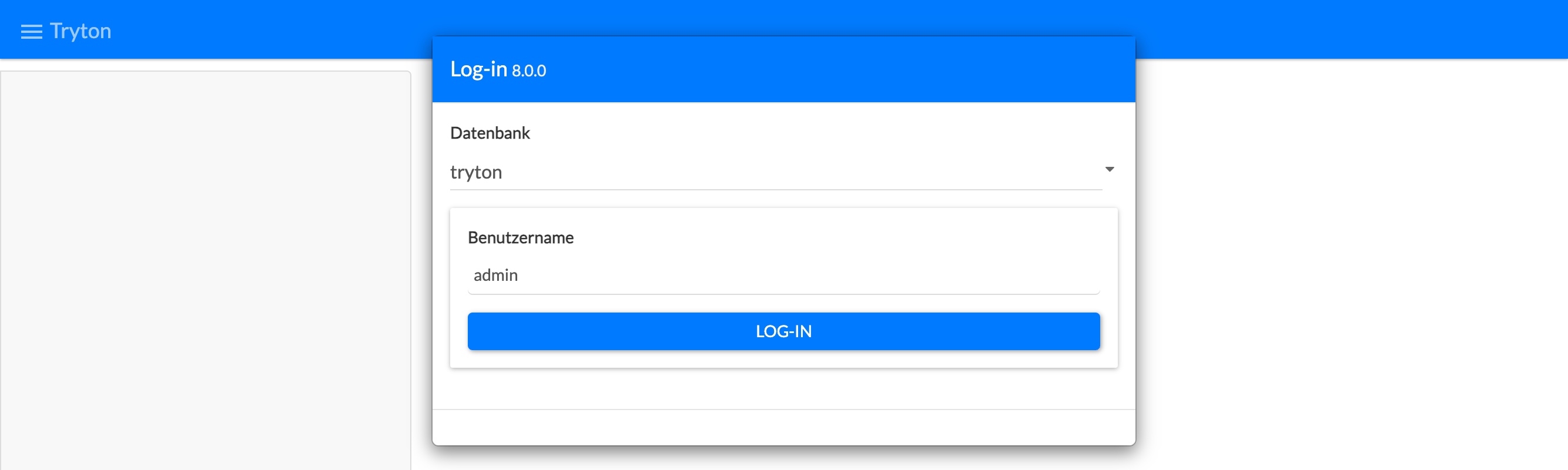
Figure 2.1-1: Login The wizard Module Configuration starts; continue with OK.
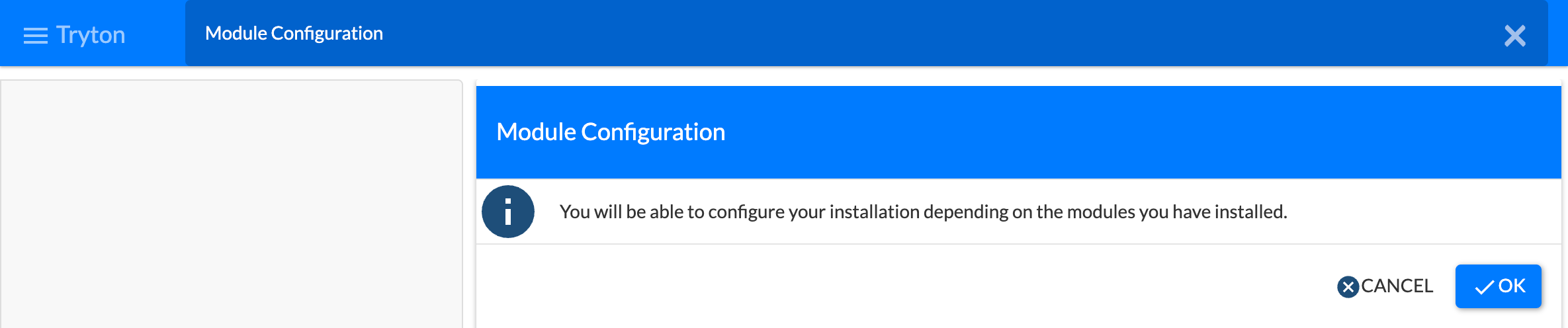
Figure 2.1-2: Module Configuration Configure Languages: mark the languages whose translations are to be loaded, e.g. English and German, then Load.
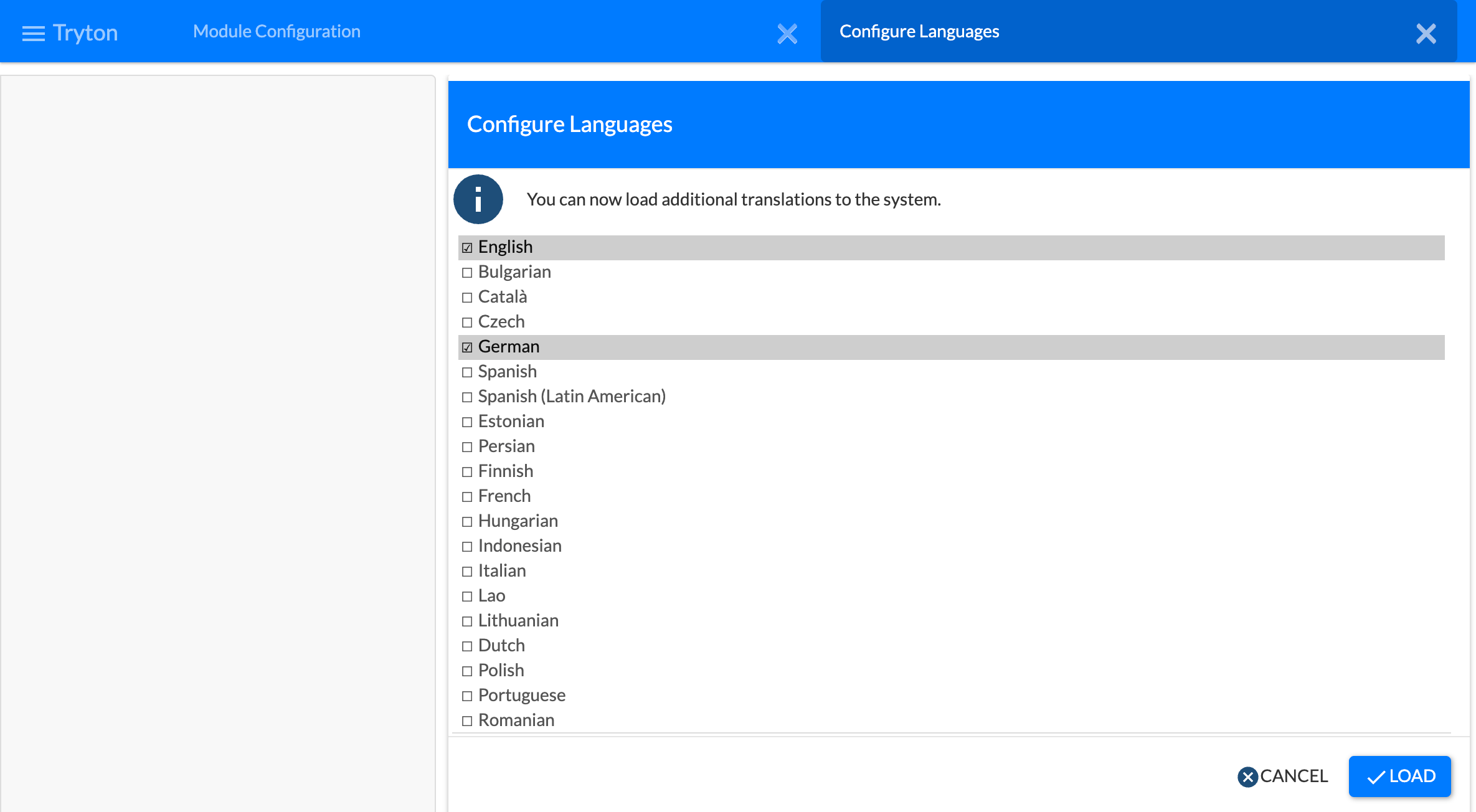
Figure 2.1-3: Configure Languages Configure Modules: mark the required modules, e.g.
real_estate– dependent modules are activated as well –, then Activate.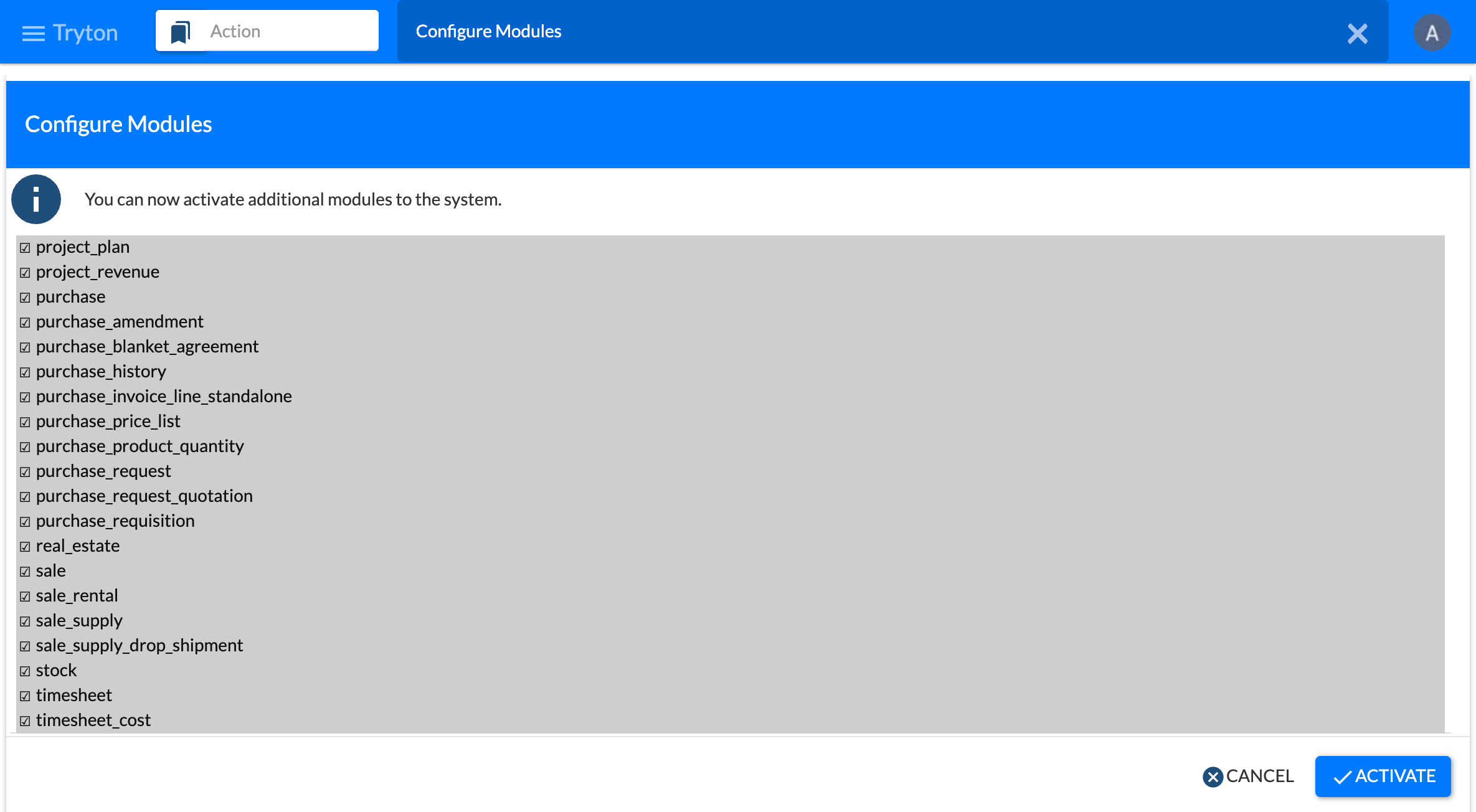
Figure 2.1-4: Configure Modules Perform Pending Activation/Upgrade lists all modules to be activated (here 73); start with OK. The server creates the tables, the log shows the registered models. Finally the client reports “The modules have been upgraded / activated.”
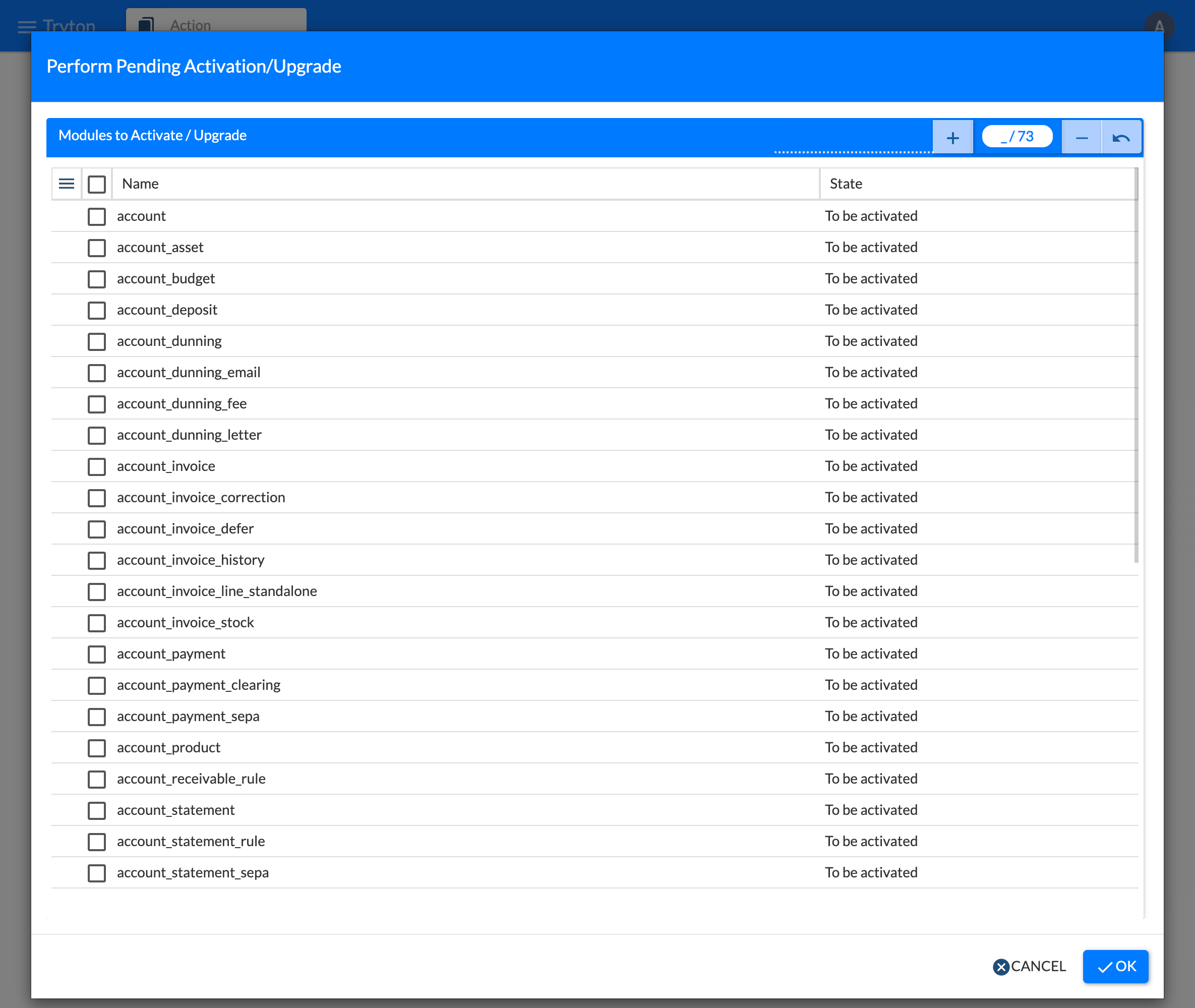
Figure 2.1-5: Modules to activate 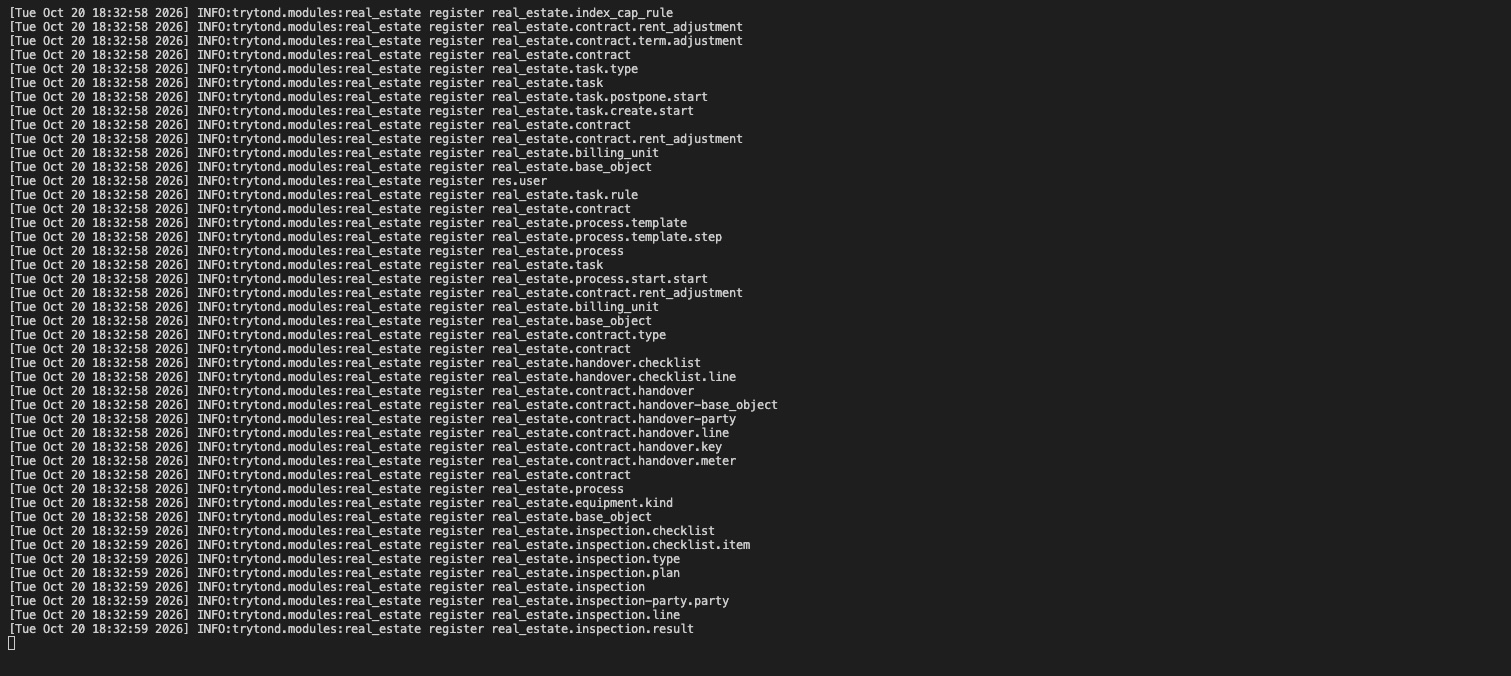
Figure 2.1-6: Server log during activation 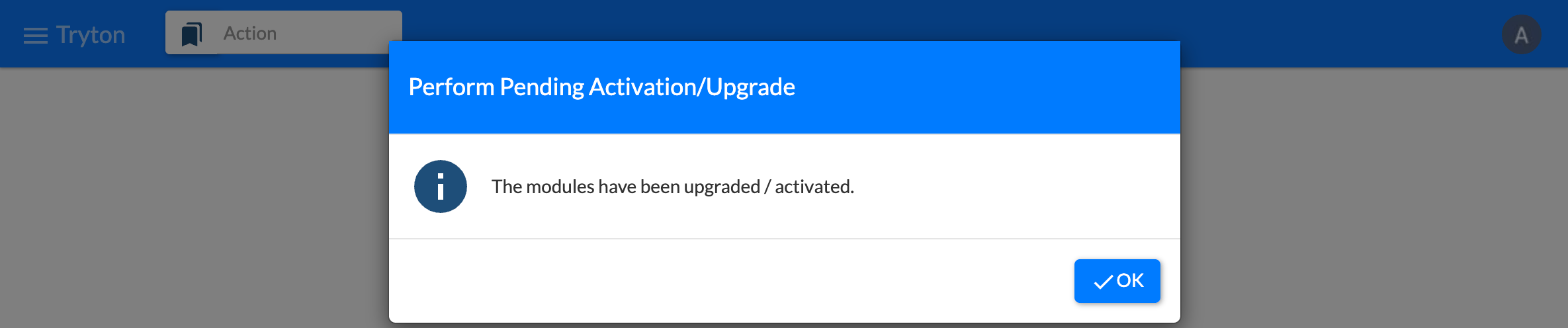
Figure 2.1-7: Activation done The Module Configuration continues; go on with OK.
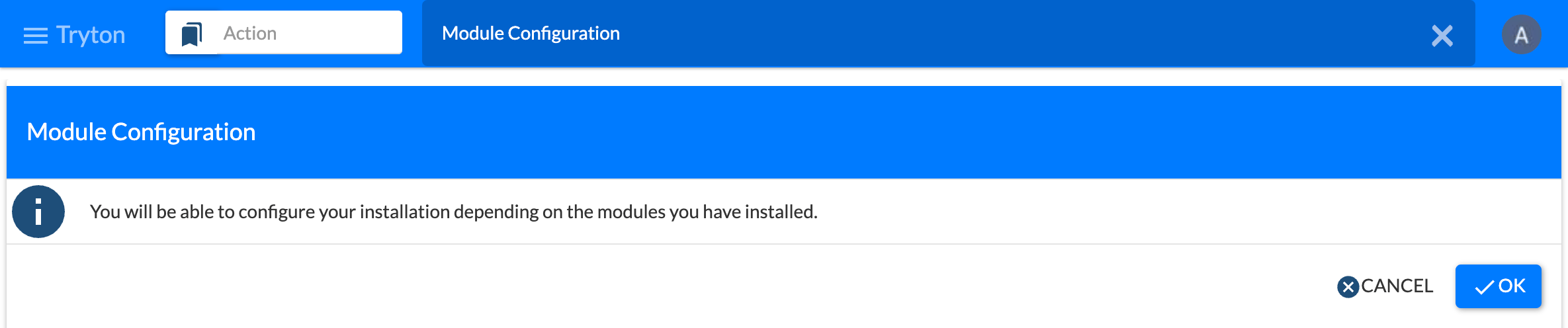
Figure 2.1-8: Continue Module Configuration Configure Company: after the note the company is created. In the field Party enter a new party with name, language and address and save it; choose currency (Euro) and timezone (Europe/Berlin). Employees are optional. Create with Add.
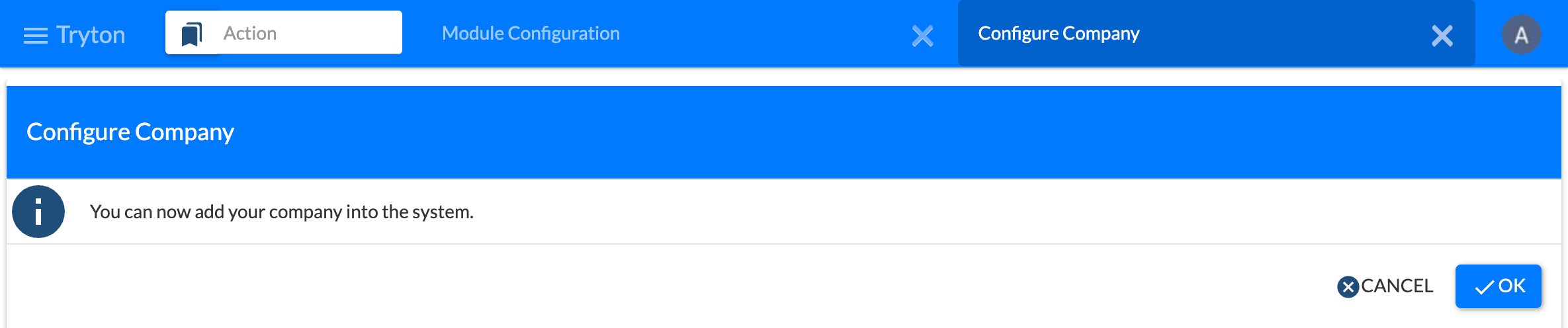
Figure 2.1-9: Configure Company – note 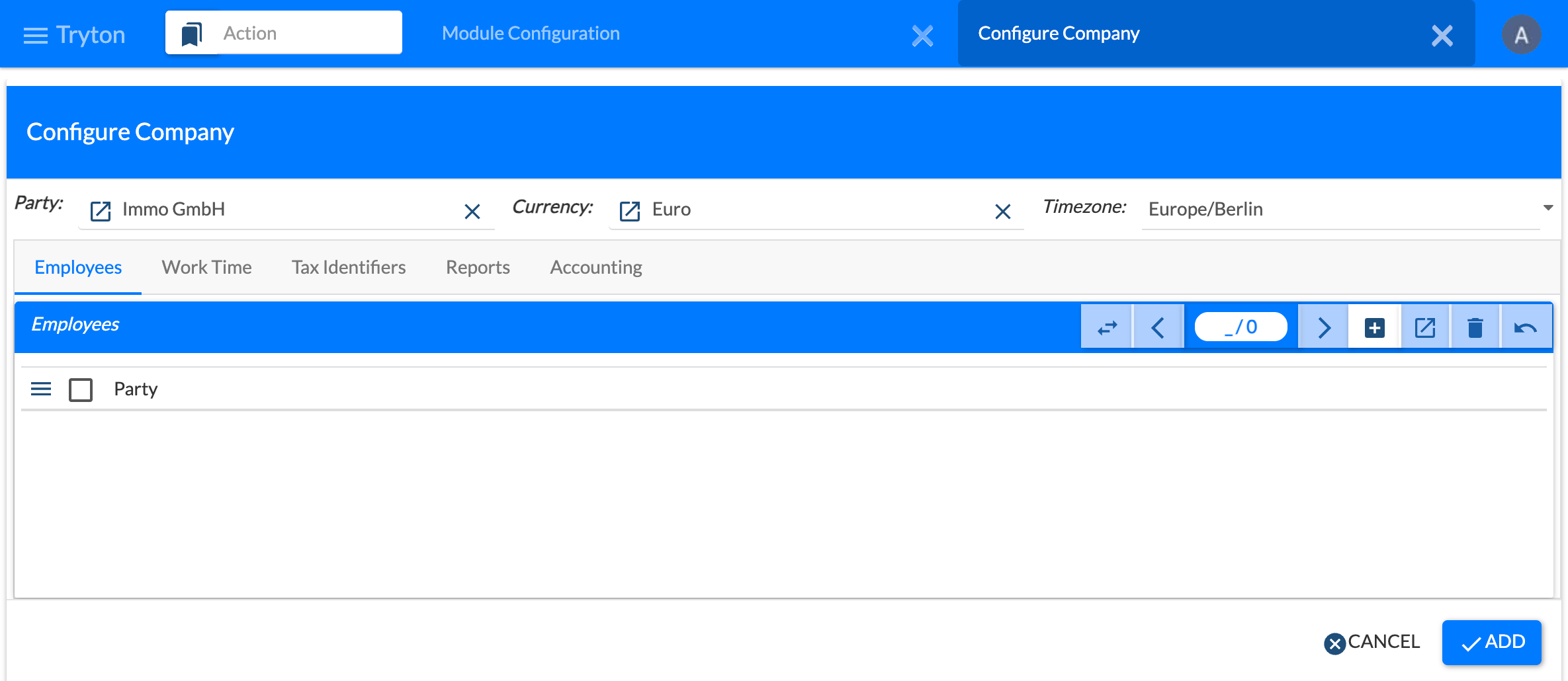
Figure 2.1-10: Configure Company 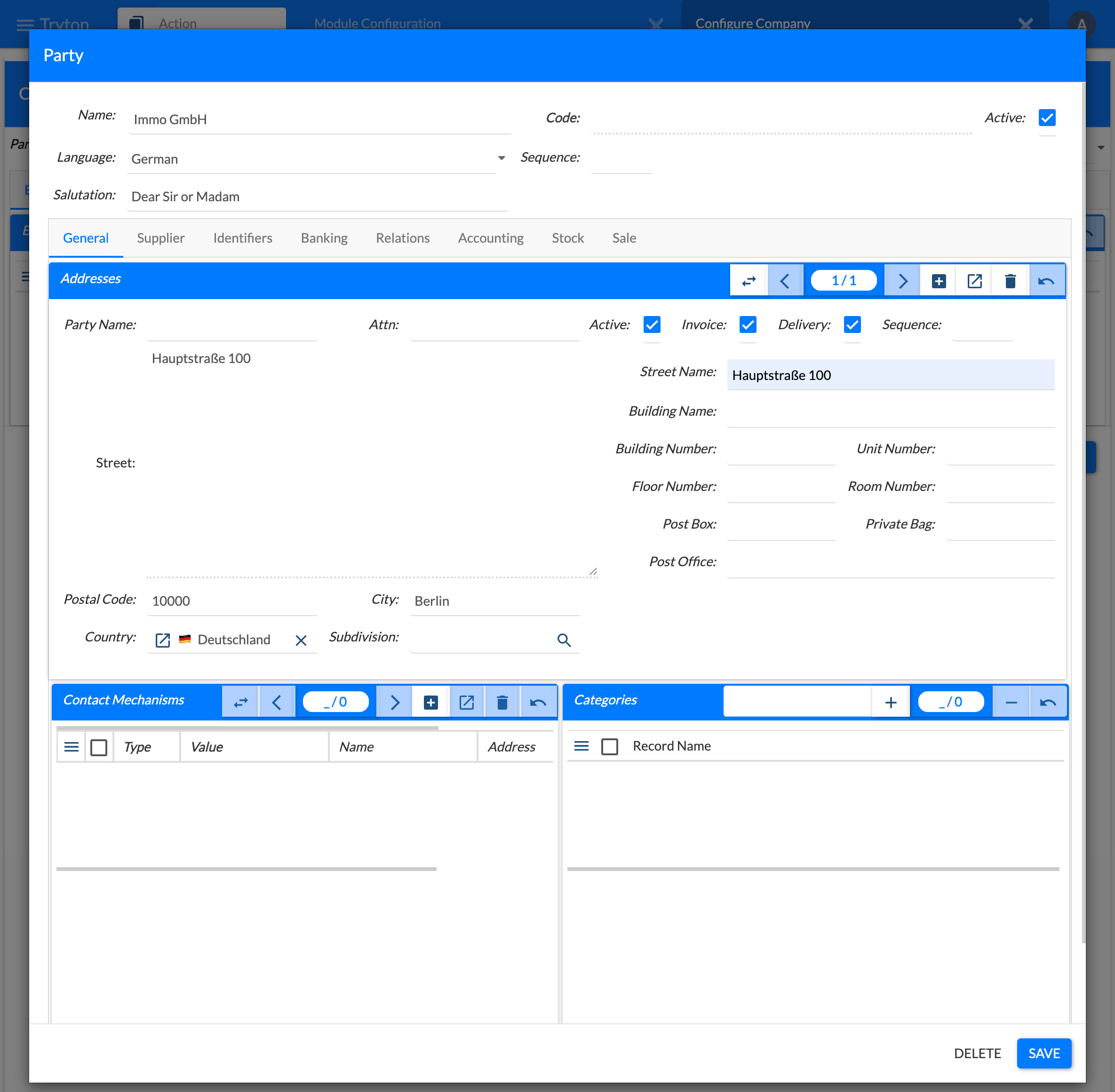
Figure 2.1-11: Party of the company The progress is shown; continue with Next.
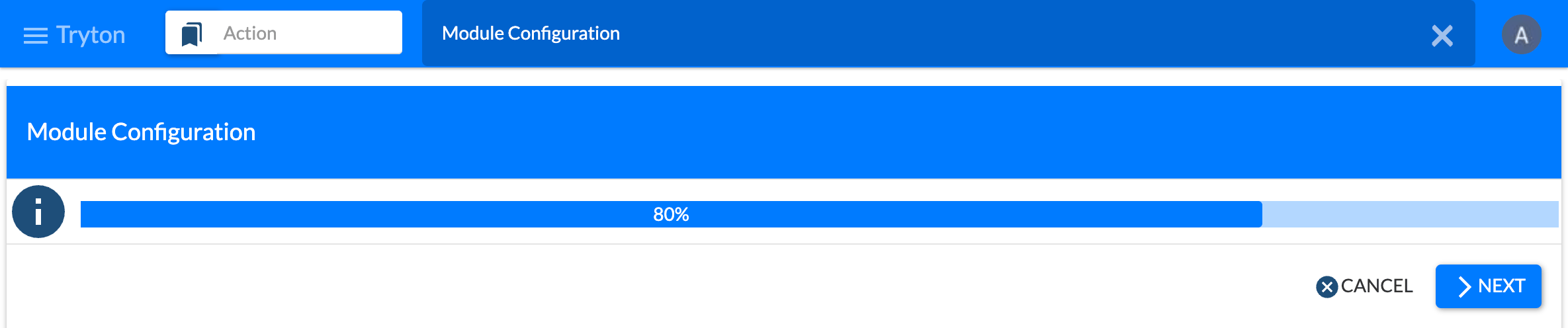
Figure 2.1-12: Progress Create Chart of Accounts from Template: after the note choose company and account template, e.g. Kontenrahmen der Wohnungswirtschaft (WoWi), then set the default accounts for receivables, payables, revenue and expense and create them with Create.
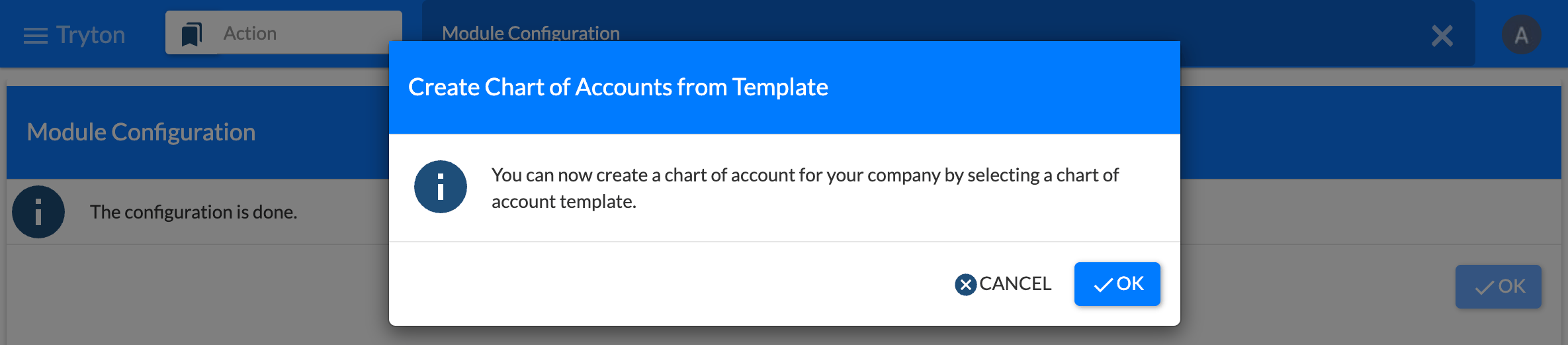
Figure 2.1-13: Chart of accounts – note 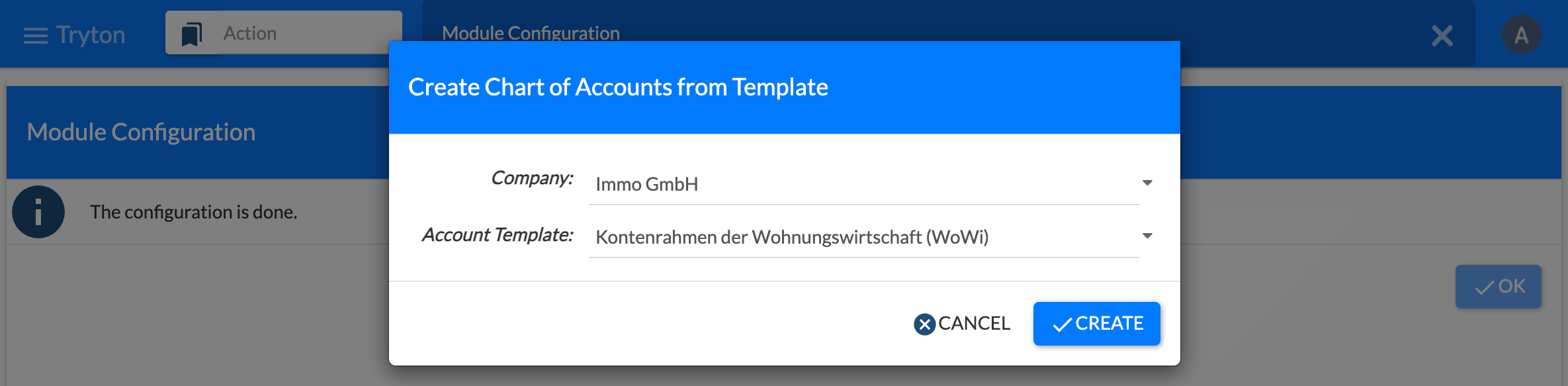
Figure 2.1-14: Chart of accounts – choose template 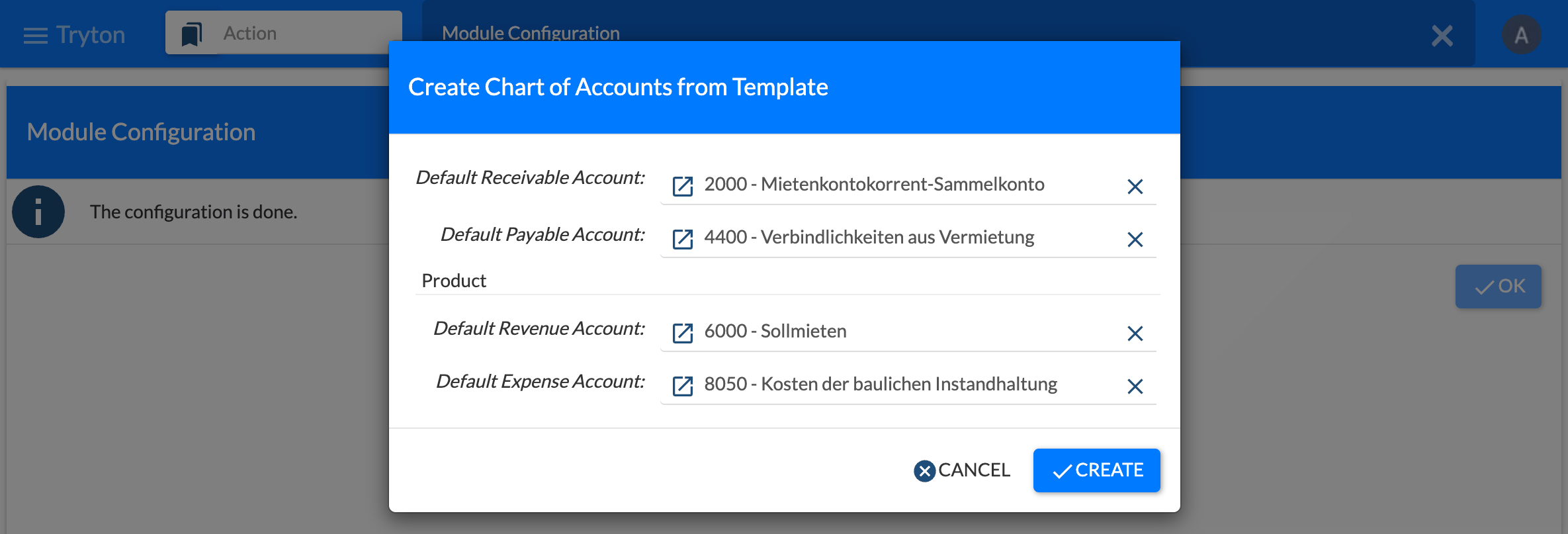
Figure 2.1-15: Chart of accounts – default accounts “The configuration is done.” – finish with OK.
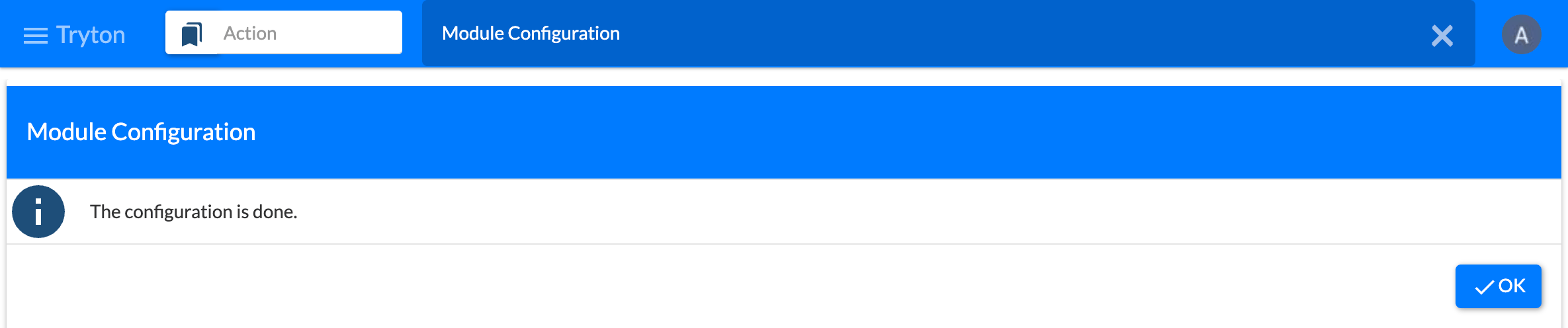
Figure 2.1-16: Configuration done
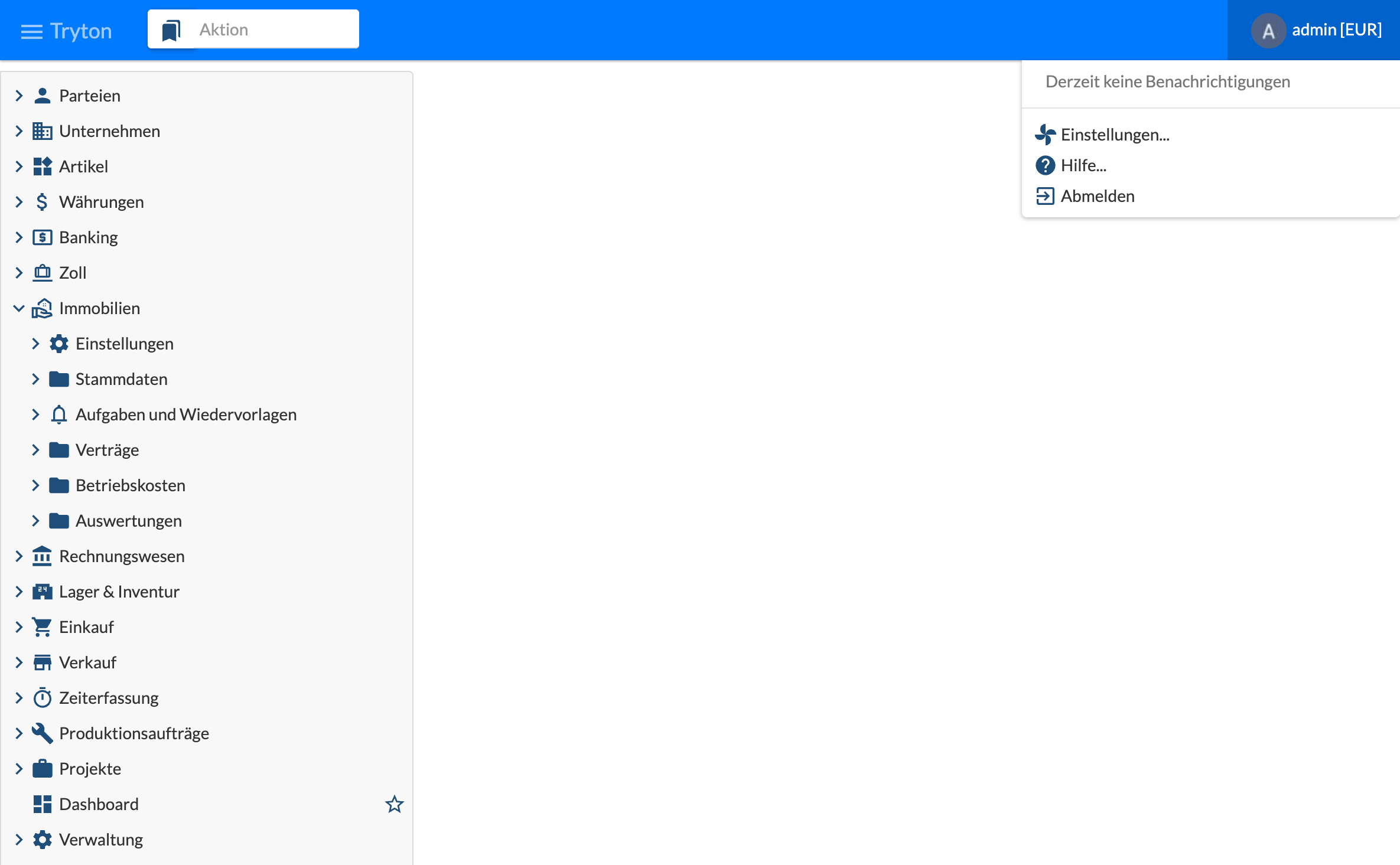
The menu with Immobilien (real estate) is now available. The user menu at the top right (Einstellungen…, preferences) allows, among other things, setting the user’s language.
Further modules can be activated later, see 2.2 Activate Modules.
Starting Server, Worker and Cron
For full operation three processes run side by side, each in its own terminal in the project directory:
| Process | Task |
|---|---|
Server (trytond) | Login and use via the client |
Worker (trytond-worker) | Background processing (queue), e.g. Ausführen (Execute) of an adjustment run; requires [queue] worker = True |
Cron (trytond-cron) | Scheduled jobs, e.g. fetching the price indices, see 2.6 Jobs and Periodic Tasks |
The server is started as described above:
The worker for background processing:
The cron for scheduled jobs:
If the worker is not running, background tasks stay in the queue; if the cron is not running, no jobs are executed.
2.3 Users, Login and Permissions
Overview
Users and groups are part of standard Tryton. This page only gives an overview of what matters for real estate management; the other tabs are described in the Tryton documentation.
Every person working with the system is created twice:
- as a user under Verwaltung › Benutzer › Benutzer (Administration › Users › Users) – for login and access rights;
- as a party (business partner) and as an employee of the company – for responsibilities, tasks and correspondence, see 3.2 Companies and Employees.
Create a User
The header of the form holds Name, Benutzername (login), Passwort (password, made visible with Anzeigen), Aktiv, E-Mail and a picture. Below follow the tabs Benutzer (user), Aktionen (actions), Zugriffsberechtigungen (access permissions), Anwendungen (applications), Einstellungen (preferences) and Dashboard.
Tab User: Companies and Employees
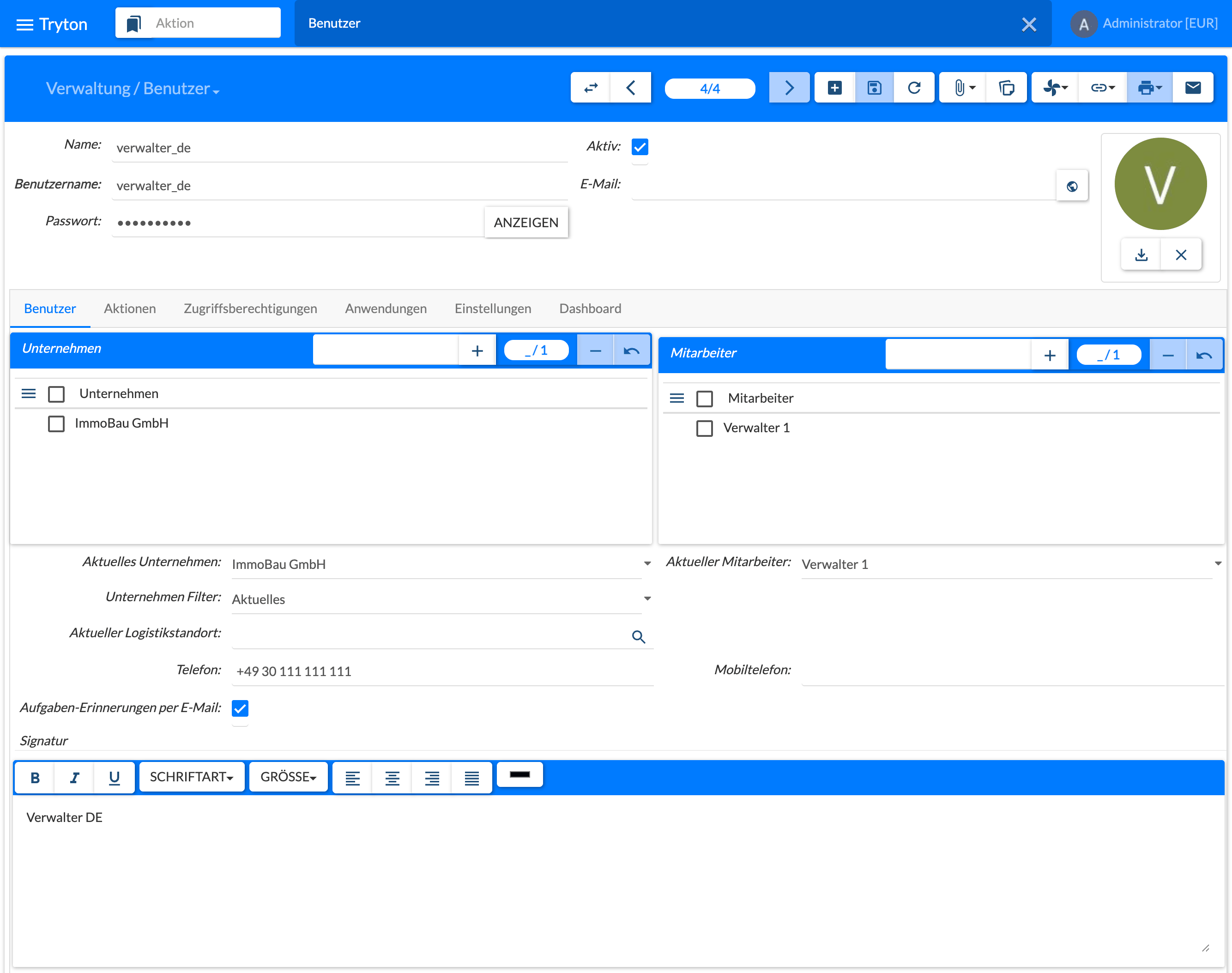
In the tab Benutzer (user) the system user is linked with their Mitarbeiter (employee), i.e. the party (business partner) from 3.2 Companies and Employees. Only then can the employee be used in processes and tasks, and the user receives and handles their tasks, see 10 Tasks and Processes.
- Unternehmen (companies): the companies the user may work for.
- Mitarbeiter (employees): the employee parties of the user. This list determines which user is responsible for a task: if an employee holds the responsible party role on the object, the user receives the task, see 5.1 Property – tab Partner. An employee should therefore be assigned to exactly one user.
- Aktuelles Unternehmen and Aktueller Mitarbeiter (current company / employee): what the user is currently working with. The Aktueller Mitarbeiter is set (in the figure Verwalter 1) and entered e.g. as Erledigt von (done by) when a task is completed. Unternehmen Filter (company filter) defines whether only data of the current company is shown.
- Aktueller Logistikstandort (current warehouse): for stock and inventory.
- Telefon and Mobiltelefon (phone, mobile) of the user.
- Aufgaben-Erinnerungen per E-Mail (task reminders by e-mail): in addition to the notification in the client, the user receives e-mail reminders for tasks whose type sends e-mails.
- Signatur (signature): formatted text, e.g. for e-mails.
Groups and Permissions
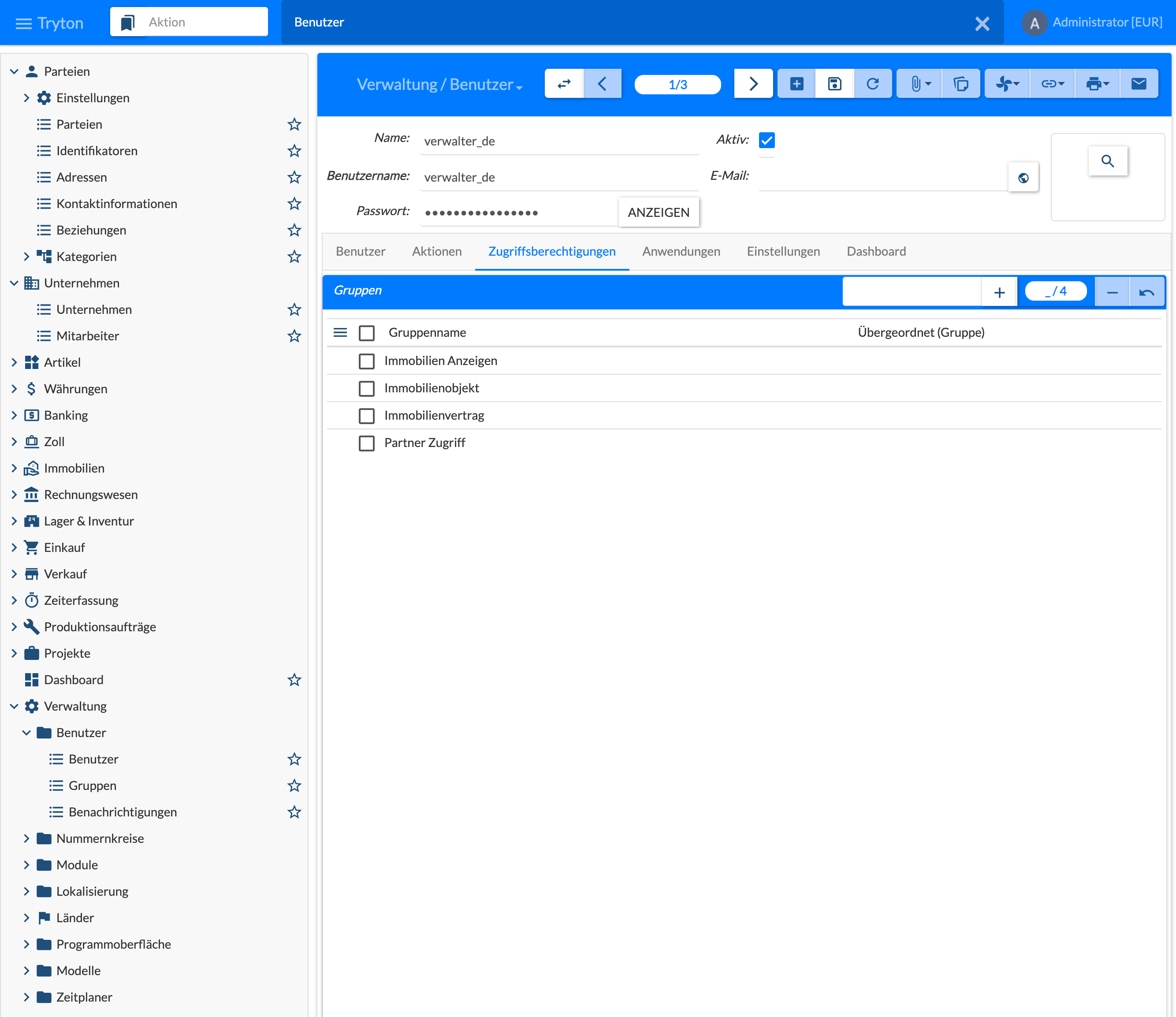
In the tab Zugriffsberechtigungen Gruppen (groups) are assigned to the user; + adds a group, − removes it. The groups control which menus are visible and which data may be read or changed. The module ships these groups:
| Group | Purpose |
|---|---|
| Immobilien Administration (Real Estate Administration) | Maintain settings and master data of the module |
| Immobilienobjekt (Real Estate Object) | Edit real estate objects |
| Immobilienvertrag (Real Estate Contract) | Edit contracts |
| Immobilien Abrechnung (Real Estate Billing) | Carry out the operating cost settlement |
| Immobilien Anzeigen (Real Estate View) | Read everything in the module, change nothing |
| Rechnungswesen Anzeigen (Accounting View) | Read accounting data, change nothing |
| Partner Zugriff (Party Access) | Create, change and delete parties – all other groups see parties read-only |
In the figure the user has the groups Immobilien Anzeigen, Immobilienobjekt, Immobilienvertrag and Partner Zugriff. The groups themselves are under Verwaltung › Benutzer › Gruppen.
2.4 Sequences
Sequences
Sequences assign the numbers of documents, transactions and master data of all modules.
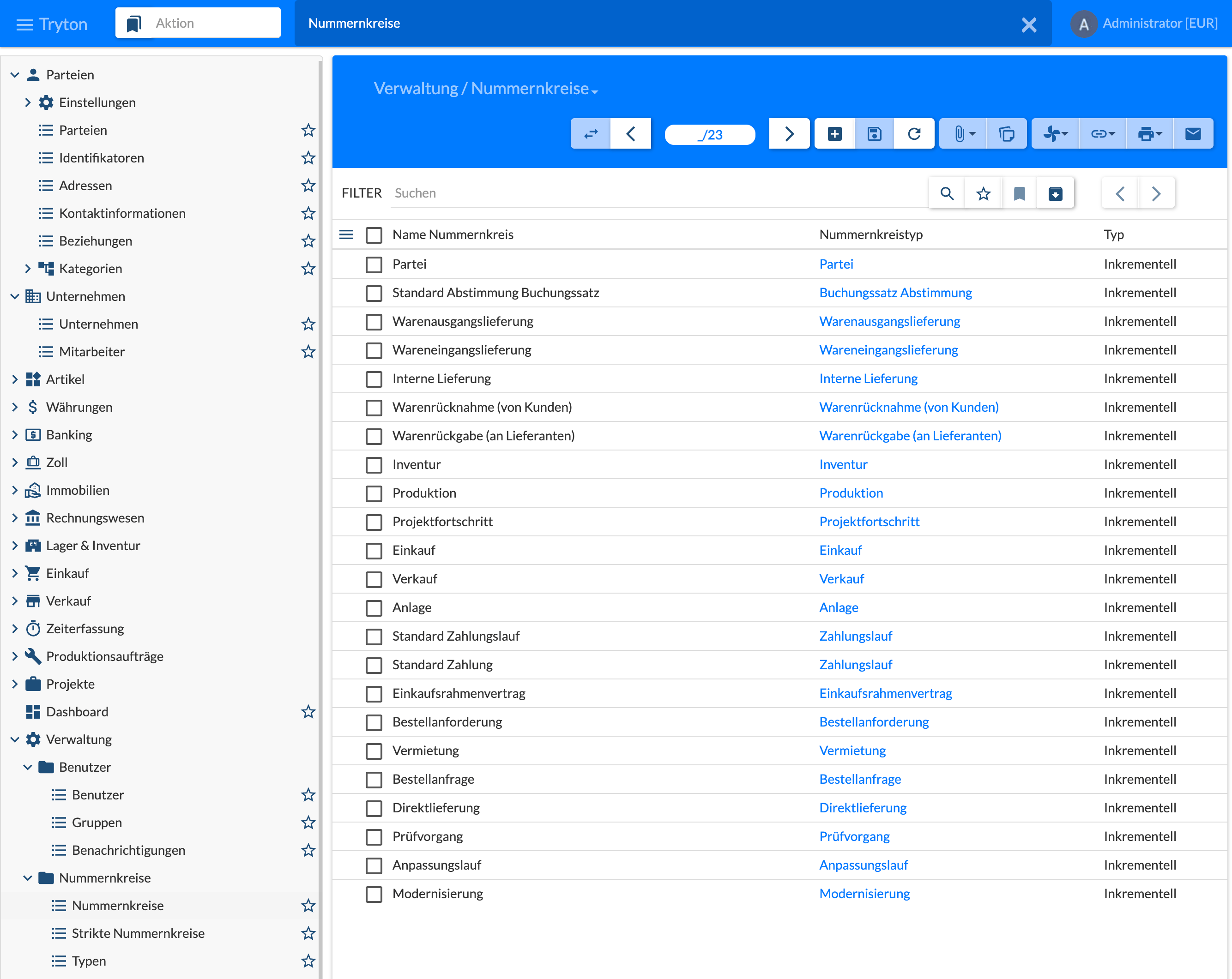
Normal sequences are under Verwaltung › Nummernkreise › Nummernkreise (Administration › Sequences › Sequences). Besides those of the Tryton modules (party, shipments, purchase, sale, payment group etc.) the real estate module ships and sets up its own sequences:
| Sequence | Prefix | Example |
|---|---|---|
| Anpassungslauf (adjustment run) | AL-${year}- | AL-2026-0001, see 6.7 Rent Adjustments |
| Modernisierung (modernisation) | MOD-${year}- | MOD-2026-0001, see 6.7.4 Modernisation |
| Prüfvorgang (inspection) | PR-${year}- | PR-2026-0001, see 8.2 Performing Inspections |
${year} is replaced by the current year, the running number has four digits with leading zeros. Prefix and padding can be adapted if required.
Strict Sequences
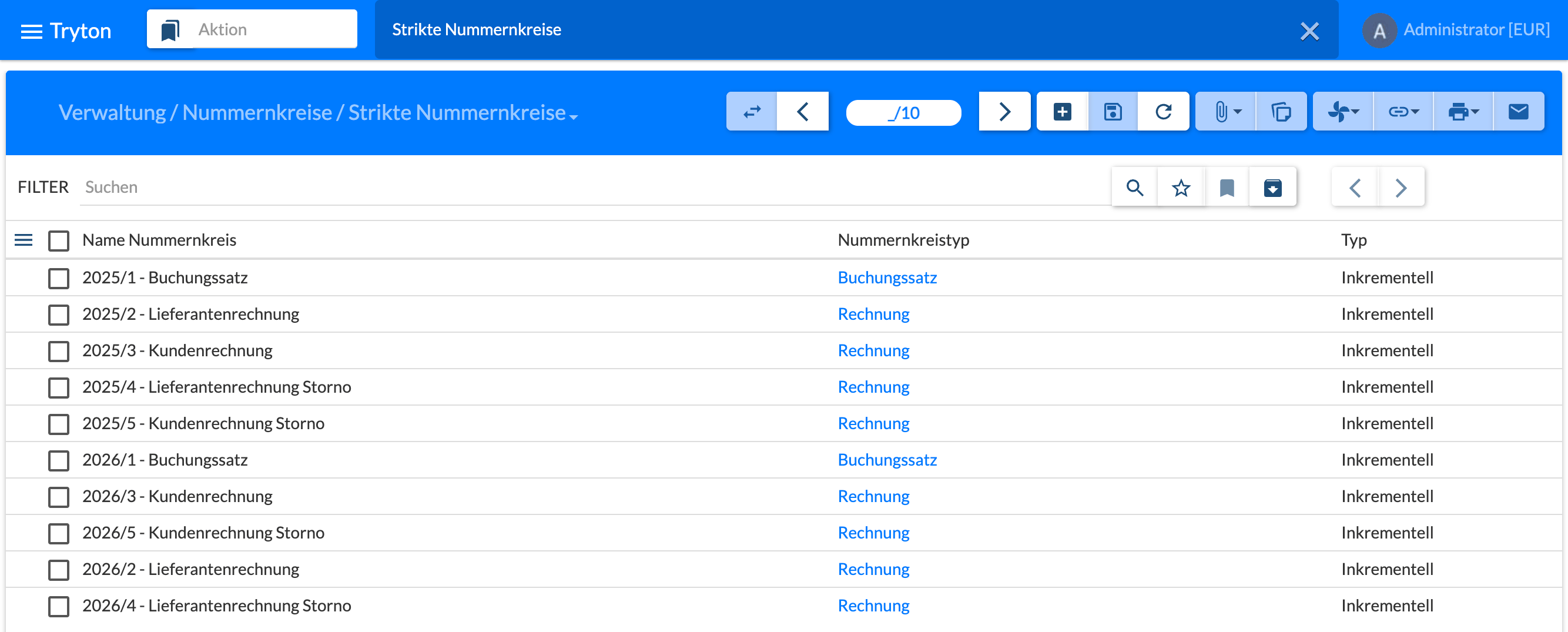
Accounting needs strict sequences (Strikte Nummernkreise): they assign consecutive numbers without gaps, as required for account moves and invoices. They are under Verwaltung › Nummernkreise › Strikte Nummernkreise (Administration › Sequences › Strict Sequences); normal sequences under Nummernkreise, the kinds under Typen (types).
Typically there is one strict sequence per fiscal year for:
| Sequence | Sequence type |
|---|---|
| Buchungssatz (account move) | Buchungssatz |
| Lieferantenrechnung (supplier invoice) | Rechnung (invoice) |
| Kundenrechnung (customer invoice) | Rechnung |
| Lieferantenrechnung Storno (supplier credit note) | Rechnung |
| Kundenrechnung Storno (customer credit note) | Rechnung |
In the figure the names carry the fiscal year and a running number (2025/1 … 2025/5, 2026/1 … 2026/5), all of type Inkrementell (incremental). The name must contain the full name of the fiscal year (e.g. “2025”, not “25”): with Jahresübernahme (renew fiscal year) Tryton copies the sequences and replaces the name of the previous year in the name with that of the following year – “2025/1 - Buchungssatz” thus automatically becomes “2026/1 - Buchungssatz”. The prefix is not adapted, see 4.5 Year-End Closing.
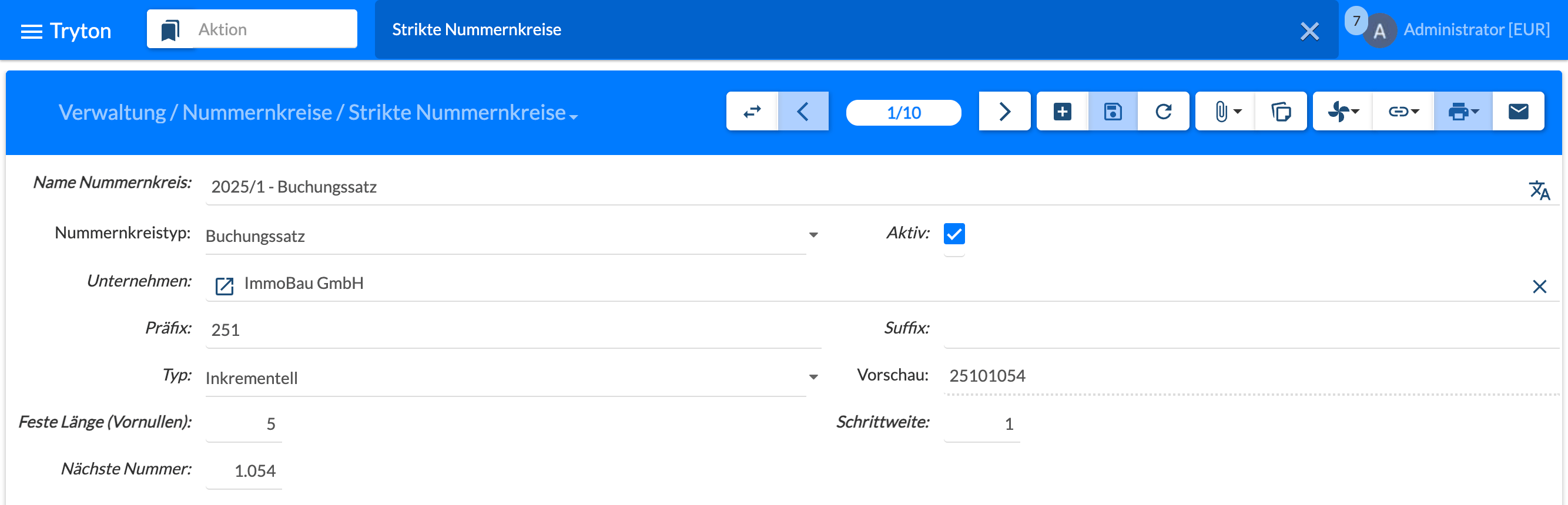
A strict sequence has:
- Name Nummernkreis (name) and Nummernkreistyp (sequence type, e.g. Buchungssatz or Rechnung), Aktiv. The name is translatable (icon on the right of the field), see the note below;
- Unternehmen (company): every sequence is assigned to a company; with several companies each has its own sequences;
- Präfix and Suffix (prefix, suffix), e.g. prefix 251 for year 25, sequence 1;
- Typ (incremental), Feste Länge (Vornullen) (padding), Schrittweite (increment) and Nächste Nummer (next number);
- Vorschau (preview) of the next number from prefix and number, in the figure 25101054 (prefix 251, number 1054 with five digits).
Maintain the Name in All Languages
The Name Nummernkreis is stored per language. The translation icon on the right of the field opens the list of languages; after the setup it often still holds English or older names without fiscal year. Jahresübernahme (renew fiscal year) replaces the fiscal year in each language separately. The name must therefore contain the full name of the fiscal year in every language, e.g. German “2025/1 - Buchungssatz” and English “2025/1 - Account Move”. Otherwise the sequence of the following year gets the old name again in that language.
The strict sequences for accounting are assigned in the fiscal year, see 2.5.1 Accounting.
2.5 Settings
Settings of the module, separate from daily use. Readers who only work with the system can skip this section.
Subsections of 2.5 Settings
2.5.1 Accounting
Info
This page is not complete yet: taxes, payment terms, journals, bank and payments and real estate accounting will be added.
Chart of Accounts
Menu Rechnungswesen › Einstellungen › Konten › Konten (Accounting › Configuration › Accounts › Accounts). The chart of accounts is created from a template during the initial setup, for real estate management from the Kontenrahmen der Wohnungswirtschaft (WoWi) (chart of accounts of the German housing industry), see 2.1 System Requirements and Installation.
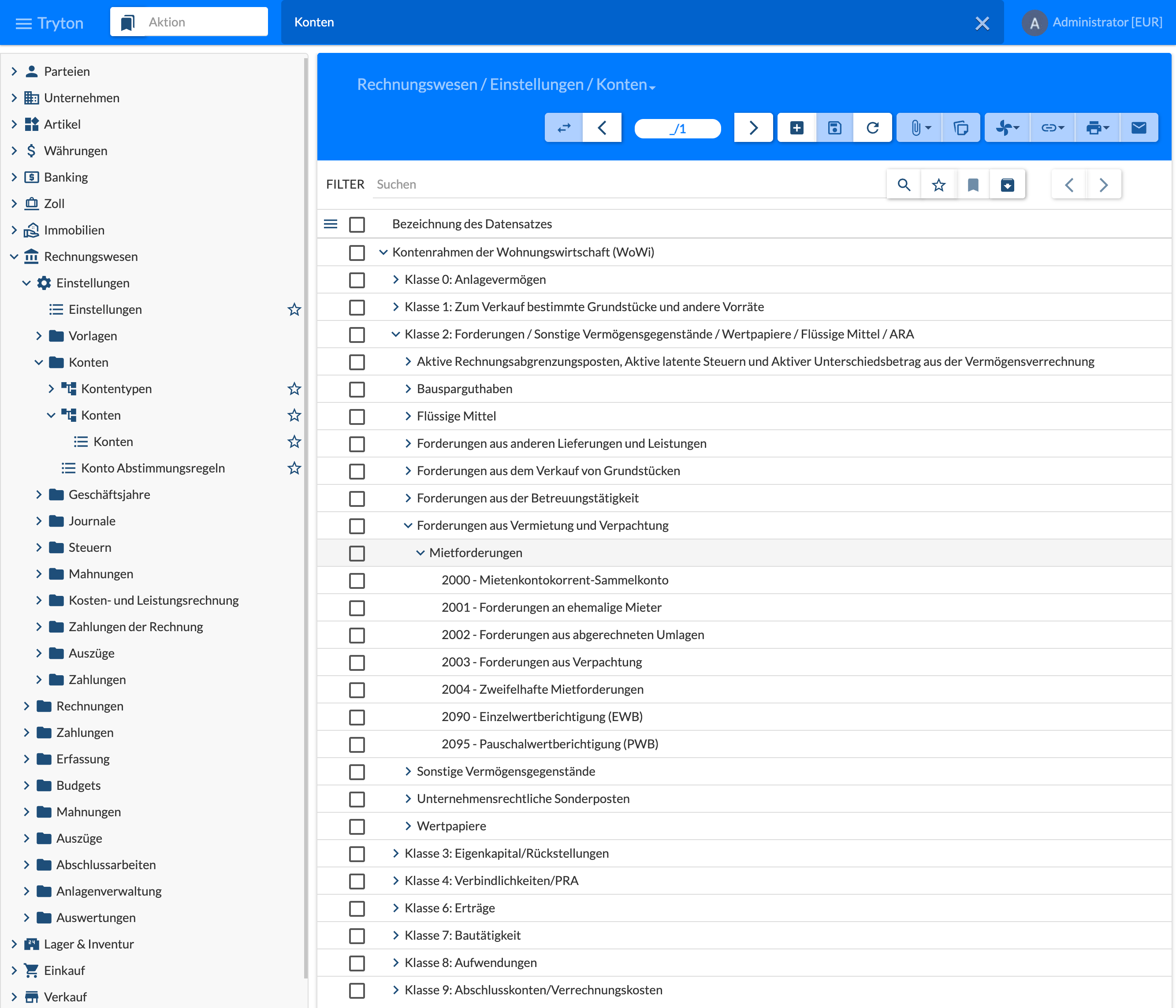
The accounts are structured as a tree: account classes 0 to 9, below them groups and the individual accounts. In the figure class 2 is expanded with the Mietforderungen (rent receivables), among them 2000 Mietenkontokorrent-Sammelkonto, 2001 receivables from former tenants, 2002 receivables from settled apportionments and the value adjustments 2090 and 2095. Kontentypen (account types) hold the structure for balance sheet and income statement, Konto Abstimmungsregeln (account reconciliation rules) the rules for clearing open items.
Configuration
Menu Rechnungswesen › Einstellungen › Einstellungen (Accounting › Configuration › Configuration). It holds the accounting defaults of the company; most of them are set with the chart of accounts during the initial setup, see 2.1 System Requirements and Installation.
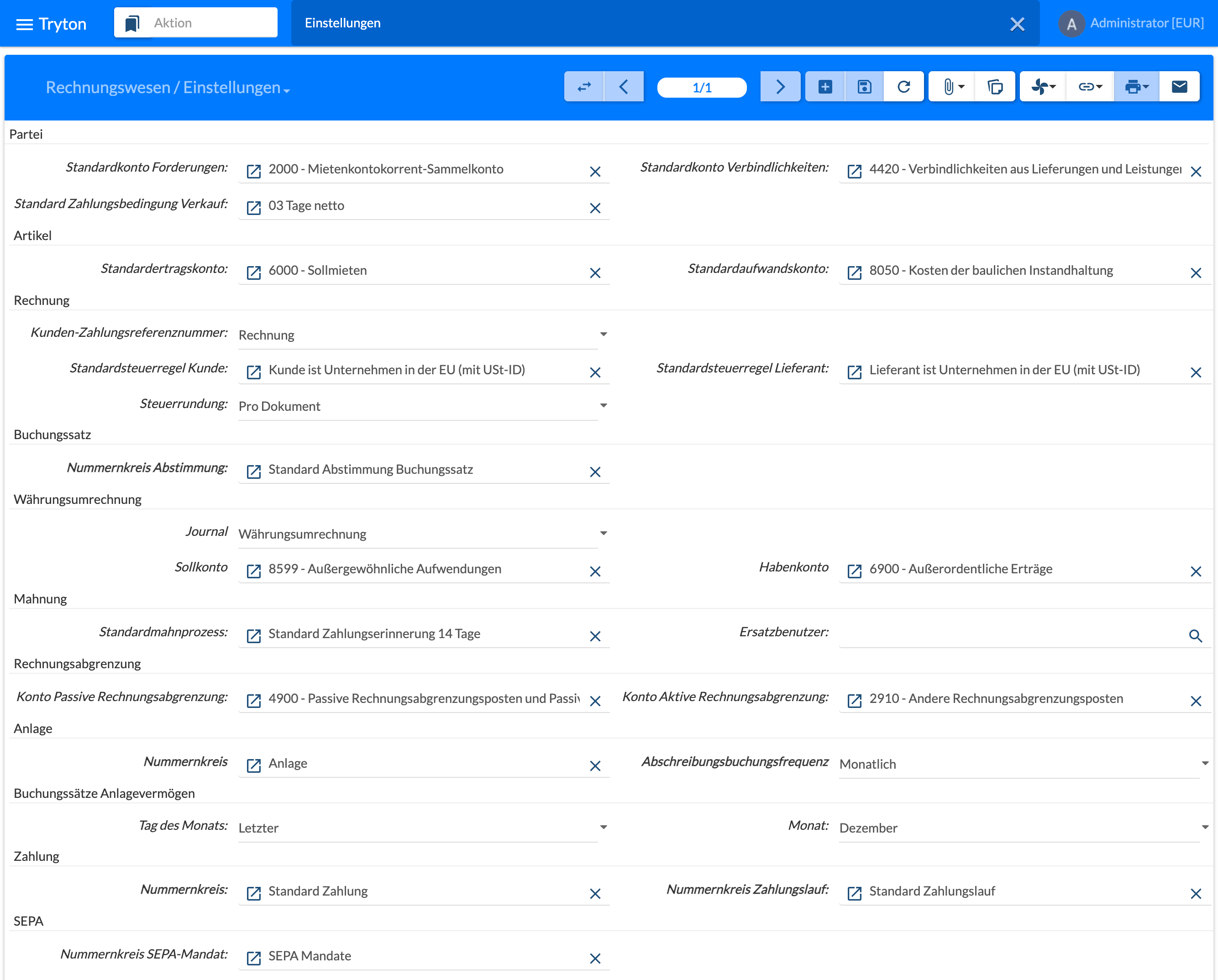
| Area | Settings (example in the figure) |
|---|---|
| Partei (party) | default receivable account (2000 Mietenkontokorrent-Sammelkonto) and payable account (4420), default customer payment term |
| Artikel (product) | default revenue account (6000 Sollmieten) and expense account (8050) |
| Rechnung (invoice) | customer payment reference, default tax rule customer and supplier, tax rounding (per document) |
| Buchungssatz (move) | reconciliation sequence |
| Währungsumrechnung (currency exchange) | journal, debit and credit account for exchange differences |
| Mahnung (dunning) | default dunning procedure, fallback user |
| Rechnungsabgrenzung (deferral) | accounts for deferred revenue and expense |
| Anlage (asset) | sequence, depreciation frequency; day and month of asset moves |
| Zahlung, SEPA (payment) | sequences for payment, payment group and SEPA mandate |
The sequences are described in 2.4 Sequences.
Sequences
Account moves and invoices need strict sequences per company, see 2.4 Sequences. They are assigned in the fiscal year.
Fiscal Year
Menu Rechnungswesen › Einstellungen › Geschäftsjahre › Geschäftsjahre (Accounting › Configuration › Fiscal Years). A fiscal year is created for each year and company before postings are possible in it – the periodic posting of the contracts also needs an open fiscal year.
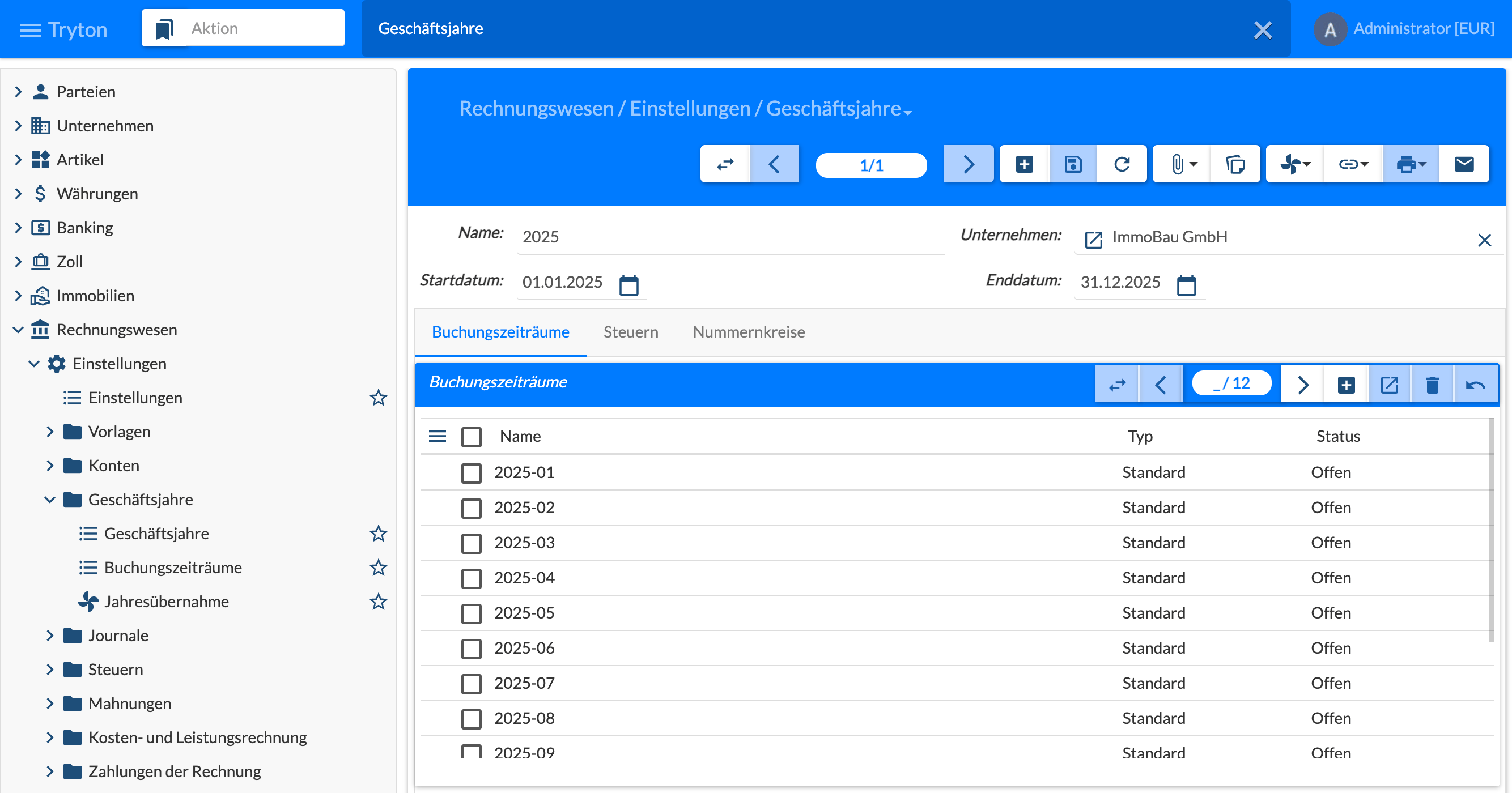
- Header: Name (e.g. 2025), Unternehmen (company), Startdatum and Enddatum (start and end date); at the bottom the Status (open, later closed or locked).
- Tab Buchungszeiträume (periods): the periods of the year, usually monthly (2025-01 to 2025-12) with type Standard and state Offen (open). Postings are only possible in open periods; finished months are closed.
- Tab Nummernkreise (sequences), see below; next to it the tab Steuern (taxes).
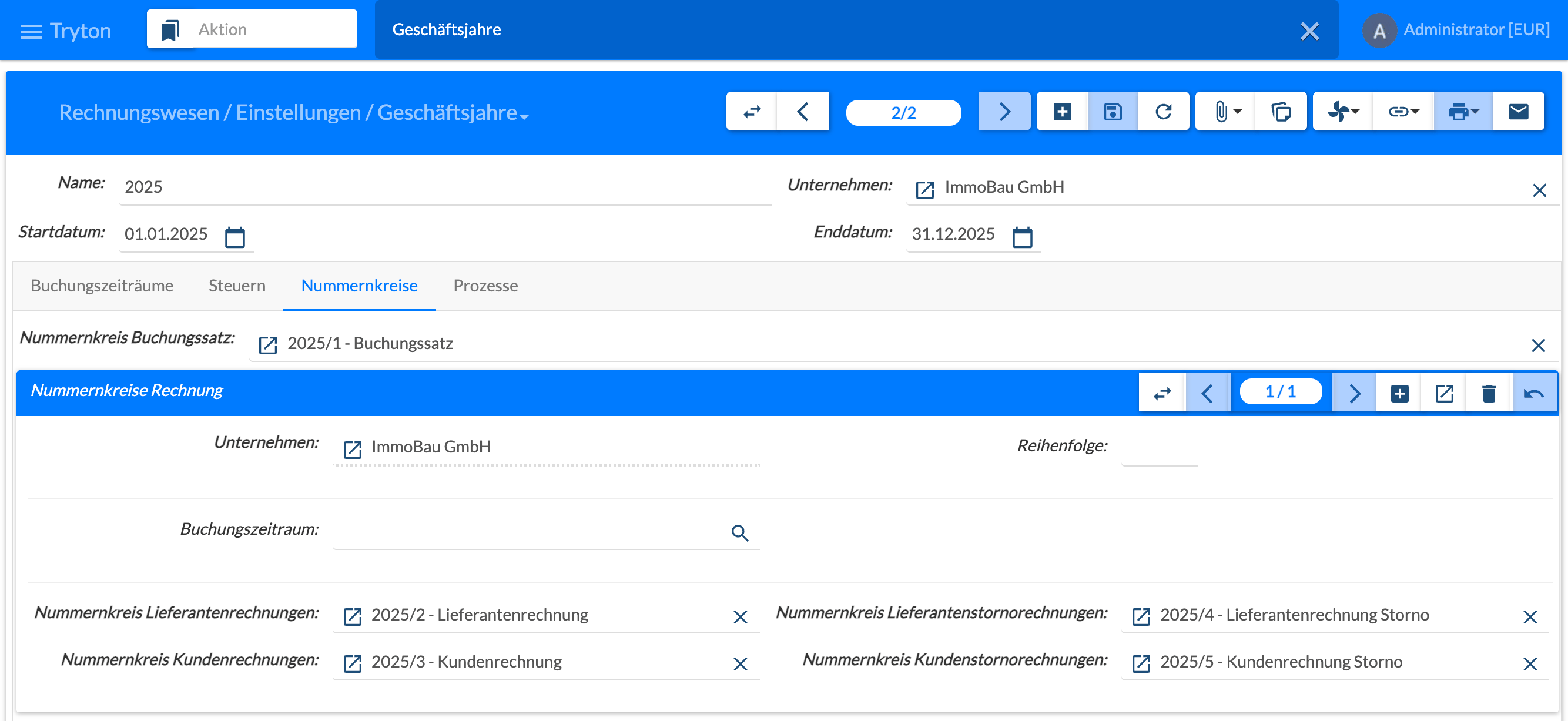
The tab Nummernkreise assigns the strict sequences of the year, see 2.4 Sequences:
- Nummernkreis Buchungssatz (move sequence) for the numbers of posted account moves (in the figure 2025/1 - Buchungssatz);
- Nummernkreise Rechnung (invoice sequences) per company and optionally per period: supplier invoices, supplier credit notes, customer invoices and customer credit notes (in the figure 2025/2 to 2025/5).
Buchungszeiträume lists all periods of all years; Jahresübernahme (renew fiscal year) creates the next fiscal year based on the previous one at year end, with periods and new sequences.
Taxes
Payment Terms
Journals
Bank and Payments
Credit transfers and direct debits are first posted against a transit account Bankbewegung (Geldtransit); only the bank statement posts from the transit account to the bank account. Open items on the transit account are payments not yet confirmed by the bank. Setup in the right order and posting flow: see 4.2 Payments.
Bank Accounts in the Chart of Accounts
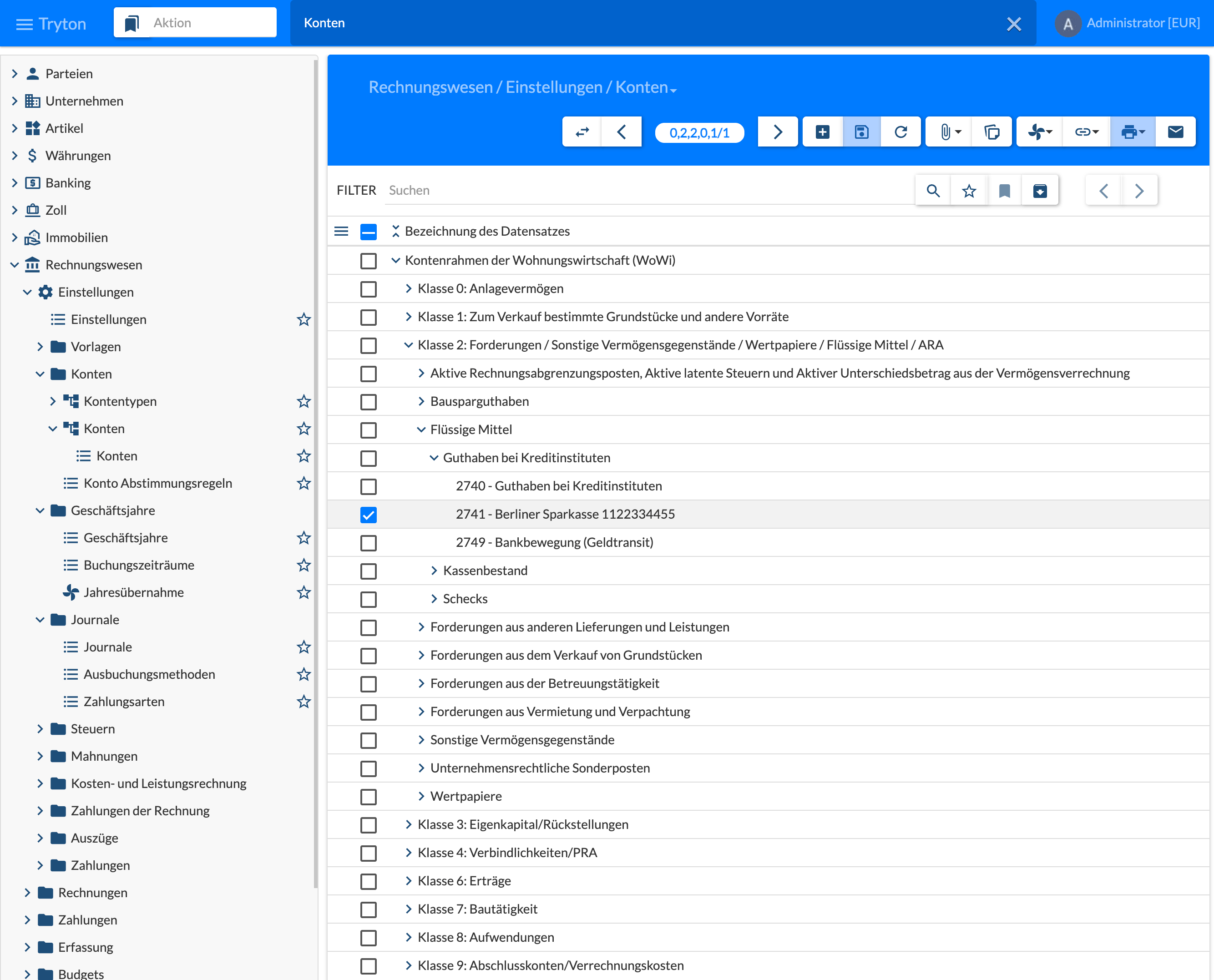
Under Klasse 2 › Flüssige Mittel › Guthaben bei Kreditinstituten (class 2 › liquid funds › bank balances) own accounts are created besides the template account 2740 (menu Rechnungswesen › Einstellungen › Konten › Konten, +):
| Account | Purpose | Important settings |
|---|---|---|
| 2741 bank account (one per bank, in the figure Berliner Sparkasse) | Movements according to the bank statement | Account type as 2740 |
| 2749 Bankbewegung (Geldtransit, transit) | Transit account for credit transfers and direct debits | Account type as 2740, Abstimmen (reconcile) checked, no party required |
Template accounts such as 2740 are not renamed: when the chart of accounts is updated after a module update, Tryton takes name and settings from the template again.
Real Estate Accounting
3 Business Partners and Companies
Subsections of 3 Business Partners and Companies
3.1 Managing Parties
Overview
Parties and companies are part of standard Tryton, not of the real estate module. This page only gives an overview of the forms and the fields that matter for real estate management; the other tabs are described in the Tryton documentation.
Business partners are called Parteien (parties) in Tryton – persons and companies alike: tenants, owners, suppliers, service providers, authorities and also the own company. A party is created once and then used in all areas, in contracts, invoices and on the real estate objects.
Entry and List
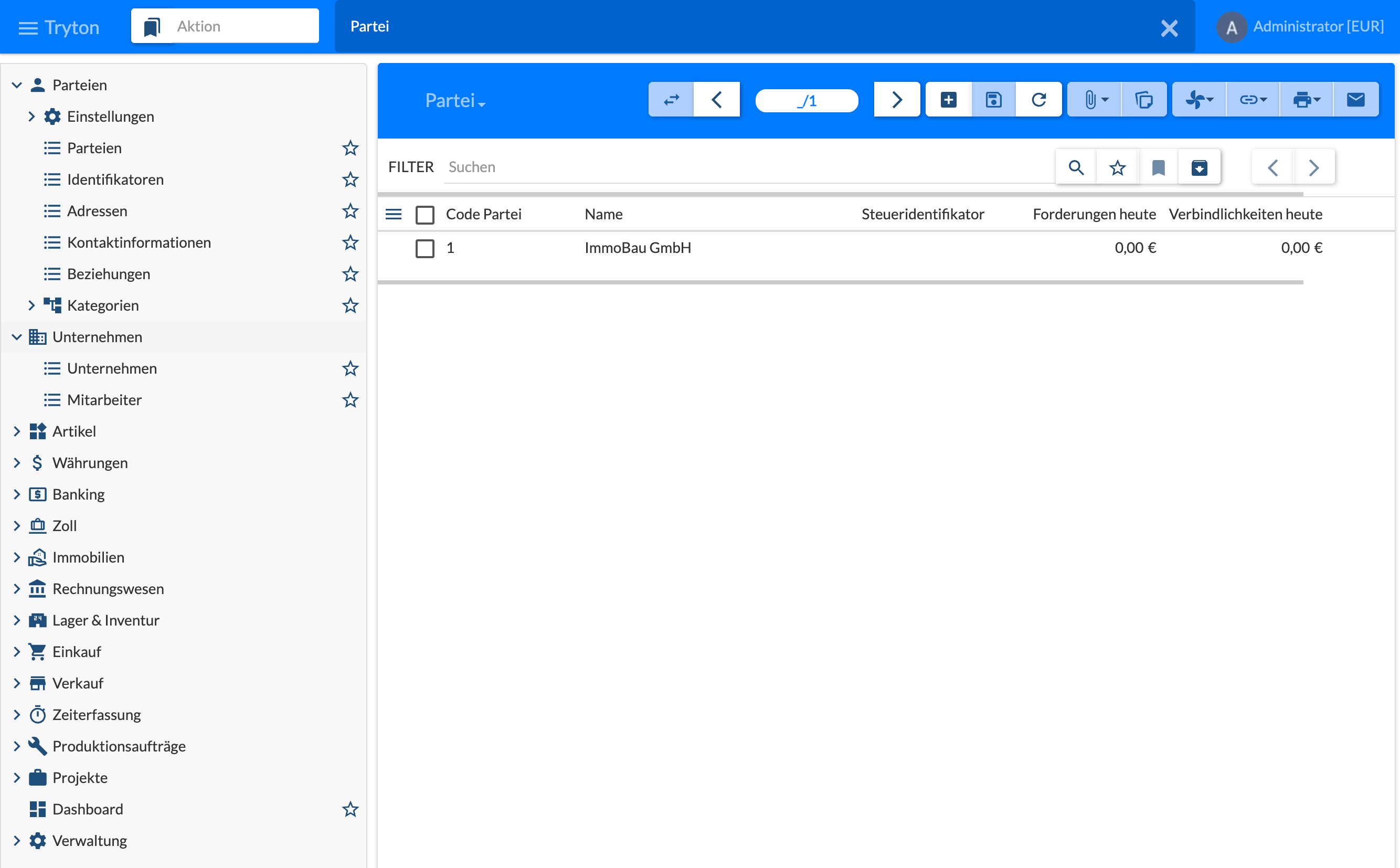
The menu Parteien (Parties) contains:
| Menu | Content |
|---|---|
| Einstellungen (Configuration) | Basic settings of the parties, e.g. number sequence |
| Parteien (Parties) | List and form of the parties |
| Identifikatoren (Identifiers) | All identifiers, e.g. tax numbers |
| Adressen (Addresses) | All addresses |
| Kontaktinformationen (Contact Mechanisms) | Phone, e-mail, website etc. |
| Beziehungen (Relations) | Relations between parties |
| Kategorien (Categories) | Categories for grouping parties |
The list Parteien shows Code Partei (party code), Name, Steueridentifikator (tax identifier) and Forderungen heute / Verbindlichkeiten heute (receivables / payables today). Filter searches, a double click opens the form, + creates a new party.
The menu Unternehmen (Company) with Unternehmen and Mitarbeiter (employees) is described in 3.2 Companies and Employees.
Form and Tab General
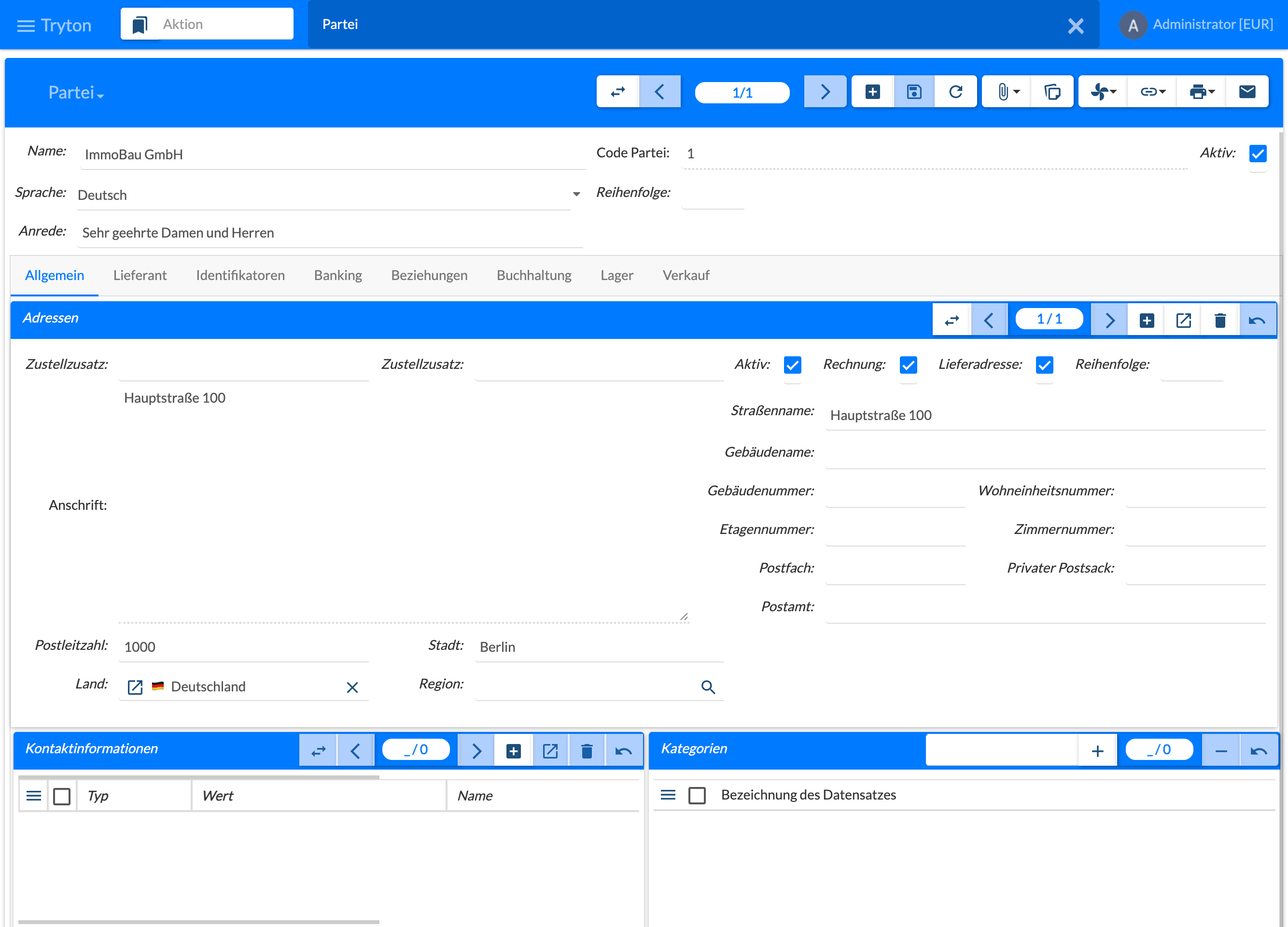
The header of the form holds Name, Code Partei (party code, assigned on saving), Aktiv (active), Sprache (language of the correspondence), Reihenfolge (sequence) and Anrede (salutation), e.g. “Sehr geehrte Damen und Herren” for the letters. Below follow the tabs Allgemein (general), Lieferant (supplier), Identifikatoren (identifiers), Banking, Beziehungen (relations), Buchhaltung (accounting), Lager (stock) and Verkauf (sale).
The tab Allgemein contains:
- Adressen (addresses): one or more addresses with street name, postal code, city and country; further fields such as building name and number, floor, post box or region are optional. The flags Rechnung (invoice) and Lieferadresse (delivery) define what the address is used for; Zustellzusatz (party name / attention) takes e.g. “c/o” or a different name. + creates a further address, the arrows switch between the addresses.
- Kontaktinformationen (contact mechanisms): phone, mobile, e-mail, website etc. with type, value and name.
- Kategorien (categories): assignment to categories, see 3.4 Relations, Contact Mechanisms and Categories.
3.2 Companies and Employees
Overview
Parties and companies are part of standard Tryton, not of the real estate module. This page only gives an overview of the forms and the fields that matter for real estate management; the other tabs are described in the Tryton documentation.
A company is itself a party in Tryton: name, address, language and contact details are maintained on the party; the company adds currency, timezone and the settings for employees, taxes, reports and accounting. The first company is created during the initial setup, see 2.1 System Requirements and Installation. All real estate data – properties, contracts, postings – belongs to exactly one company.
Company Form
Menu Unternehmen › Unternehmen (Company › Companies).
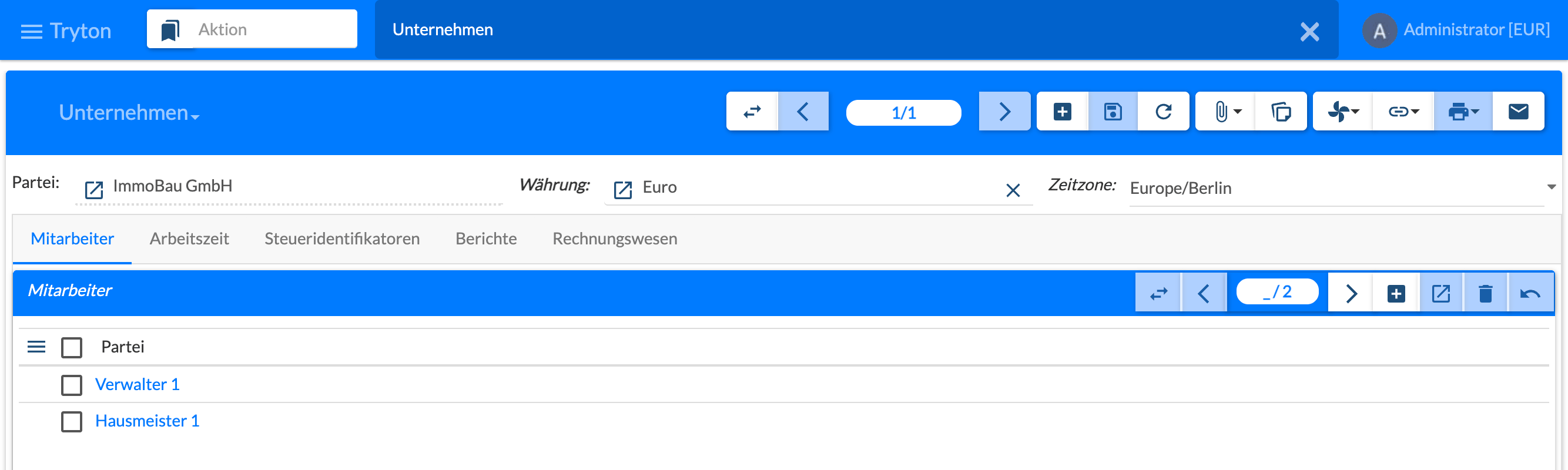
The header holds Partei (the party of the company), Währung (company currency, e.g. Euro) and Zeitzone (timezone, e.g. Europe/Berlin). Below follow the tabs Mitarbeiter (employees), Arbeitszeit (work time), Steueridentifikatoren (tax identifiers), Berichte (reports) and Rechnungswesen (accounting).
Employees
Employees are parties as well. The tab Mitarbeiter lists the employees of the company – in the figure a property manager and a caretaker; a click on the name opens the party. + assigns an employee. All employees are also listed in the menu Unternehmen › Mitarbeiter.
Employees are assigned to a user, see 2.3 Users, Login and Permissions, and can be responsible for objects and tasks via party roles, see 3.3 Party Roles.
Tax Identifiers
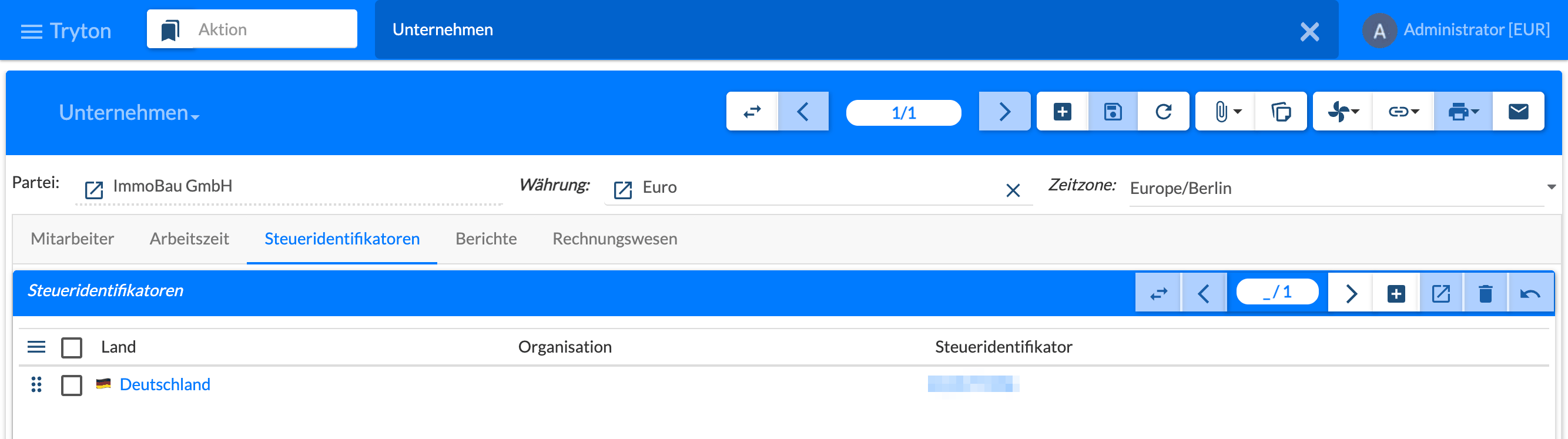
The tab Steueridentifikatoren (tax identifiers) defines which tax number the company uses per Land (country), optionally per Organisation, e.g. on invoices. The selected Steueridentifikator is an identifier entered on the party of the company in the tab Identifikatoren – the number itself is maintained on the party, see 3.1 Managing Parties.
Reports
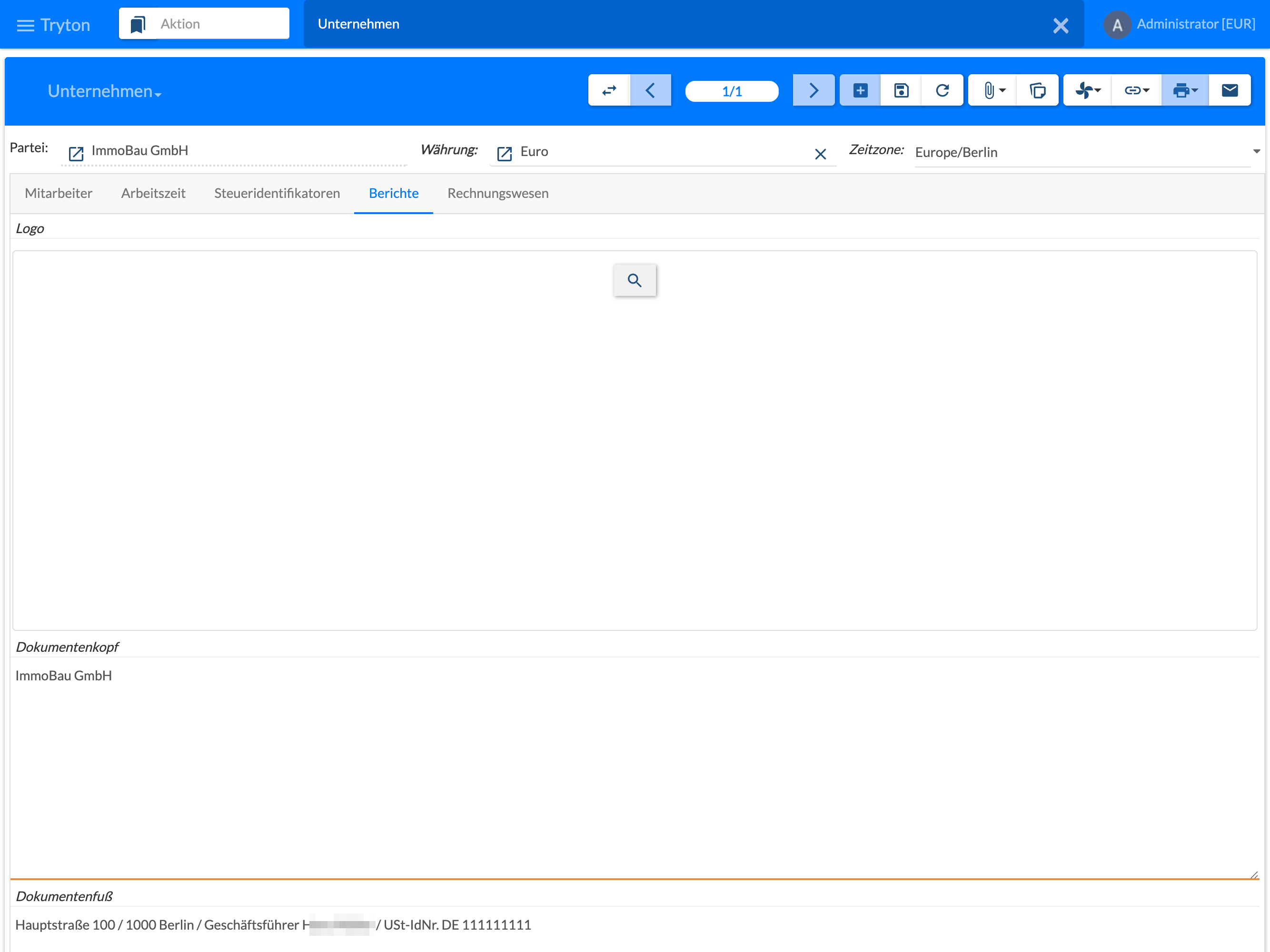
The tab Berichte (reports) holds Logo, Dokumentenkopf (document header) and Dokumentenfuß (document footer) for the correspondence and reports of the company, e.g. rent increase letters, settlements and invoices. The footer typically contains address, management and VAT ID.
Accounting
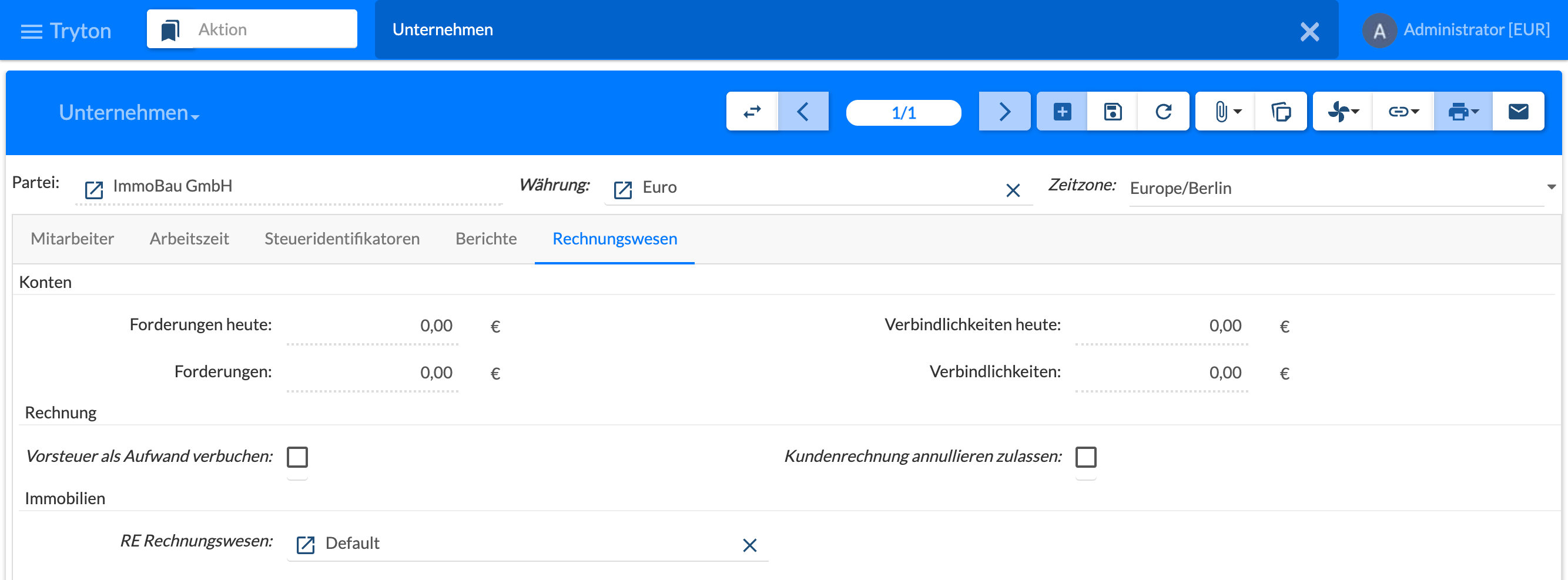
The tab Rechnungswesen (accounting) shows under Konten (accounts) the current Forderungen (receivables) and Verbindlichkeiten (payables) of the company (total and due today). Under Rechnung (invoice) are the settings Vorsteuer als Aufwand verbuchen (book input tax as expense) and Kundenrechnung annullieren zulassen (allow cancelling customer invoices).
Under Immobilien (real estate), RE Rechnungswesen (real estate accounting) selects the set of real estate settings that applies to the company, in the figure “Default”. Among other things it controls payment terms and lead times of the module, see 2.5.1 Accounting.
4 Accounting
Subsections of 4 Accounting
4.2 Payments
Info
This page is not complete yet and will be extended.
House Bank and Credit Transfer/Direct Debit
Credit transfers (outgoing) and direct debits (incoming) run via SEPA payments. Posting takes two steps: first the payment is posted against the transit account Bankbewegung (Geldtransit), only the bank statement posts from the transit account to the bank account. What remains open on the transit account has not yet been confirmed by the bank.
Setup (once, in this order)
- Accounts in the chart of accounts: bank account (e.g. 2741) and transit account 2749 Bankbewegung (Geldtransit) with Abstimmen (reconcile), see 2.5.1 Accounting – Bank and Payments.
- Bank and bank account under Banking: the bank as a party with BIC, the bank account with IBAN, owner is the party of the company.
- SEPA creditor identifier on the party of the company in the tab Identifikatoren – required for direct debits.
- Journals: a journal Bank (type statement) for the bank statement and a journal Zahlungsverkehr (type general) for the transit postings.
- Statement journal (Configuration › Statements): journal Bank, bank account (IBAN), bank account in the chart (2741), validation by balance.
- Payment journals (Configuration › Payments), one each for SEPA credit transfer (pain.001) and SEPA direct debit (pain.008, CORE) – each with bank account, clearing account 2749 Bankbewegung and clearing journal Zahlungsverkehr.
- Master data of tenants and suppliers: IBAN on the party in the tab Banking; for tenants paying by direct debit a valid SEPA mandate (Accounting › Payments › Mandates).
Credit Transfer (Outgoing)
- Select open payables and Pay Lines – payments are created as drafts.
- Approve and process the payments: a SEPA file (pain.001) is created for online banking.
- When the payment is Succeeded (manually or via an imported bank message CAMT.054), Tryton posts payable to 2749 Bankbewegung in the journal Zahlungsverkehr; the supplier item is reconciled.
- With the bank statement (e.g. CAMT.053) the statement line is matched to the payment or payment group: 2749 Bankbewegung to bank – the transit account is reconciled again.
Direct Debit (Incoming)
- Create direct debits for due rent receivables of tenants with a valid mandate.
- Approve and process the payments: SEPA file pain.008 for the bank.
- On Succeeded Tryton posts 2749 Bankbewegung to rent receivable (e.g. 2000).
- The bank statement posts bank to 2749 Bankbewegung.
A returned direct debit is entered by setting the payment to Failed: Tryton cancels the transit posting, the receivable is open again.
Manual Payments
Payment Run and Direct Debit
Bank Statement
4.5 Year-End Closing
Info
This page is not yet complete and will be extended.
This page describes the year-end closing as a list in the order of the work steps. The example is the closing year 2025 with the following year 2026. The accounts come from the Kontenrahmen der Wohnungswirtschaft (WoWi).
1. Create the Following Year
Function: Rechnungswesen › Einstellungen › Geschäftsjahre › Jahresübernahme (renew fiscal year), see 2.5.1 Accounting – Fiscal Year.
- Enter: previous year 2025, name “2026”, 01.01.–31.12.2026, tick Nummernkreise zurücksetzen (reset sequences).
- What happens: Tryton creates the fiscal year with 12 periods, plus copies of the sequences for moves and invoices, starting again at 1.
- Watch out:
- In the name of the copies the name of the previous year is replaced by that of the following year, e.g. “2025/1 - Buchungssatz” → “2026/1 - Buchungssatz”. This only works if the name contains the full name of the fiscal year. The prefix is kept and must be adapted by hand, e.g. “251” → “261”, see 2.4 Sequences.
- The following year is needed before the closing anyway: for the January rents, for the operating-cost statement of the closing year (it is only posted in the following year) and as key date for reports.
2. Post All Transactions of the Closing Year
- Periodic posting of the contracts up to 31.12.2025 (Verträge › period. Buchung Verträge).
- Supplier invoices: post all; post or delete invoices in draft.
- Post payments and bank statements up to 31.12.2025, see 4.2 Payments.
- Depreciation (if assets are kept): Anlagen › Abschreibungsbuchungssätze erstellen with date 31.12.2025.
- Post or delete moves in draft. Otherwise the period cannot be closed.
3. Reconcile Open Items
- Rechnungswesen › Abschlussarbeiten › Konten abstimmen (reconcile accounts): reconcile payments and invoices per party.
- Auswertungen › Fälligkeitsliste (aged balance): check open receivables and payables at 31.12.2025. This shows rent arrears and possible value adjustments.
4. Real-Estate Closing Entries
The module does not create these entries automatically. They are entered under Rechnungswesen › Erfassung › Buchungen erfassen with date 31.12.2025.
Operating costs not yet settled: the statement only follows in the next year (deadline 12 months, § 556 (3) BGB). The allocable costs of the closing year from accounts 8000, 8002 and 8910 are therefore capitalised. The amount comes from the actual costs of the cost collectors; only the allocable part is taken.
Debit Credit 1500 Noch nicht abgerechnete Betriebskosten 6460 Bestandserhöhungen bei noch nicht abgerechneten Betriebskosten Tenants’ advance payments: they are already on 4310 Anzahlungen auf unfertige Leistungen, because the condition types 2000, 3000 and 9000 post there. Only a reconciliation is needed. With the statement in the following year, 1500 is released via 6480 Bestandsverminderungen and offset against 4310.
Deposits: reconcile 4391 Mietkautionen with the deposit or trust accounts.
Further: value adjustments on doubtful rent receivables, provisions (e.g. closing and audit costs), deferrals for costs paid in advance for the following year.
VAT: advance return for December and figures for the annual return via Auswertungen › Steuerkennziffern (tax codes, period 2025).
5. Control Reports
- Auswertungen › Kontenblätter (trial balance) for 01.01.–31.12.2025.
- Auswertungen › Gewinn- und Verlustrechnung (income statement) for 2025.
- Auswertungen › Bilanz (balance sheet) at 31.12.2025; the date is initially today.
- Watch out: assets − liabilities equals the result of the income statement. Up to step 7 this is normal in Tryton.
6. Prepare the Closing
Step 7 needs a journal and an adjustment period.
Journal “Jahresabschluss”
Rechnungswesen › Einstellungen › Journale › Journale, new record:
| Field | Value |
|---|---|
| Name | Jahresabschluss |
| Code | e.g. JA |
| Type | Saldenvortrag (situation) |
Nothing else is needed. The move number comes from the sequence of the fiscal year. The journal is reused every year.
Adjustment Period
Rechnungswesen › Einstellungen › Geschäftsjahre, open fiscal year 2025, tab Perioden, new line:
| Field | Value |
|---|---|
| Name | Abschluss 2025 |
| Start / End | both 31.12.2025 |
| Type | Berichtigung (adjustment) |
| Sequence | leave empty – the one of the fiscal year applies |
The adjustment period may overlap with the December period; this is allowed for this type. Normal moves still go to December. Only the closing move from step 7 goes to the adjustment period and can be selected there.
7. Balance the Income Accounts
Function: Rechnungswesen › Abschlussarbeiten › Erfolgskonten abschließen (balance non-deferral accounts)
| Field | Value |
|---|---|
| Fiscal year | 2025 |
| Journal | Jahresabschluss (Saldenvortrag) |
| Period | Abschluss 2025 (Berichtigung) |
| Credit and debit account | 3410 Jahresüberschuss/Jahresfehlbetrag |
- What happens: Tryton creates a move that sets all revenue and expense accounts (classes 6–9) to zero and posts the result to 3410. Then post this move.
- Afterwards: the balance sheet at 31.12.2025 is balanced and the income accounts are zero.
Warning
Only run it when all moves of the closing year from steps 2 and 4 are entered. Later corrections require a new run.
8. Close the Periods
Function: Rechnungswesen › Abschlussarbeiten › Buchungszeiträume abschließen (close periods), January to December 2025 and the adjustment period.
- What happens: no more moves can be posted in closed periods.
- Watch out: there must be no moves in draft in the period. A closed period can be reopened as long as the fiscal year is open.
9. Close the Fiscal Year
Function: Rechnungswesen › Abschlussarbeiten › Geschäftsjahre abschließen (close fiscal years), fiscal year 2025.
- What happens:
- All periods are closed.
- Tryton stores the closing balances of all balance-sheet accounts as deferrals. These are automatically the opening balances of the following year; no opening entry is needed.
- Watch out: Tryton stops if an income account still has a balance. Then run step 7 first. Earlier fiscal years must be closed.
10. After the Closing (Following Year)
Appropriation of the result after resolution, as a move in the following year:
Debit Credit 3410 Jahresüberschuss/Jahresfehlbetrag 3400 Gewinnvortrag/Verlustvortrag or 3340 Andere Gewinnrücklagen For a net loss the other way round.
Operating-cost statement of the closing year: create the statement, statement invoices to the tenants, release 1500/6480 and 4310.
Check: compare the balance sheet at 01.01.2026 with the closing values at 31.12.2025, using the balance sheet with comparison.
Undo: if needed, with Geschäftsjahre › 2025 › Wiedereröffnen (reopen), as long as the following year is still open. The deferrals are deleted and rebuilt on the next closing.
5 Real Estate Master Data
Subsections of 5 Real Estate Master Data
5.1 Property
Getting Started
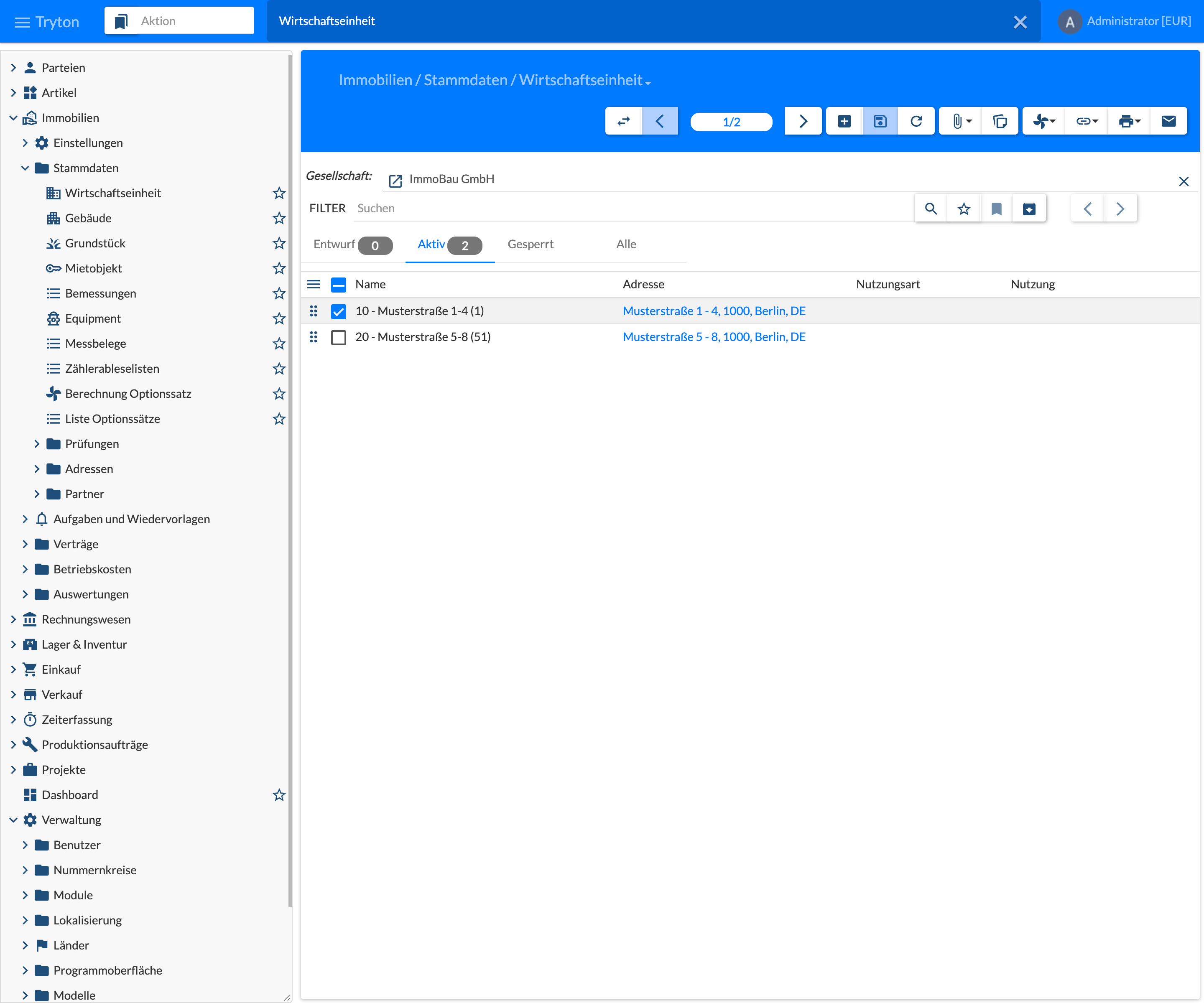
The property (Wirtschaftseinheit) is the top level of the real estate master data. Buildings, land and rental objects belong to it.
Open the menu Immobilien › Stammdaten › Wirtschaftseinheit (Real Estate › Master Data › Property). The list shows the properties of the company displayed at the top with name, address, type of use and use. The tabs Entwurf (Draft), Aktiv (Active), Gesperrt (Locked) and Alle (All) filter by state; the number shows the count.
- Create: button + (New) in the toolbar
- Edit: select a row and press Enter or use the Switch view button to open the form
Create and Edit
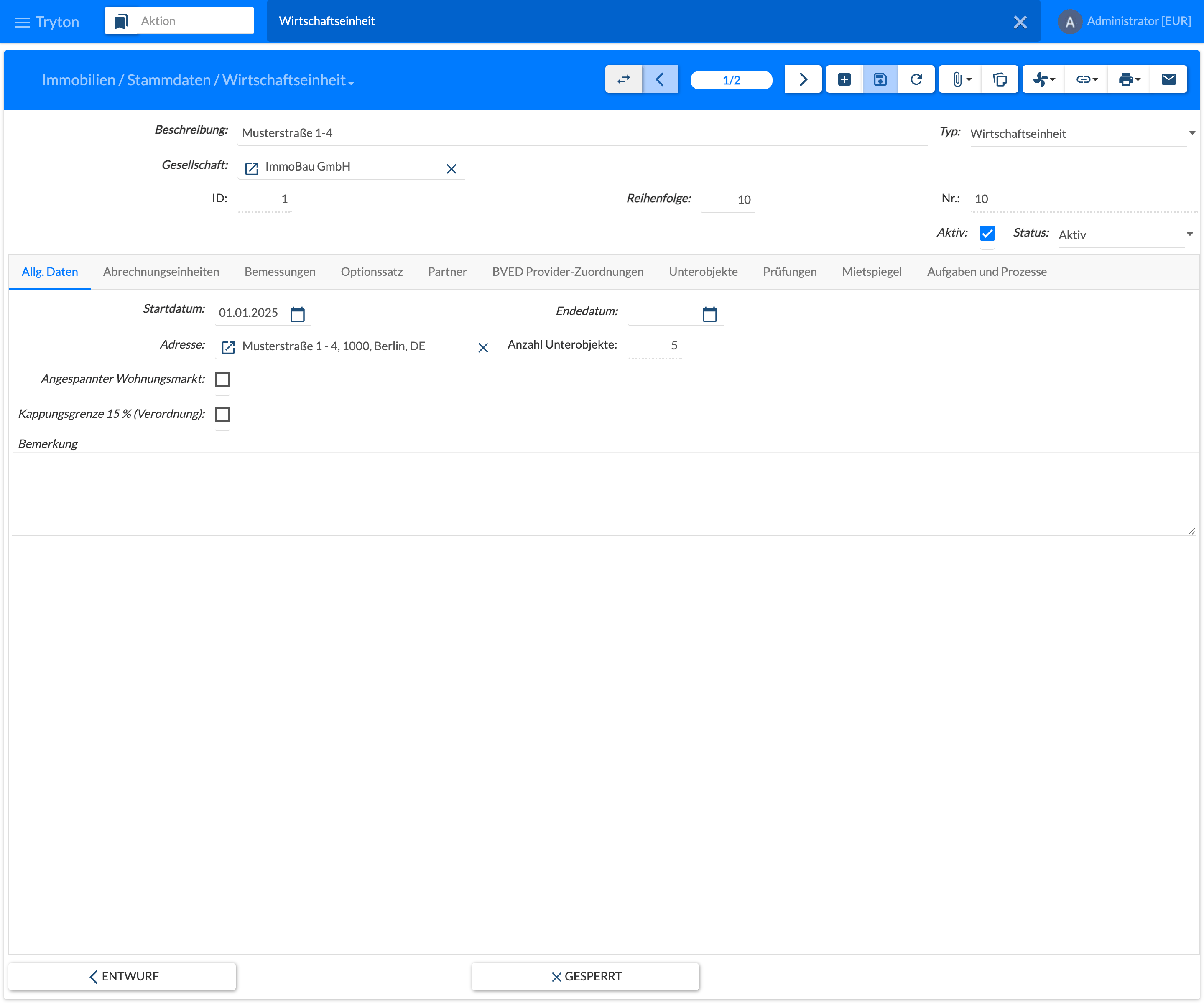
| Field | Description |
|---|---|
| Beschreibung (Description) | Name of the property, e.g. the address. Required. |
| Typ (Type) | Kind of object, here Wirtschaftseinheit (Property). |
| Gesellschaft (Company) | Company the property belongs to. Required. |
| ID | Internal record number, assigned by the system. |
| Reihenfolge (Sequence) | Position within the level; must be greater than 0 and unique per level. |
| Nr. (No) | Number of the property, set by the system, read-only. |
| Aktiv (Active) | Inactive properties are hidden in lists and selection fields. |
| Status (State) | Draft, Active, Locked or Deactivated. The state is changed with the buttons at the bottom of the form (e.g. Entwurf, Gesperrt). |
Tab Allg. Daten (General)
The tab is shown in the figure above.
| Field | Description |
|---|---|
| Startdatum (Start Date) | Start of the property. Required. |
| Endedatum (End Date) | End of the property, empty = unlimited. |
| Adresse (Address) | Address of the property, see 11.1 Reports and Analyses – Addresses. |
| Anzahl Unterobjekte (Number of Sub-Objects) | Number of directly assigned buildings and land; calculated. |
| Angespannter Wohnungsmarkt (Tight Housing Market) | The property is located in an area with a tight housing market according to state regulation (relevant for the cap rule of index rents). |
| Kappungsgrenze 15 % (Reduced Cap 15 %) | The property is located in an area where state regulation lowers the cap for rent increases up to the local comparative rent from 20 % to 15 % within three years (§ 558 (3) BGB). |
| Bemerkung (Comment) | Free text. |
Tab Abrechnungseinheiten (Billing Units)
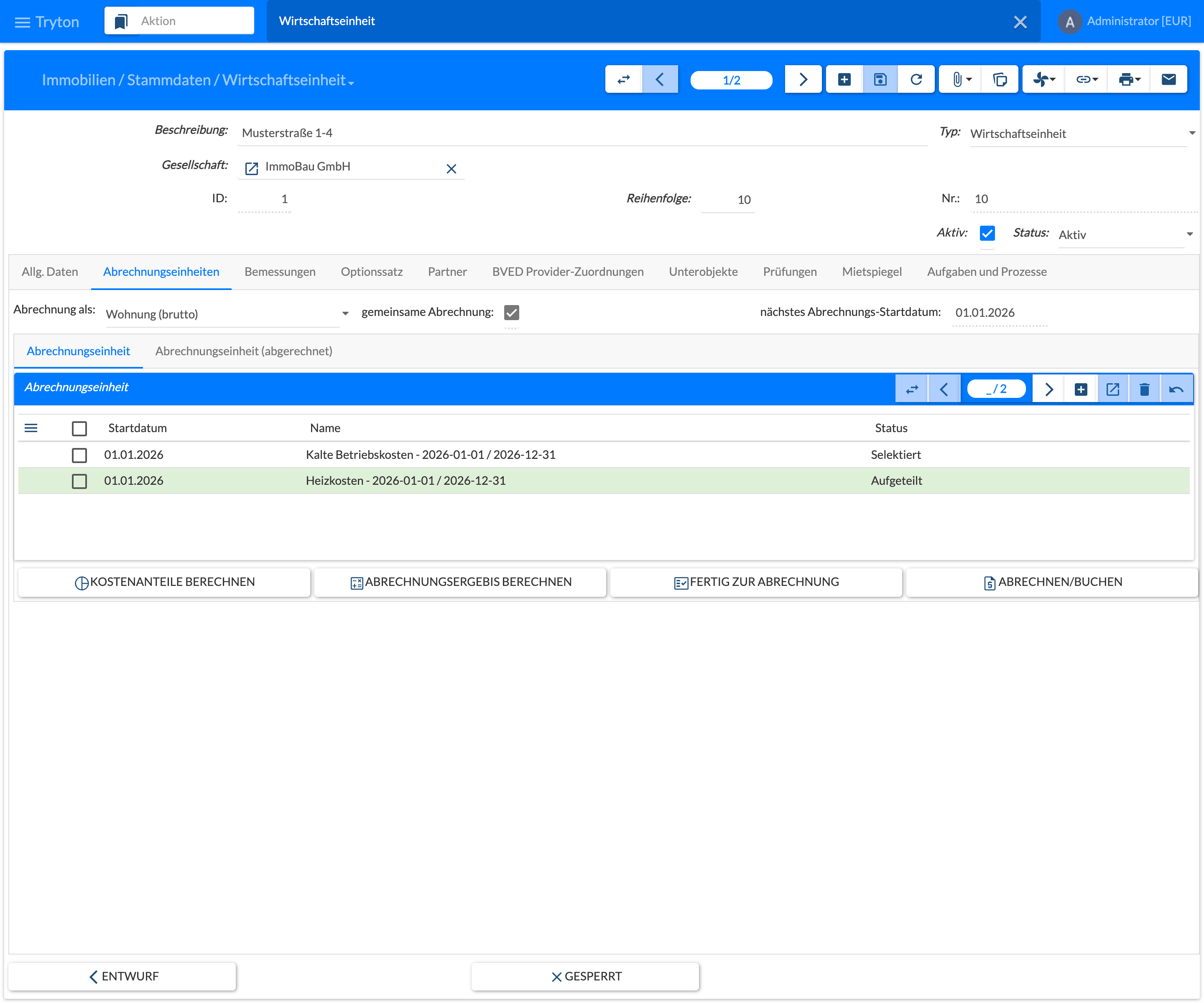
The tab shows the billing units of the operating cost settlement that belong to this property and offers the settlement steps for all billing units at once.
| Field | Description |
|---|---|
| Abrechnung als (Billing as) | Wohnung (brutto) (residential, gross) or Gewerbe (netto) (commercial, net): defines how operating costs are billed. Can only be changed in state Draft. |
| gemeinsame Abrechnung (Collective Billing) | All billing units with the same start date are billed together. Billing is then triggered here on the property, not on the individual billing unit. Can only be changed in state Draft. |
| nächstes Abrechnungs-Startdatum (Next Billing Start Date) | Earliest start date of all billing units not yet billed; calculated. Billing units with this start date are highlighted in green in the list. |
| Abrechnungseinheit (Billing Unit) | List of open billing units with start date, name and state. |
| Abrechnungseinheit (abgerechnet) (Billing Unit, billed) | List of billing units already billed. |
The buttons below the list apply to all billing units with the next billing start date:
| Button | Effect |
|---|---|
| Kostenanteile berechnen (Compute Cost Shares) | Computes the cost shares, see 7.3 Cost Shares and Allocation Keys. |
| Abrechnungsergebnis berechnen (Compute Settlement Result) | Computes the settlement result. |
| Fertig zur Abrechnung (Ready for Billing) | Sets the billing units to ready for billing. |
| Abrechnen/Buchen (Bill/Post) | Opens the billing wizard, see 7.5 Performing the Operating Cost Settlement. Only billing units in state ready for billing are billed. |
Tab Bemessungen (Measurements)
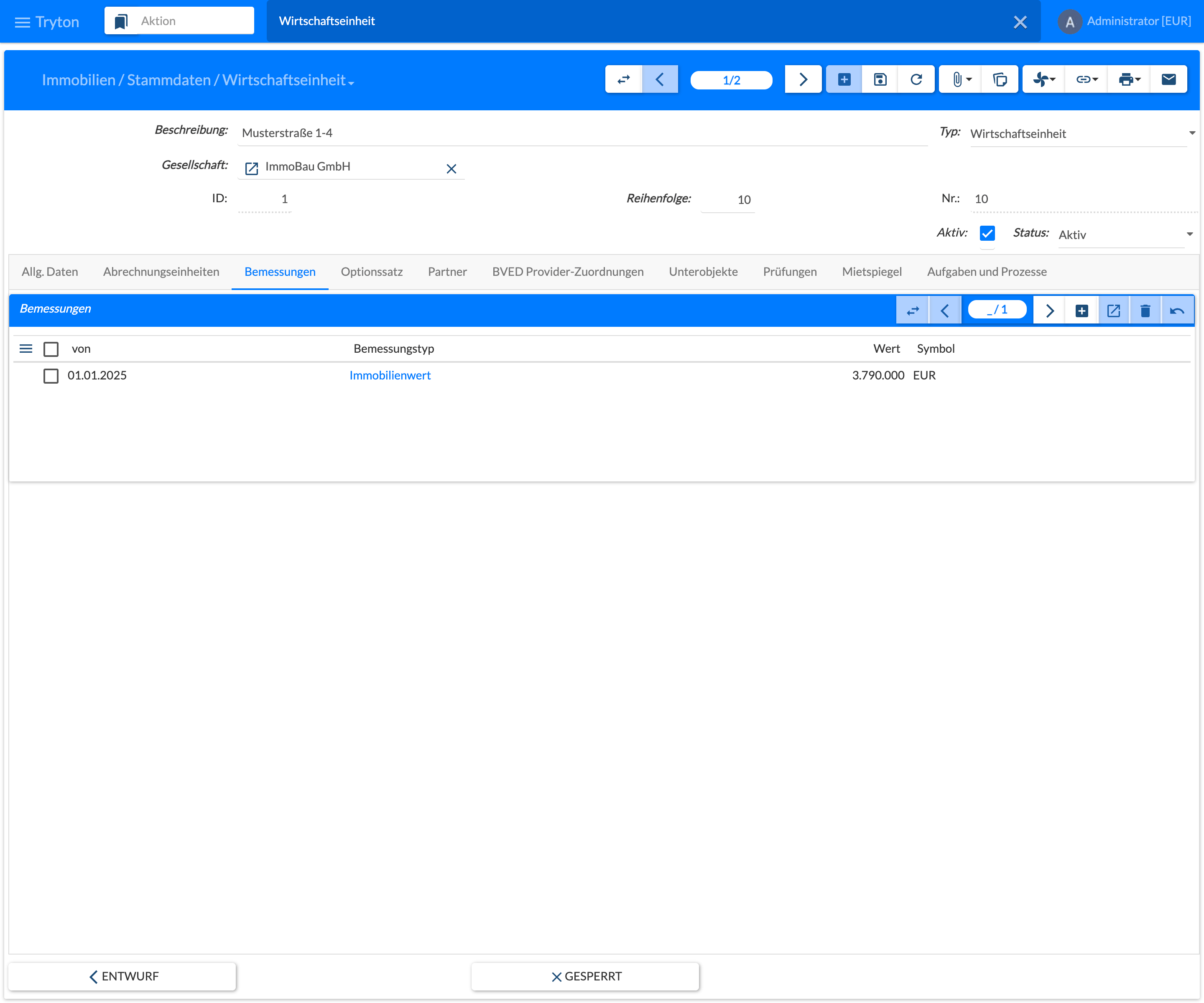
Measurements are time-dependent values of the property, e.g. areas or the property value. Among other things they are the basis for allocation keys and the option rate.
| Column | Description |
|---|---|
| von (from) | Date from which the value applies. |
| Bemessungstyp (Measurement Type) | Kind of measurement, e.g. Immobilienwert (property value) or Wohn/Nutzfläche (living/usable area); the types are defined in 2.5.3 Real Estate Master Data. |
| Wert (Value) | Value of the measurement. |
| Symbol | Unit of the value, e.g. EUR or m². |
In detail: 11.1 Reports – Measurements.
Tab Optionssatz (Option Rate)
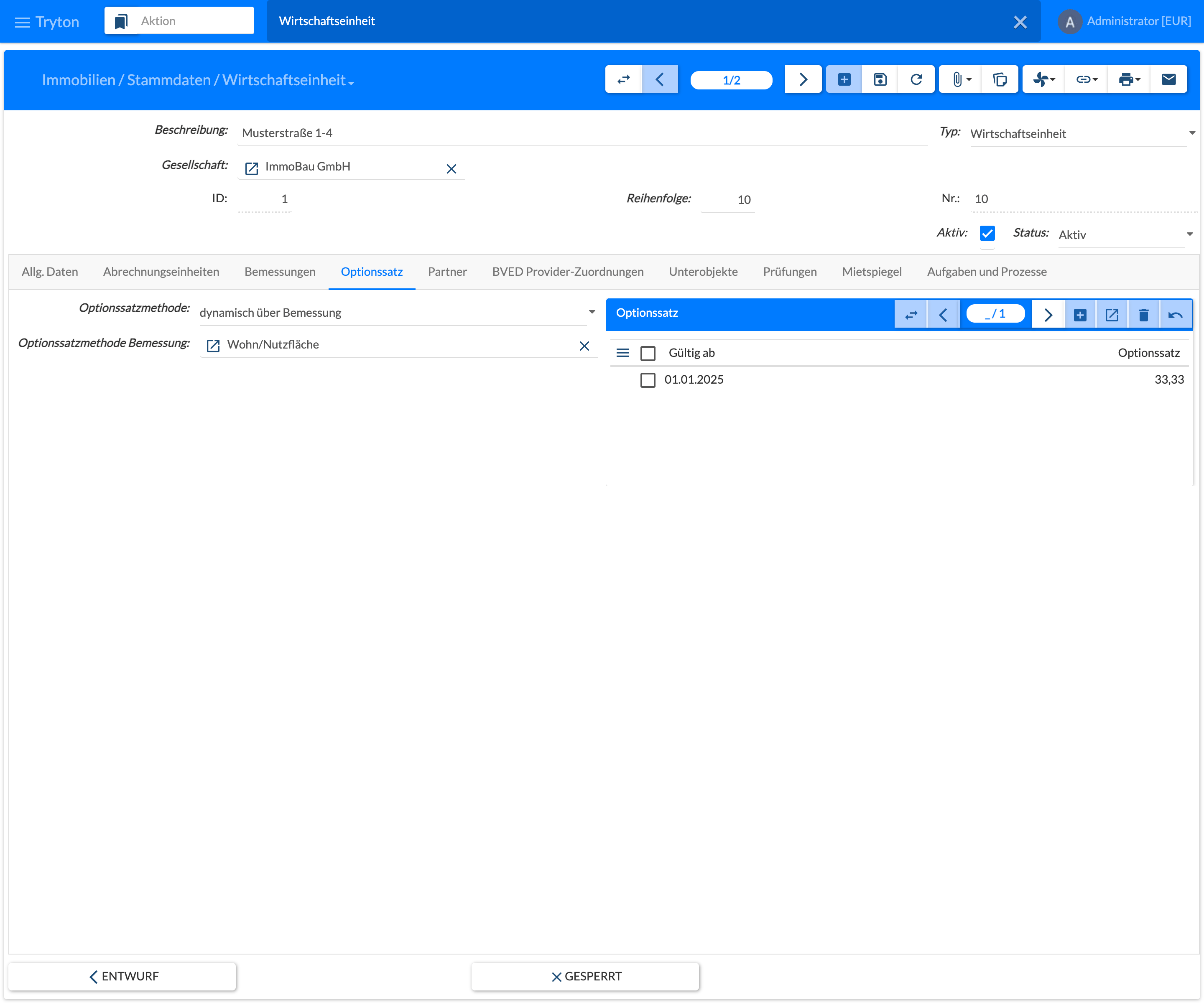
The option rate states which share of the input VAT on purchase invoices for the property is deductible (option for VAT, § 9 UStG). It is proposed automatically on purchase invoices. If the company is set to always book input VAT as an expense, the tab is hidden.
| Field | Description |
|---|---|
| Optionssatzmethode (Option Rate Method) | optiert nicht (0,0 %) fix (not opted, fixed 0 %), optiert (100,0 %) fix (opted, fixed 100 %), Optionssatz fix nach Wert (fixed by value) or dynamisch über Bemessung (dynamic by measurement – calculated from the measurements of the rental objects). |
| Optionssatzmethode Bemessung (Option Measurement Type) | Only with “dynamic by measurement”: measurement type used for the calculation, e.g. living/usable area. If a measurement group is selected, all its measurement types are summed per rental object. |
| Optionssatz (Option Rate) | History of option rates with Gültig ab (valid from) and the rate in percent. |
In detail: 5.6 Option Rates.
Tab Partner (Parties)
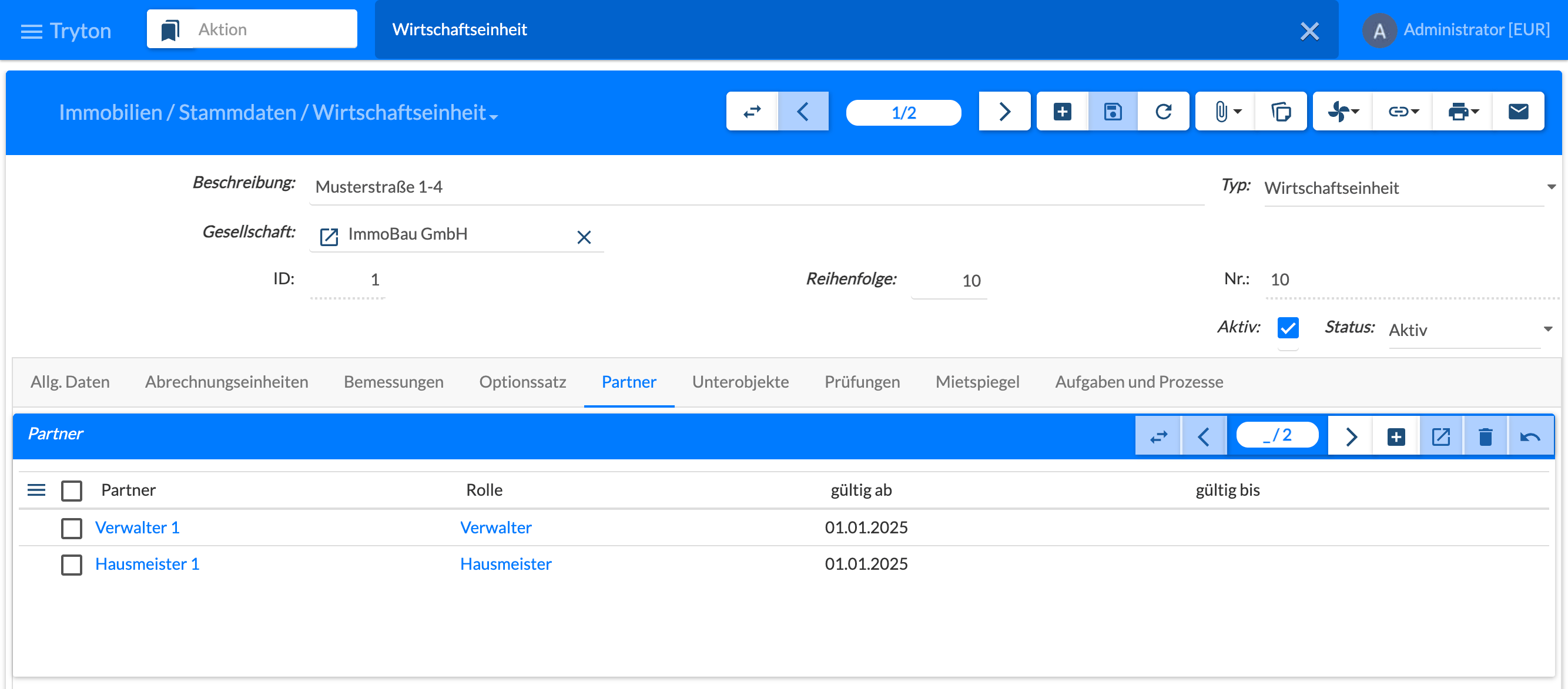
Here parties are assigned to the property in a role, e.g. owner, administrator or caretaker. Among other things, the role determines the responsibility for tasks.
| Column | Description |
|---|---|
| Partner (Party) | Business partner, see 3.1 Managing Parties. |
| Rolle (Role) | Role of the party; roles are defined in 2.5.2 Business Partners. |
| gültig ab / gültig bis (valid from / to) | Period of the assignment; empty = unlimited. |
The module ships these roles:
| Role | Object types | Use |
|---|---|---|
| Hausmeister (Caretaker) | Property | Default role. Responsible for the smoke detector check and for the first two steps of the process vacancy / reletting. |
| Verwalter (Administrator) | Property | Responsible for the annual walkthrough. |
| Eigentümer (Owner) | Property, rental object | Owner of the property or of a single unit, e.g. a condominium. |
No role is shipped for buildings, land and equipment. The object types a role can be used for are set on the role in 2.5.2 Business Partners.
In detail: 3.3 Party Roles for Properties and Contracts.
Responsibility for Tasks and Processes
The party assignment determines which user receives a task – e.g. for processes and task rules on the property:
- The task type defines a responsible party role, e.g. caretaker or property manager, see 2.5.7 Tasks and Processes.
- On the object the party holding this role on the key date is searched (in the figure e.g. Verwalter 1). The most specific level wins: rental object before building before property; on one level the assignment with the latest gültig ab (valid from).
- This party must be an employee of the company, see 3.2 Companies and Employees.
- The employee must be assigned to exactly one active user (tab Benutzer, list Mitarbeiter), see 2.3 Users, Login and Permissions. This user becomes the Zuständiger Benutzer (responsible user) of the task.
If a link of the chain is missing, the party is only shown on the task; the user or group entered on the task type is then responsible.
Tab BVED Provider-Zuordnungen (BVED Provider Assignments)
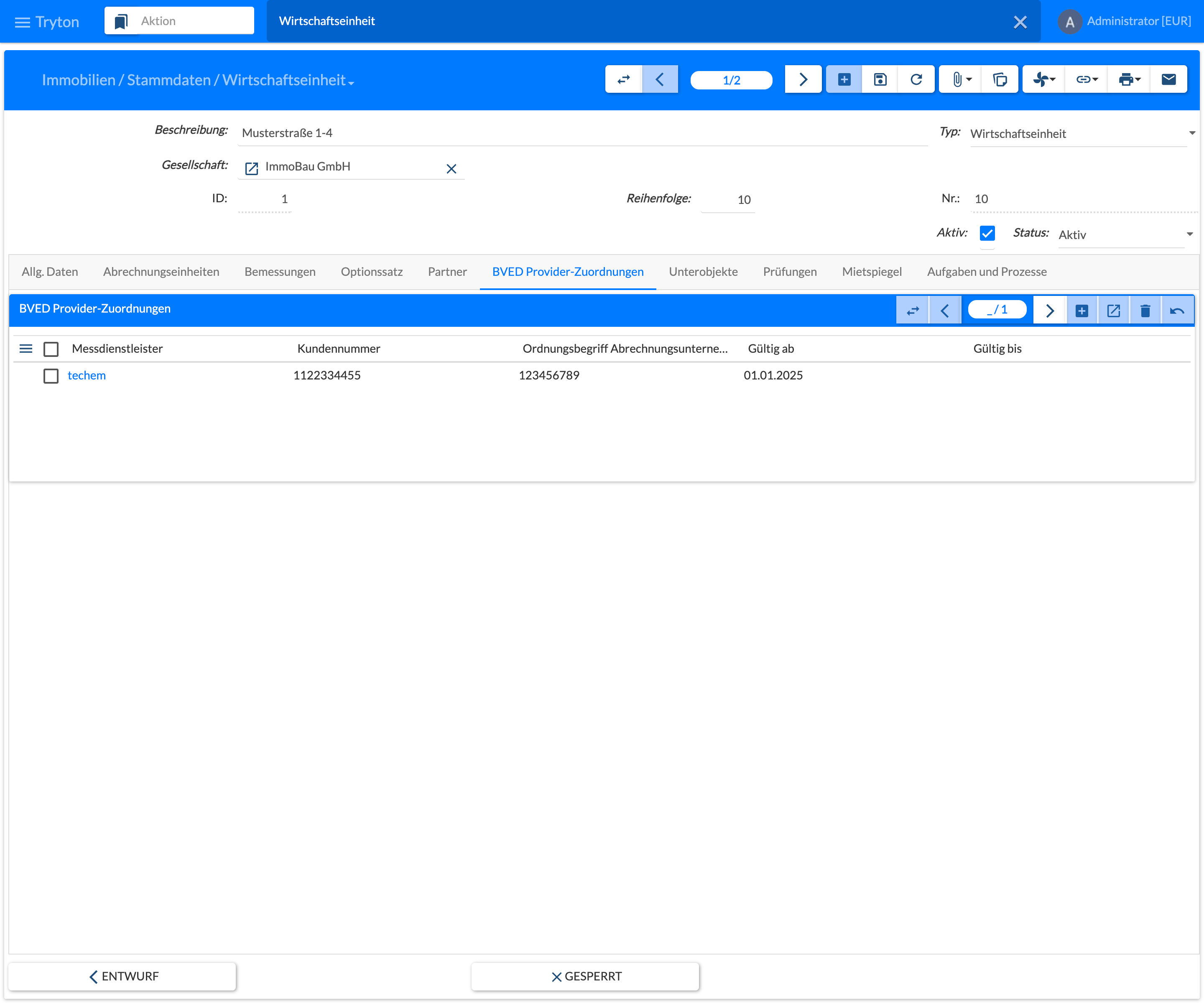
Overview of the assignments to metering service providers for data exchange according to BVED. The tab is only shown if at least one assignment exists. The assignments are maintained in 7.8 External Billing (BVED).
| Column | Description |
|---|---|
| Messdienstleister (Service Provider) | BVED provider, e.g. techem. |
| Kundennummer (Customer Number) | Customer number of this company at the provider (A record field 3). |
| Ordnungsbegriff Abrechnungsunternehmen (Provider Property Number) | 9-digit property number assigned by the provider to this property or building. |
| Gültig ab / Gültig bis (valid from / to) | Period of the assignment. |
Tab Unterobjekte (Sub-Objects)
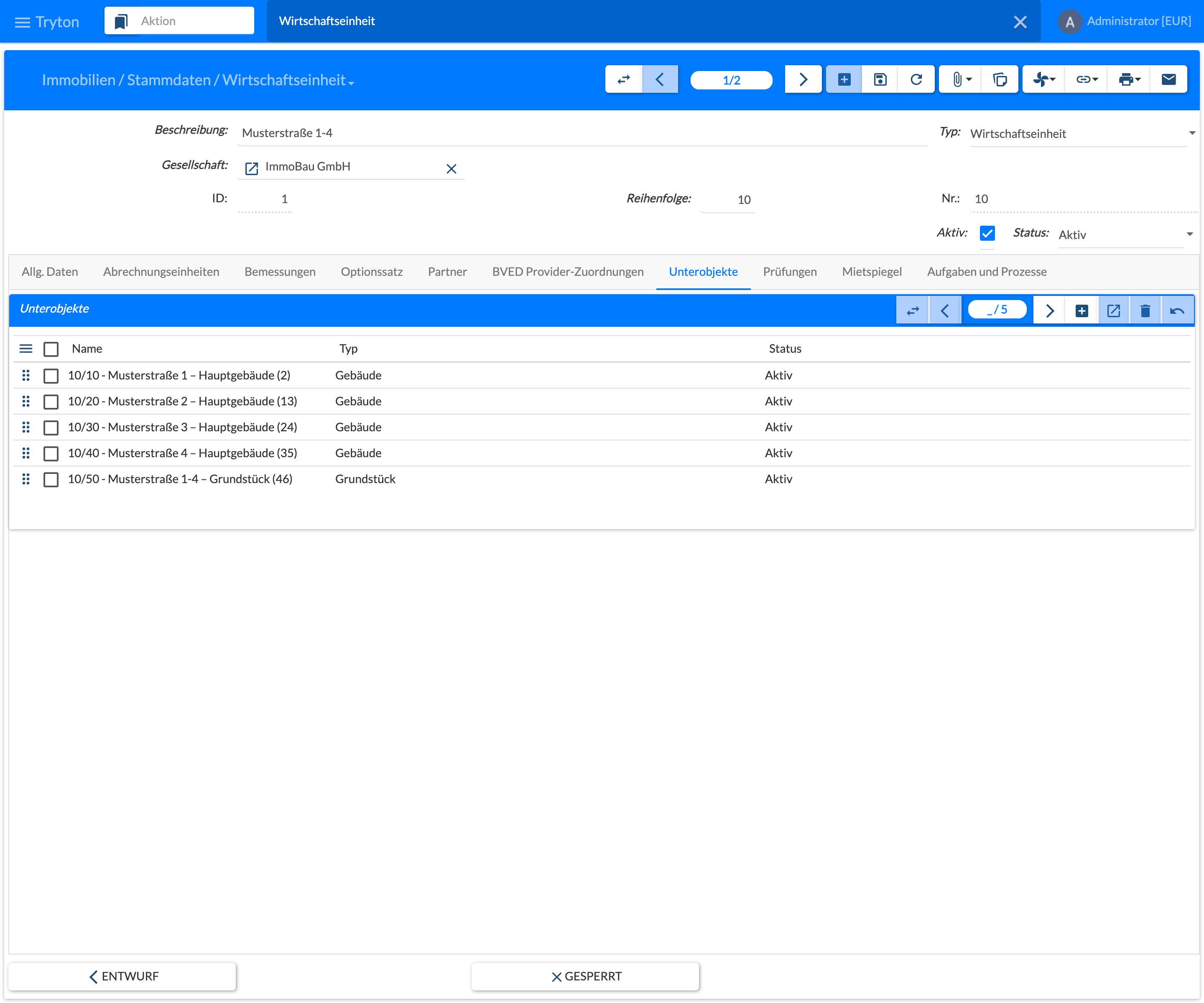
The objects directly below the property, e.g. buildings and land, with name, type and state. The name contains the numbers of the levels, e.g. “10/20 - Musterstraße 2 – Hauptgebäude”.
The system checks on saving which object types may be placed below each other:
| Object | Allowed sub-objects |
|---|---|
| Property | Building, land, rental object, equipment |
| Building | Building (e.g. side wing), rental object, equipment |
| Land | Rental object, equipment |
| Rental object | Equipment |
| Equipment | Equipment |
The property itself has no parent object.
In detail: 5.2 Buildings and Land.
Tab Prüfungen (Inspections)
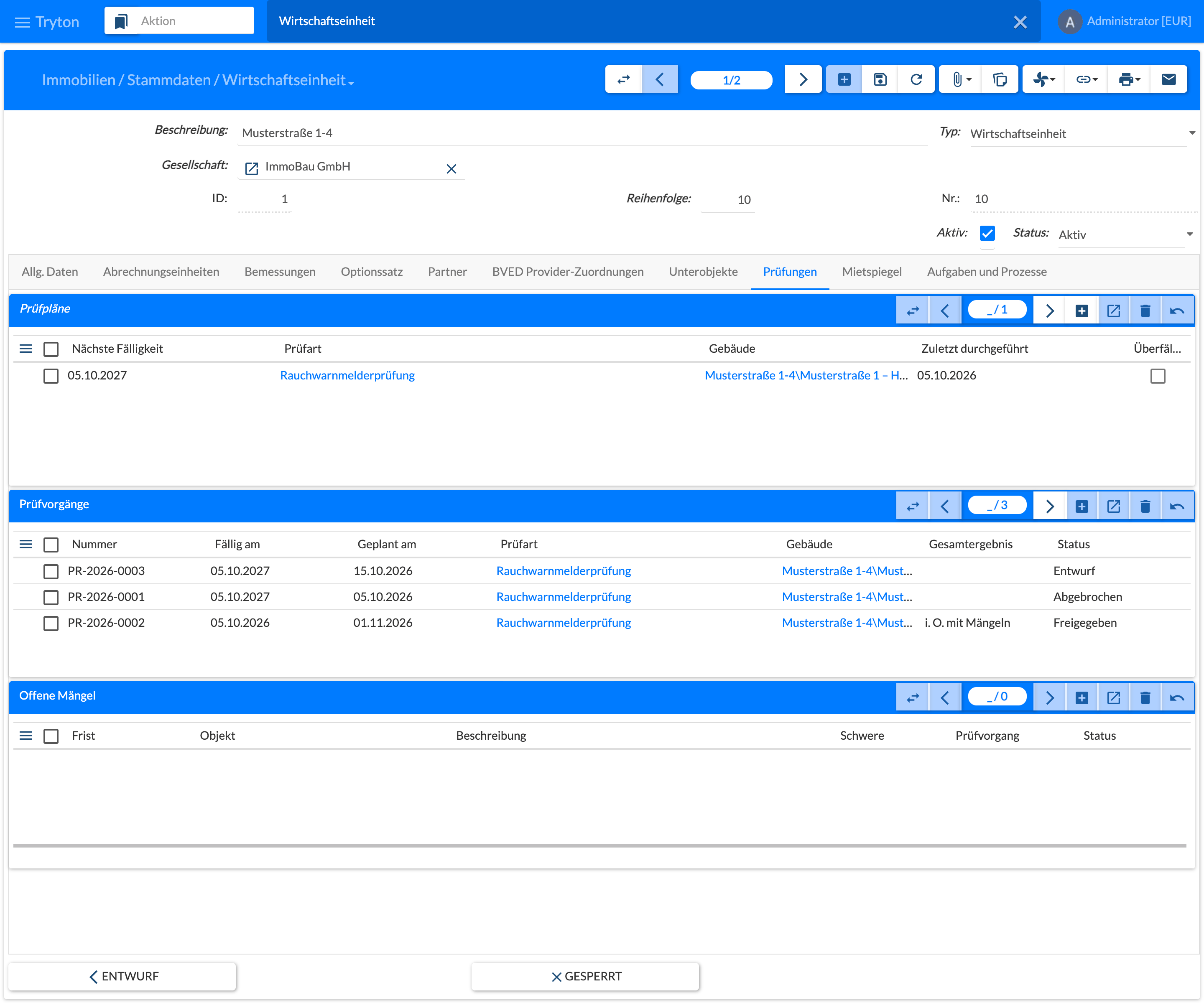
Overview of the recurring inspections of the property, e.g. smoke detector inspection.
| Area | Content |
|---|---|
| Prüfpläne (Inspection Plans) | Next due date, inspection type, building, last performed, overdue. |
| Prüfvorgänge (Inspections) | Number, due date, planned date, inspection type, building, overall result and state of the individual inspections. |
| Offene Mängel (Open Defects) | Deadline, object, description, severity, inspection and state of the open defects. |
The module ships two inspection types. Both are carried out yearly per building and require approval:
| Inspection type | Content |
|---|---|
| Jährliche Objektbegehung (Annual Walkthrough) | Walkthrough of the building with the checklist “Annual Walkthrough - Building”, e.g. roof, entrance, staircase, escape routes, basement and outdoor areas. Responsible: the administrator. Legal basis: duty to maintain traffic safety (§ 823 BGB). |
| Rauchwarnmelderprüfung (Smoke Detector Check) | One inspection per building with one line per apartment (type of use residential) and the checklist “Smoke Detectors - per Apartment”. The equipment with the equipment kind smoke detector is included. Responsible: the caretaker; access to the apartment must be arranged. Legal basis: state building code (e.g. § 48 (4) BauO Bln) and DIN 14676-1. |
Inspection plans are created on the property and the building. Land has no such tab; for rental objects and equipment it shows the inspection lines and open defects.
In detail: 8 Maintenance.
Tab Mietspiegel (Rent Survey)
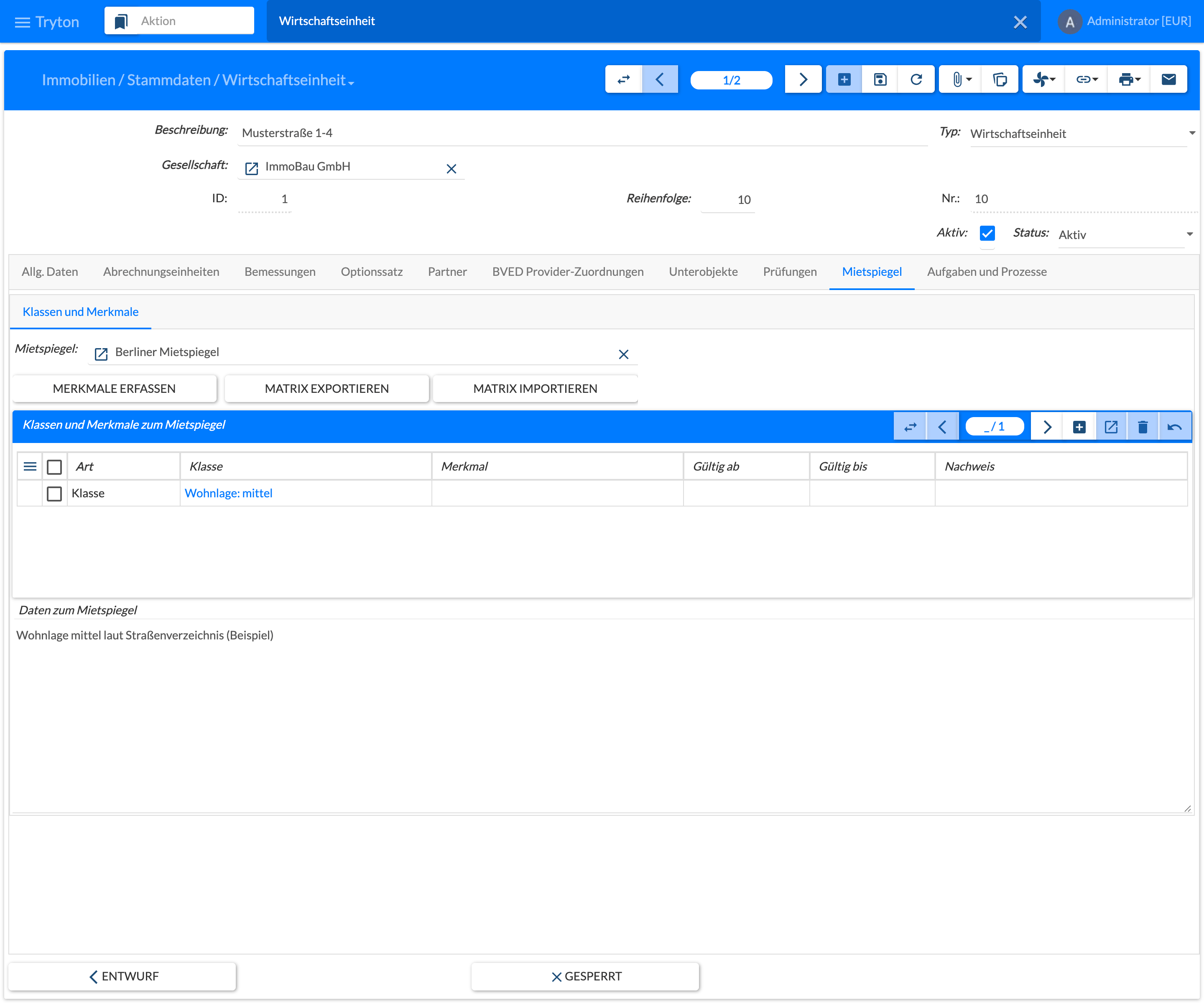
Rent survey data for the residential leases of the property, e.g. the residential location.
| Field | Description |
|---|---|
| Mietspiegel (Rent Survey) | Rent survey for the residential leases of the property, e.g. Berliner Mietspiegel. |
| Merkmale erfassen (Assign Features) | Checklist of the features of this level. |
| Matrix exportieren / Matrix importieren (Export / Import Matrix) | Export the classes and features of all apartments or buildings as a CSV file, edit it e.g. in a spreadsheet and import it again. |
| Klassen und Merkmale zum Mietspiegel (Classes and Features) | Kind (class or feature), class, feature, valid from, valid to and evidence. |
| Daten zum Mietspiegel (Rent Survey Data) | Remarks and reasons (e.g. reference in the street directory) – shown in the calculation record, not used for the calculation. |
In detail: 6.7 Rent Adjustments.
Tab Aufgaben und Prozesse (Tasks and Processes)
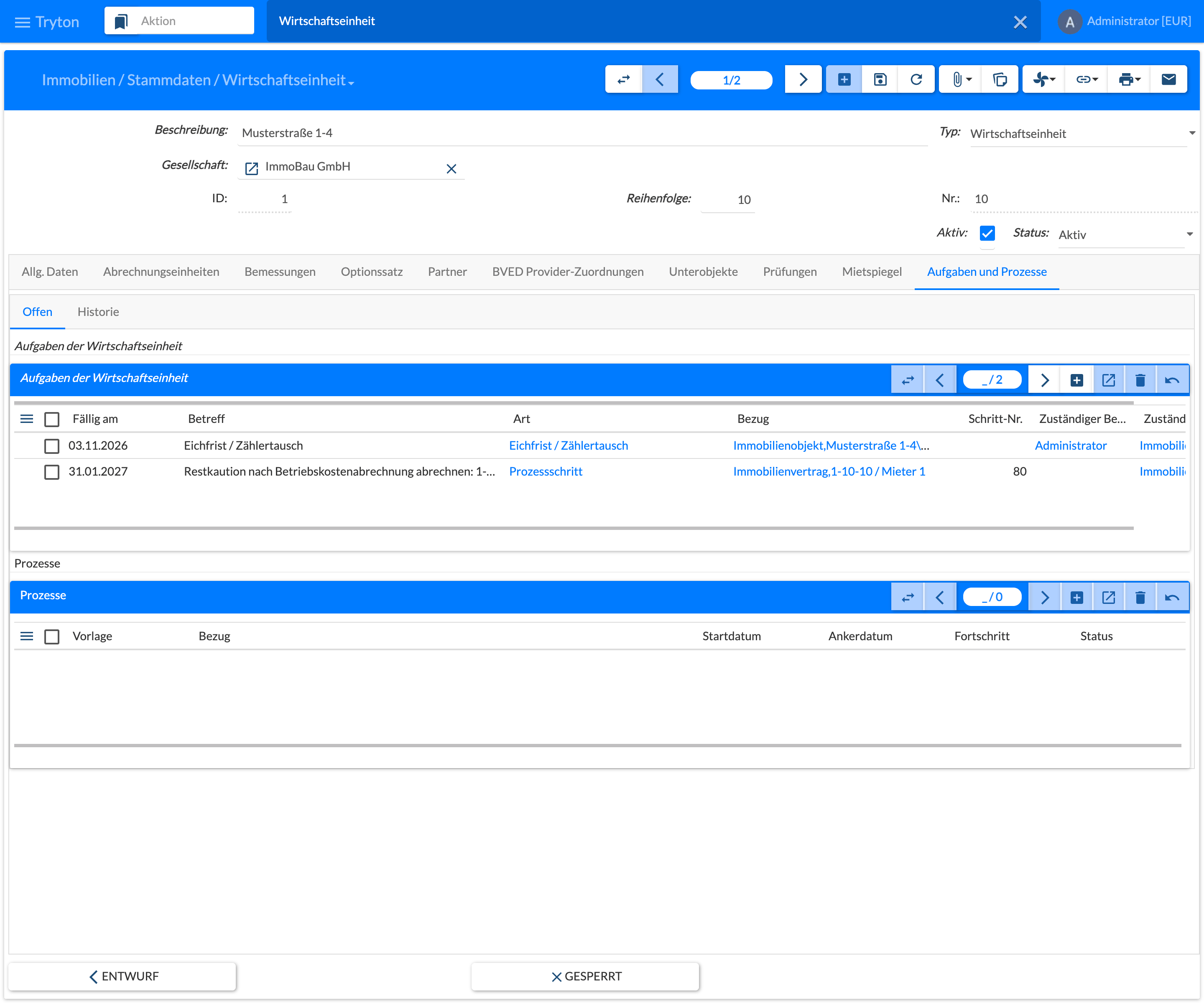
The sub-tabs Offen (Open) and Historie (History) show open resp. done and cancelled tasks and processes. On the property, the tasks and processes of its objects, contracts and billing units are shown as well.
| Area | Content |
|---|---|
| Aufgaben der Wirtschaftseinheit (Tasks of the Property) | Due date, subject, type, reference, step no. (for process steps), responsible user and responsible role. |
| Prozesse (Processes) | Template, reference, start date, anchor date, progress and state. |
These shipped task rules create tasks on objects. They are inactive on delivery and are activated in 2.5.7 Tasks and Processes:
| Rule | Objects | Task |
|---|---|---|
| Zählerstände erfassen (Record meter readings) | Property | 7 days before the next reading date: order the reading and record the readings of all meters. |
| Gebietsverordnung endet (Tight market regulation ends) | Property with tight housing market and expiry date | 2 months before expiry: check whether the regulation has been extended. |
| Eichfrist läuft ab (Meter calibration expires) | Meters | 3 months before the calibration expires: order a meter replacement or recalibration, see 5.5 Meters and Meter Readings. |
| Objekt endet (Object ends) | All objects with an end date | 3 months before the end date: end or transfer running contracts, meters and assignments. |
Inspections and defects create tasks of their own through the rules “Inspection overdue” and “Inspection defect overdue”. The process shipped for objects is Leerstand / Neuvermietung (Vacancy / Reletting); it is started on the rental object, see 5.3 Rental Objects.
In detail: 10 Tasks and Processes.
Actions
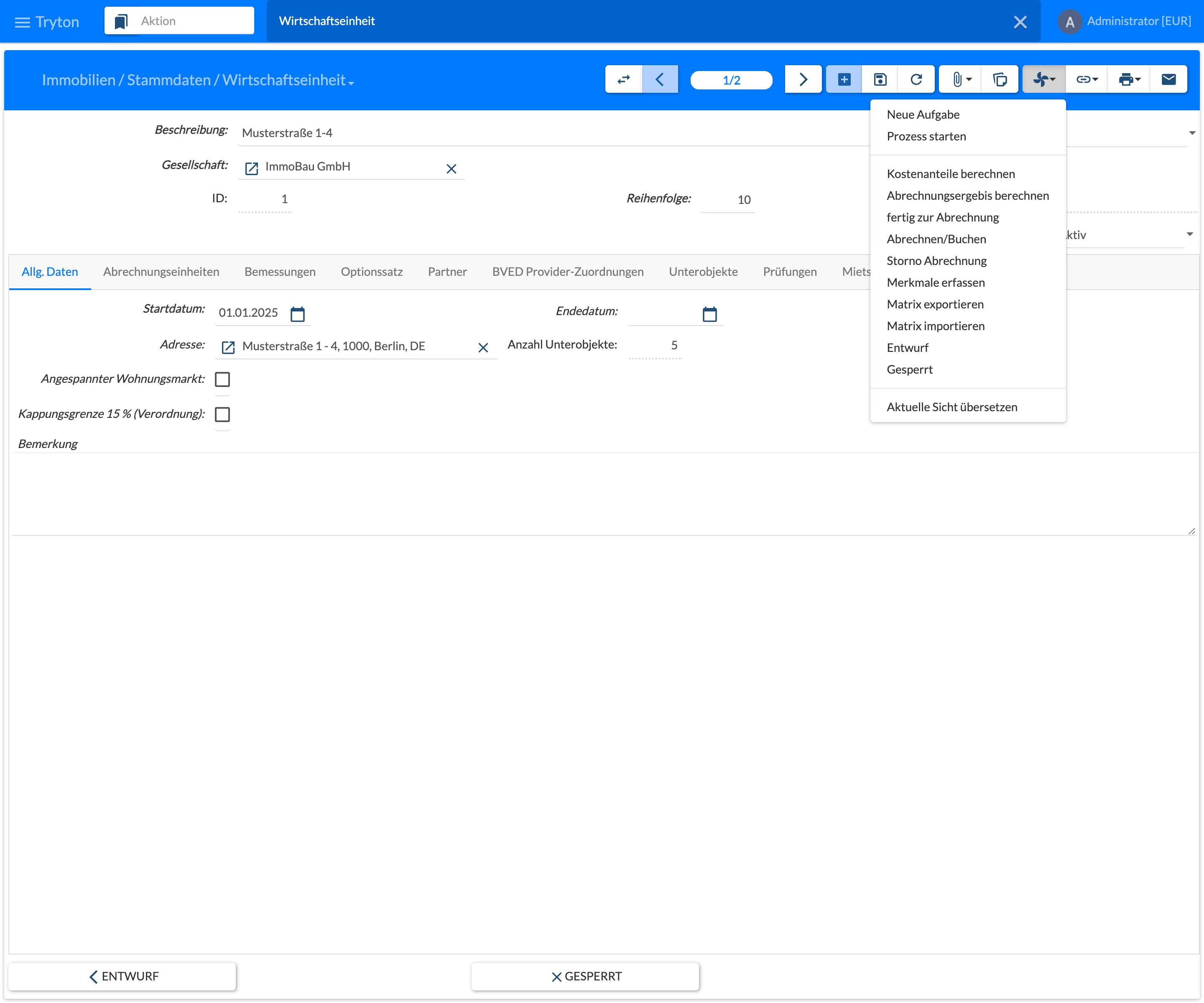
The Actions button (propeller icon) in the toolbar offers:
| Action | Effect |
|---|---|
| Neue Aufgabe (New Task) | Creates a task for the property. |
| Prozess starten (Start Process) | Starts a process from a template. |
| Kostenanteile berechnen, Abrechnungsergebnis berechnen, fertig zur Abrechnung, Abrechnen/Buchen | Same as the buttons in the tab Billing Units. |
| Storno Abrechnung (Cancel Billing) | Cancels an operating cost settlement. |
| Merkmale erfassen, Matrix exportieren, Matrix importieren | Same as the buttons in the tab Rent Survey. |
| Entwurf, Gesperrt (Draft, Locked) | Change of state, same as the buttons at the bottom of the form. |
| Aktuelle Sicht übersetzen (Translate View) | Tryton standard function to translate the labels. |
Relate
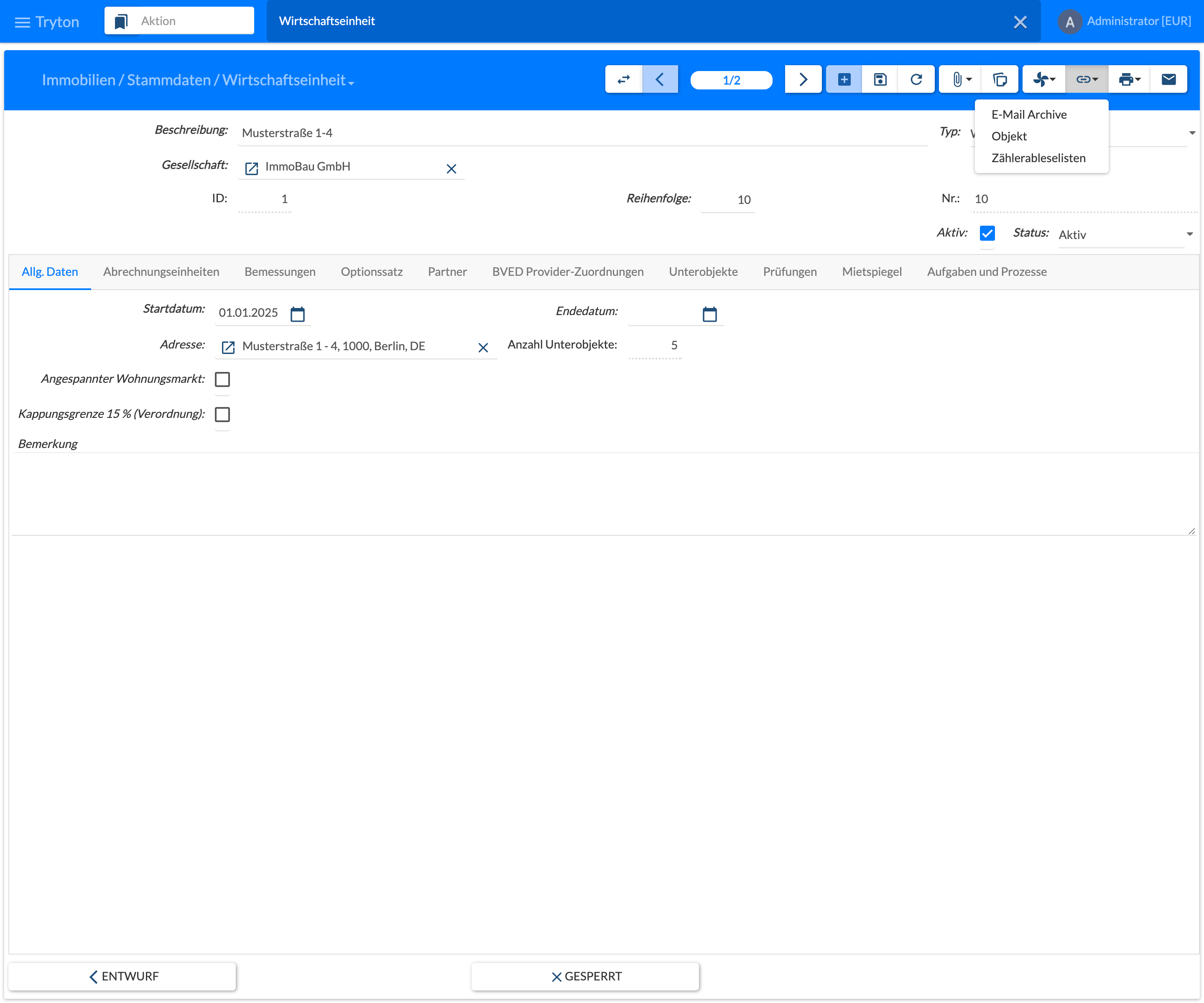
The Relate button (chain link icon) opens related records in a new tab: E-Mail Archive, Objekt (Object) and Zählerableselisten (Meter Reading Sheets).
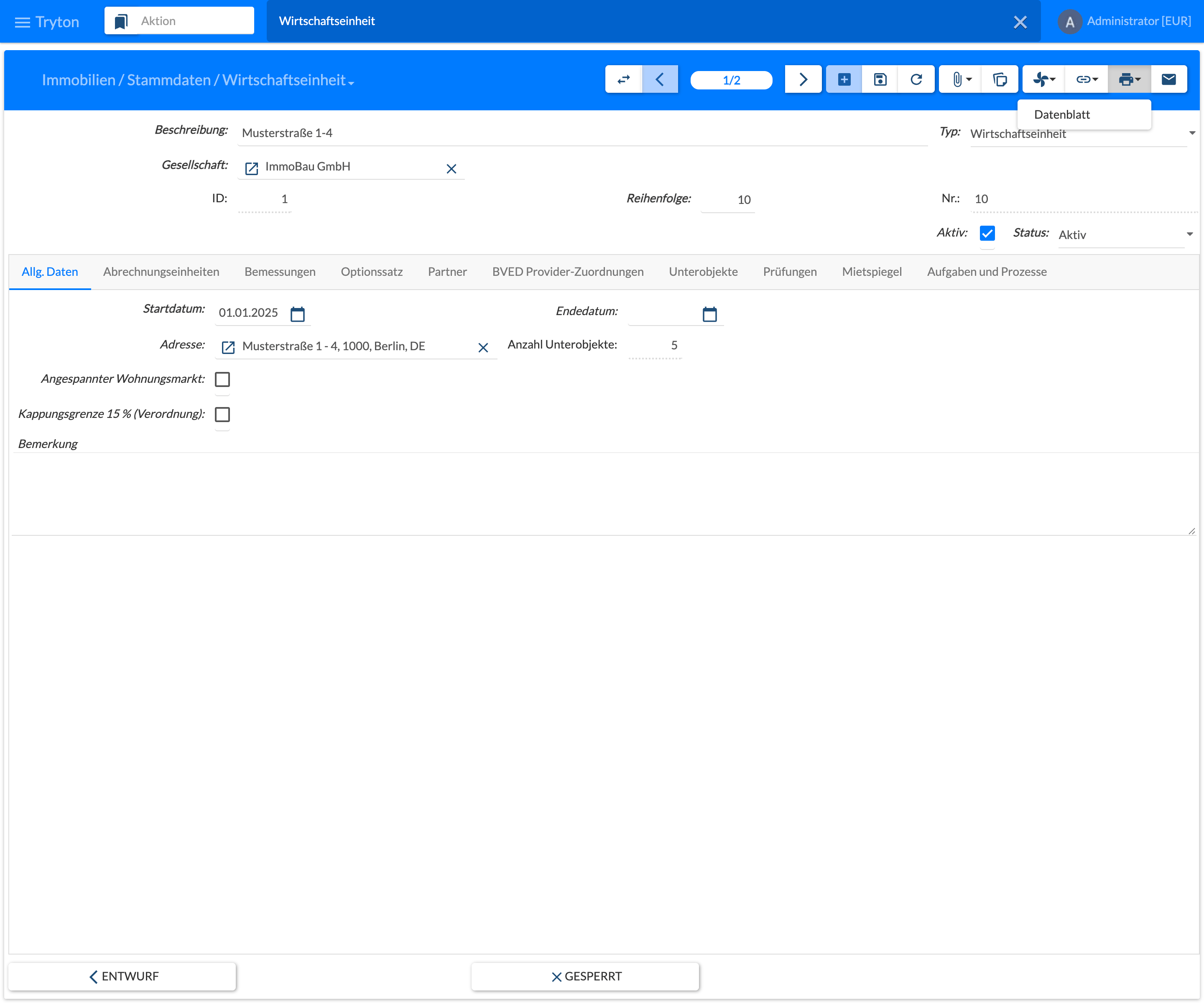
The Print button provides the Datenblatt (fact sheet) of the property.
5.2 Buildings and Land
Buildings and land are the level below the property. Both are maintained with the same form as the property; only the differences are described here.
Building
Getting Started
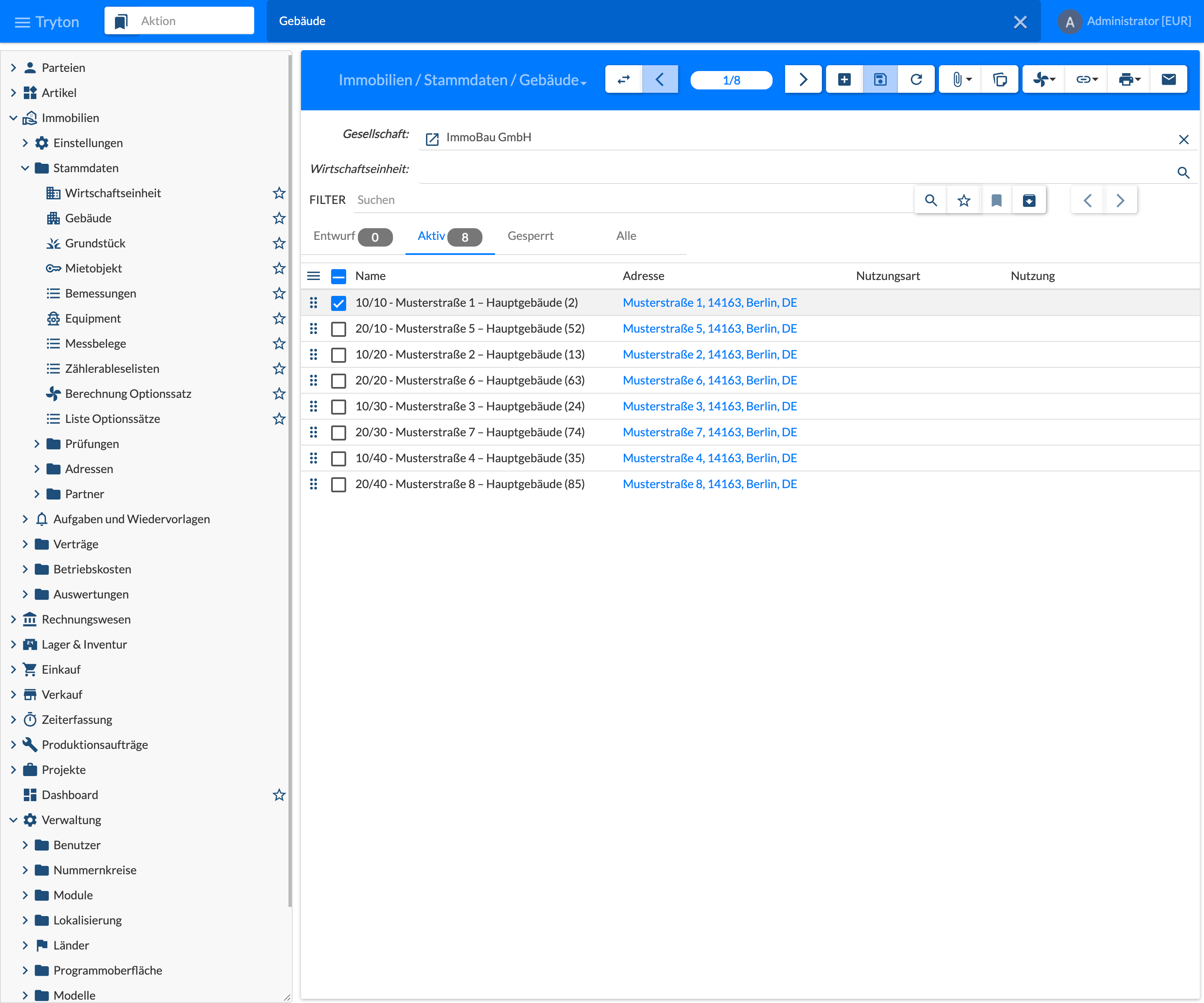
Open the menu Immobilien › Stammdaten › Gebäude (Real Estate › Master Data › Building). The list shows the buildings of the company displayed at the top. The field Wirtschaftseinheit (Property) restricts the list to one property. Tabs, creating and editing as for the property.
Create and Edit
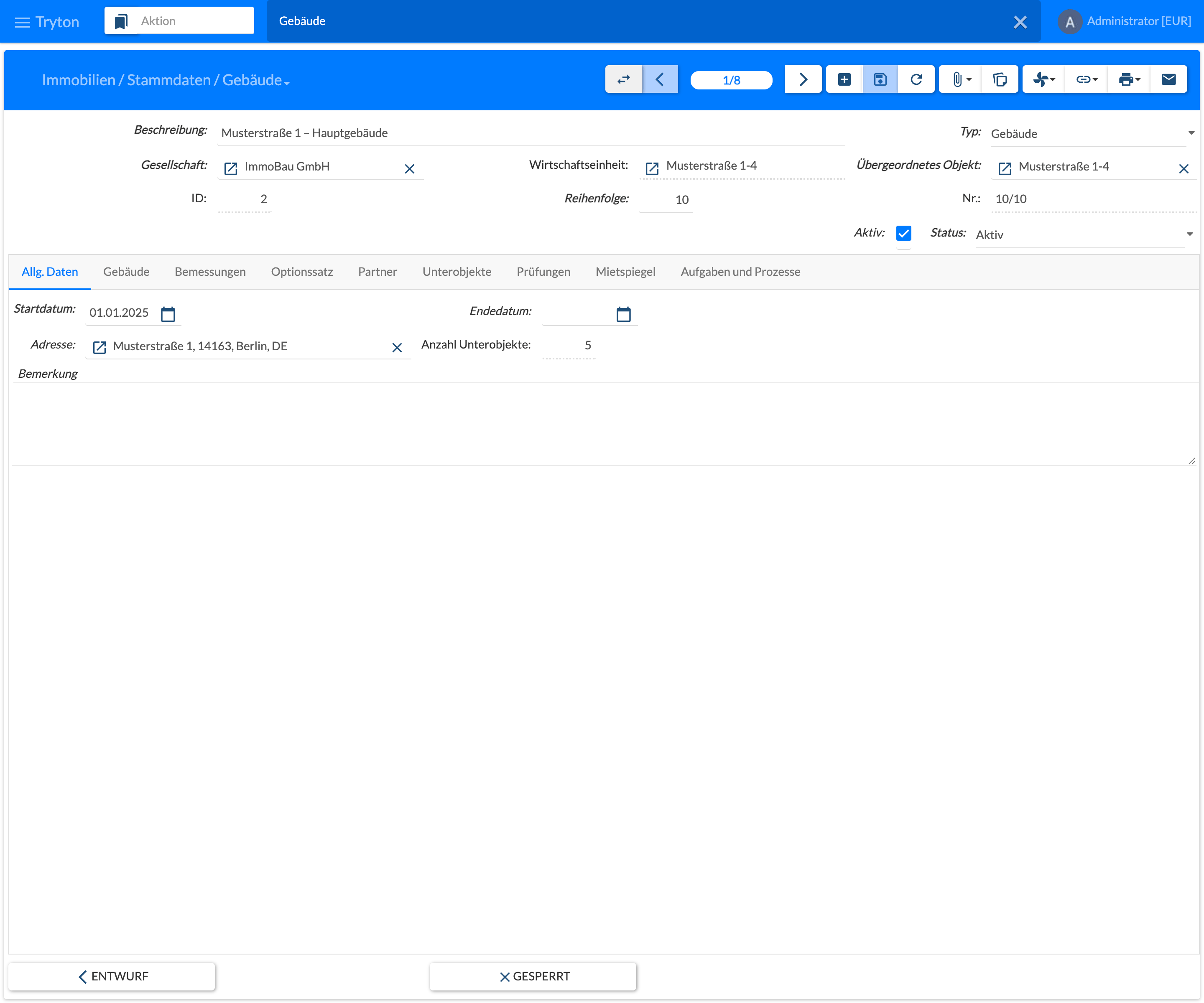
The header of the form corresponds to the property. Additional or different:
| Field | Description |
|---|---|
| Typ (Type) | Here Gebäude (Building). |
| Wirtschaftseinheit (Property) | Property the building belongs to; taken from the parent object, read-only. |
| Übergeordnetes Objekt (Parent) | Object the building belongs to: a property or another building. Required. |
| Nr. (No) | Built from the number of the parent object and the sequence, e.g. 10/10. |
The tab Allg. Daten (General) contains start date, end date, address, number of sub-objects and comment as for the property; the fields on the housing market and the reduced cap only exist there.
Tab Gebäude (Building)
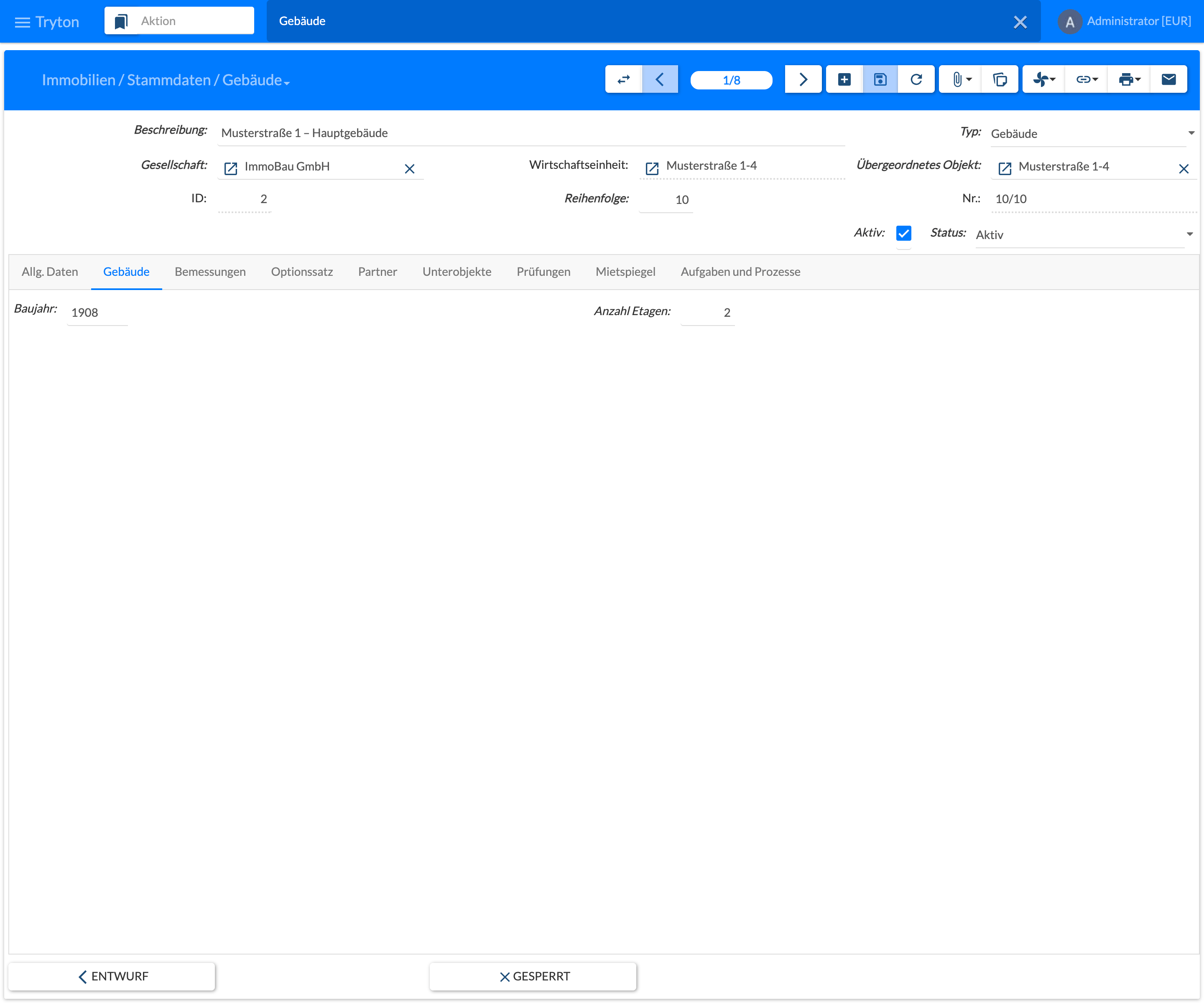
| Field | Description |
|---|---|
| Baujahr (Year of Construction) | Year the building was constructed. |
| Anzahl Etagen (Number of Floors) | Number of floors of the building. |
Further Tabs
The tabs Bemessungen, Optionssatz, Partner, Unterobjekte, Prüfungen, Mietspiegel and Aufgaben und Prozesse are structured as for the property. For buildings:
- Partner (Parties): No role is shipped for buildings; caretaker and administrator are assigned on the property.
- Unterobjekte (Sub-Objects): Buildings (e.g. side wing or rear building), rental objects and equipment. Sub-objects of a building are mainly the rental objects, see 5.3 Rental Objects.
- Prüfungen (Inspections): The inspection plans of the building are created here. Both shipped inspection types, annual walkthrough and smoke detector check, apply per building, see 8.1 Inspection Plans.
- Aufgaben und Prozesse (Tasks and Processes): If an end date is entered, the rule Objekt endet (Object ends) creates a task here.
Actions, Relate and Print
| Menu | Entry | Meaning |
|---|---|---|
| Actions | Neue Aufgabe (New Task) | Creates a task for the building. |
| Actions | Prozess starten (Start Process) | Starts a process from a template. |
| Actions | Merkmale erfassen (Assign Features) | Checklist of the rent survey features of the building, see tab Rent Survey. |
| Actions | Kopieren von Gebäude (Copy from Building) | Take over classes and features of another building of the property. |
| Actions | Entwurf, Gesperrt (Draft, Locked) | Change of state, same as the buttons at the bottom of the form. |
| Actions | Aktuelle Sicht übersetzen (Translate View) | Tryton standard function to translate the labels. |
| Relate | E-Mail Archive, Objekt, Zählerableselisten | Opens related records in a new tab, as for the property. |
| Datenblatt (Fact Sheet) | Fact sheet of the building. |
Land
Getting Started
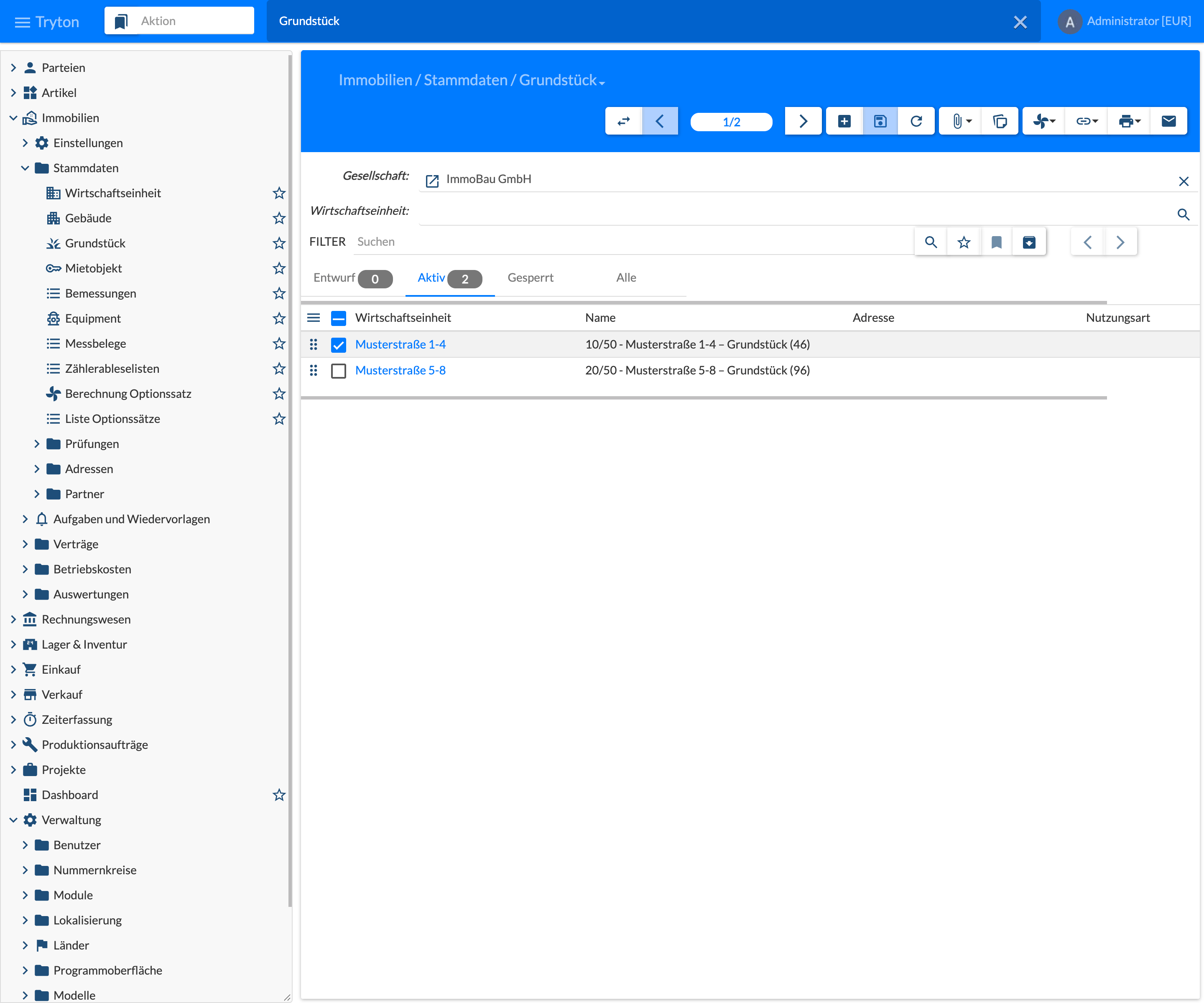
Open the menu Immobilien › Stammdaten › Grundstück (Real Estate › Master Data › Land). The list shows the land with its property; filter and tabs as for buildings.
Create and Edit
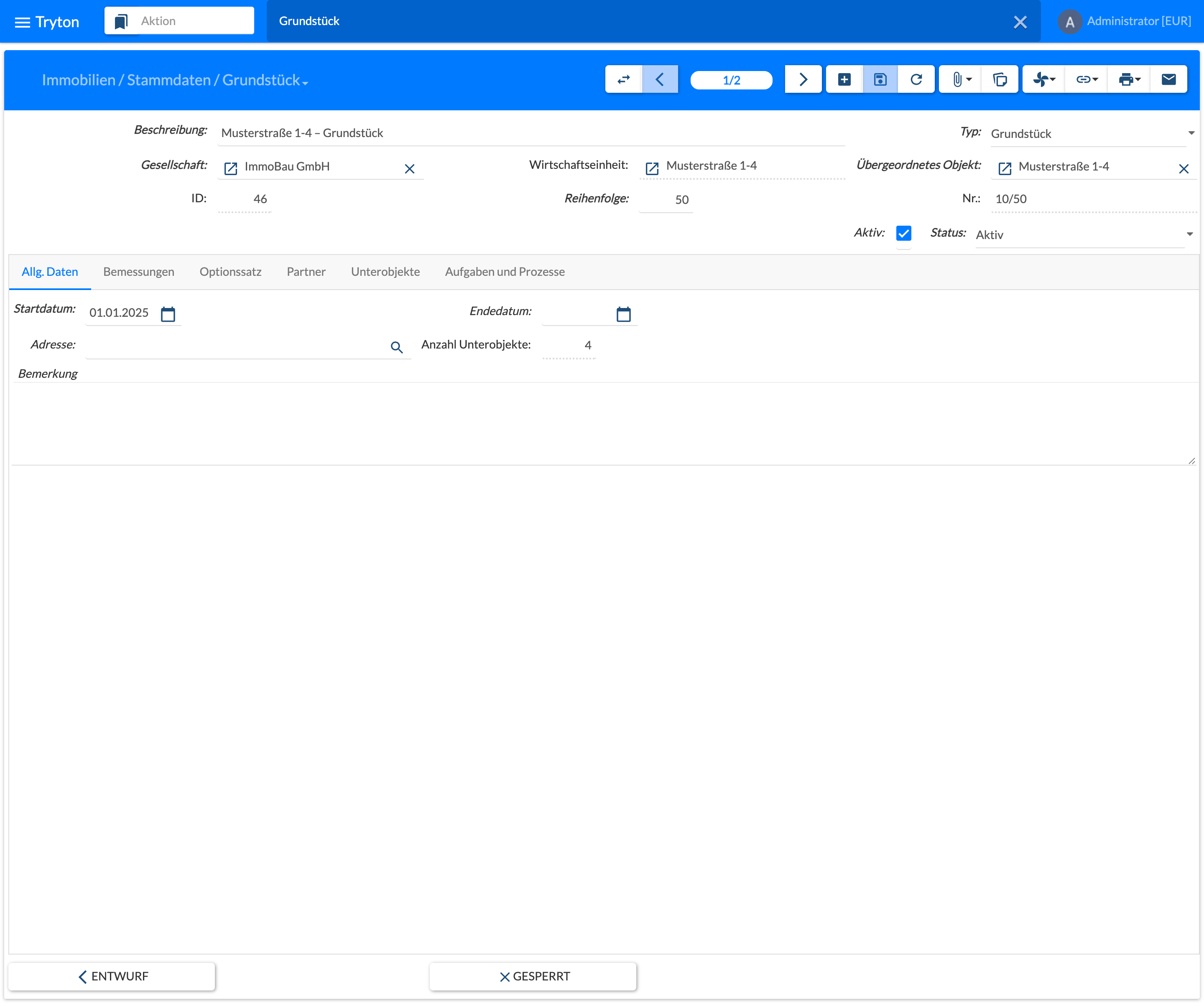
Header and tab Allg. Daten (General) as for buildings. Different:
| Field | Description |
|---|---|
| Typ (Type) | Here Grundstück (Land). |
| Übergeordnetes Objekt (Parent) | For land always a property. |
The tabs Bemessungen, Optionssatz, Partner, Unterobjekte and Aufgaben und Prozesse are structured as for the property. Land has no tab Prüfungen (Inspections). For land:
- Partner (Parties): No role is shipped for land.
- Unterobjekte (Sub-Objects): Rental objects (e.g. parking spaces) and equipment (e.g. a playground).
Actions, Relate and Print
| Menu | Entry | Meaning |
|---|---|---|
| Actions | Neue Aufgabe (New Task) | Creates a task for the land. |
| Actions | Prozess starten (Start Process) | Starts a process from a template. |
| Actions | Entwurf, Gesperrt (Draft, Locked) | Change of state, same as the buttons at the bottom of the form. |
| Actions | Aktuelle Sicht übersetzen (Translate View) | Tryton standard function to translate the labels. |
| Relate | E-Mail Archive, Objekt, Zählerableselisten | Opens related records in a new tab, as for the property. |
| Datenblatt (Fact Sheet) | Fact sheet of the land. |
5.3 Rental Objects
Rental objects are the units that can be let, e.g. apartments, commercial units or parking spaces. They belong to a building, to land or directly to the property and are maintained with the same form as the property; only the differences are described here.
Getting Started
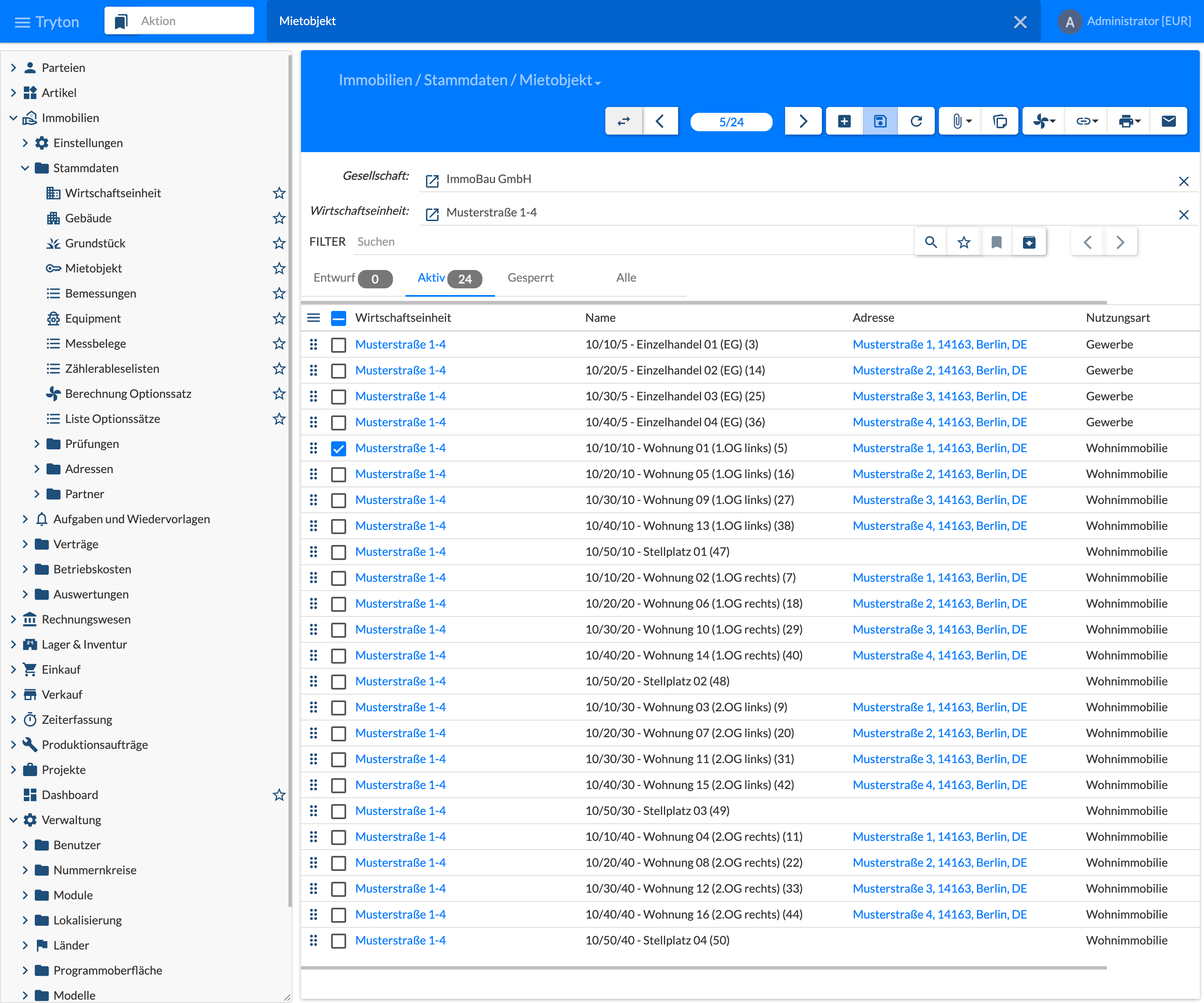
Open the menu Immobilien › Stammdaten › Mietobjekt (Real Estate › Master Data › Rental Object). The list shows the rental objects of the company displayed at the top with property, name, address and type of use. The field Wirtschaftseinheit (Property) restricts the list to one property. Tabs, creating and editing as for the property.
Create and Edit
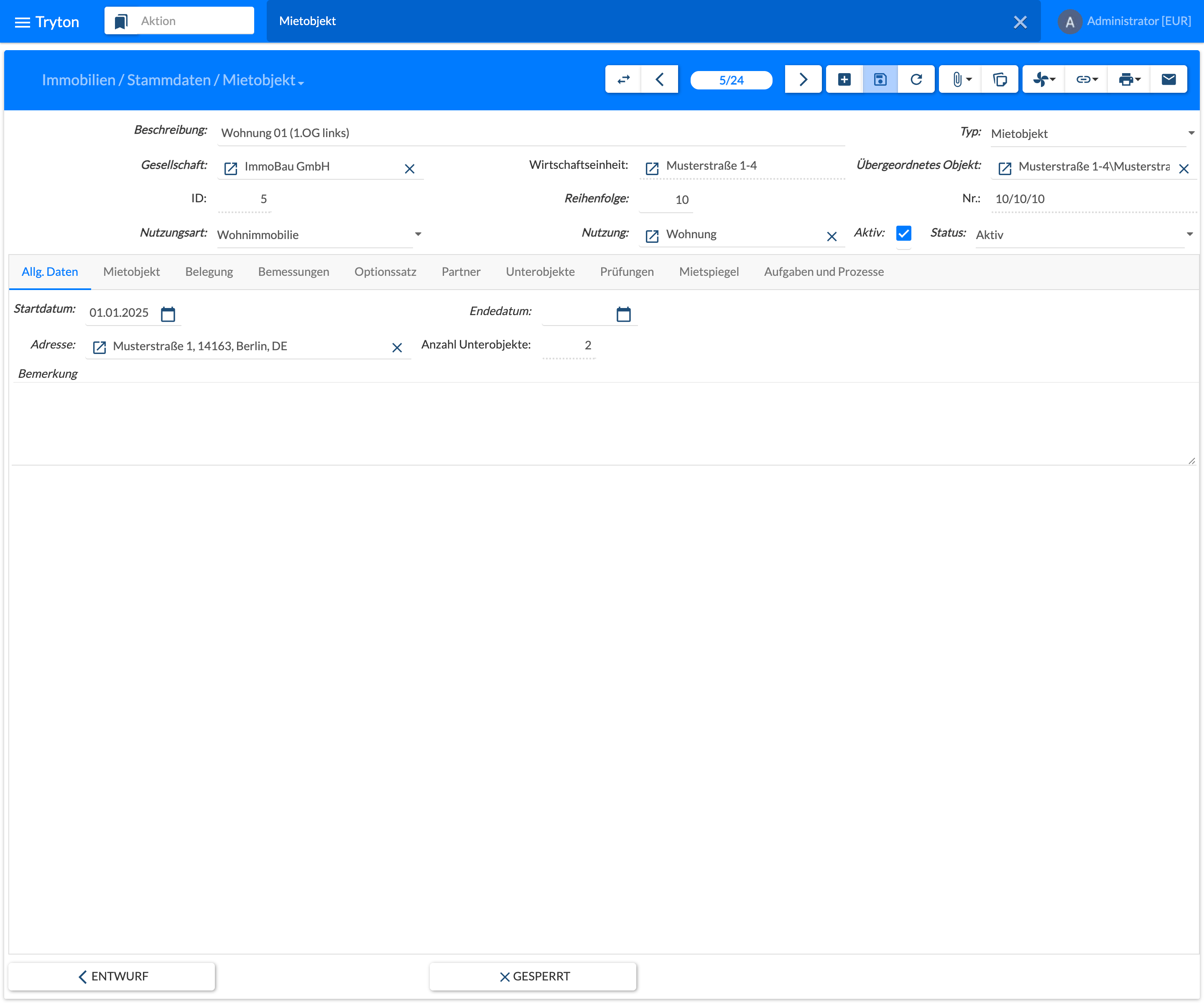
The header of the form corresponds to the building. Additional or different:
| Field | Description |
|---|---|
| Typ (Type) | Here Mietobjekt (Rental Object). |
| Übergeordnetes Objekt (Parent) | Property, building or land the rental object belongs to. Required. |
| Nr. (No) | Built from the number of the parent object and the sequence, e.g. 10/10/10. |
| Nutzungsart (Type of Use) | Economic use: Wohnimmobilie (residential), Gewerbe (commercial), Wohneigentum (owner-occupied) or Interne Nutzung (internal use). It determines which contract types can be selected and presets the option rate method (commercial: opted 100 %, otherwise 0 %). |
| Nutzung (Use) | Use class, e.g. Wohnung (apartment), Büro (office), Einzelhandel (retail), Lager (warehouse), Garage or Stellplatz (parking); the classes are defined in 2.5.3 Real Estate Master Data. Among other things it controls whether a basement or parking number is entered. |
The tab Allg. Daten (General) contains start date, end date, address, number of sub-objects and comment as for buildings.
Tab Mietobjekt (Rental Object)
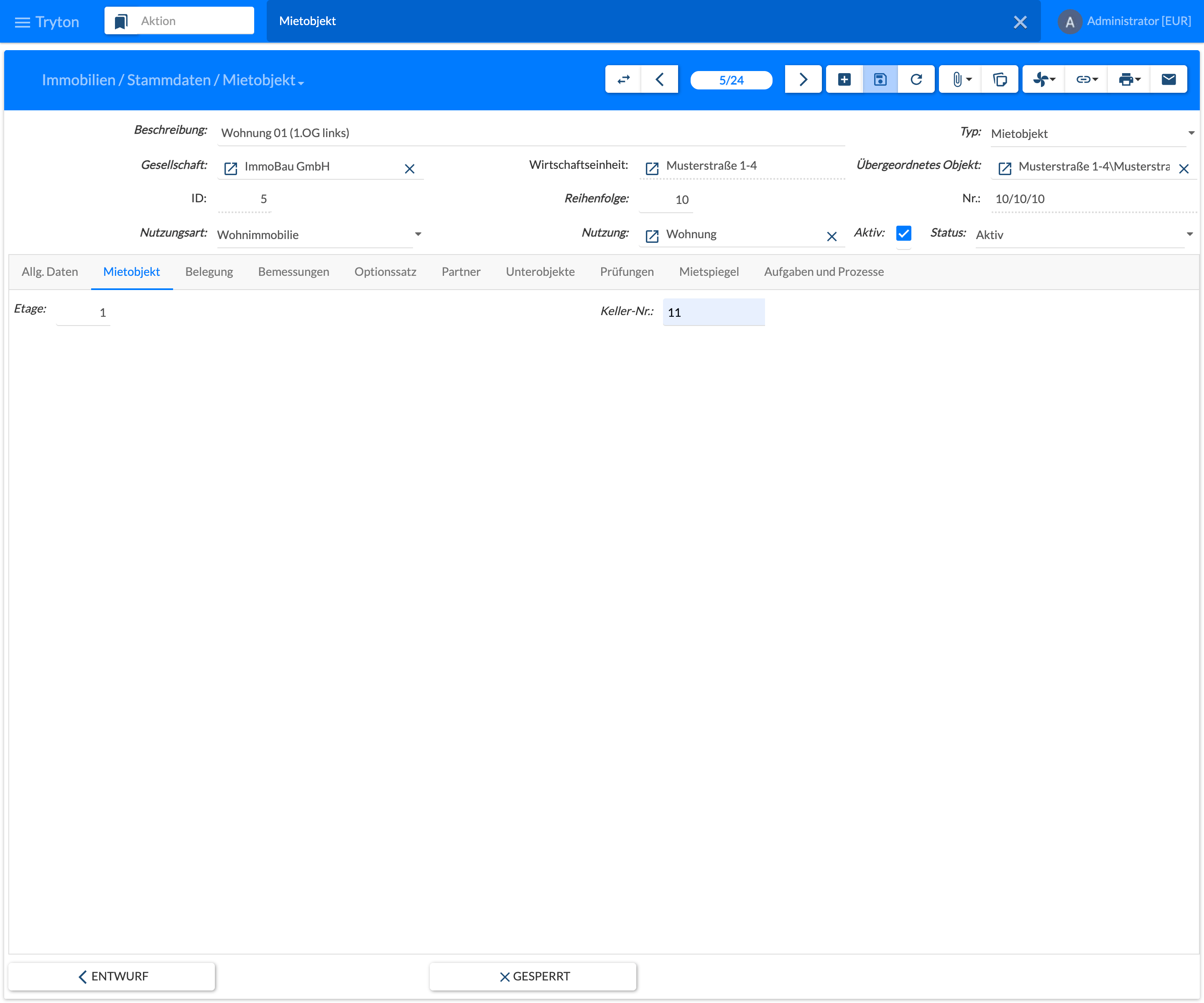
| Field | Description |
|---|---|
| Etage (Floor) | Floor on which the rental object is located. |
| Keller-Nr. (Basement Number) | Number of the related basement compartment; only shown if the use provides for a basement compartment. |
| Stellplatz-Nr. (Parking Number) | Number of the parking space; only shown if the use provides for a parking number (not in the figure). |
Tab Belegung (Occupancy)
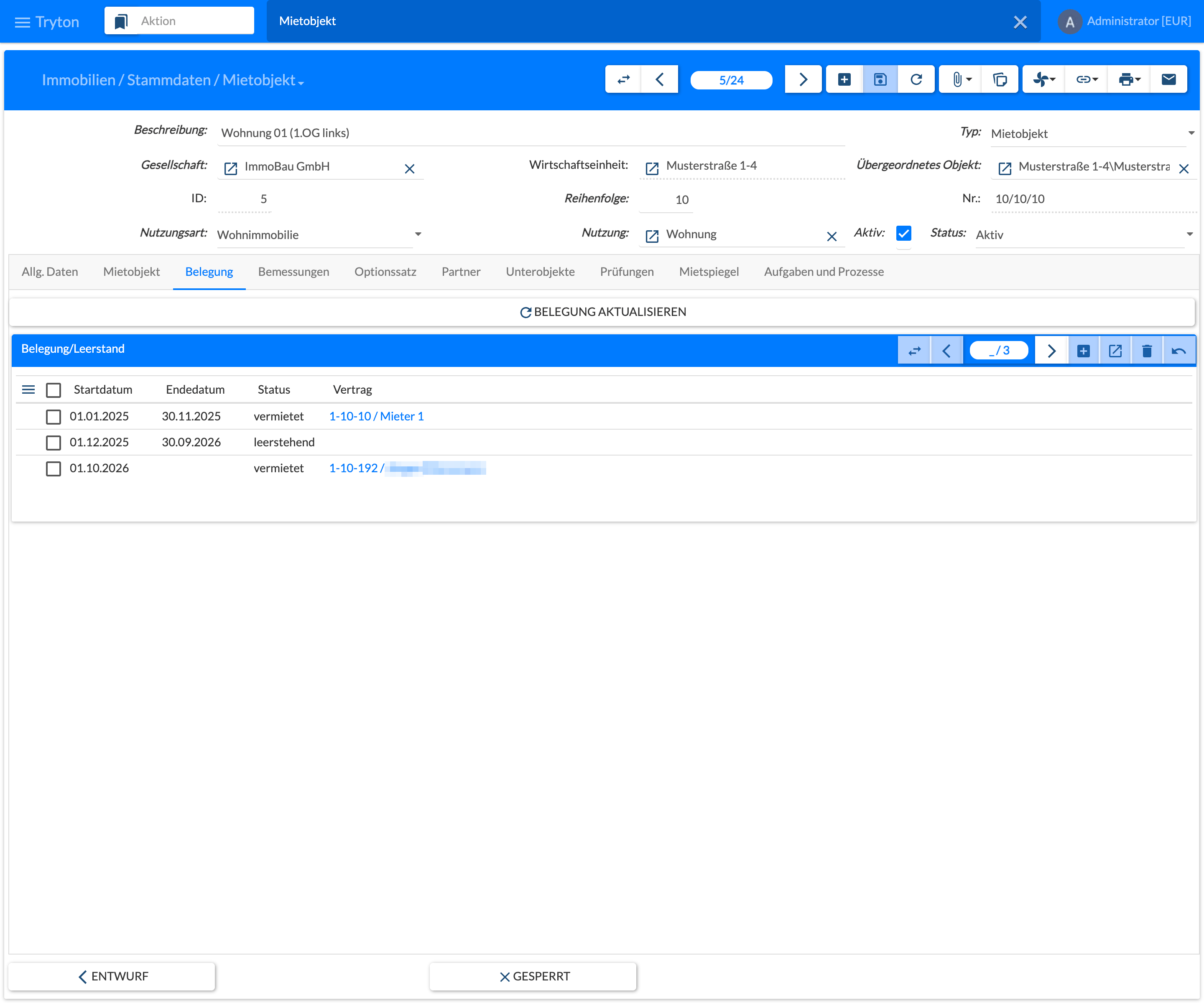
Time overview of when the rental object was let or vacant. The occupancy is derived from the contracts.
| Field | Description |
|---|---|
| Belegung aktualisieren (Refresh Occupancy) | Recalculates the occupancy of the rental object from the contracts. |
| Startdatum / Endedatum (Start / End Date) | Period of the entry; empty end date = open. |
| Status (State) | vermietet (rented), leerstehend (vacant) or in Verhandlung (under negotiation). |
| Vertrag (Contract) | Lease of the period, see 6.1 Creating and Maintaining Contracts. |
An overview of all rental objects is provided by 6.5 Occupancy and Vacancy.
Further Tabs
The tabs Bemessungen, Optionssatz, Partner, Unterobjekte, Prüfungen, Mietspiegel and Aufgaben und Prozesse are structured as for the property. For rental objects the option rate method “dynamic by measurement” is not available. In addition, for rental objects:
- Partner (Parties): The shipped role Eigentümer (Owner) is available, e.g. for the owner of a condominium.
- Unterobjekte (Sub-Objects): Only equipment, e.g. smoke detectors, fitted kitchen or meters, see 5.4 Equipment and Technical Installations.
- Prüfungen (Inspections): Instead of inspection plans the tab shows the inspection lines of the rental object, e.g. the line of the apartment in the smoke detector check, and its open defects.
- Aufgaben und Prozesse (Tasks and Processes): In addition to the tasks of the rental object, the tasks of the contracts of the rental object are shown. If the rental object is vacant, the process Leerstand / Neuvermietung (Vacancy / Reletting) is started via Actions › Prozess starten. It creates six tasks: record meter readings and secure the unit, inspect the unit and commission repairs (both for the role caretaker), determine the new rent, advertise the unit, viewings and selection of the tenant, create the new lease contract. See 10.2 Processes.
Actions, Relate and Print
| Menu | Entry | Meaning |
|---|---|---|
| Actions | Neue Aufgabe (New Task) | Creates a task for the rental object. |
| Actions | Prozess starten (Start Process) | Starts a process from a template. |
| Actions | Belegung aktualisieren (Refresh Occupancy) | Same as the button in the tab Occupancy. |
| Actions | Merkmale erfassen (Assign Features) | Checklist of the rent survey features of the rental object, see tab Rent Survey. |
| Actions | Kopieren von Mietobjekt (Copy from Rental Unit) | Take over the features – optionally also the classes – of another rental object of the same property. |
| Actions | Vergleichsmiete berechnen (Calculate Comparative Rent) | Calculates the local comparative rent according to the rent survey (apartments), see 6.7 Rent Adjustments. |
| Actions | Entwurf, Gesperrt (Draft, Locked) | Change of state, same as the buttons at the bottom of the form. |
| Actions | Aktuelle Sicht übersetzen (Translate View) | Tryton standard function to translate the labels. |
| Relate | E-Mail Archive, Objekt, Zählerableselisten | Opens related records in a new tab, as for the property. |
| Datenblatt (Fact Sheet) | Fact sheet of the rental object. |
5.4 Equipment and Technical Installations
Equipment covers the technical installations and fittings of an object, e.g. smoke detectors, elevators, heating systems, fitted kitchens or meters. Equipment belongs to a property, a building, a plot of land, a rental object or another piece of equipment and is maintained with the same form as the property; only the differences are described here. Meters are equipment with the equipment type Meters; their meter data and readings are described in 5.5 Meters and Meter Readings.
Getting Started
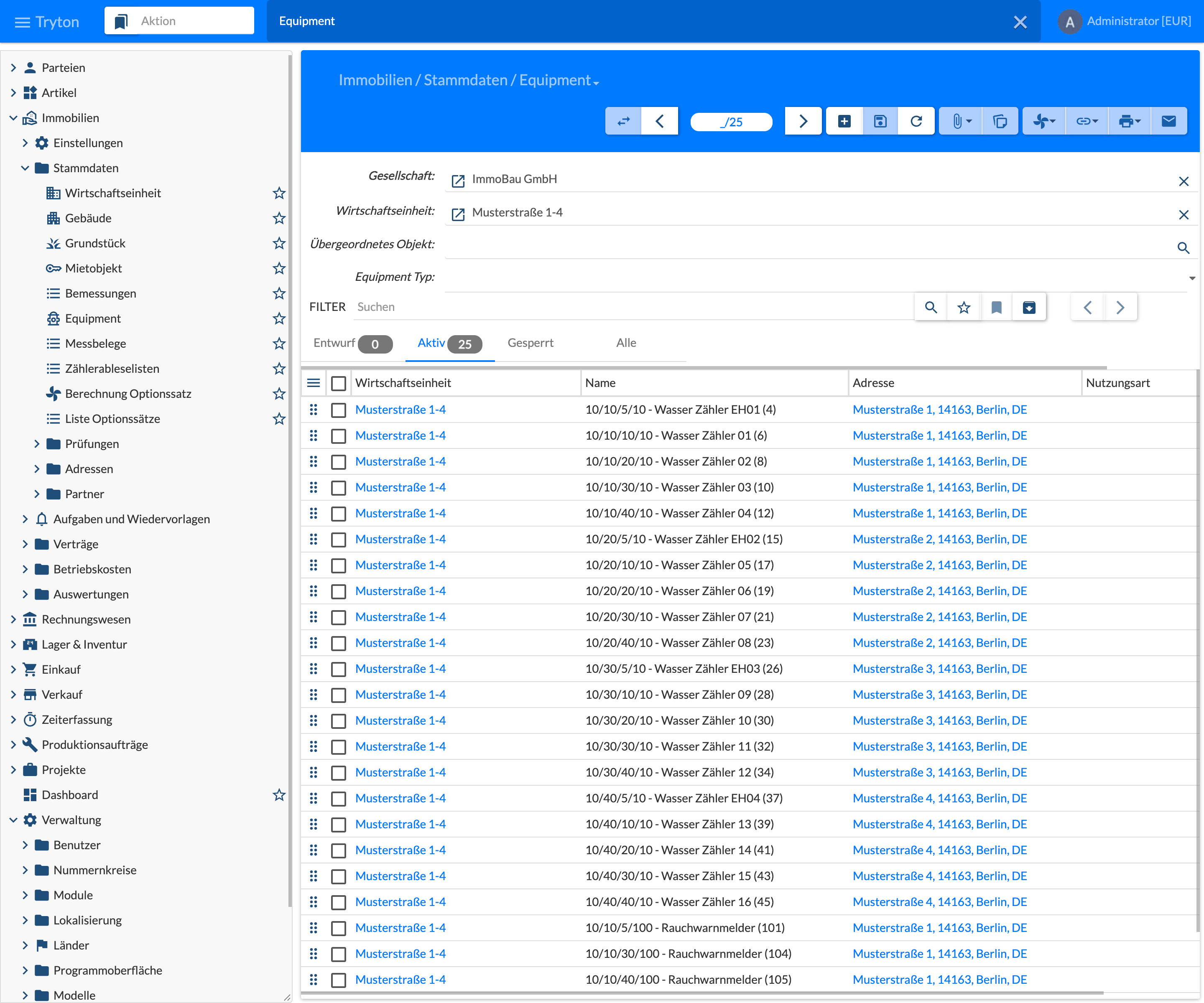
Open the menu Real Estate › Master Data › Equipment. The list shows the equipment of the company displayed at the top with property, name, address and type of use; the name starts with the number of the equipment. The fields Property, Parent Object and Equipment Type narrow down the list, e.g. to all meters of a building. The tabs Active, Locked and All filter by state. Creating and editing as for the property.
Creating and Editing
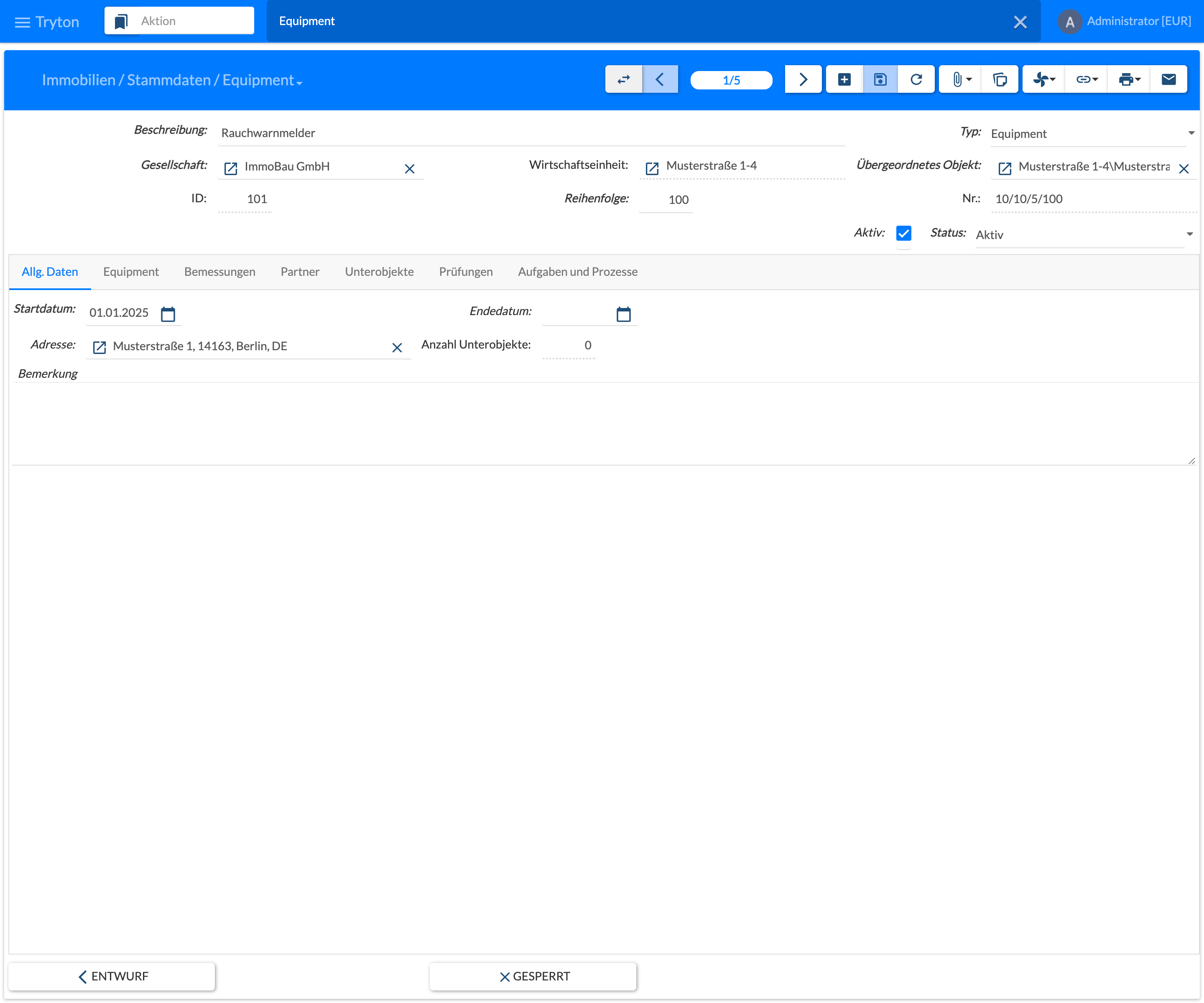
The header of the form corresponds to the rental object. Differences:
| Field | Description |
|---|---|
| Type | Here Equipment. |
| Parent Object | Object the equipment belongs to: property, building, land, rental object or another piece of equipment. Required. |
| No. | Built from the number of the parent object and the sequence, e.g. 10/10/5/100. |
The tab General Data contains start date, end date, address, number of sub-objects and remarks as for the building.
Tab Equipment
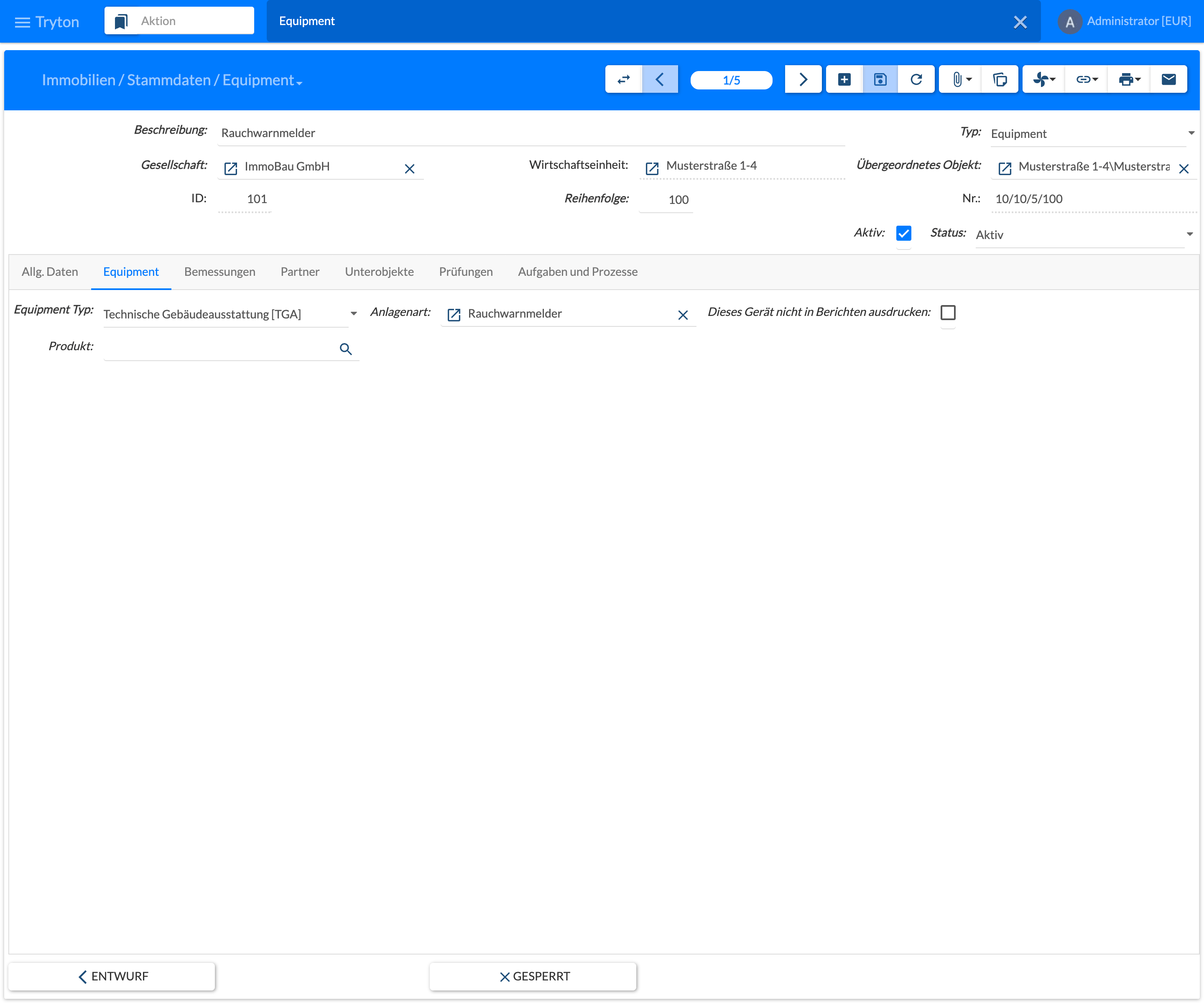
| Field | Description |
|---|---|
| Equipment Type | Rough classification: Technical Building Equipment [TGA], Structures (e.g. masonry, windows, doors), Installation (e.g. furniture) or Meters. Required. With Meters the additional tab Meters appears, see 5.5 Meters and Meter Readings. |
| Equipment Kind | Kind of installation, e.g. Smoke Detector or Elevator. The equipment kind determines which equipment is included in an inspection, e.g. all smoke detectors for the smoke detector check. |
| Do not print this equipment in reports | The equipment is not listed in reports. |
| Product | Optional: product from the Tryton product master, e.g. a specific device model. |
The module ships these equipment kinds: Smoke Detector, Elevator, Playground, Fire Extinguisher, Backflow Preventer, Heating System and Smoke and Heat Exhaust System. Further kinds are created in 2.5.6 Maintenance.
Tab Measurements
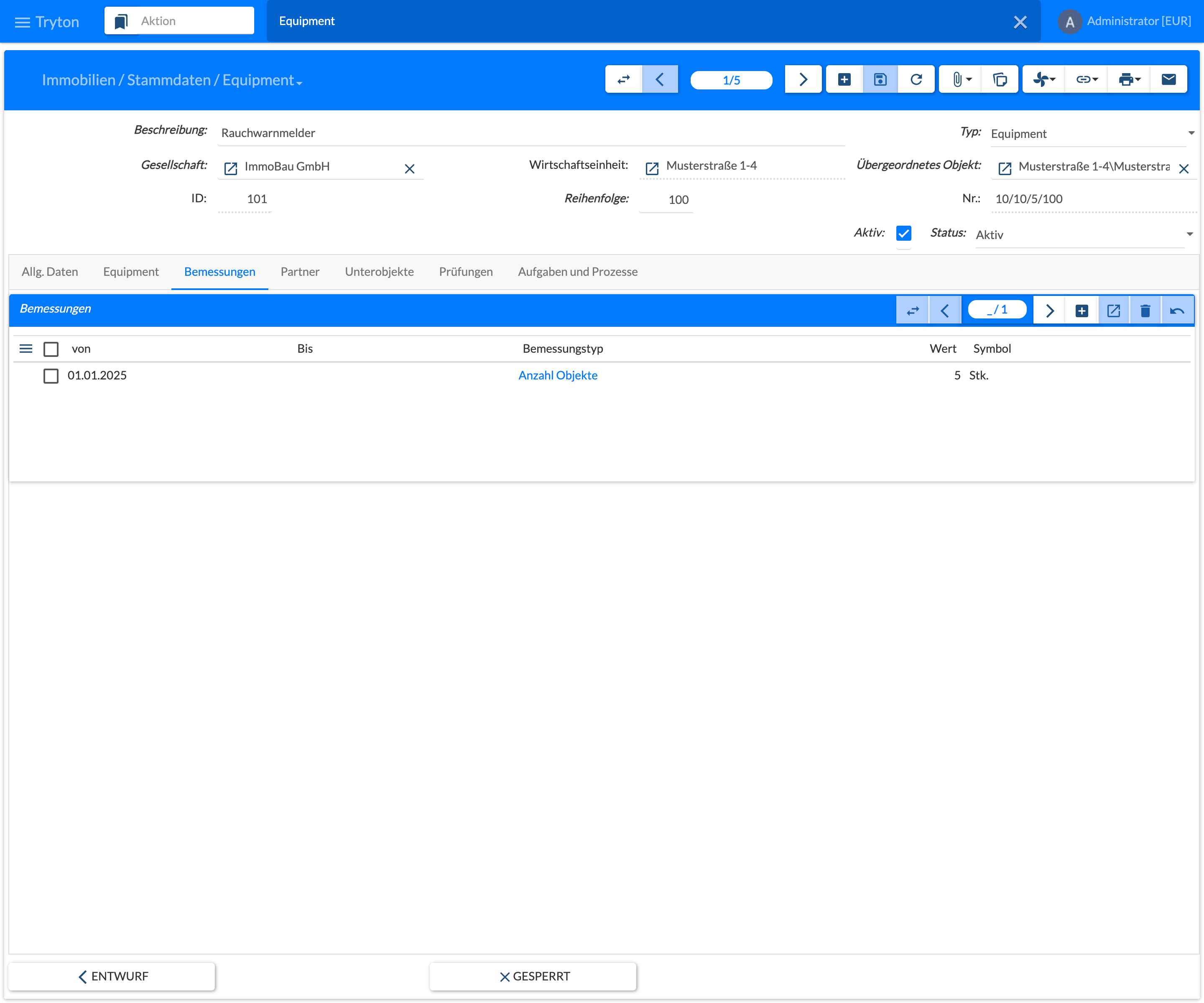
Structure as for the property. For equipment this is mainly where the Number of Items is kept: devices of the same kind need not be created one by one. In the example one equipment “Smoke detector” stands for the 5 smoke detectors of an apartment. Inspections propose this number as the expected quantity per apartment.
Further Tabs
The tabs Parties, Sub-objects, Inspections and Tasks and Processes are structured as for the property. For equipment:
- Parties: The roles shipped with the module (caretaker, administrator, owner) are not intended for equipment. For equipment, e.g. a maintenance company, a role of its own with the object type Equipment is needed, see 2.5.2 Business Partners.
- Sub-objects: Only further equipment can be placed below equipment, e.g. the components of a heating system.
- Inspections: Instead of inspection plans the tab shows the inspection lines in which the equipment was checked and its open defects. Inspection plans exist only on property and building, see 8.1 Inspection Plans.
- Tasks and Processes: Tasks and processes of the equipment itself. For meters the rule Meter calibration expires creates tasks here, see 5.5 Meters and Meter Readings.
Equipment has no tabs Option Rate and Rent Survey.
Actions, Relate and Print
| Menu | Entry | Meaning |
|---|---|---|
| Actions | New Task | Creates a task for the equipment. |
| Actions | Start Process | Starts a process from a template. |
| Actions | Draft, Locked | State change, like the buttons at the bottom of the form. |
| Actions | Translate view | Tryton standard function for translating labels. |
| Relate | E-Mail Archives, Object, Meter Reading Sheets | Opens related records in a new tab, as for the property. |
| Data Sheet | Data sheet of the equipment. |
5.5 Meters and Meter Readings
Meters are equipment with the equipment type Zähler (Meters), e.g. water, heat, electricity or gas meters. They usually belong to the rental object, main meters to the building or property. Every reading is stored as a Messbeleg (meter reading); the meter readings are the basis for the consumption-based allocation in the operating cost settlement. For the regular reading of many meters there are the Zählerableselisten (meter reading sheets).
Meters
Meters are created like any equipment via Immobilien › Stammdaten › Equipment, see 5.4 Equipment and Technical Installations. In the tab Equipment the equipment type Zähler is selected; the tab Zähler then appears.
Tab Zähler (Meters)
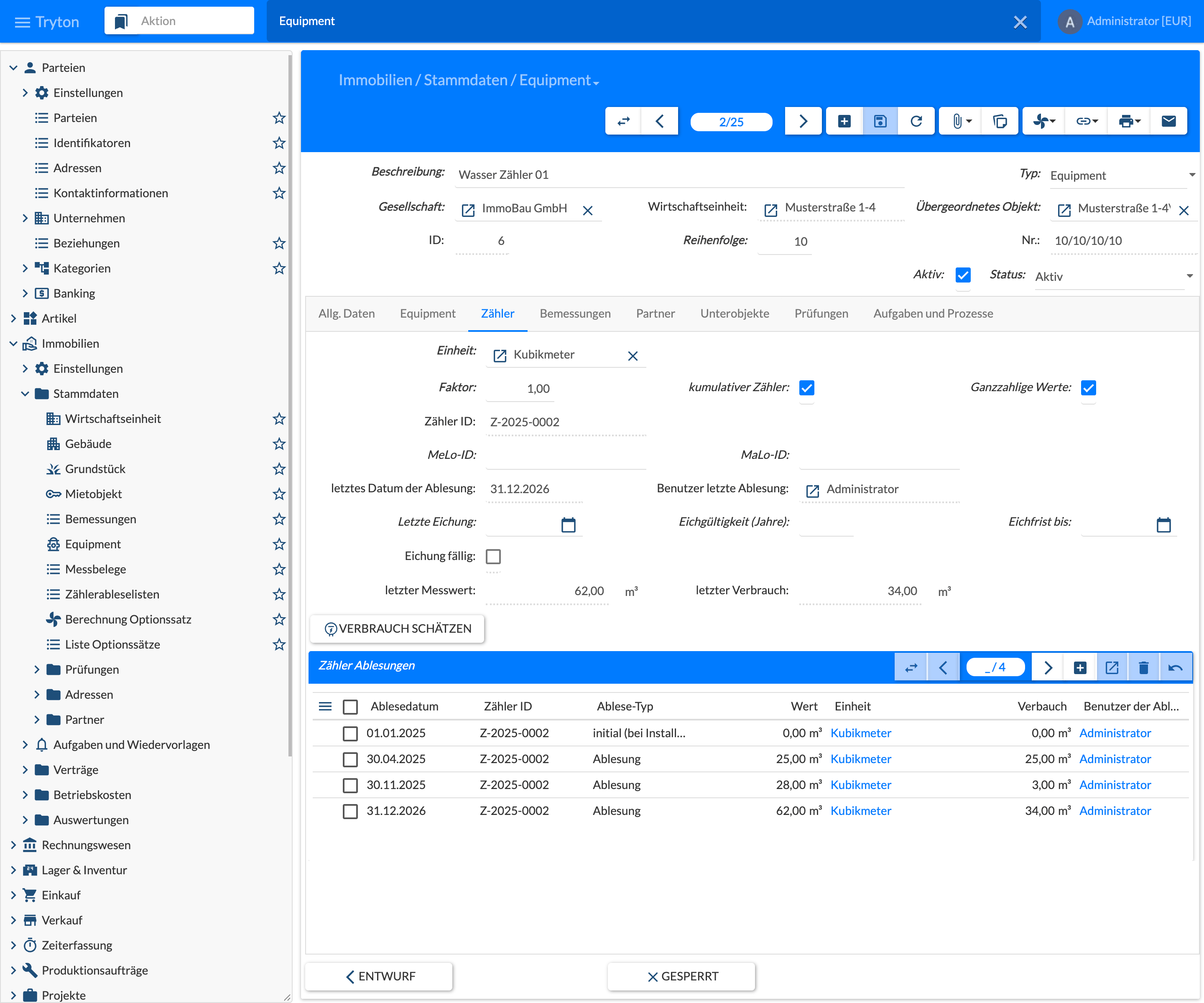
| Field | Description |
|---|---|
| Einheit (Unit) | Unit of the meter values, e.g. cubic metre or kWh. |
| Faktor (Factor) | Factor the consumption is multiplied by, e.g. for an electricity meter with a transformer. |
| kumulativer Zähler (Is Counter) | The meter value increases continuously; the consumption is the difference of two values. If not set, the meter measures absolute values, e.g. a fill level. |
| Ganzzahlige Werte (Integer Values) | Meter values are recorded without decimals. |
| Zähler ID (Meter ID) | Number of the installed meter (device number). It changes on a meter exchange, see meter readings. |
| MeLo-ID / MaLo-ID | Metering point ID resp. market location ID, e.g. for electricity and gas meters. |
| letztes Datum der Ablesung, Benutzer letzte Ablesung (Last Reading Date, Last Reading User) | Date and reader of the last meter reading; computed. |
| Letzte Eichung (Last Calibration) | Date of the last calibration or of the installation of a calibrated meter. |
| Eichgültigkeit (Jahre) (Calibration Validity, Years) | Validity of the calibration in years. |
| Eichfrist bis (Calibration Valid to) | End of the calibration validity; proposed as 31 December of the year of the last calibration plus validity, can be overwritten. |
| Eichung fällig (Calibration Due) | The calibration validity ends within the next 3 months or has ended. |
| letzter Messwert / letzter Verbrauch (Last Value / Last Consumption) | Value and consumption of the last meter reading; computed. |
| Zähler Ablesungen (Meter Readings) | All meter readings of the meter with reading date, meter ID, reading type, value, unit, consumption and reader. New readings can also be entered here. |
The button Verbrauch schätzen (Estimate Consumption) opens a wizard that creates an estimated meter reading for a date. If readings exist before and after the date, the value is interpolated between them; otherwise it is extrapolated from the last two readings within one year. Meter ID, date and reason have to be entered.
With the task rule Eichfrist läuft ab (Meter calibration expires) a task for a meter exchange or recalibration is created 3 months before the calibration expires, see 10 Tasks and Processes.
Meter Readings
Getting Started
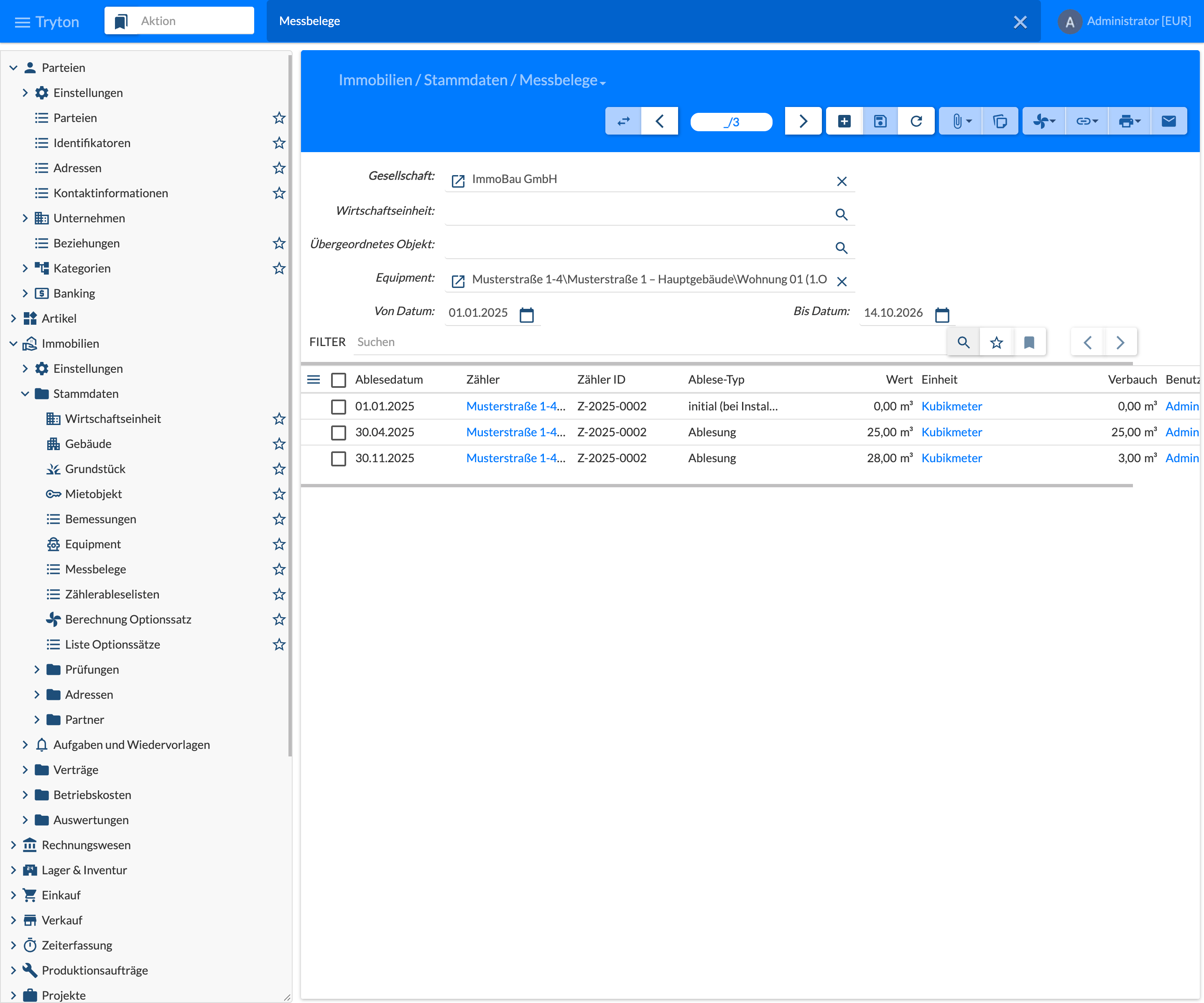
Open the menu Immobilien › Stammdaten › Messbelege (Real Estate › Master Data › Meter Readings). The list shows the readings of all meters. The fields Gesellschaft (Company), Wirtschaftseinheit (Property), Übergeordnetes Objekt (Parent Object) and Equipment as well as Von Datum and Bis Datum (from / to date) restrict the list, e.g. to the meters of an apartment in a billing period. New meter readings can be entered directly in the list with + (New).
Fields
| Column | Description |
|---|---|
| Ablesedatum (Reading Date) | Date of the meter value. |
| Zähler (Meter) | Meter (equipment) the reading belongs to. |
| Zähler ID (Meter ID) | Number of the meter read. |
| Ablese-Typ (Reading Type) | initial (bei Installation) (initial, installation), Ablesung (reading), geschätzt (estimate), lineare Interpolation (linear interpolation) or Endablesung vor Ausbau (final reading, removal). |
| Wert (Value) | Meter value read. |
| Einheit (Unit) | Unit of the meter. |
| Verbrauch (Consumption) | Consumption since the previous reading; computed. |
| Benutzer der Ablesung (Reading User) | Reader. |
Rules When Entering
- The first reading of a meter must have the reading type initial (bei Installation).
- Readings and estimates must have the same meter ID as the previous reading.
- For a cumulative meter the value must not be lower than the previous one.
- Meter exchange: for the old meter a Endablesung vor Ausbau (final reading) with the old meter ID is entered, for the new meter on the same day a reading initial (bei Installation) with the new meter ID.
- Only one reading per meter, date and meter ID is allowed.
- With Ganzzahlige Werte (integer values) no decimals are allowed.
Readings of the type lineare Interpolation are created by the operating cost settlement itself when a meter value between two readings is needed for the start or end of a billing period.
Meter Reading Sheets
A meter reading sheet collects all meters below an object for one reading date. It is printed, filled in while reading and then entered. On completion the system creates the meter readings.
Getting Started
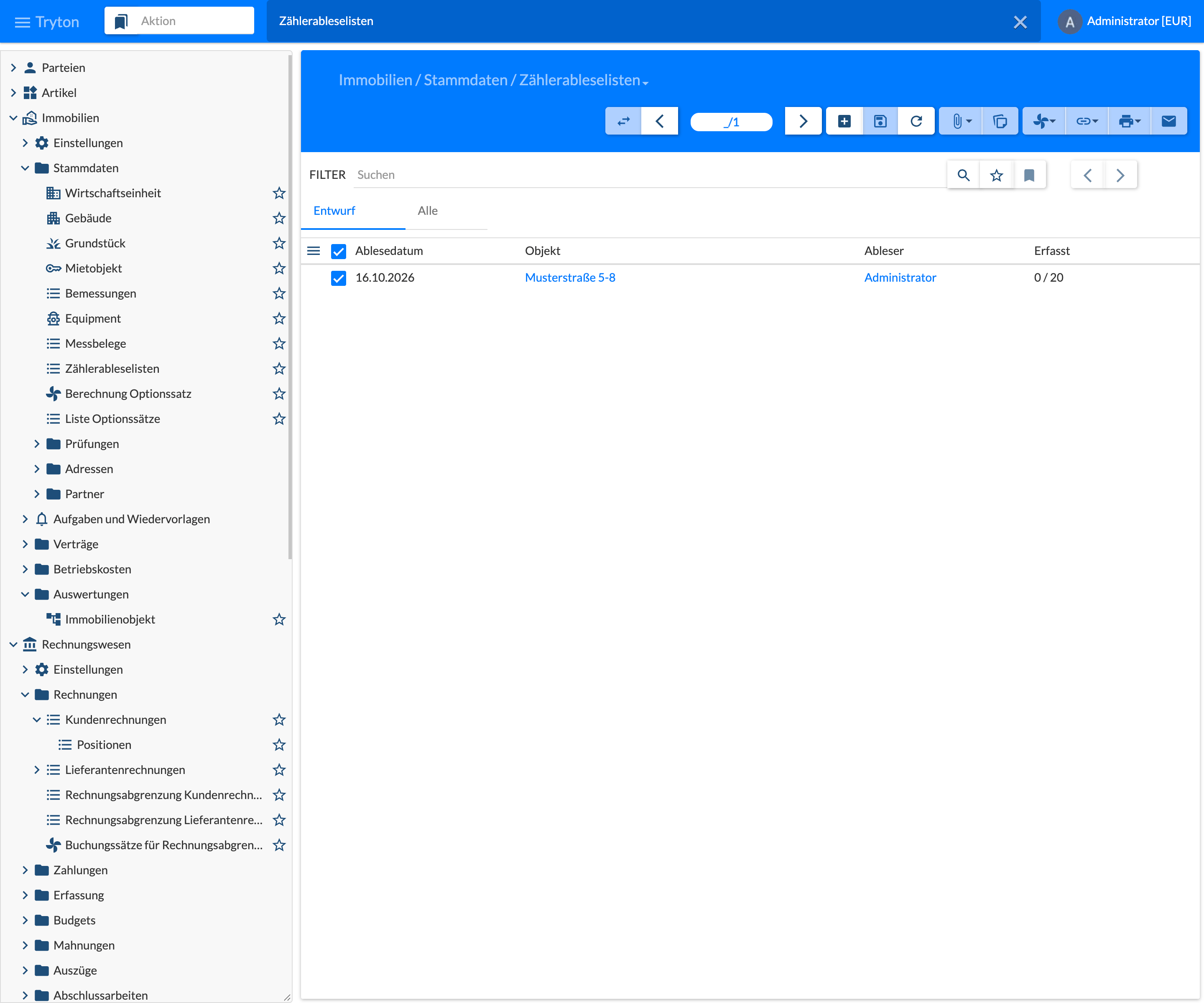
Open the menu Immobilien › Stammdaten › Zählerableselisten (Real Estate › Master Data › Meter Reading Sheets). The tab Entwurf (Draft) shows the open sheets with reading date, object, reader and progress (Erfasst: meters with a value entered / all meters, e.g. 0 / 20 for a new sheet). The tab Alle (All) also shows completed and cancelled sheets with their state.
- Create: button + (New) in the toolbar
- Edit: select the row and switch to the form
Create and Edit
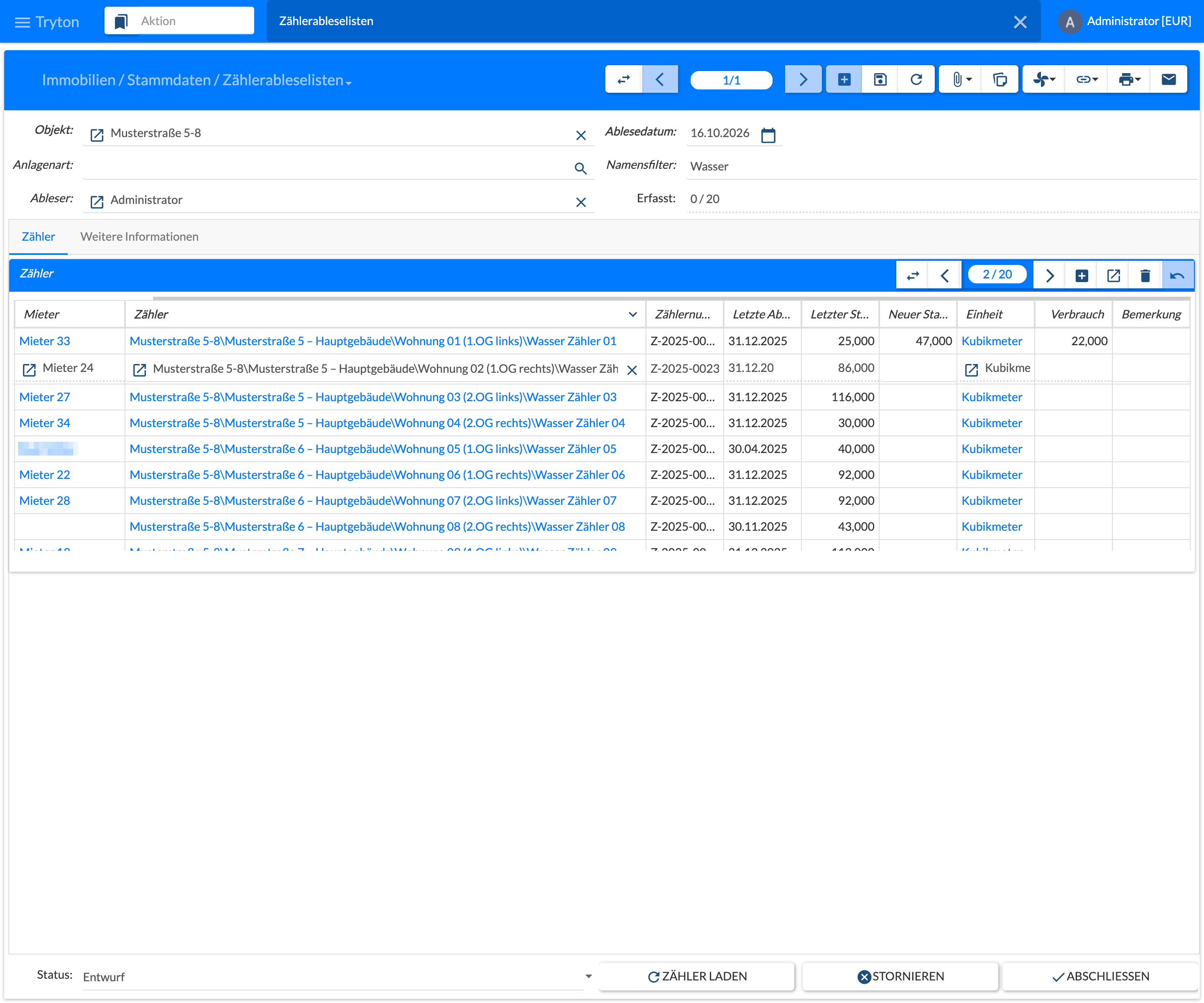
| Field | Description |
|---|---|
| Objekt (Object) | Property, building or rental object; the meters below it are listed. Required. |
| Ablesedatum (Reading Date) | Date of the reading; date of the meter readings created. Required. |
| Anlagenart (Equipment Kind) | Optional: only meters of this equipment kind. |
| Namensfilter (Name Filter) | Optional: only meters whose name contains this text, e.g. “Wasser” or “Warmwasser”. |
| Ableser (Reader) | User entered as reader in the meter readings created. |
| Erfasst (Progress) | Number of meters with a value entered / number of all meters of the sheet. |
| Status (State) | Entwurf (Draft), Abgeschlossen (Done) or Storniert (Cancelled). The sheet can be edited in draft. |
The tab Zähler (Meters) contains one line per meter; only the Neuer Stand (new value) is entered:
| Column | Description |
|---|---|
| Mieteinheit (Rental Unit) | Rental object the meter belongs to. |
| Mieter (Tenant) | Main tenant of the rental object on the reading date (from the occupancy). |
| Zähler (Meter) | Meter (equipment). |
| Zählernummer (Meter ID) | Meter ID; proposed from the last meter reading. |
| Letzte Ablesung / Letzter Stand (Previous Date / Value) | Date and value of the last reading before the reading date. |
| Neuer Stand (Value) | Meter value read. |
| Einheit, Verbrauch (Unit, Consumption) | Unit of the meter and consumption since the last value. |
| Bemerkung (Remarks) | Note on the reading, e.g. “meter not accessible”. |
The new value is entered directly in the line; the consumption is calculated immediately (in the figure for the first meter 47 − 25 = 22 m³). With many columns the table can be scrolled sideways. Via ≡ the columns Zählerablesung (meter reading created) and Ablesung erzeugt (reading created) can be shown in addition.
The tab Weitere Informationen (Other Info) contains property and company (set automatically), Abgeschlossen von (done by), Abgeschlossen am (done on) and Notizen (notes).
Procedure
- Create the sheet: choose object, reading date and, if needed, equipment kind or name filter.
- Zähler laden (Load Meters): the meters below the object are entered with rental unit, tenant and last value. Loading again adds new meters and refreshes the data; values already entered are kept.
- Print the sheet via Drucken › Ableseliste (de) and read the meters.
- Enter the new values.
- Abschließen (Complete): for every line with a new value a meter reading of the type Ablesung is created. If the meter already has a reading on the reading date, that one is linked. If values are missing, a warning appears that can be confirmed.
- Folgeliste (Follow-up Sheet): creates the sheet for the next date – same object and filters, reading date one year later – and opens it.
Auf Entwurf zurücksetzen (Reset to Draft) deletes the meter readings created by the sheet; linked, already existing readings are kept.
Actions, Relate and Print
| Menu | Entry | Meaning |
|---|---|---|
| Actions | Zähler laden, Abschließen, Stornieren (Load Meters, Complete, Cancel) | Only in the state draft, see procedure. |
| Actions | Auf Entwurf zurücksetzen (Reset to Draft) | For a completed or cancelled sheet, same as the button at the bottom of the form. |
| Actions | Folgeliste (Follow-up Sheet) | Only for a completed sheet, see procedure. |
| Actions | Aktuelle Sicht übersetzen (Translate View) | Tryton standard function to translate the labels. |
| Relate | E-Mail Archive | E-mails of the reading sheet. |
| Ableseliste (de) (Reading Sheet) | Reading sheet to fill in while reading. |
From every object, Verknüpfungen › Zählerableselisten (Relate › Meter Reading Sheets) opens the reading sheets of that object.
5.6 Option Rates
The option rate states which share of the input VAT on purchase invoices is deductible because the owner has opted for VAT on the letting (§ 9 UStG). It is kept per object, billing unit and settlement unit with a valid-from date and is proposed automatically when purchase invoices are entered. The method is maintained in the tab Optionssatz (Option Rate) of the object, see 5.1 Property.
| Option rate method | Option rate |
|---|---|
| optiert nicht (0,0 %) fix (not opted, fixed 0 %) | always 0 % – the input VAT is an expense |
| optiert (100,0 %) fix (opted, fixed 100 %) | always 100 % – the input VAT is fully deductible |
| Optionssatz fix nach Wert (fixed by value) | fixed percentage entered in the tab Option Rate |
| dynamisch über Bemessung (dynamic by measurement) | calculated: average of the option rates of the rental objects, weighted by a measurement (e.g. living/usable area); not for rental objects themselves |
If the company is set to always book input VAT as an expense, there is no option rate; the tab is hidden then.
Berechnung Optionssatz (Update Option Rates)
The wizard recalculates the option rates for a selection and creates a new entry where the rate changes. It is run e.g. after a change between residential and commercial letting or after changed areas.
Automatically as a job
The same calculation can also run periodically: as the job Optionssatz aktualisieren (Update Option Rate), e.g. monthly on the 1st. It calculates all properties of the company as of the current date; the new rate is valid from the first of the month. The job is set up in 2.6 Jobs and Periodic Tasks.
Selection
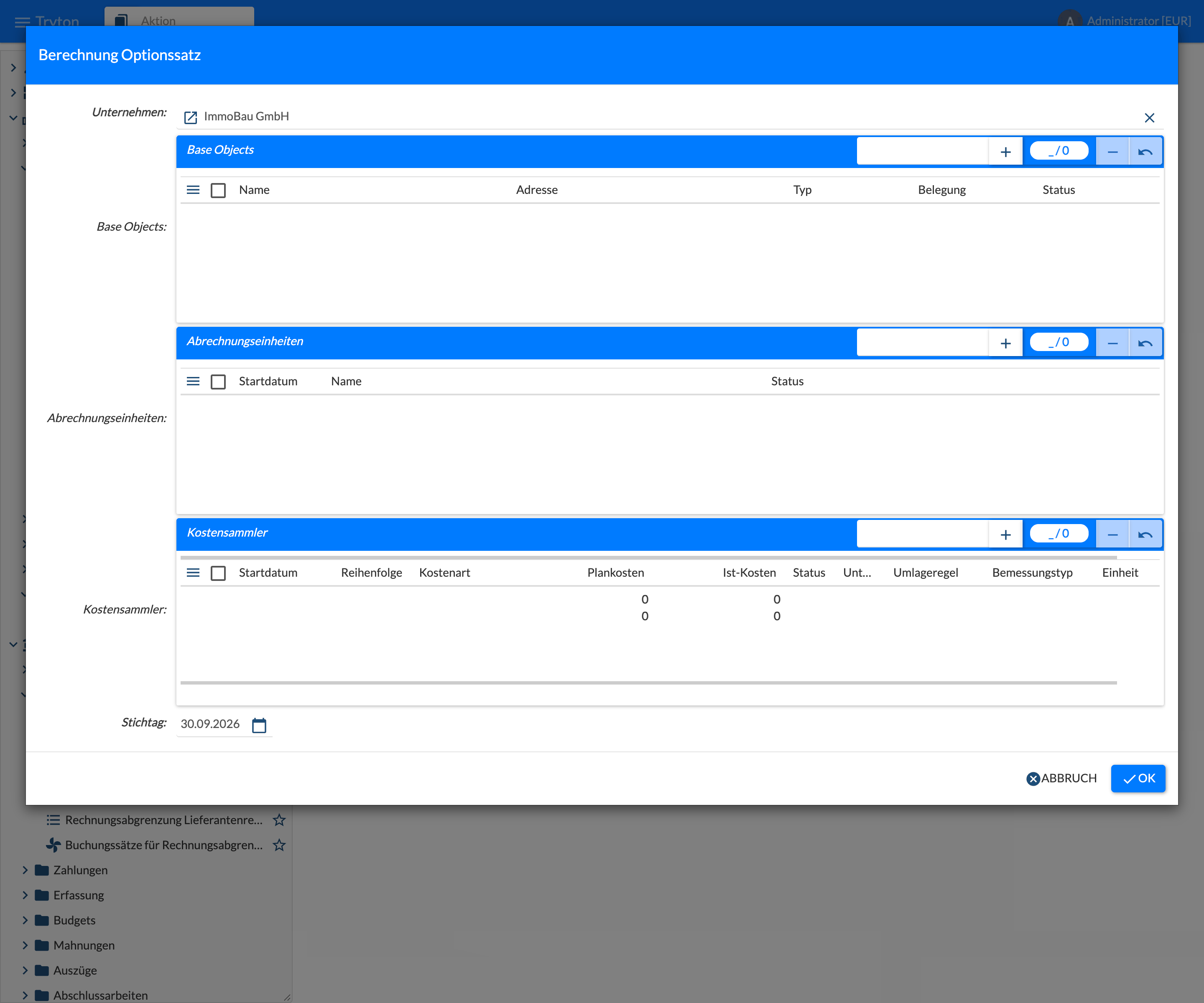
Open the menu Immobilien › Stammdaten › Berechnung Optionssatz (Real Estate › Master Data › Update Option Rates).
| Field | Description |
|---|---|
| Unternehmen (Company) | Company whose objects are calculated. Required. |
| Base Objects | Properties, buildings, land or rental objects. Selected properties, buildings and land are expanded to all objects below them, a property additionally to its billing units and settlement units. |
| Abrechnungseinheiten (Billing Units) | Billing units; they are expanded to their settlement units. |
| Kostensammler (Settlement Units) | Individual settlement units. |
| Stichtag (Cut-off Date) | Date of the calculation. The new option rate is valid from the first of this month. Default: today. |
If the three lists are left empty, all properties of the company are calculated.
Confirm
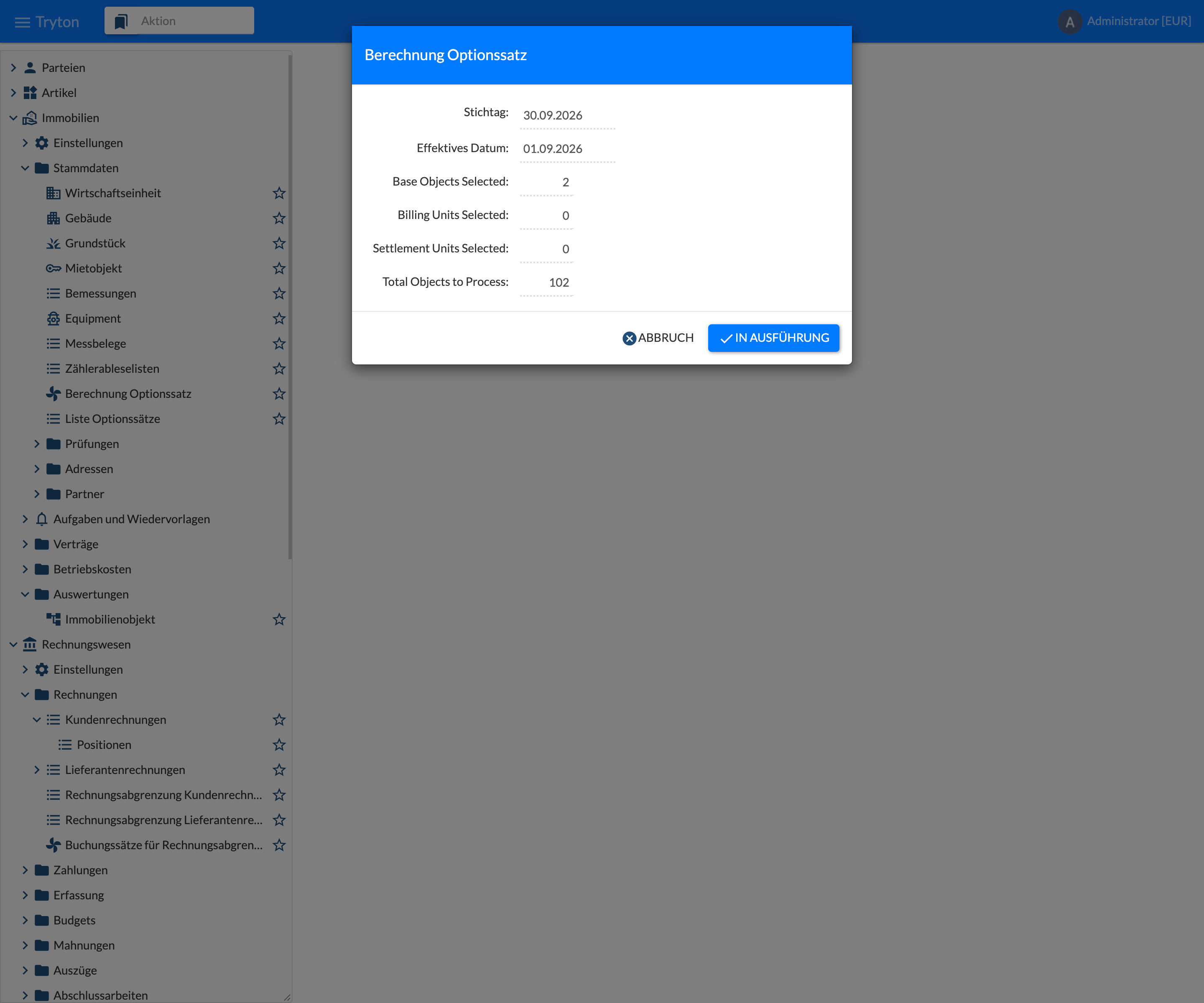
The second step shows Stichtag and Effektives Datum (effective date: first of the month from which the new rate applies), the number of selected base objects, billing units and settlement units and the total number of objects to process after expansion. In the example 2 properties become 102 objects. In Ausführung (Process) starts the calculation.
Calculation per object:
- fixed 0 % / fixed 100 % / fixed by value: the rate is taken over directly.
- dynamic by measurement: every active rental object below contributes its measurement at the cut-off date as weight and its own option rate; the result is the weighted average, rounded to 2 decimals. An object that is not active excludes its whole subtree. For billing units and settlement units their assigned rental objects count.
- Objects that are not Aktiv (active) as well as billing units and settlement units in the state draft or billed are not processed.
Result
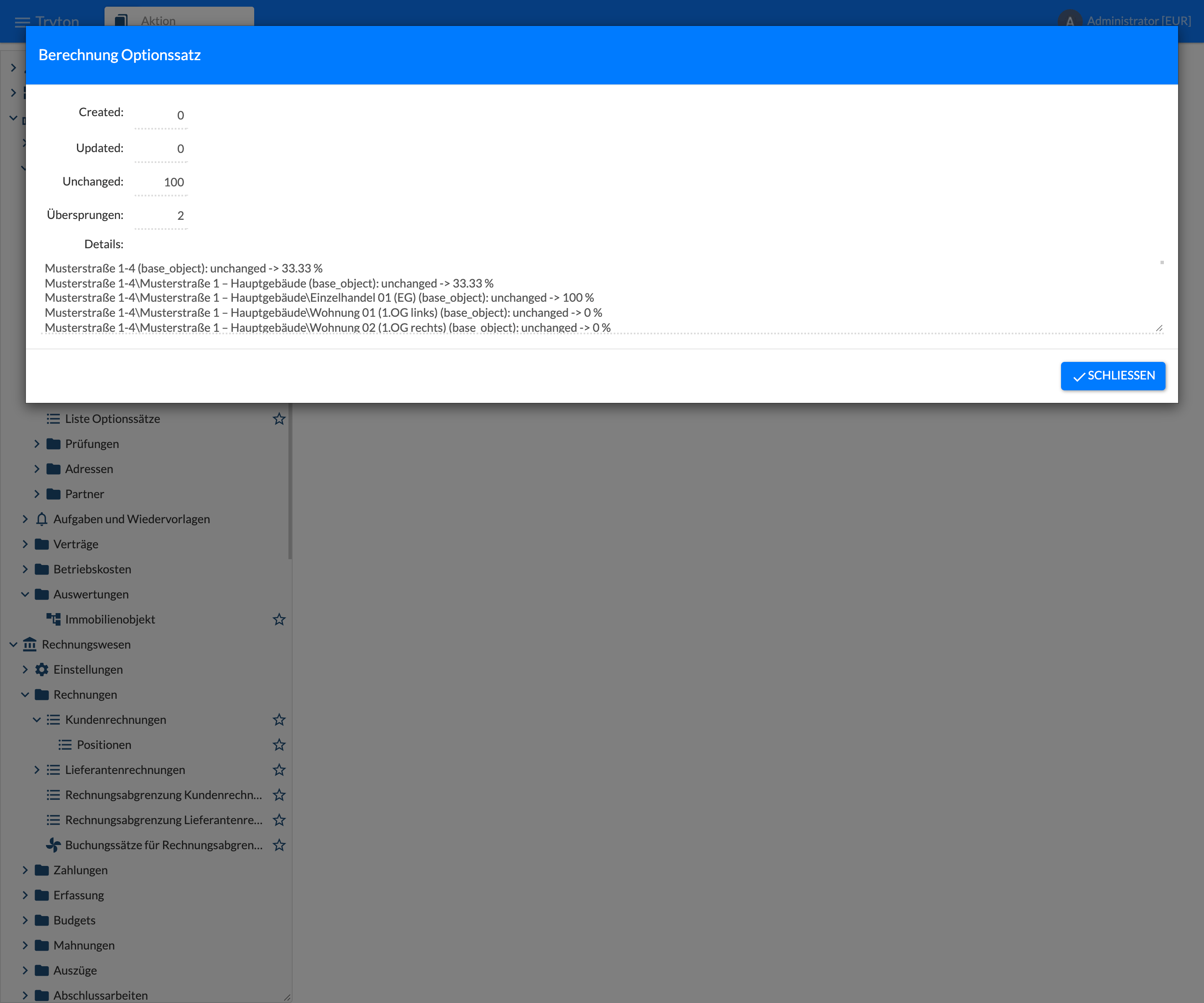
| Field | Meaning |
|---|---|
| Created | New option rate entry, valid from the first of the month. |
| Updated | An entry for the same first of the month already existed; it was overwritten. |
| Unchanged | The calculated rate equals the current one; nothing is written. |
| Übersprungen (Skipped) | No rate could be calculated, e.g. for “dynamic by measurement” without measurements. |
| Details | One line per object with result and rate, e.g. “Musterstraße 1-4 (base_object): unchanged -> 33.33 %”. |
In the example the apartments have 0 %, the commercial unit 100 % and building and property the weighted rate of 33.33 %.
Liste Optionssätze (Option Rates)
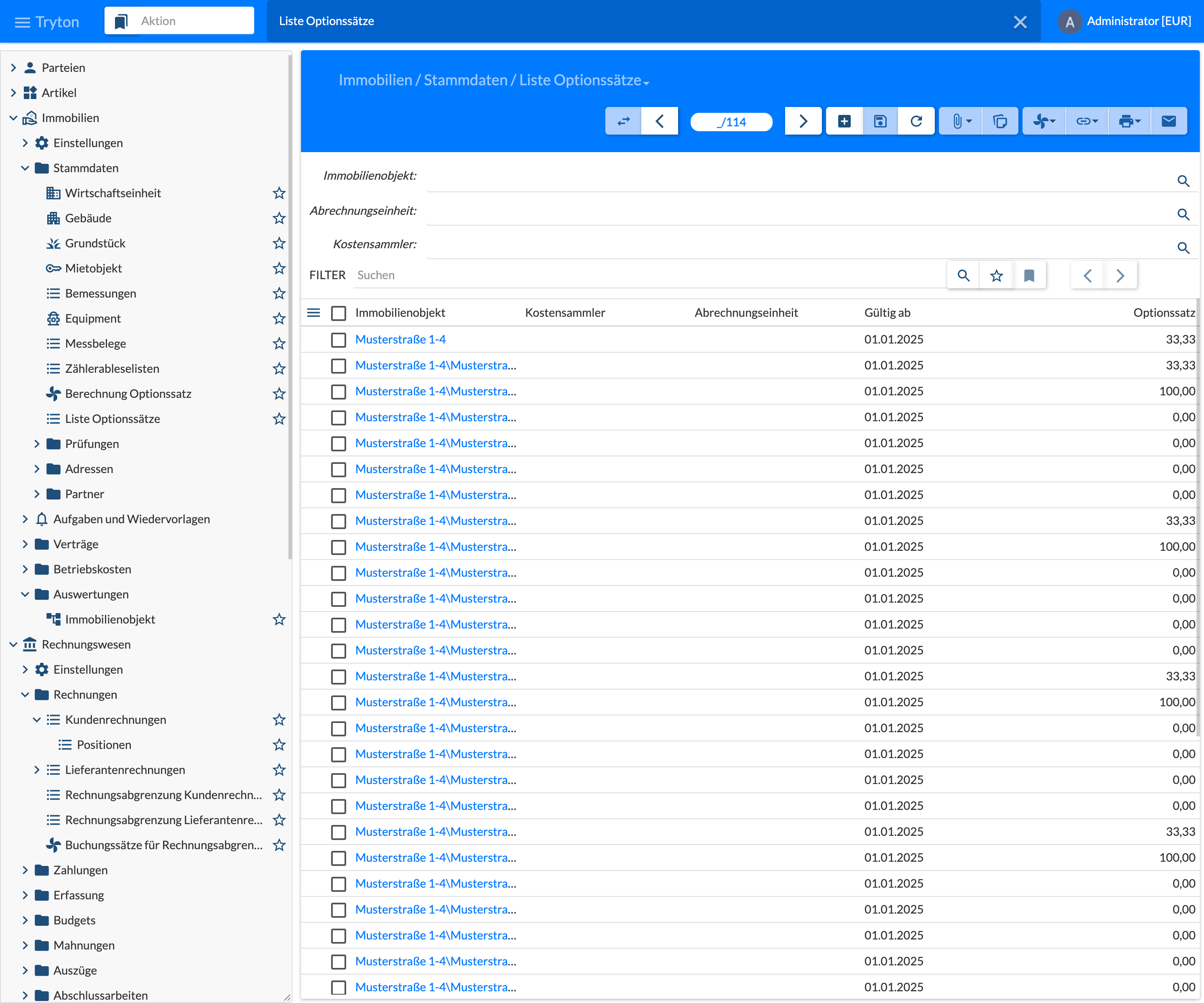
Open the menu Immobilien › Stammdaten › Liste Optionssätze (Real Estate › Master Data › Option Rates). The list shows all booked option rates with real estate object, settlement unit or billing unit, Gültig ab (valid from) and Optionssatz (option rate) in percent. The fields Immobilienobjekt, Abrechnungseinheit and Kostensammler restrict the list. The list is for reference only and cannot be edited; entries are created by the wizard or in the tab Optionssatz of the object.
Which option rate is proposed on a purchase invoice depends on the most specific reference of the invoice line – object before settlement unit before billing unit before property – and on the invoice date: the last entry with Gültig ab on or before that date applies. See 4.1 Invoices.
6 Contracts
Subsections of 6 Contracts
6.7 Rent Adjustments
A rent adjustment changes exactly one term of a contract by a specific procedure. This page describes what applies to all procedures; the individual procedures are on the sub-pages.
Procedures
| Procedure | Legal basis | Process |
|---|---|---|
| 6.7.1 Graduated Rent | § 557a BGB | All steps are generated as terms of their own when the contract is concluded. |
| 6.7.2 Index Rent | § 557b BGB | Agreement on the contract; every increase by adjustment run with declaration, receipt and execution. |
| 6.7.3 Comparative Rent | §§ 558–558b BGB | Adjustment run based on the rent survey calculations, with cap and consent of the tenant. |
| 6.7.4 Modernisation | §§ 555b–559e BGB | Measure with costs and announcement; increase by adjustment run. |
| 6.7.5 Operating Costs and Free Adjustment | § 560 BGB | Adjustment of prepayments and flat rates; free adjustment. |
Permission
A procedure is only possible if it is entered under Zulässige Anpassungsverfahren (Allowed Adjustment Procedures) on the contract type, on the term type and for the type of use of at least one rental object of the contract item, see 2.5.4 Contracts. In the default data the type of use apartment allows all procedures; office, shop, warehouse, parking space and garage all except comparative rent and modernisation – the comparative rent (§ 558 BGB) exists only for apartments. At most one agreed procedure per term is possible, i.e. graduated or index rent.
Menus
Under Immobilien › Verträge › Mietanpassungen (Real Estate › Contracts › Rent Adjustments), in the order of the work:
| Menu | Content |
|---|---|
| Vereinbarungen (Agreements) | The rent adjustments of all procedures. |
| Indexmieten - Wiedervorlage (Index Rents – Follow-up) | Active index rents with the tabs Due, Next 3 Months and All, see 6.7.2. |
| Anpassungsläufe (Adjustment Runs) | The central entry for index rent, comparative rent and modernisation, see below. |
| Anpassungen (Adjustments) | All adjustments, see below. |
| Mietspiegel-Berechnungen (Comparative Rent Calculations) | Calculations of the comparative rent, see 6.7.3. |
| Modernisierungen (Modernisations) | Modernisation measures, see 6.7.4. |
All lists have the selection Gesellschaft (company, required) and Wirtschaftseinheit (property, optional) at the top. The settings – price indices, import index values, index rent cap rules, modernisation rules – are under Immobilien › Einstellungen.
Tab Mietanpassungen on the Contract
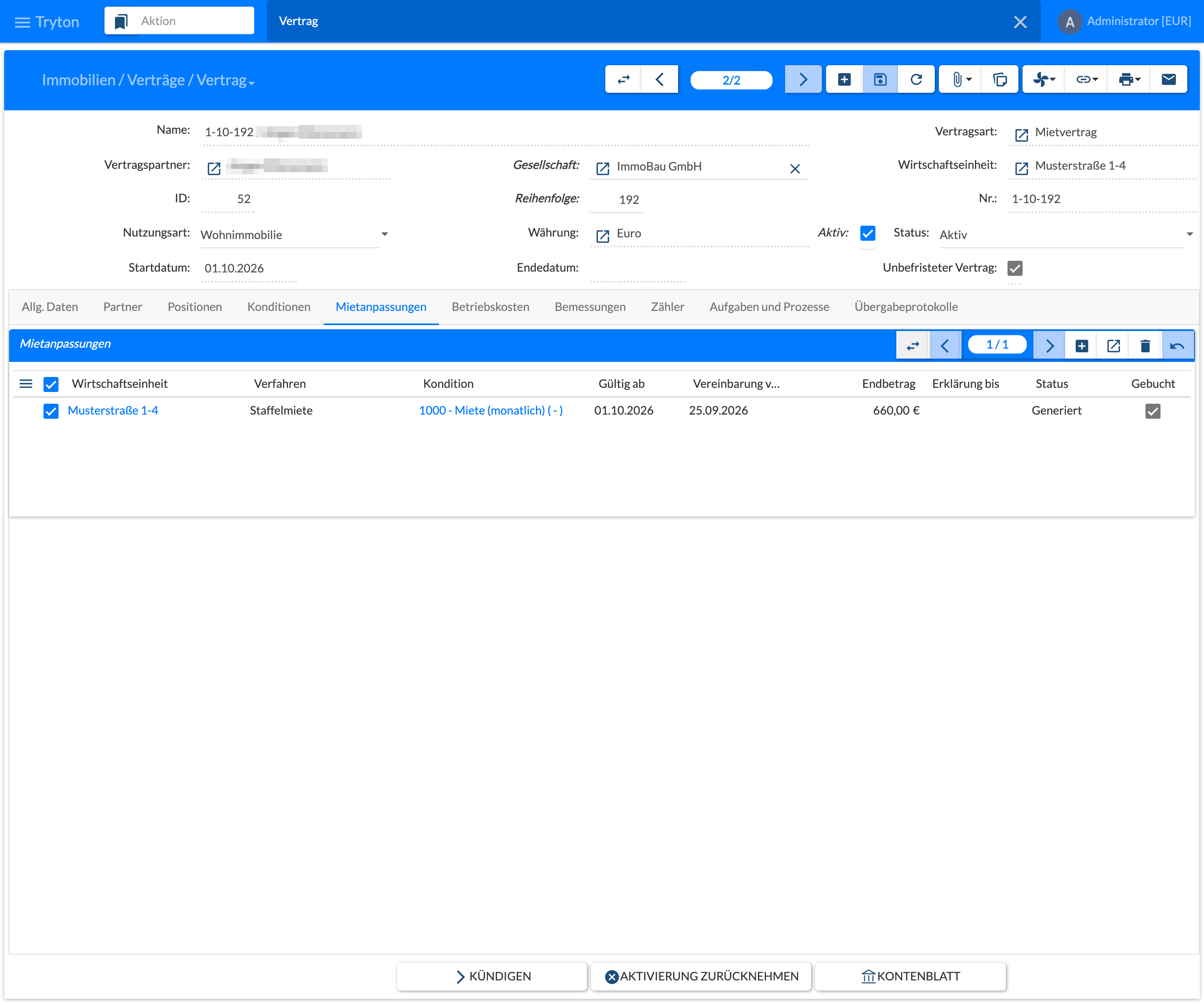
The tab Mietanpassungen (Rent Adjustments) of the contract lists all rent adjustments with property, procedure, term, Gültig ab (valid from), Vereinbarung vom (agreement date), Endbetrag (final amount; for graduated rent the amount of the last step), Erklärung bis (declaration until; for index rent the latest dispatch date of the declaration), Status and Gebucht (booked: at least one step has already been posted). + creates a new rent adjustment, a double click opens it. Header and tabs of the rent adjustment depend on the procedure.
Adjustment Run
Index rent, comparative rent and modernisation are carried out by an adjustment run: menu Verträge › Mietanpassungen › Anpassungsläufe, New, choose the procedure. A run (number AL-year-no.) has procedure, company, optionally properties and contracts as filter, key date, planned declaration date and the parameters of the procedure.
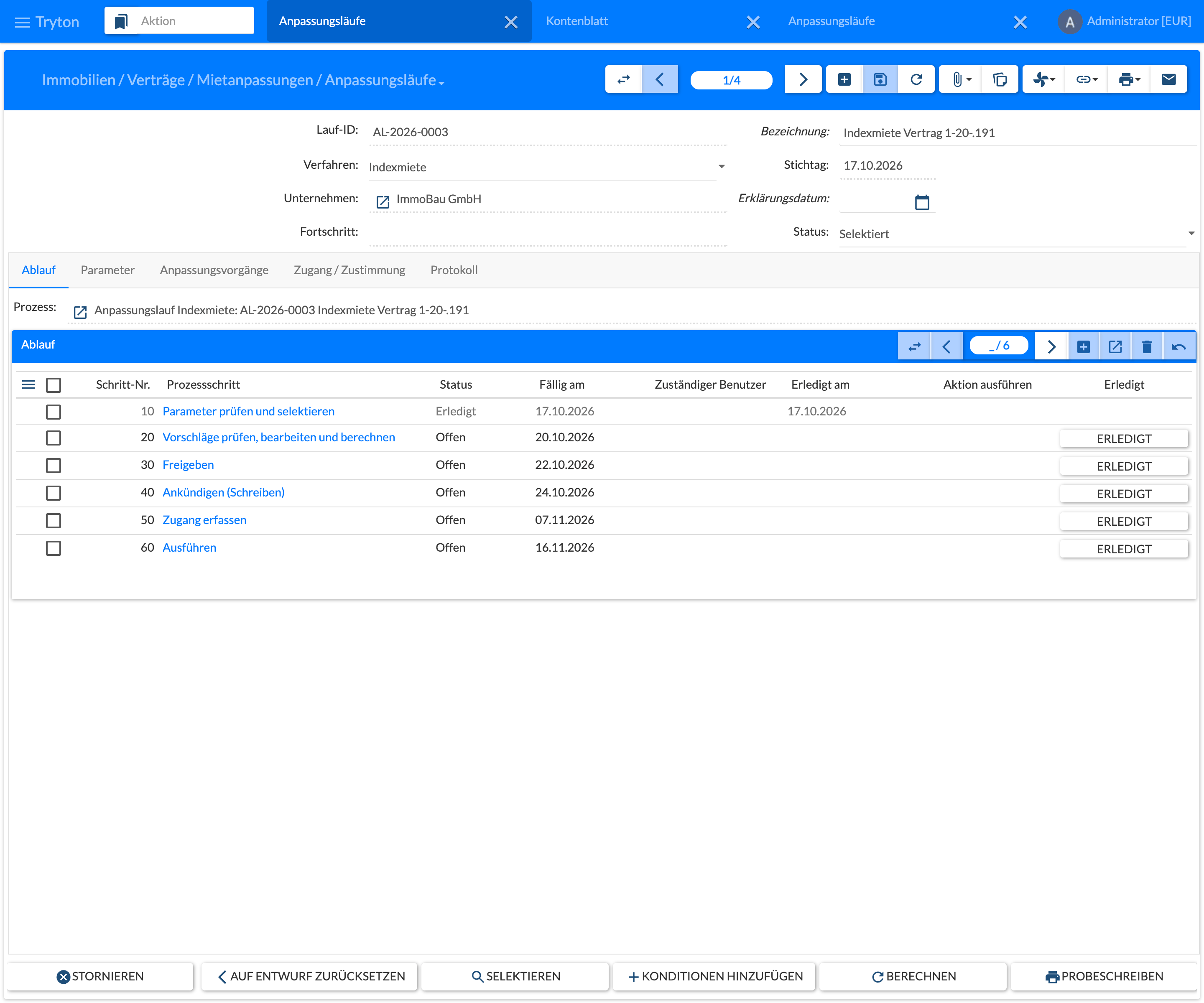
The run has the tabs Ablauf (workflow), Parameter, Anpassungsvorgänge (adjustments), Zugang / Zustimmung (receipts / consents) and Protokoll (protocol); Fortschritt (progress) counts the adjustments per state. The first selection starts the process Anpassungslauf Indexmiete or Vergleichsmiete; the tab Ablauf shows its six steps with due dates – check parameters and select, review, edit and calculate proposals, approve, announce (letters), capture receipts, execute. The steps are completed automatically with the state of the run (in the figure the run is Selektiert, selected, step 10 done).
| Step | Effect |
|---|---|
| Selektieren (Select) | One draft adjustment per matching agreement or term; every candidate gets a protocol line with the result or the reason for skipping. |
| Konditionen hinzufügen (Add Terms) | Add single terms with the checks of the selection. |
| Berechnen (Calculate) | Recalculate values and checks of the adjustments. A manual amount with a reason is possible, but only between the previous and the calculated amount. |
| Freigeben (Approve) | Adjustments without findings are approved, with a warning only with Begründung der Freigabe (approval reason); the others are cancelled. |
| Probeschreiben (Sample Letter) | Shows the letter of one adjustment marked ENTWURF without archiving it. |
| Ankündigen (Announce) | Creates and archives the letters; Schreiben drucken (Print Letters) prints all letters still to be sent in one document. |
| Zugang / Zustimmung | Receipt date, dispatch method and – for the comparative rent – consent per adjustment, or all at once with Zugang erfassen (Capture Receipts). When everything is entered the run is Bereit zur Ausführung (ready). |
| Ausführen (Execute) | Runs in the background: splits the term at the effective date; errors are written to the protocol. Reload the run afterwards. |
| Auf Entwurf zurücksetzen / Stornieren (Reset to Draft / Cancel) | Deletes the drafts resp. cancels the open adjustments and the process. |
Adjustment
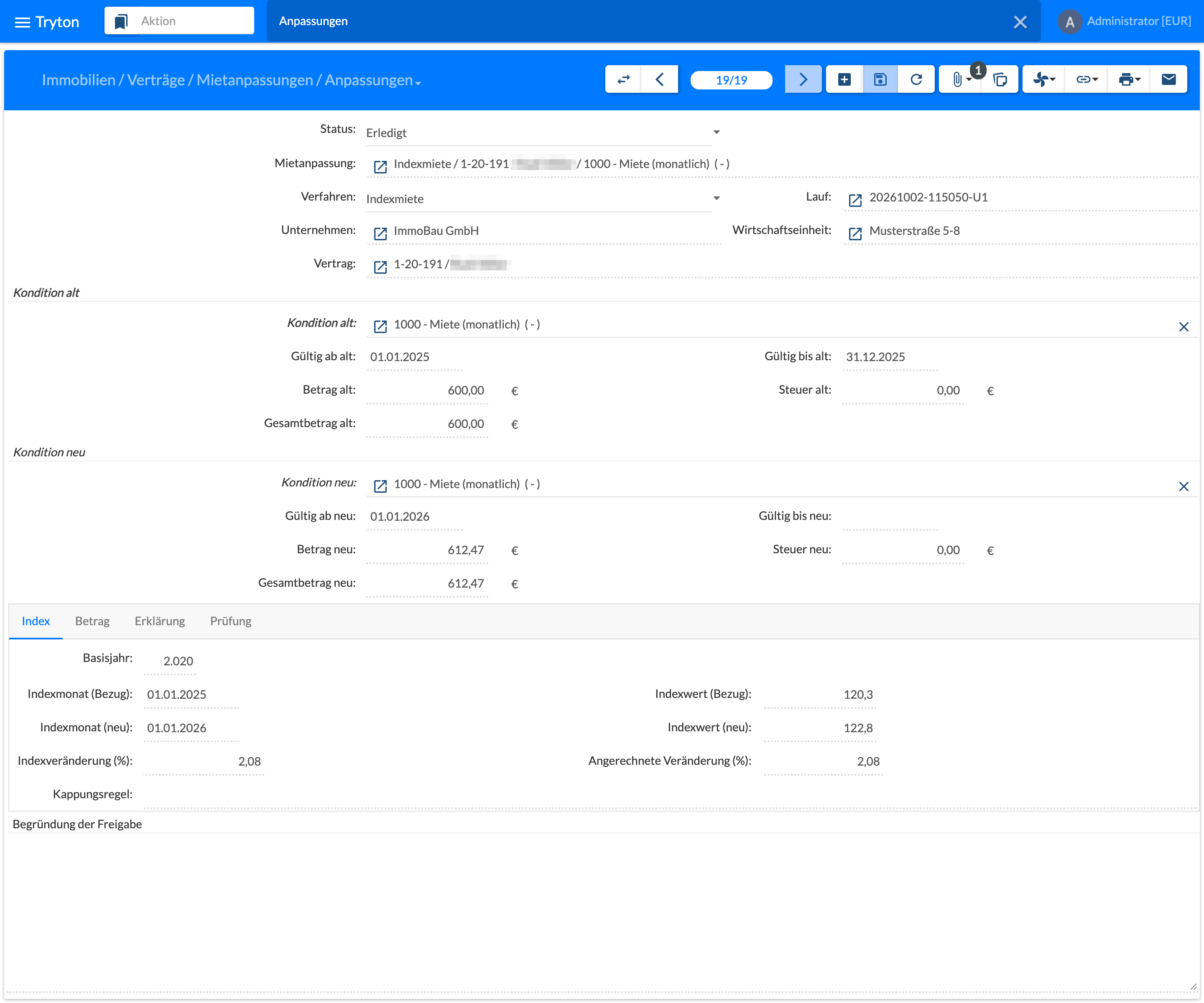
All adjustments are listed in the menu Verträge › Mietanpassungen › Anpassungen (Adjustments); an adjustment can also be opened from the run or on the contract (rent adjustment, tab Anpassungen). It shows the state, the rent adjustment, the run, Kondition alt and Kondition neu (old and new term) with validity and amount, and tabs per procedure – in the figure for the index rent Index, Betrag (amount), Erklärung (declaration) and Prüfung (check protocol). The announced letter is attached to the adjustment (paper clip in the toolbar). The states are Entwurf (draft), Genehmigt (approved), Erklärt (declared), Erledigt (done), Storniert (cancelled) and – for the comparative rent – Abgelehnt (refused).
Subsections of 6.7 Rent Adjustments
6.7.1 Graduated Rent
A graduated rent is agreed and generated once when the contract is concluded. After that nothing needs to be done per step: every step is a contract term of its own, and the periodic posting invoices the new amount automatically from its start.
Prerequisites (once)
- Allow the procedure: Graduated rent must be entered under Zulässige Anpassungsverfahren (Allowed Adjustment Procedures) on the contract type and on the term type of the rent (e.g. 1000 “Apartment rent”). In addition it must be allowed for the type of use of at least one rental object; in the default data this is the case for apartment, office, shop etc. See 2.5.4 Contracts.
- Absolute amount: The term type of the rent must not have a Bemessungstyp (measurement type), otherwise Generieren (Generate) stops with check G15. An Informativer Bemessungstyp (informative measurement type, e.g. living area) is allowed; it is used for the input mode “amount per area” and for the display in €/m².
Create the Contract
- Create the contract as a draft as usual: party, item with rental object, terms. The rent term becomes the reference term (step 0). It starts with the start of the lease; its end usually stays open.
- Optional for residential space: check the initial rent against the rent cap with the wizard Prüfung Vergleichsmiete Neuvermietung (Check Comparative Rent – New Letting).
- Save.
Create and Generate the Steps
The rent adjustment is created in the tab Mietanpassungen of the contract, see 6.7 Rent Adjustments.
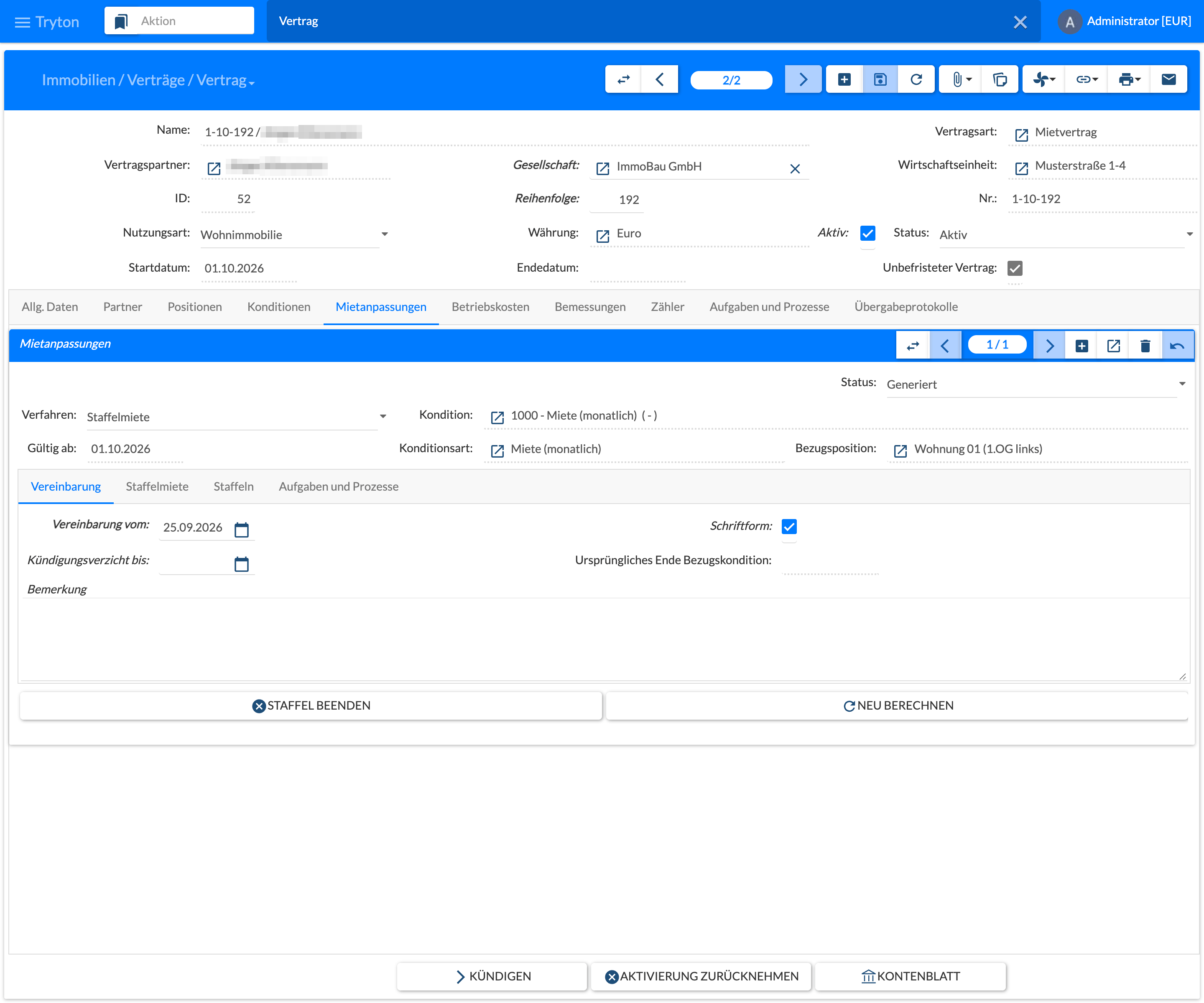
The header of the rent adjustment shows Verfahren (procedure), Kondition (reference term), Gültig ab (valid from), Konditionsart (term type), Bezugsposition (reference item) and the Status (in the figure: Generiert, generated). The tabs Vereinbarung (Agreement), Staffelmiete, Staffeln (Steps) and Aufgaben und Prozesse (Tasks and Processes) structure the data; the field Ursprüngliches Ende Bezugskondition (original end of base term) keeps the end of the reference term before generating – it is restored on reset or taken over by the last step.
- In the tab Mietanpassungen (Rent Adjustments) of the contract click New, choose the procedure Staffelmiete, then the rent term.
- In the tab Vereinbarung (Agreement):
- Vereinbarung vom (agreement date) is required.
- Schriftform (written form) is required for residential space; for commercial space only a warning appears.
- Kündigungsverzicht bis (waiver of termination until) is optional.
- In the tab Staffelmiete:
- Rhythmus (Monate) (interval in months): at least 12.
- Anzahl Staffeln (number of steps).
- Eingabeart Erhöhung (input mode of the increase):
- Absoluter Betrag (absolute amount): € per period;
- Betrag je Fläche (amount per area): € per m²; the area is fixed when generating;
- Prozent (percent), with Bezug %-Erhöhung (basis of the % increase): “Ausgangsbetrag” (initial amount) gives the same increase for every step, “Vorstufe” (previous step) compounds.
- The preview shows all steps with amount, increase and €/m², plus final amount and total increase.
- Click Generieren (Generate). The system runs checks G01–G15 and then creates the steps as terms of their own:
- The reference term ends on the day before the 1st step; every step ends on the day before the next one.
- The last step stays open.
- The cash flows are recalculated; the contract log shows parameters and step overview.
- Activate the contract and print the lease. In the contract letter the later terms – all steps with start and € amount – are listed under § 4. The step table is thus part of the written agreement.
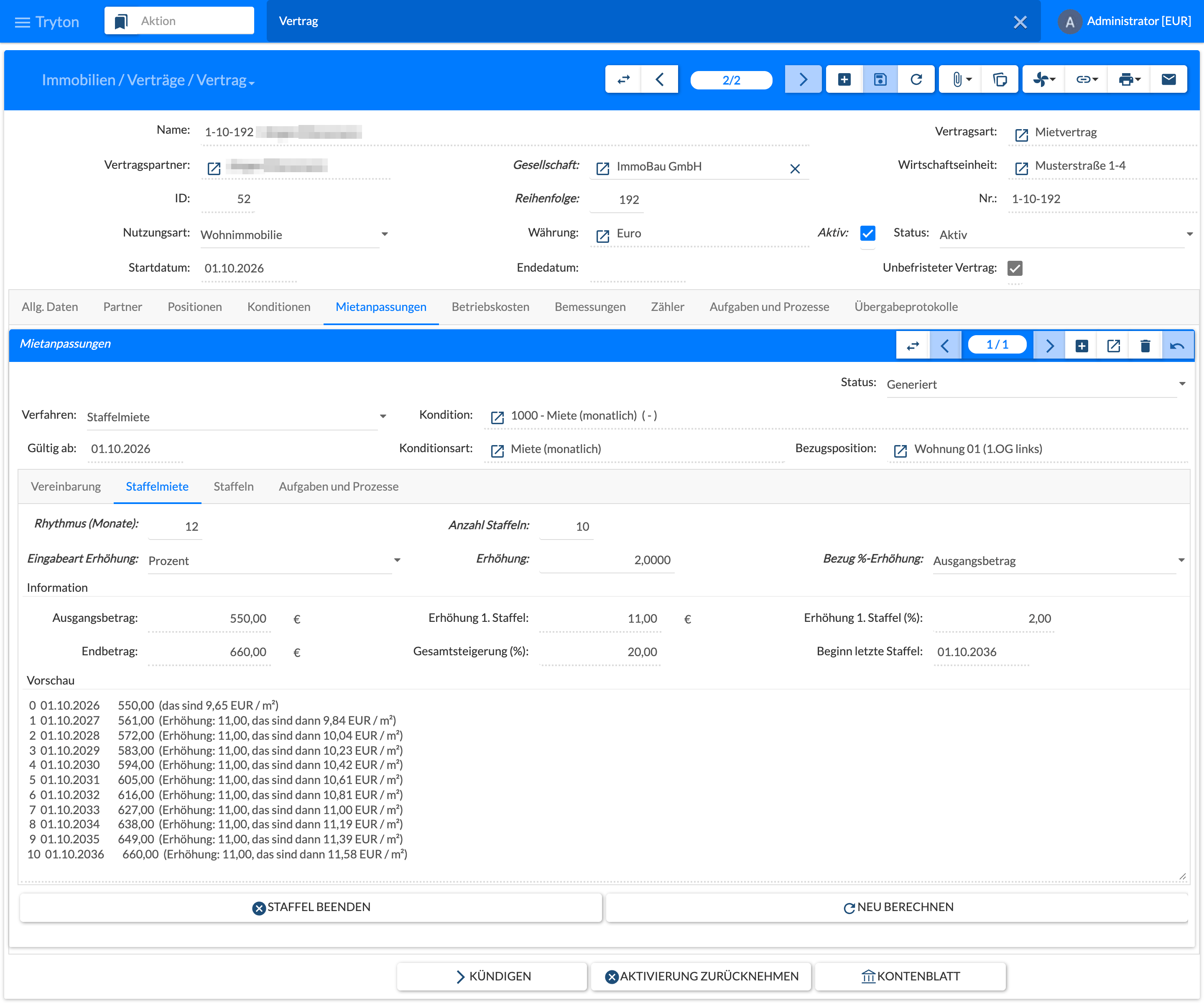
In the example the initial rent of € 550.00 rises every 12 months by 2 % of the initial amount, i.e. by € 11.00 per step. After 10 steps it is € 660.00 from 01.10.2036 (total increase 20 %). The area Information summarises this: Ausgangsbetrag (initial amount), Erhöhung 1. Staffel (increase of the 1st step) in € and %, Endbetrag (final amount), Gesamtsteigerung (%) (total increase) and Beginn letzte Staffel (start of last step). The Vorschau (preview) lists every step with start, amount, increase and €/m² (via the informative measurement type living area).
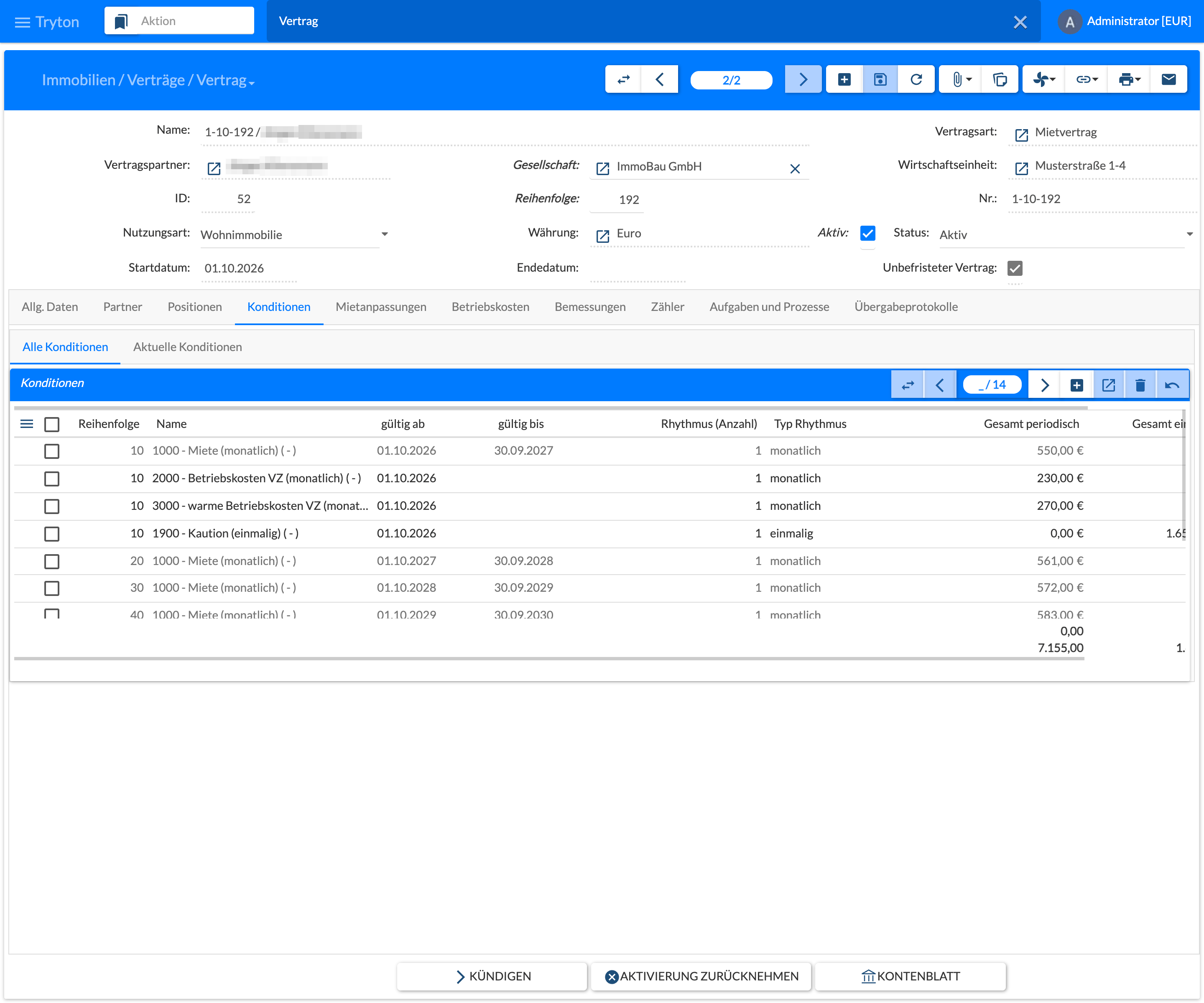
After generating, the steps are listed in the tab Konditionen › Alle Konditionen (Terms › All Terms) of the contract: the reference term (sequence 10, € 550.00) ends on 30.09.2027, the steps follow with sequence 20, 30, 40 … and a term of one year each (€ 561.00, € 572.00, € 583.00 …); the last step stays open. Locked steps are shown in grey. The tab Aktuelle Konditionen (Current Terms) shows only the terms valid today.
As long as no step has been posted, Neu berechnen (Recalculate) and Zurücksetzen (Reset) can be used freely.
Further checks when generating:
- The last step must lie before the end of the contract or term (G07); the message states the maximum possible number.
- The contract must be draft or running and must not have a recorded termination (G09).
- Warning if the step start does not match the rhythm of the debit posting (G13).
- Warning about rounding differences if the quantity ≠ 1 (G12).
Applying the Individual Steps
- No separate step: There is no increase letter, no adjustment run and no consent of the tenant. The periodic posting invoices the amount of a step automatically from its start, see 6.3 Periodic Posting.
- Locked steps: The reference term and all intermediate steps are locked. Start, end, term type, rhythm and taxes cannot be changed, the steps cannot be split, and no other adjustment procedure is possible. Quantity and unit price can be corrected.
- Changes after the first posting: Every change (recalculate, end graduated rent, amount correction) requires a confirmed warning, because a supplement with the tenant is needed. It only affects steps not yet posted and is logged.
- Staffel beenden (End graduated rent): deletes the unposted steps. The last posted step then stays open.
- After the last step: The last step can be adjusted normally again, e.g. by comparative rent in an adjustment run, modernisation or a follow-up graduated rent (new graduated rent with the last step as reference term).
- Follow-ups: The task rules Staffelmiete endet (graduated rent ends, 3 months before the start of the last step) and Kündigungsverzicht endet (waiver of termination ends, 3 months before) exist but are inactive by default. Activate them in 2.5.7 Tasks and Processes if needed.
Legal Framework (§ 557a BGB)
| Rule | Implementation in the module |
|---|---|
| Written agreement (para. 1) | Field Schriftform: error for residential space (G10), note for commercial space. |
| Every rent or increase stated as an amount of money (para. 1) | Every step has exactly one € amount, rounded to the cent. Input per m² or in % is only a calculation aid; the printed € table is decisive. |
| Rent unchanged for at least 1 year (para. 2 sentence 1) | Rhythm ≥ 12 months (G02). |
| No increase under §§ 558–559b during the graduated rent (para. 2 sentence 2) | Steps are locked. Comparative rent (V01), modernisation (E02) and index rent (I14) skip locked steps. Graduated and index rent on the same term exclude each other. Operating costs (§ 560) remain possible. |
| Waiver of termination at most 4 years from the agreement (para. 3) | Warning G11; only the waiver would be invalid. |
| Step takes effect without a declaration | No letter, posting directly from the terms. |
| Rent cap per step at the time it falls due (para. 4) | Not yet implemented. Only the initial rent is checked by the wizard for new lettings; the comparative rent of future dates is not known when the contract is concluded. |
6.7.2 Index Rent
Unlike the graduated rent, an index rent is not generated in advance. Only the agreement is stored in the contract; every later increase is processed as an adjustment run with a letter to the tenant, receipt and execution.
Prerequisites (once)
Allow the procedure: Index rent must be allowed on the contract type, on the term type of the rent (e.g. 1000) and for the type of use of the rental object. The default data allow it for apartment, office, shop etc.
Index series: menu Immobilien › Einstellungen › Preisindizes (Real Estate › Configuration › Price Indices), series VPI-DE (consumer price index Germany, Destatis 61111-0002, base 2020). For residential space only this series is allowed. For commercial space there is also HVPI-DE; it is maintained manually.
Maintain index values, in one of three ways:
- automatically via GENESIS-Online: the buttons Werte abrufen (Fetch Values) or Ab Basisjahr abrufen (Fetch from Base Year) on the series, or as the job
price_index_import, e.g. on the 20th of every month because Destatis publishes in the middle of the following month (see 2.6 Jobs and Periodic Tasks). For this the administrator must enter the access keygenesis_tokenintrytond.conf; - by CSV file with Immobilien › Einstellungen › Indexwerte importieren (Import Index Values; also a download from GENESIS-Online);
- manually in the value list of the series.
Only final values of the current base year count. Values already used by an announced or executed adjustment can no longer be changed.
- automatically via GENESIS-Online: the buttons Werte abrufen (Fetch Values) or Ab Basisjahr abrufen (Fetch from Base Year) on the series, or as the job
Create Contract and Agreement
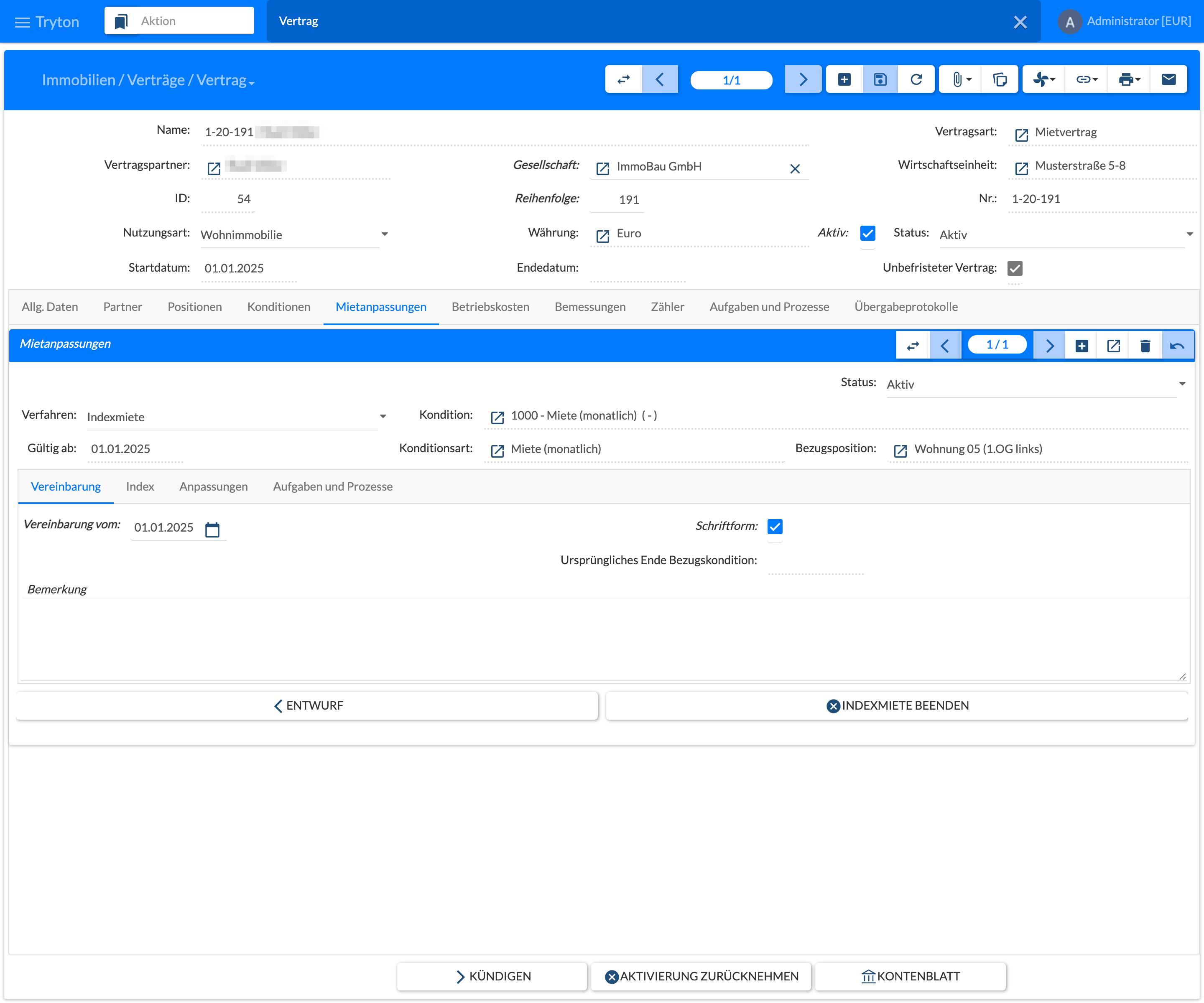
The index rent has the tabs Vereinbarung (Agreement), Index, Anpassungen (Adjustments: the adjustments from the adjustment runs) and Aufgaben und Prozesse (Tasks and Processes). In the figure the agreement is active; Entwurf (Draft) resets it (no longer possible once an adjustment is approved, announced or executed), Indexmiete beenden (Close Index Rent) closes it.
- Create the contract with the rent term as an absolute amount as usual. Optionally, for residential space, check the initial rent with Prüfung Vergleichsmiete Neuvermietung (rent cap).
- In the tab Mietanpassungen (Rent Adjustments) click New, choose the procedure Indexmiete, then the rent term.
- In the tab Vereinbarung (Agreement): enter Vereinbarung vom (agreement date) and Schriftform (written form); both are required for residential space.
- In the tab Index:
- Preisindex (price index): VPI-DE.
- Ausgangsmonat (base month): the index month stated in the contract. Ausgangswert (Vertrag) and Basisjahr (Vertrag) (value and base year stated in the contract) are for documentation only; the decisive Ausgangswert (base value) is read from the current series.
- Schwelle (threshold): none, percent or index points, e.g. “only from 5 %”.
- Wirksamkeitsregel (effective rule): statutory for residential space (required); for commercial space also contract month with an offset in months.
- Kappung anwenden (apply cap): automatic or never.
- Click Aktivieren (Activate). The system checks:
- written form and agreement date (I01);
- VPI for residential space (I02);
- a value for the base month (I03);
- no comparative rent on the term; for a modernisation only a warning appears (I10);
- for commercial space a note on the Preisklauselgesetz (I12).
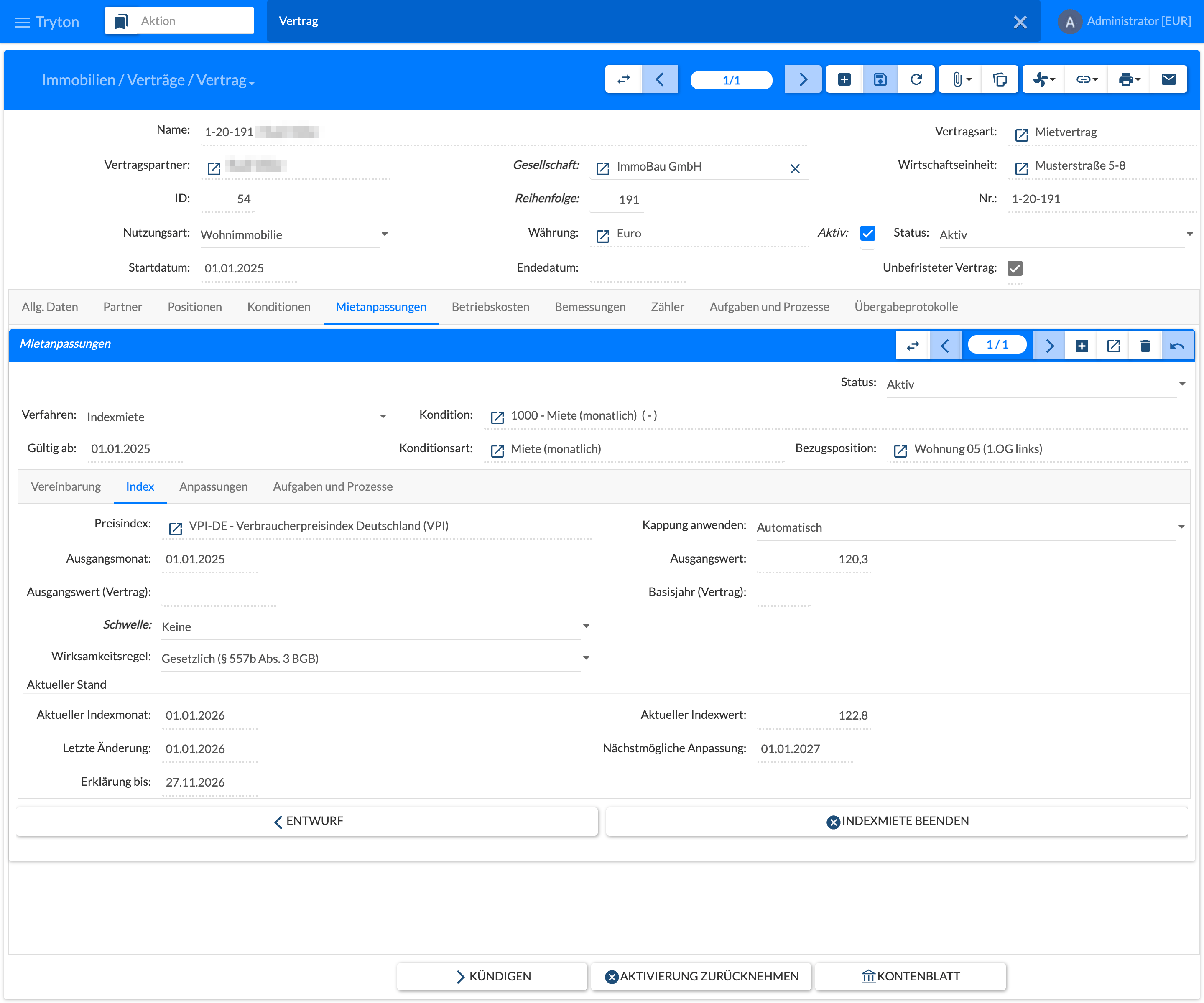
Afterwards the tab shows in the area Aktueller Stand (current status) the current index month and value, the last change, the next possible adjustment (+12 months) and Erklärung bis (declaration until) – the latest dispatch date for the increase to take effect on the next possible date.
Indexmiete beenden (Close Index Rent) closes the agreement, e.g. for a supplement. Afterwards another procedure is possible for the term again.
Ongoing: Increase by Adjustment Run
Overview: menu Verträge › Mietanpassungen › Indexmieten - Wiedervorlage (Contracts › Rent Adjustments › Index Rents – Follow-up) with the tabs Fällig (due), Nächste 3 Monate (next 3 months) and Alle (all). The task rule Indexanpassung vorbereiten (Prepare index rent adjustment) creates a task 14 days before Erklärung bis; the rule Indexwerte veraltet (Index values outdated) reports when a series has no current values. Both are activated in 2.5.7 Tasks and Processes.
Procedure: menu Verträge › Mietanpassungen › Anpassungsläufe (Adjustment Runs), New, procedure Indexmiete.
Parameters:
- company, optionally properties or contracts;
- key date;
- series;
- index month: the last final value is proposed;
- planned declaration date;
- Senkungen einbeziehen (include decreases): off by default; decreases then only appear in the protocol.
Selektieren (Select):
- One adjustment is created per active agreement. An agreement is skipped if an adjustment is already open (I07), the lock period has not been reached (I04) or the threshold is missed.
- The adjustment contains reference value → new value, change in % and points, the new amount (old amount × index ratio, rounded to the cent) and the planned effective date.
- Every check is recorded in the check protocol; the protocol of the run states the result or the reason for skipping for every agreement.
Berechnen (Calculate): optional, after corrections. If necessary, enter a manual amount with a reason.
Freigeben (Approve): adjustments with errors are cancelled. Warnings require an approval reason.
Optionally Probeschreiben (Sample Letter), then Ankündigen (Announce): one declaration is created per adjustment (report
index_adjustment_letter_de.odt). It is addressed to all main tenants and contains index series and base year, old and new index month and value, the change in % and points, old and new net rent, the difference and the expected effective date. The original is archived on the adjustment and on the contract; the values are frozen from then on.Dispatch and receipt: in the tab Zugang / Zustimmung (Receipts / Consents) enter the receipt date and dispatch method per adjustment, or all at once with Zugang erfassen (Capture Receipts). The effective date is calculated from it: the 1st of the month after next following receipt. When all receipts are entered, the run is Bereit zur Ausführung (ready).
Ausführen (Execute): the system checks again
- lock period (I04), running contract and termination (I06), no posting beyond the effective date (I09), no graduated rent lock (I14);
- the cap at the actual receipt (I11).
It then splits the term at the effective date with the new price, recalculates the cash flows and writes the contract log. From then on the periodic posting invoices the new amount. The next adjustment refers to this index value.
The structure of adjustment run and adjustment is described in 6.7 Rent Adjustments.
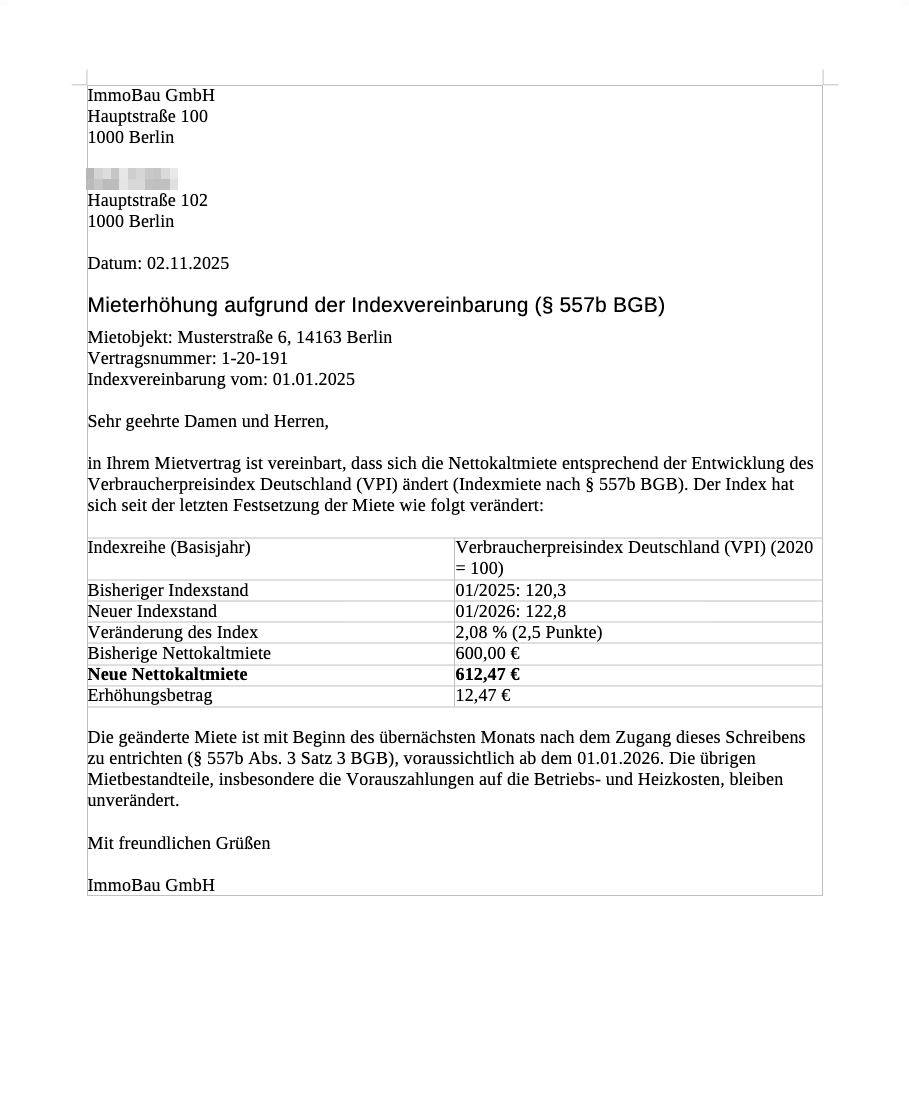
The letter created by Ankündigen (Announce) states rental object, contract number and date of the index agreement and shows in a table the index series with base year, previous and new index level, the change in % and points, previous and new net rent and the increase. It points out that the new rent applies from the start of the month after next following receipt (§ 557b para. 3 sentence 3 BGB) and that the prepayments remain unchanged.
In the example of the adjustment (state Erledigt, done) the index rose from 120.3 (01/2025) to 122.8 (01/2026), i.e. by 2.08 %; the rent rose from 01.01.2026 from € 600.00 to € 612.47 (600.00 × 122.8 / 120.3). With a cap rule the counted change (Angerechnete Veränderung) would be lower than the index change.
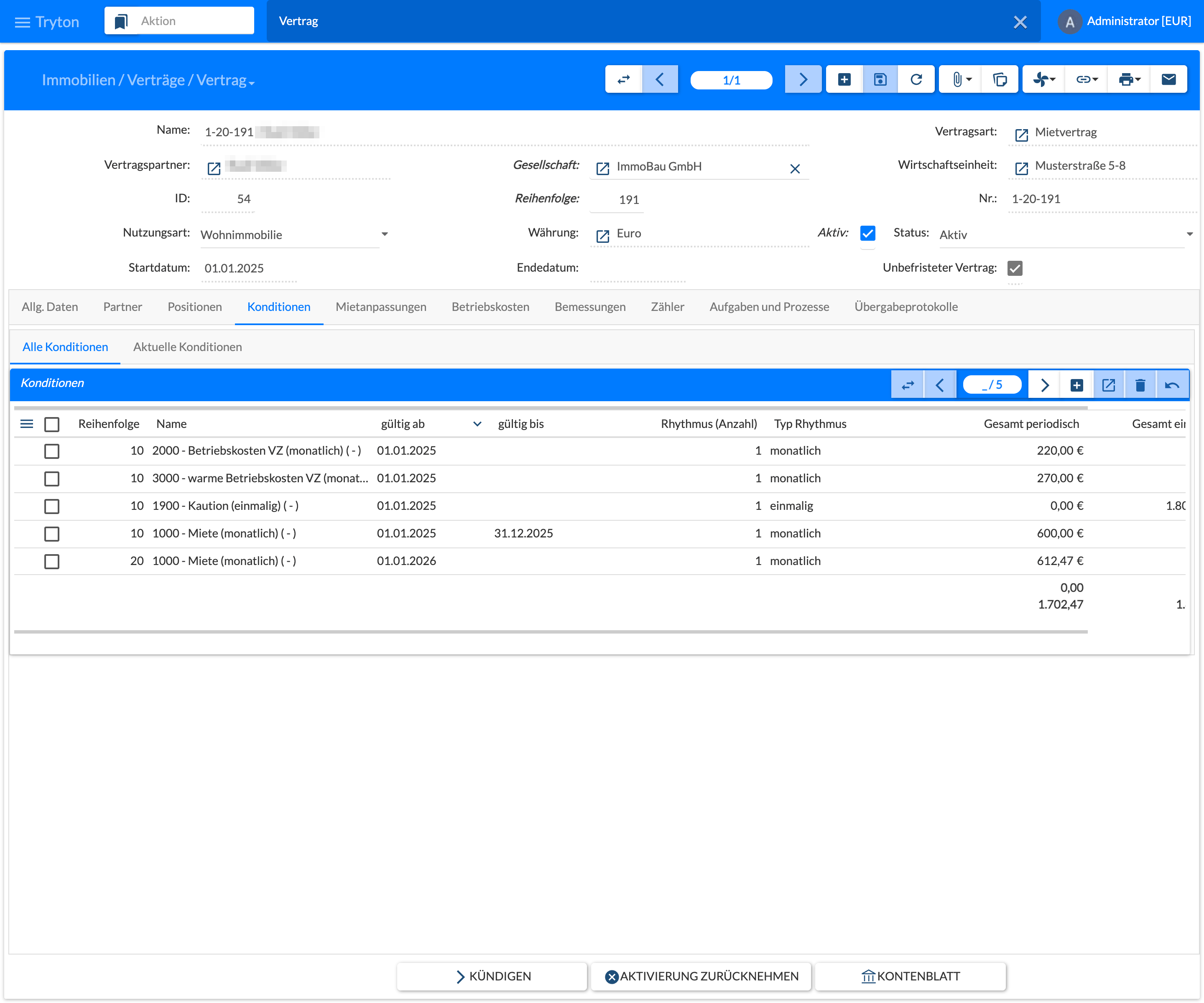
After execution the rent term is split: the previous term (sequence 10, € 600.00) ends on 31.12.2025, the new one (sequence 20, € 612.47) is valid from 01.01.2026 and stays open. The other terms, e.g. operating cost prepayments and deposit, are not affected.
Legal Framework
Residential space – § 557b BGB
| Rule | Implementation in the module |
|---|---|
| Written agreement, tied to the Destatis VPI (para. 1) | Written form required (I01), only series marked “allowed for residential space” (I02). |
| Rent unchanged for at least 1 year each (para. 2 sentence 1) | I04 at selection and execution; next possible date. |
| No increase under § 558 (comparative rent); § 559 only for measures the landlord is not responsible for (para. 2) | Comparative rent locked (I10, error); modernisation only with a warning – whether the measure is permitted must be checked case by case. Graduated and index rent on the same term exclude each other. |
| Declaration in text form with index change and rent or increase as an amount of money (para. 3) | Declaration letter with all details, archived. |
| Effective from the start of the month after next following receipt (para. 3) | Effective date from the receipt date; no execution without receipt. |
| Rent cap only for the initial rent (para. 4) | Wizard Prüfung Vergleichsmiete Neuvermietung on the draft contract; no check for the index adjustments. |
| Deviations to the tenant’s disadvantage are invalid (para. 5) | For residential space the statutory effective rule is required; deviating settings are rejected as errors. |
| Decrease when the index falls | Detected (I13); an adjustment is only created with Senkungen einbeziehen. |
Commercial space – Preisklauselgesetz: § 557b does not apply here. VPI or HVPI clauses are allowed, among others, for long-term contracts (at least 10 years or a corresponding waiver of termination). The module only gives a note (I12); the clause must be checked legally. Written form is only a warning for commercial space, and the effective date can follow the contract month.
Planned, not yet in force – “Mietrecht II”
In a tight housing market, the annual index increase above 3 % is to count only by half. This is prepared as a cap rule that can be switched off (Immobilien › Einstellungen › Kappungsregeln Indexmiete, Index Rent Cap Rules; new rules are inactive). Decisive is the flag Angespannter Wohnungsmarkt (tight housing market) with validity on the property, see 5.1 Property. Once the law is promulgated, the rule must be checked against the legal text.
6.7.3 Comparative Rent
The module justifies a rent increase up to the local comparative rent (§§ 558–558b BGB) exclusively by a rent survey (Mietspiegel) stored in the system. Expert opinions, comparable apartments or a rent database are not supported. The work has three parts: maintain rent survey and master data once, classify the objects, and then carry out an adjustment run per increase.
Master Data (once)
Rent surveys are maintained under Immobilien › Einstellungen › Mietspiegel (Real Estate › Configuration › Rent Surveys; group real estate administration).
Version and Tab Allgemein
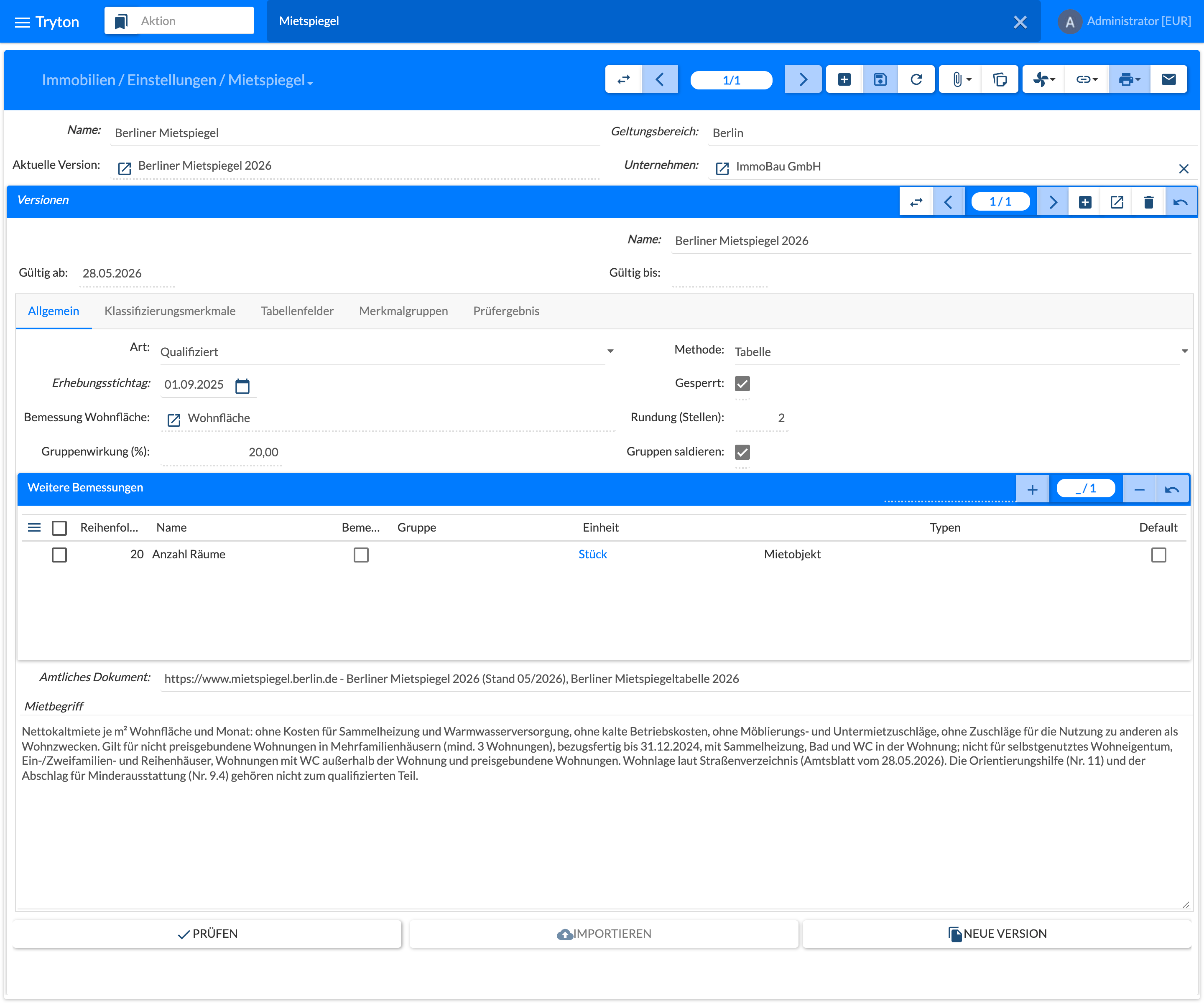
The rent survey has Name, Geltungsbereich (area of validity), Unternehmen (company) and the Aktuelle Version (current version); below are the Versionen (versions) with name, Gültig ab and Gültig bis (valid from / to). Each version has the tabs Allgemein (general), Klassifizierungsmerkmale (classification attributes), Tabellenfelder (table fields), Merkmalgruppen (feature groups) and Prüfergebnis (check result) and the buttons Prüfen (Check), Importieren (Import) and Neue Version (New Version).
In the tab Allgemein of the version:
- Art (kind): simple or qualified;
- Methode (method): table (as in Berlin) or regression;
- Erhebungsstichtag (survey key date);
- Bemessung Wohnfläche (living area measurement, default living area) and, if needed, Weitere Bemessungen (further measurements), e.g. number of rooms;
- Gruppenwirkung (%) (group effect: range share of the feature groups, default 20 %) and Gruppen saldieren (net groups: positive and negative groups offset each other);
- Rundung (Stellen) (rounding, decimals);
- Amtliches Dokument (official document, source) and Mietbegriff (definition of rent: which rent the survey states and what it applies to); the official document itself is attached to the version;
- Gesperrt (locked) shows that accepted calculations use the version; it can then no longer be changed.
Classification Attributes (Klassifizierungsmerkmale)
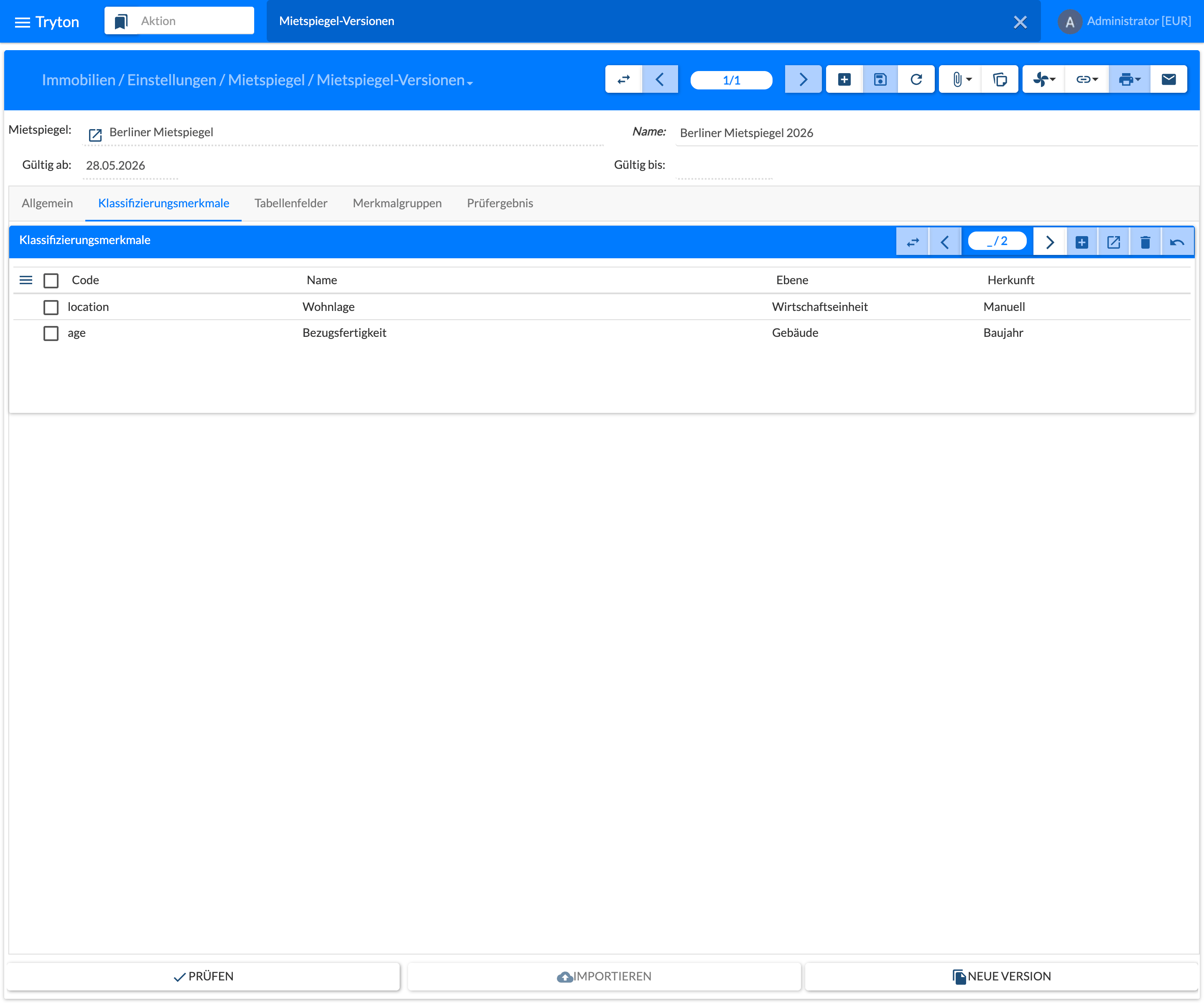
The classification attributes are the table axes with their classes. For each attribute Code, Name, the Ebene (level: property / building / rental object) and the Herkunft (source) are set: manual, year of construction of the building, or measurement with a value range per class. In the Berlin example these are the Wohnlage (residential location; property, manual) and the Bezugsfertigkeit (ready for occupancy; building, from the year of construction).
Table Fields (Tabellenfelder)
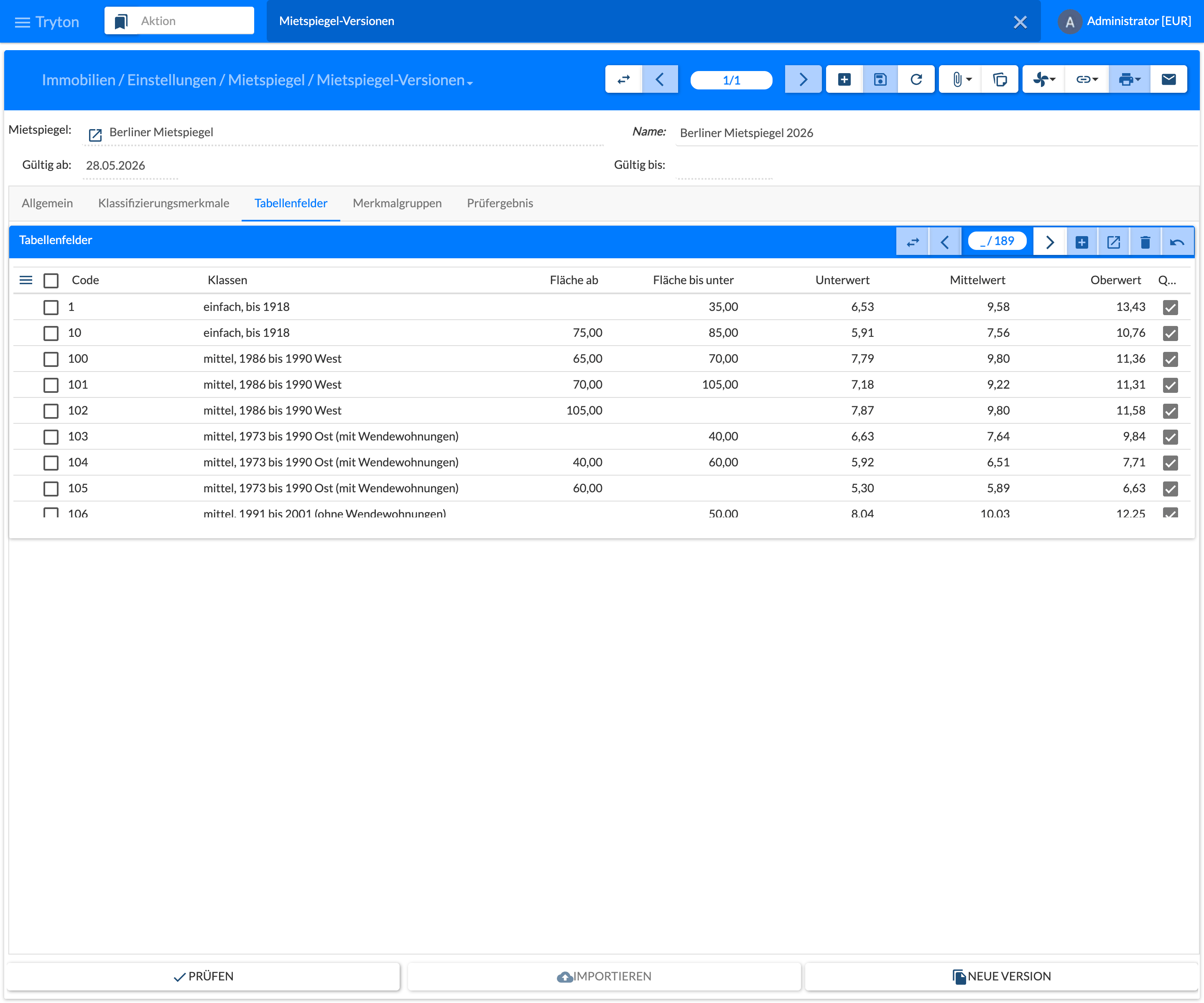
Each table field has a Code, one class per classification attribute (column Klassen, e.g. “mittel, 1986 bis 1990 West”), the area range Fläche ab / Fläche bis unter (area from / up to below; empty = open), Unterwert, Mittelwert and Oberwert (lower, middle and upper value) in €/m² and the flag qualifiziert (qualified). The Berlin rent survey 2026 has 189 table fields. The calculation looks for the field whose classes and area range match the apartment; the starting point is the middle value, and the feature groups shift it within the range.
Feature Groups and Features (Merkmalgruppen)
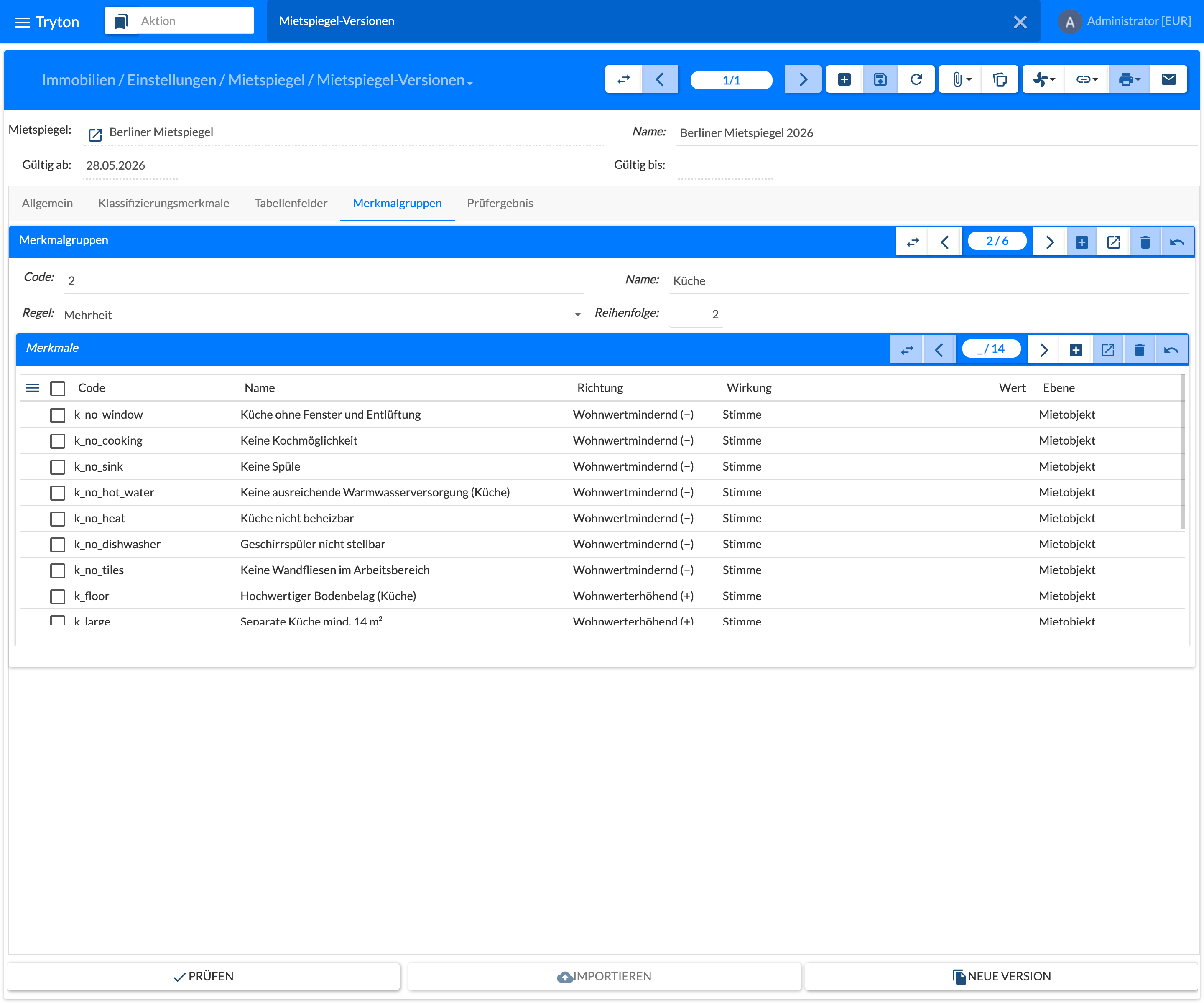
Each feature group has Code, Name, Regel (rule) and Reihenfolge (sequence), and below it its Merkmale (features) with code, name, Richtung (direction: increasing + / decreasing −), Wirkung (effect: a vote for the rule majority, otherwise an amount), Wert (value) and Ebene (level). The figure shows the group Küche (kitchen) of the Berlin rent survey with 14 features, e.g. “Küche ohne Fenster und Entlüftung” (kitchen without window and ventilation, −) or “Hochwertiger Bodenbelag (Küche)” (high-quality flooring, +). For the group:
- rule majority (+1/0/−1) or additive (€/m² or %);
- per feature direction, level and “only for classes” (e.g. only up to year of construction 2001);
- automatic setting by a measurement (e.g. energy consumption value);
- mutual exclusions.
Import, Check, New Version
Table fields and features can be read in with Importieren (Import, CSV) with preview and problem list. Afterwards check consistency with Prüfen (Check); the result is shown in the tab Prüfergebnis. For a new rent survey Neue Version (New Version) copies everything; the codes remain the same and so do the classifications of the objects.
Further Master Data
- Type of use apartment: it must allow the comparative rent (default). Only then is an object treated as an apartment with rent survey data; parking spaces and commercial units are excluded.
- Contract type and term type of the rent (e.g. 1000): the comparative rent must be listed under Zulässige Anpassungsverfahren (Allowed Adjustment Procedures). The rent term must be monthly and must not contain operating costs (V11).
- Optionally the task rules for the consent period and the period for legal action, e.g. M09 “consent period expired”, see 2.5.7 Tasks and Processes.
Classify the Objects
Classification is done in the tab Mietspiegel (Rent Survey) of the objects, see 5.1 Property. Classes on a lower level override the classes above; features add up over all three levels.
Property
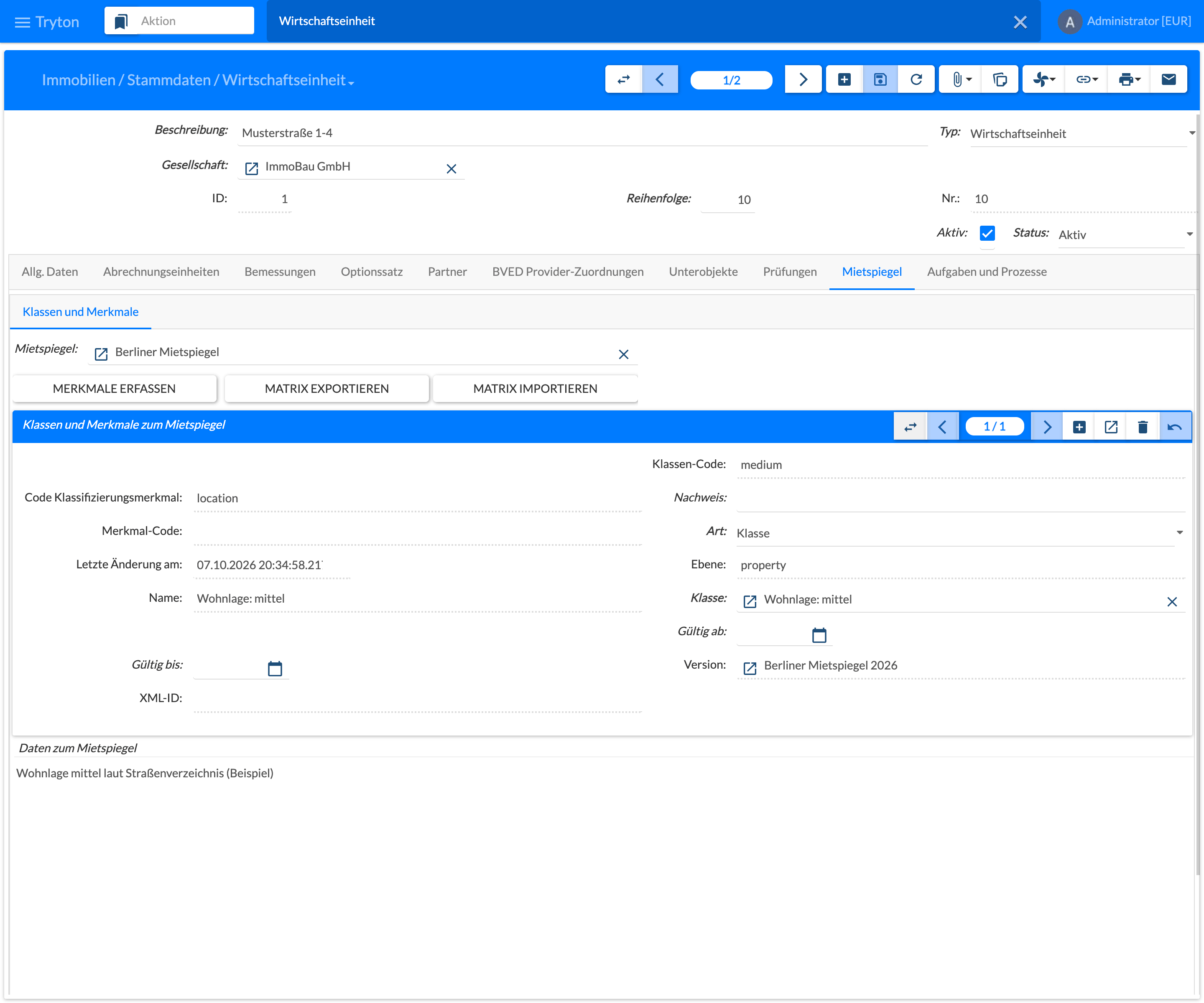
The tab Mietspiegel › Klassen und Merkmale (classes and features) shows the assigned rent survey and the buttons Merkmale erfassen, Matrix exportieren and Matrix importieren at the top, and below the list Klassen und Merkmale zum Mietspiegel. Each entry has the Art (kind: class or feature), the classification attribute or feature, the Klasse (class), Gültig ab / Gültig bis and the Nachweis (evidence); the figure shows the residential location “mittel” (medium) of the property. The field Daten zum Mietspiegel holds remarks and reasons, e.g. the reference in the street directory.
- Assign the rent survey. Only then does the tab also appear on buildings and apartments.
- Classes on property level. In Berlin this is the residential location simple/medium/good, set manually according to the street directory; the evidence is entered under Daten zum Mietspiegel (rent survey data).
- Features of the residential environment (group 5), as far as they are on this level.
- Kappungsgrenze 15 % (Verordnung) (cap 15 % by ordinance) with validity if the state ordinance applies, otherwise 20 %. Also Angespannter Wohnungsmarkt (tight housing market), relevant for the check on new lettings.
- With Matrix exportieren / Matrix importieren (Export / Import Matrix) all buildings and apartments of the property can be maintained in a spreadsheet – one row per object, one column per class or feature.
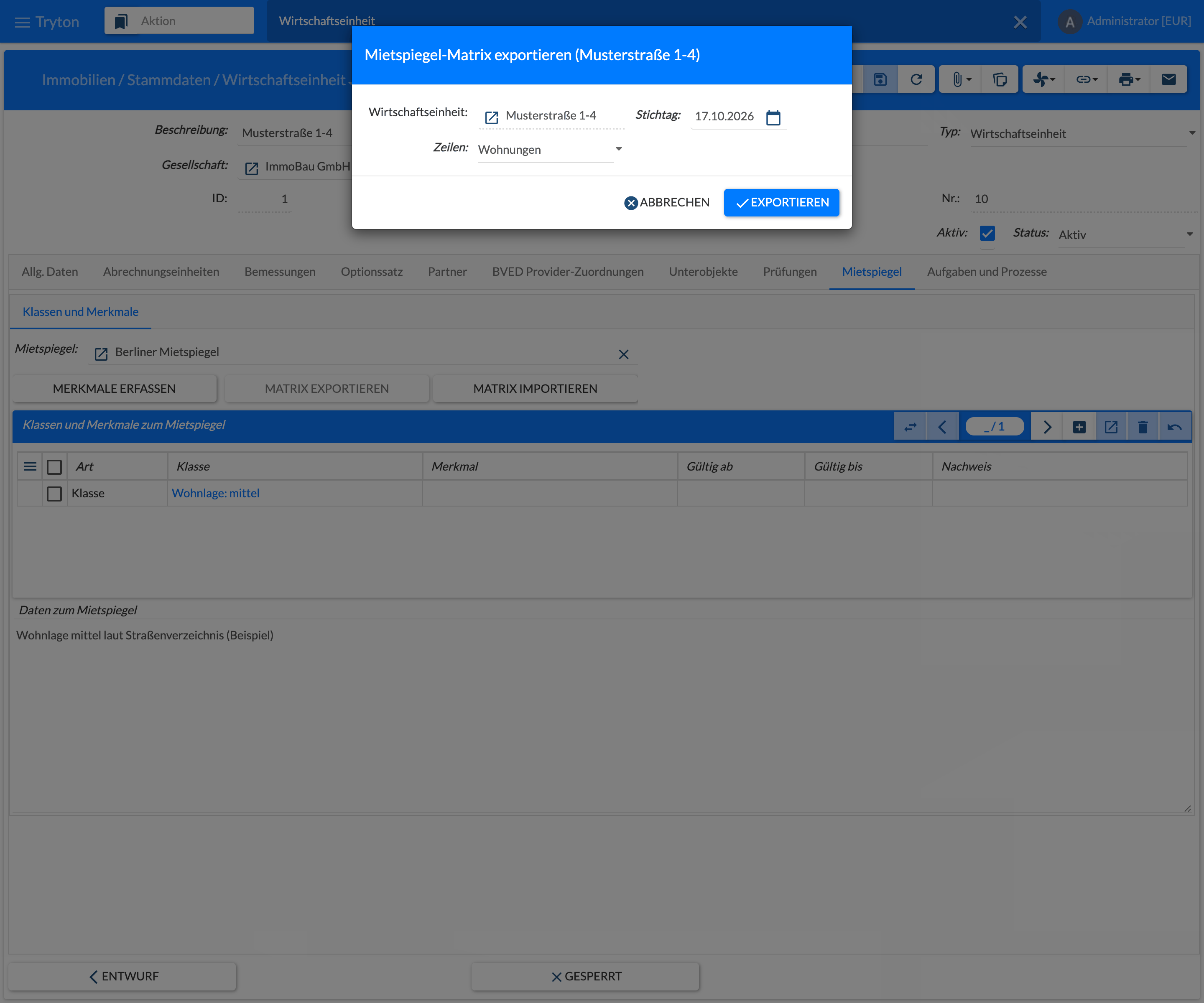
Matrix exportieren asks for Zeilen (rows: apartments or buildings) and Stichtag (key date) and returns a CSV file (separator semicolon): one row per object, one column per classification attribute with the class code and one column per feature of the level, where an “x” marks an assigned feature. The second row starts with “#” and contains the names. This shows all apartments × features at a glance and lets you maintain them in a spreadsheet. Matrix importieren reads the edited file, shows the changes and problems in a Vorschau (preview) and applies them with Übernehmen (Apply) – only if no problems are reported. Valid marks are x, 1, ja/j, yes/y, true/wahr; an empty cell removes the feature.
Building
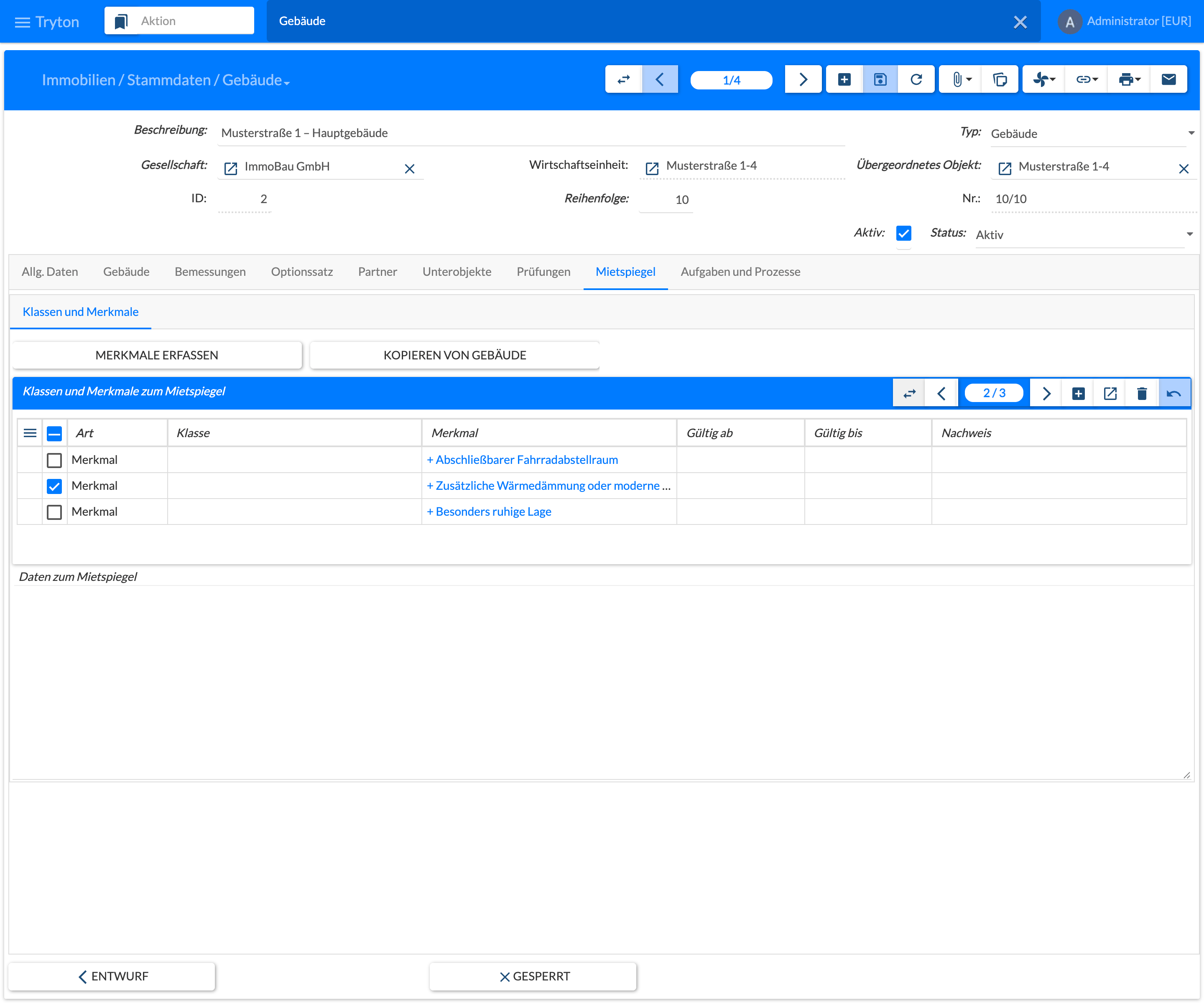
The building has no rent survey field of its own; it comes from the property. The tab shows the buttons Merkmale erfassen and Kopieren von Gebäude, the list of classes and features with kind (+ increasing, − decreasing the residential value), class, feature, valid from/until and evidence, and the field Daten zum Mietspiegel. In the figure three value-increasing features are entered, e.g. a lockable bicycle room and a particularly quiet location.
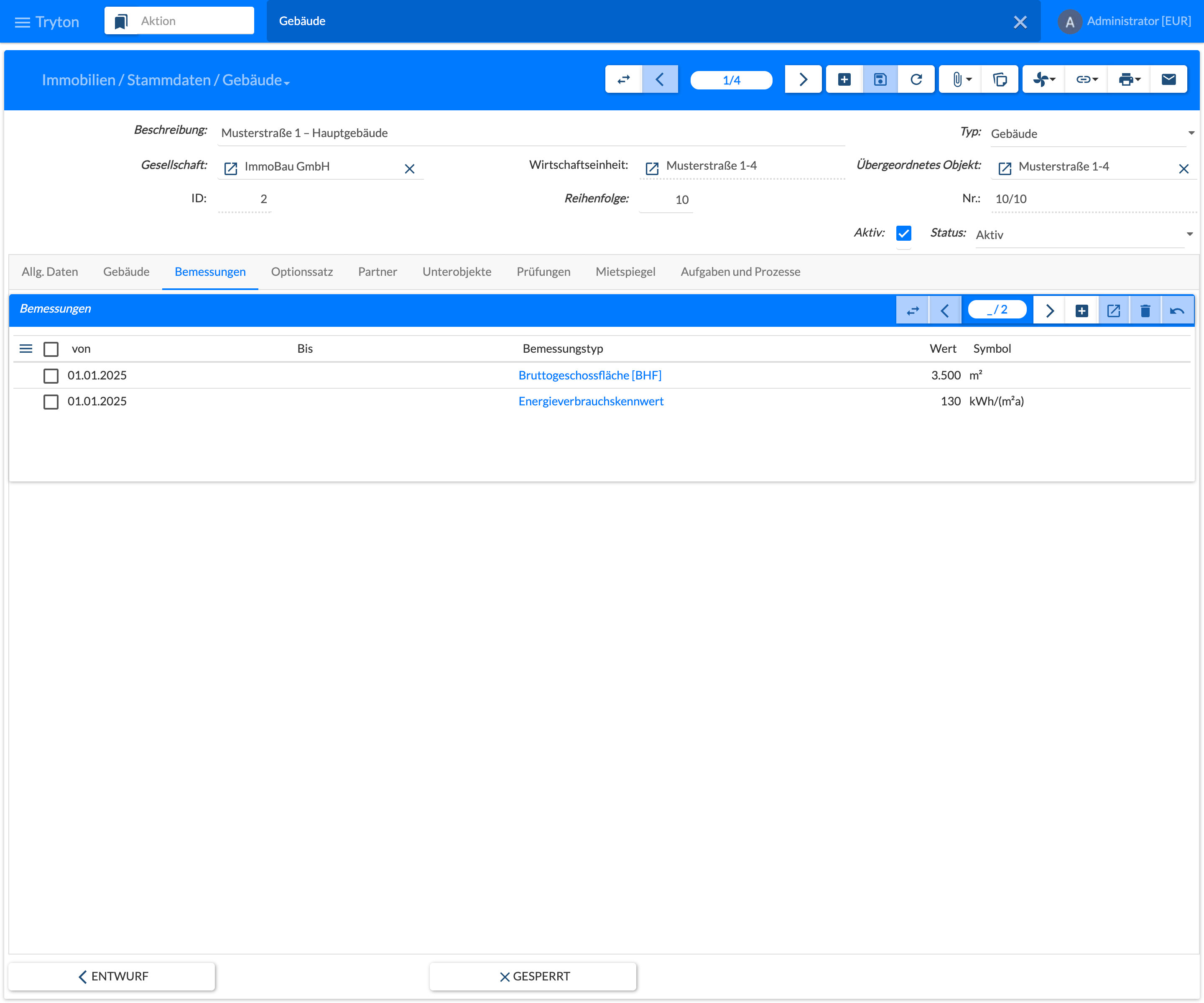
The energy consumption value is entered in the tab Bemessungen (Measurements) of the building with von (valid from), value and unit kWh/(m²a), in the figure next to the gross floor area.
- Year of construction (ready for occupancy): the age class is derived from it, 12 classes in Berlin. Classes depending on the district, e.g. 1973–1990 East/West, are “manual only” and must be assigned.
- Measurement energy consumption value (kWh/(m²a)), already converted. The energy features are set automatically from it; B09 warns if the value is missing.
- Building features (group 4, e.g. elevator, thermal insulation, condition of the staircase) with validity and evidence – quickly via Merkmale erfassen (Assign Features, checklist) or Kopieren von Gebäude (Copy from Building).
Apartment
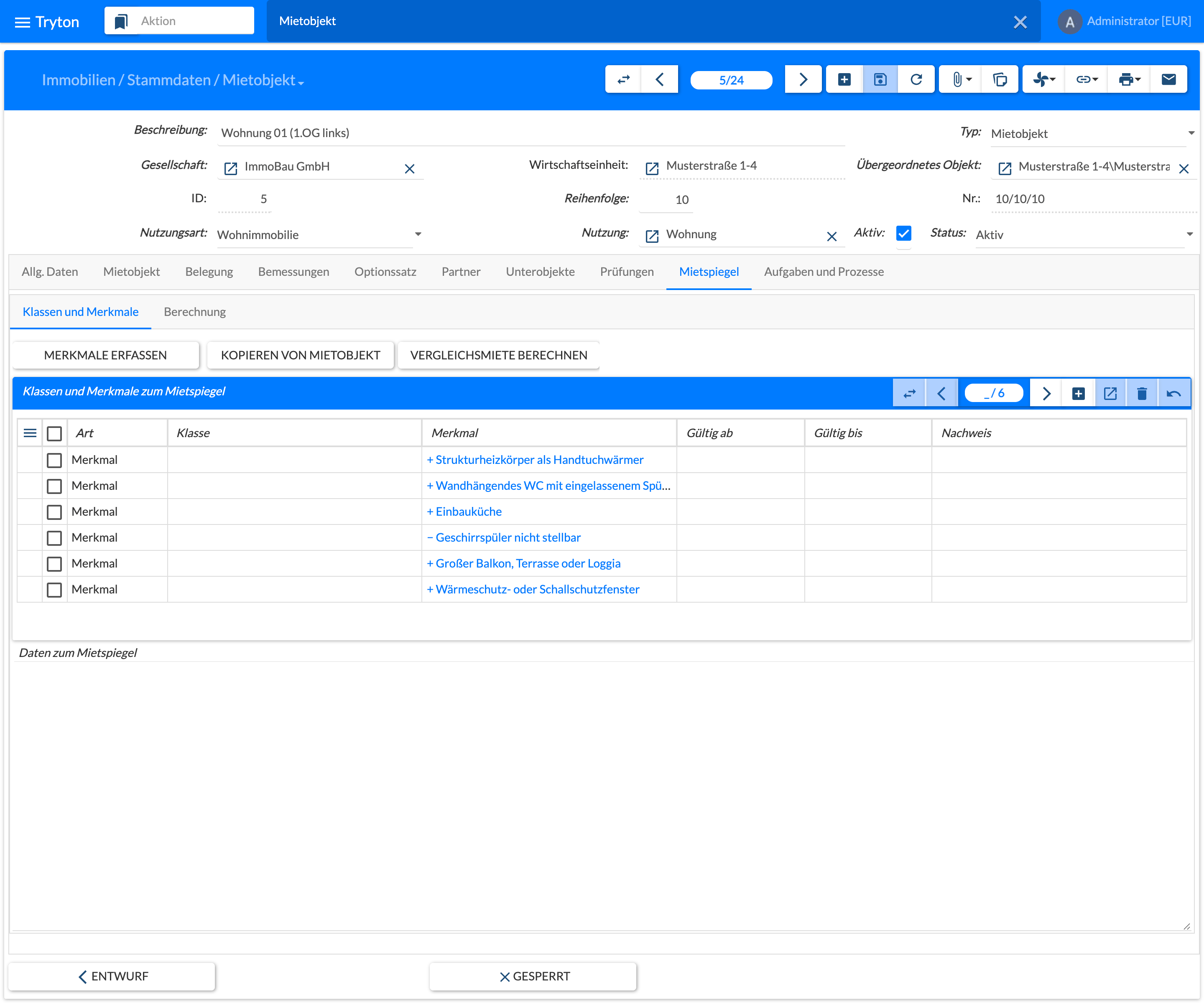
On the apartment the tab Mietspiegel has the sub-tabs Klassen und Merkmale (classes and features) and Berechnung (calculation). Besides Merkmale erfassen there are Kopieren von Mietobjekt and Vergleichsmiete berechnen. In the figure six apartment features are entered, five increasing the residential value (e.g. fitted kitchen, large balcony) and one decreasing it (− no space for a dishwasher).
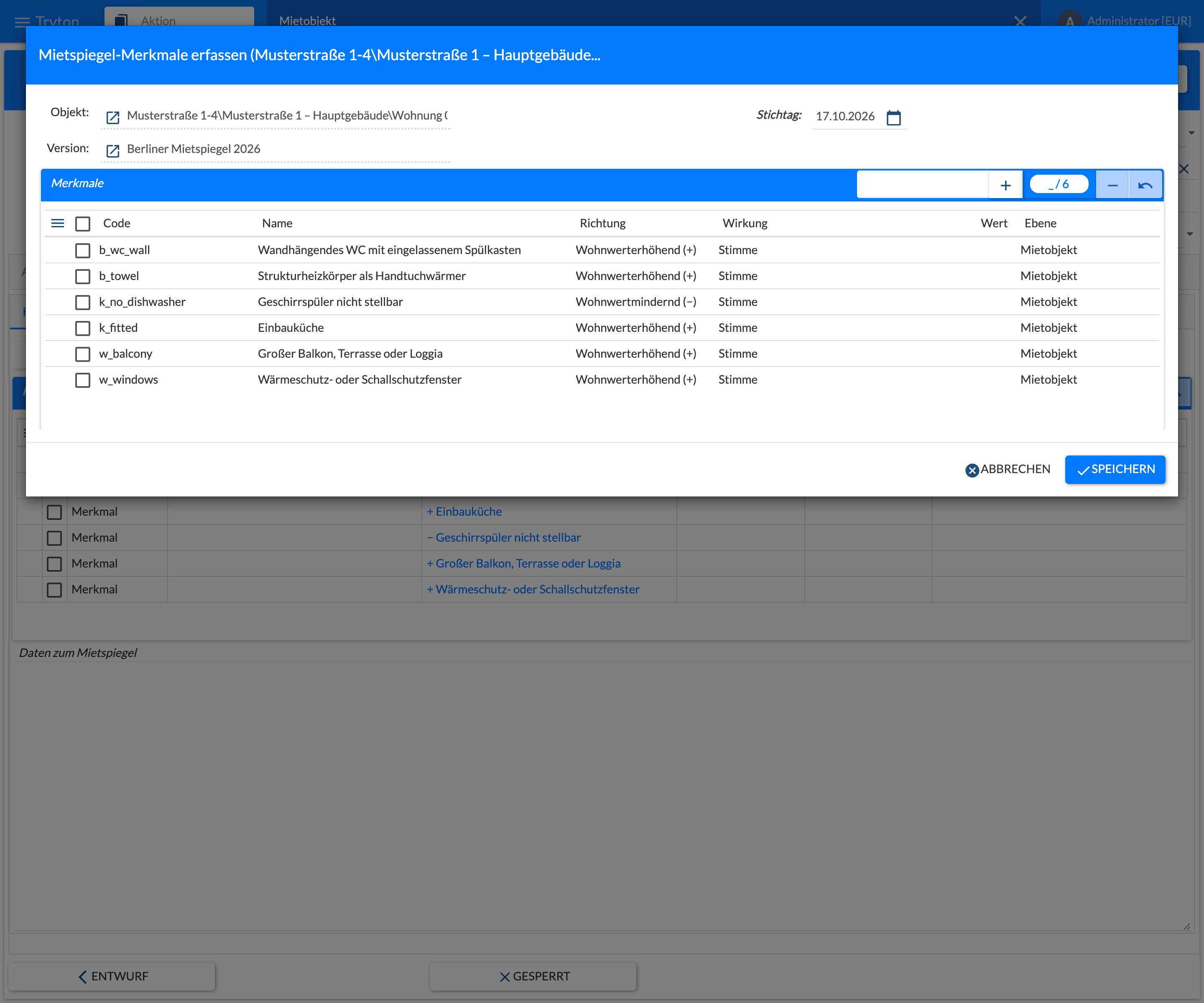
Merkmale erfassen opens the dialog Mietspiegel-Merkmale erfassen (Assign Rent Survey Features) with object, rent survey version and key date. The list shows the features of the object with code, name, direction, effect (vote or value), value and level; + and the search add further features of the level, − removes them. Speichern (Save) takes the list over into the tab. The dialog is the same on buildings and apartments.
- Measurement living area at the key date. It determines the table field (area range) and gives: comparative rent = €/m² × living area.
- Apartment features of the groups bathroom/WC, kitchen and apartment, e.g. fitted kitchen, parquet or bathroom without window – via Merkmale erfassen or Kopieren von Mietobjekt (Copy from Rental Unit), which saves time for identically equipped apartments.
- Vergleichsmiete berechnen (Calculate Comparative Rent; actions on the rental object) shows the result for the apartment directly, without a run.
Rent Survey Calculation
There is exactly one open calculation per apartment and key date, found under Verträge › Mietanpassungen › Mietspiegel-Berechnungen (Comparative Rent Calculations) or in the tab Mietspiegel of the apartment.
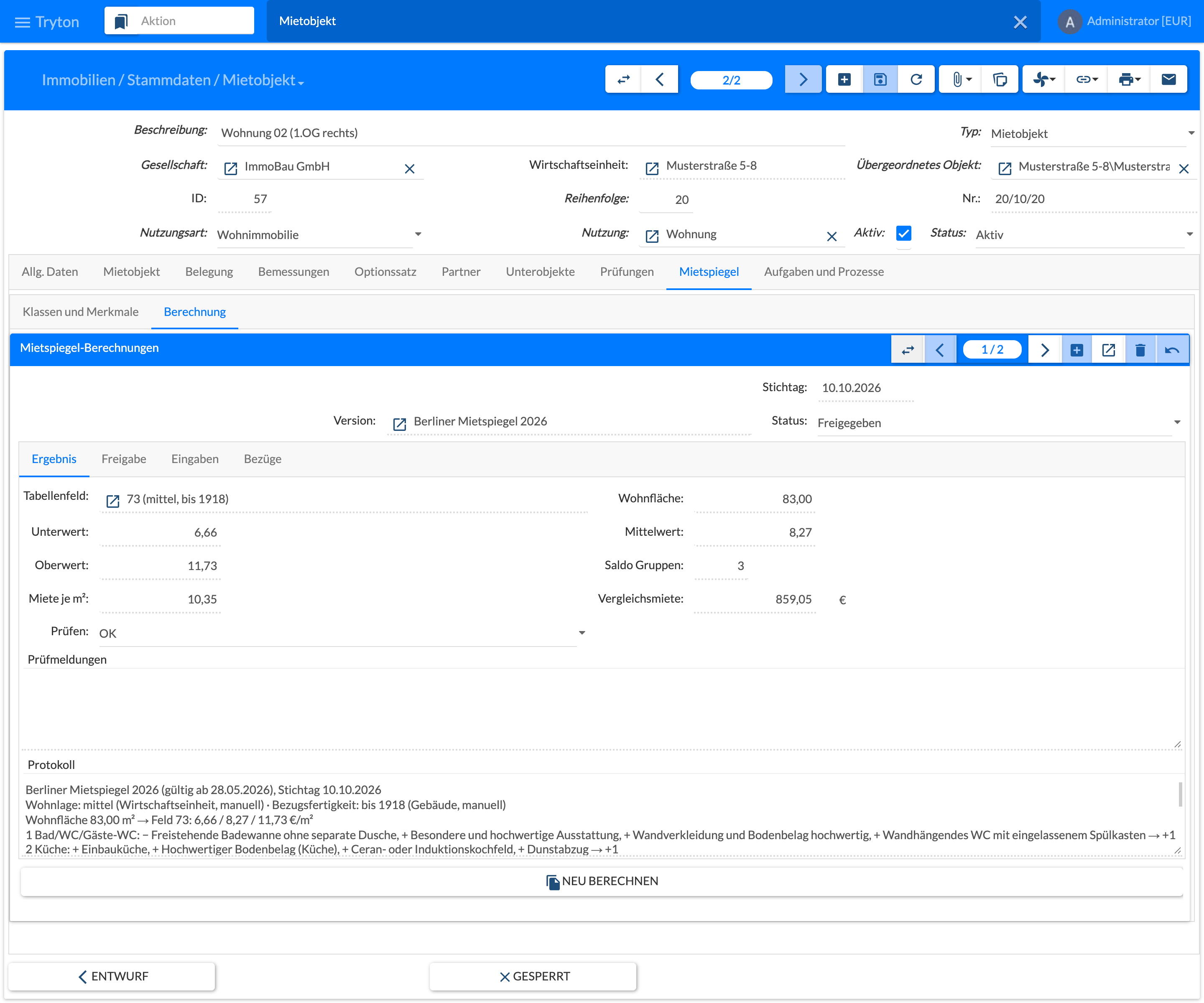
The sub-tab Berechnung (calculation) of the apartment lists the rent survey calculations with key date, version and state. The tab Ergebnis (result) shows table field, lower, middle and upper value, living area, Saldo Gruppen (balance of groups), Miete je m² (rent per m²), Vergleichsmiete and Prüfen (check) with the check messages, below the Protokoll of the classification. Further tabs are Freigabe (acceptance), Eingaben (inputs) and Bezüge (references); Neu berechnen (Recalculate) calculates again. In the figure: field 73 with 6.66 / 8.27 / 11.73 €/m², balance +3, i.e. 8.27 + 3 × 20 % × (11.73 − 8.27) = 10.35 €/m² and 10.35 €/m² × 83.00 m² = 859.05 €.
- Berechnen (Calculate): version at the key date, living area, classes (manual or derived), matching table field, valid and automatic features, then the range classification per group. The result is a protocol with a snapshot of all inputs. Checks:
- B01–B04 are errors (e.g. no class, no or several table fields);
- B05 (outside the qualified range), B06 (mutually exclusive features), B07 and B09 are warnings.
- Freigeben (Accept) is mandatory: the €/m² are taken over, optionally deviating; a warning or a deviating value requires a reason. Accepted calculations are evidence: they cannot be deleted and lock the rent survey version.
Rent Increase by Adjustment Run
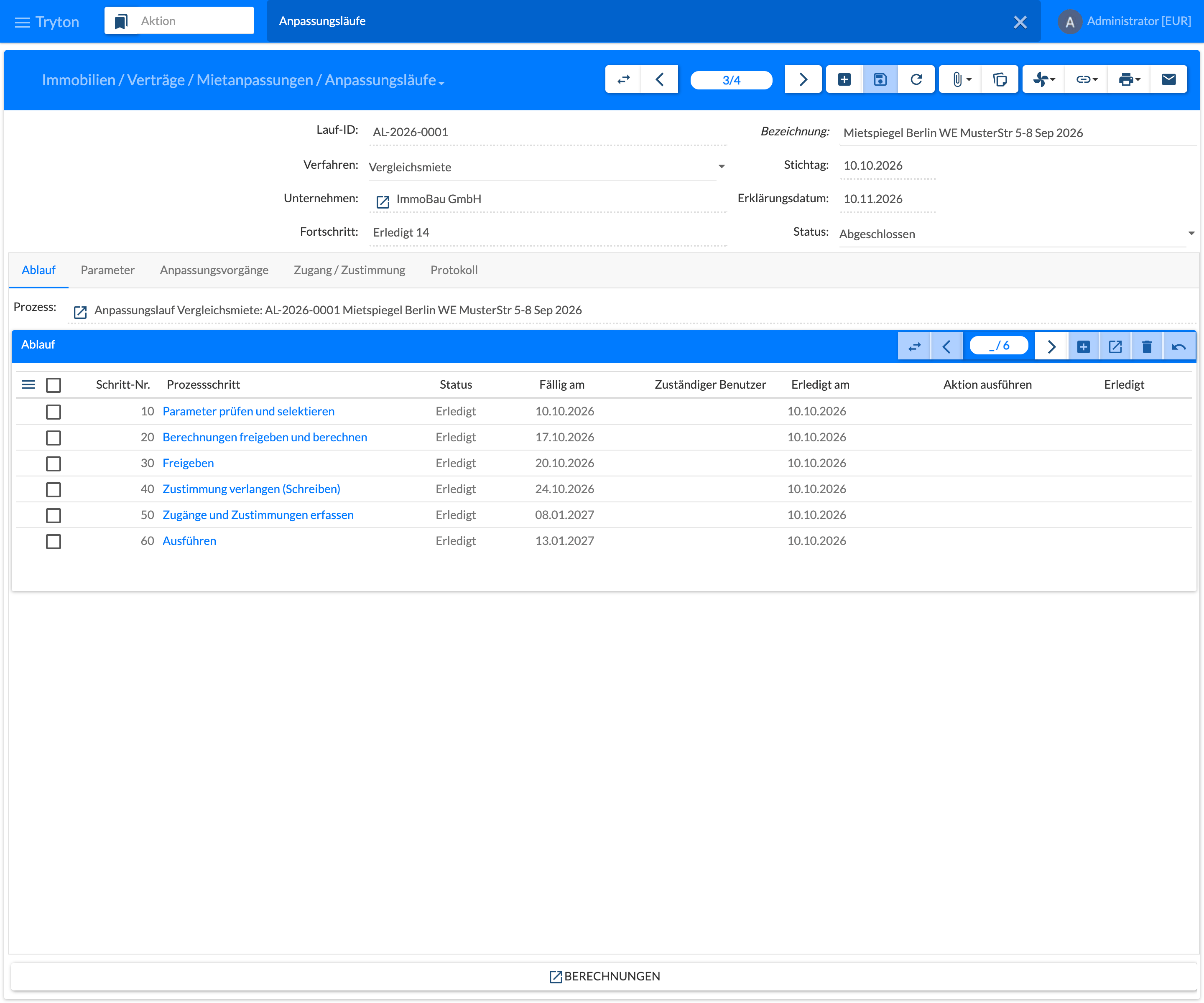
The first selection starts the process Anpassungslauf Vergleichsmiete with six steps: 10 check parameters and select, 20 accept and calculate the calculations, 30 approve, 40 request consent (letters), 50 capture receipts and consents, 60 execute. Each step has a due date and is completed automatically with the state of the run. The button Berechnungen (Calculations) at the bottom opens the rent survey calculations of the run. In the figure the run is Abgeschlossen (closed), all steps are done.
Menu Verträge › Mietanpassungen › Anpassungsläufe, New, procedure Vergleichsmiete:
Parameters:
- company, property, optionally contracts;
- key date and planned declaration date;
- Mindesterhöhung (minimum increase) in € and %;
- Berechnungen anlegen (create calculations, default yes).
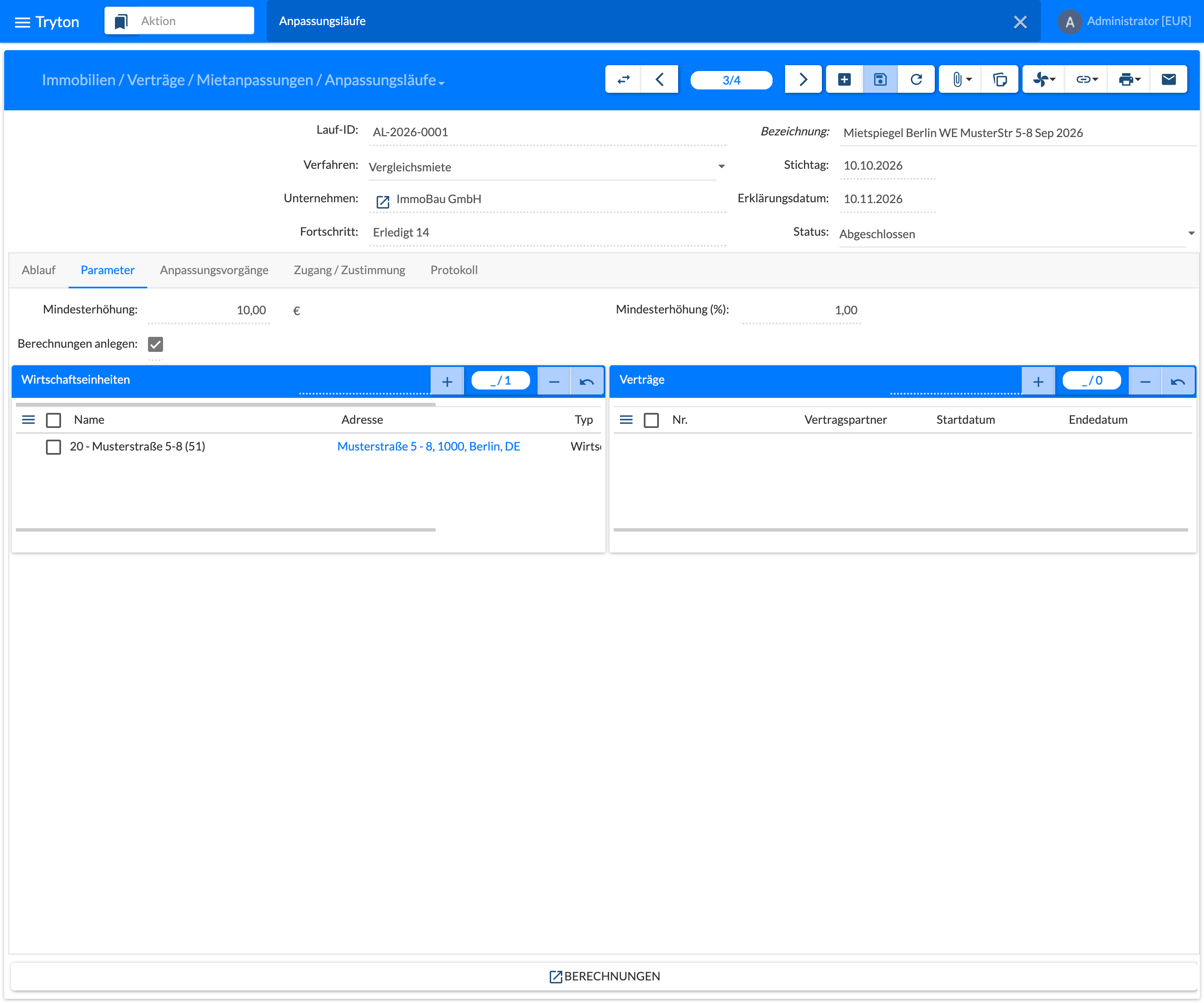
Figure 6.7.3-13: Adjustment run Vergleichsmiete, tab Parameter The tab Parameter holds the minimum increase in € and %, Berechnungen anlegen and the filters Wirtschaftseinheiten (properties) and Verträge (contracts); if the contract list stays empty, all matching contracts of the properties are selected. Key date and declaration date are in the header of the run.
Selektieren (Select): running contracts with a monthly rent term for exactly one apartment are selected. Skipped with a protocol line:
- V01: index rent or running graduated rent;
- V02: open adjustment;
- V03: rent unchanged for less than 15 months – increases due to modernisation or operating costs do not count;
- V04: last request less than 1 year ago;
- V05: not exactly one apartment;
- V06: contract end before the effective date.
For each term an agreement “Vergleichsmiete” is created automatically, and the rent survey calculation is created or recalculated for each apartment.
With the button Berechnungen (Calculations) review and accept the calculations.
Berechnen (Calculate):
- new rent = the lower of comparative rent and cap;
- cap = rent 3 years ago × (1 + 20 % or 15 %) + increases not to be counted;
- effective date = start of the 3rd month after receipt.
Checks V07–V12, e.g. “cap applies” (note), “no increase / below minimum increase” (error), “posted beyond the effective date” (warning). A manual amount with a reason is possible.
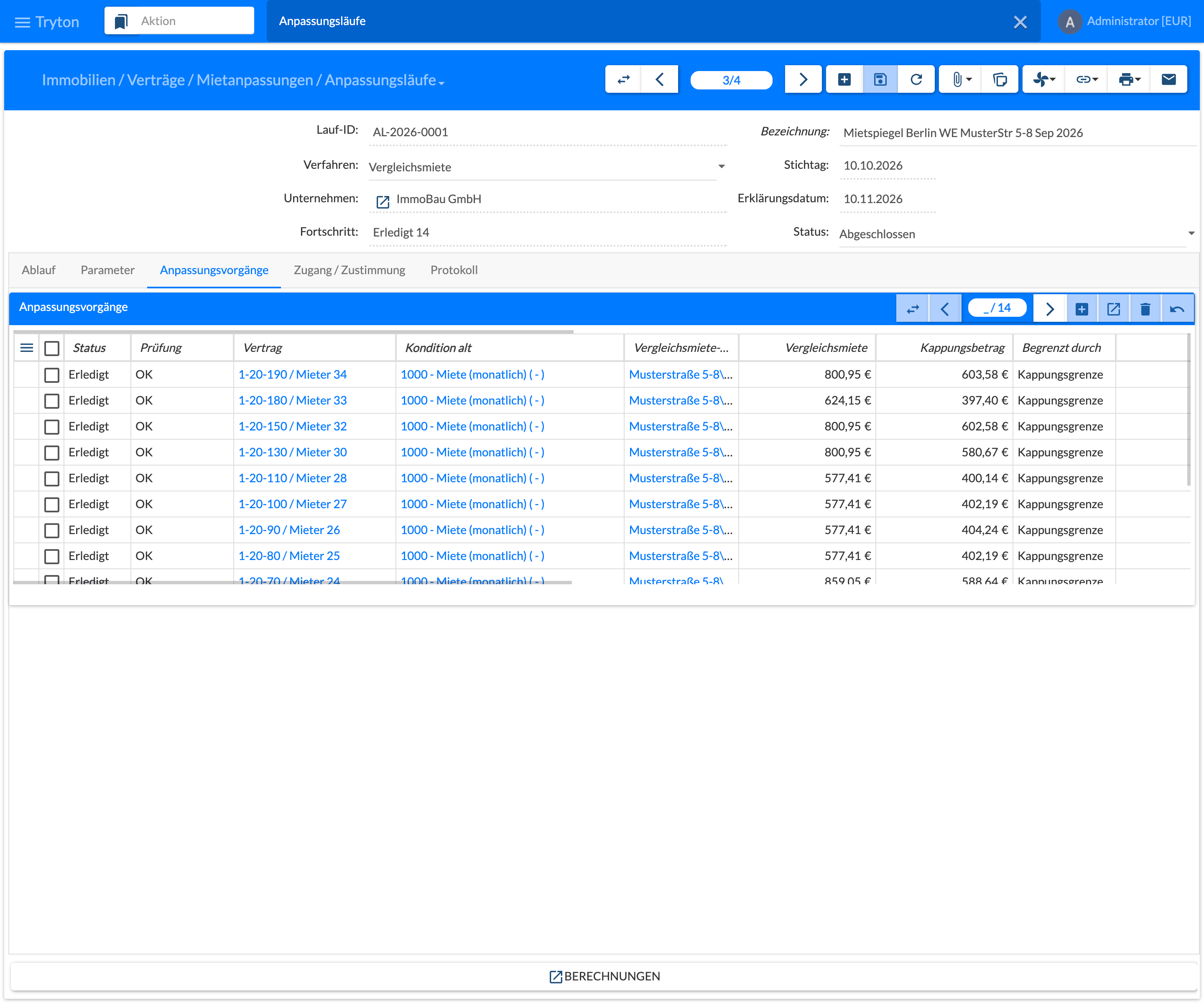
Figure 6.7.3-14: Adjustment run Vergleichsmiete, tab Anpassungsvorgänge The tab Anpassungsvorgänge (adjustments) shows per contract the state, check, contract, Kondition alt (old term), the rent survey calculation, the Vergleichsmiete (comparative rent), the Kappungsbetrag (cap limit: highest rent allowed by the cap) and Begrenzt durch (limited by) – comparative rent or cap. In the figure the cap limits the increase for all adjustments.
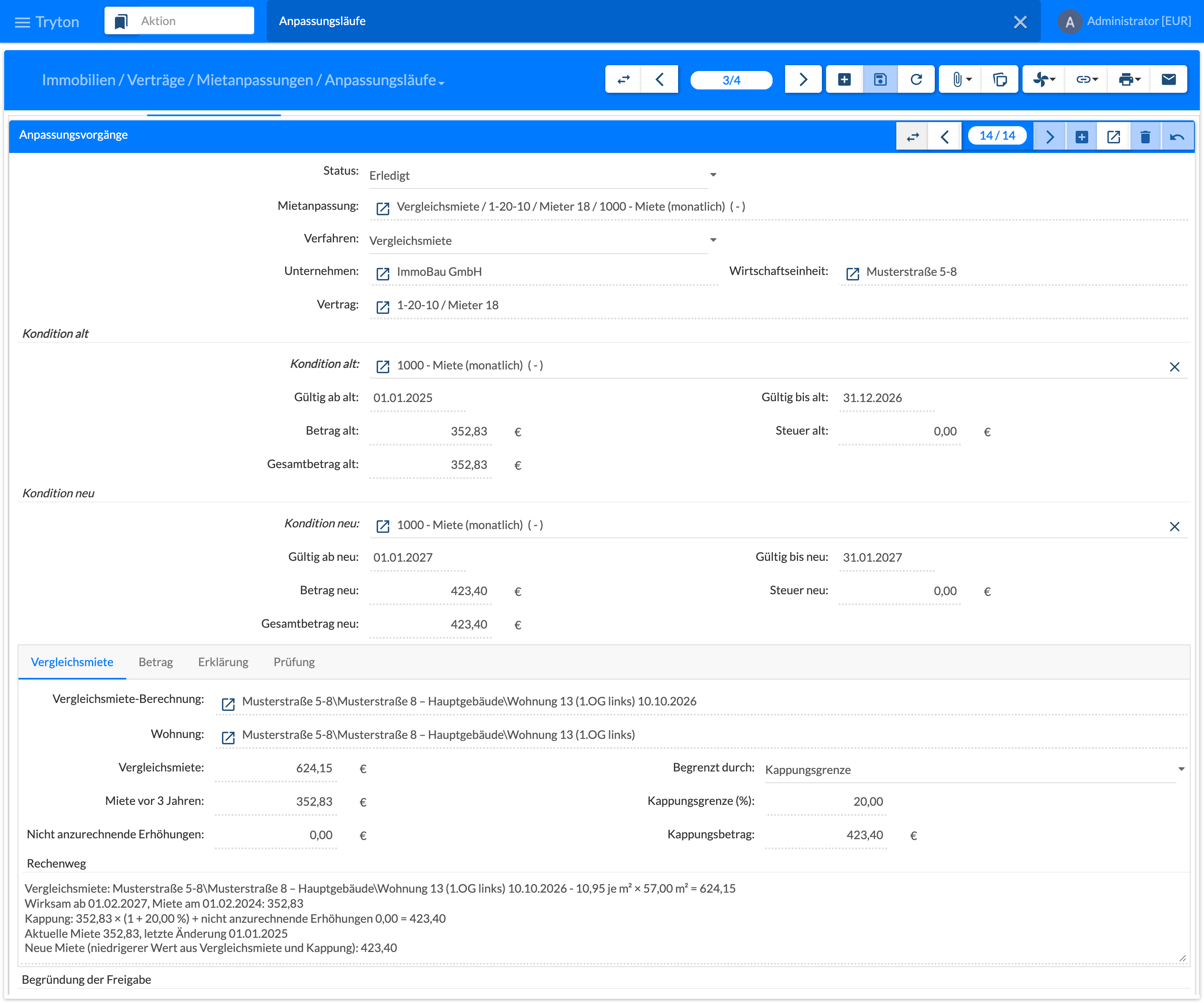
Figure 6.7.3-15: Adjustment, tab Vergleichsmiete A double click opens the adjustment with Kondition alt and Kondition neu (old and new term) and the tabs Vergleichsmiete, Betrag (amount), Erklärung (declaration) and Prüfung (check). The tab Vergleichsmiete shows the rent survey calculation and the apartment, comparative rent, Miete vor 3 Jahren (rent 3 years ago), Nicht anzurechnende Erhöhungen (increases not counted), Kappungsgrenze (%) (cap), Kappungsbetrag and Begrenzt durch. The Rechenweg (calculation) makes the result traceable, in the figure:
- comparative rent 10.95 €/m² × 57.00 m² = 624.15 €;
- cap 352.83 € × (1 + 20 %) + 0.00 € = 423.40 €;
- new rent = the lower value, i.e. 423.40 €.
Below is the Begründung der Freigabe (approval reason).
Freigeben (Approve), optionally Probeschreiben (Sample Letter), then Ankündigen (Announce). The rent increase request (report
comparative_rent_letter_de.odt) contains:- current and new net rent and the effective date;
- the justification: rent survey, version, table field with range, classification according to the protocol, if applicable the deviating accepted rent with reason;
- cap, period for consideration and a consent form.
The original is archived.
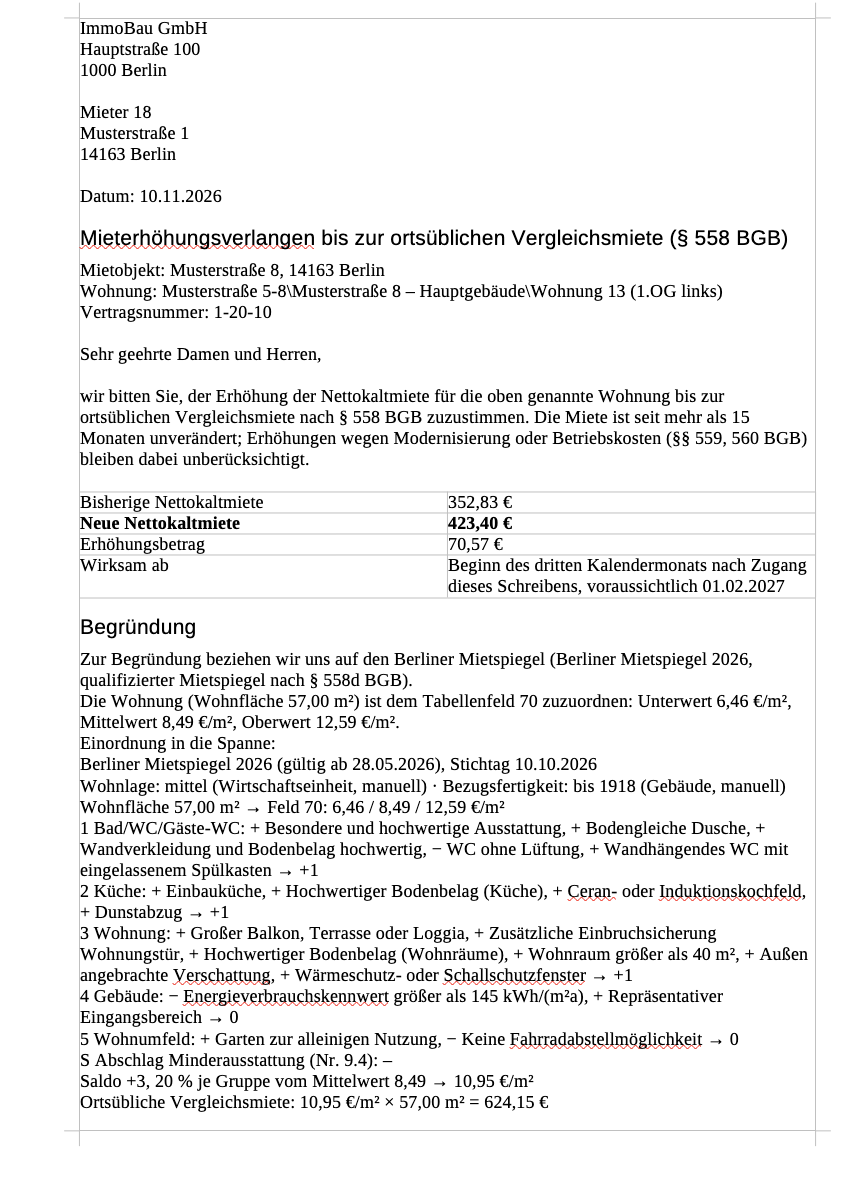
Figure 6.7.3-16: Rent increase request, page 1 The example shows the first page: current and new net rent, increase amount and “Wirksam ab” (start of the third calendar month after receipt, expected date calculated from the planned declaration date). The Begründung (justification) names rent survey and version, the table field with lower, middle and upper value and the classification within the range: residential location and year of construction, per feature group the features with + / − and the result of the group (+1, 0, −1), the balance (in the example +3; starting from the middle value 8.49 €/m², 20 % of the range up to the upper value per group, i.e. 8.49 + 3 × 20 % × 4.10 = 10.95 €/m²) and from it the local comparative rent 10.95 €/m² × 57.00 m² = 624.15 €. The new rent is limited by the cap to 423.40 €.
In the tab Zugang / Zustimmung (Receipts / Consents):
- Receipt date: the consent period is calculated from it (end of the 2nd month after receipt), and a task is created.
- Consent: consented / partially (with amount) / refused, with date. The period for legal action ends 3 months after the consent period.
When all decisions are entered, the run is Bereit zur Ausführung (ready).
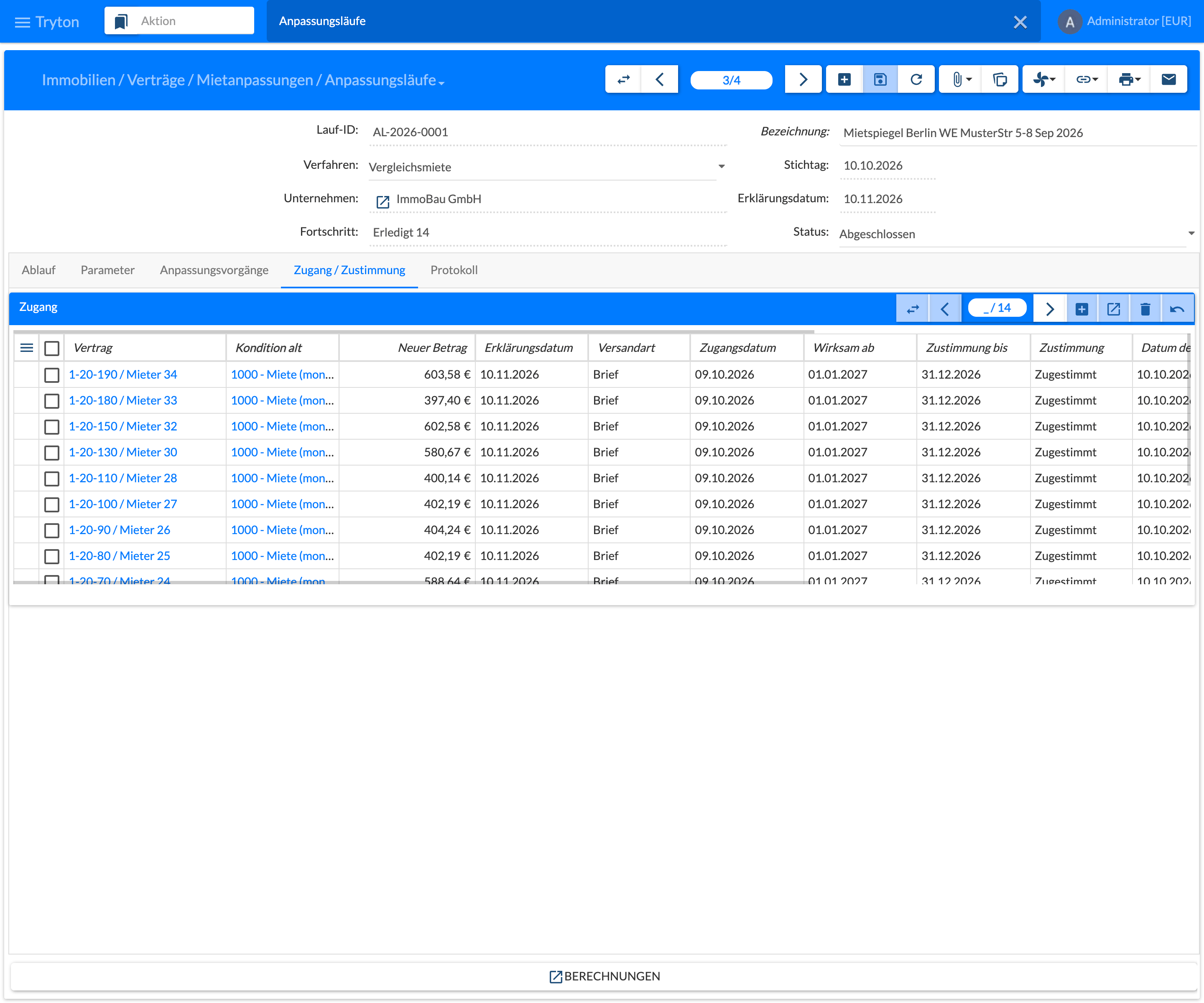
Figure 6.7.3-17: Adjustment run Vergleichsmiete, tab Zugang / Zustimmung The list Zugang (receipts) shows per contract the old term, Neuer Betrag (new amount), Erklärungsdatum (declaration date), Versandart (dispatch method), Zugangsdatum (receipt date), the resulting Wirksam ab (effective from) and Zustimmung bis (consent until), and Zustimmung (consent) with its date. In the figure: receipt in October, so consent until 31 December and effective from 1 January of the following year.
Ausführen (Execute):
- Consent: the term is split at the effective date with the requested or consented amount.
- Refusal: the adjustment gets the state Abgelehnt (refused), and the task Zustimmungsklage prüfen (check action for consent) is created. The lawsuit itself is not part of the module.
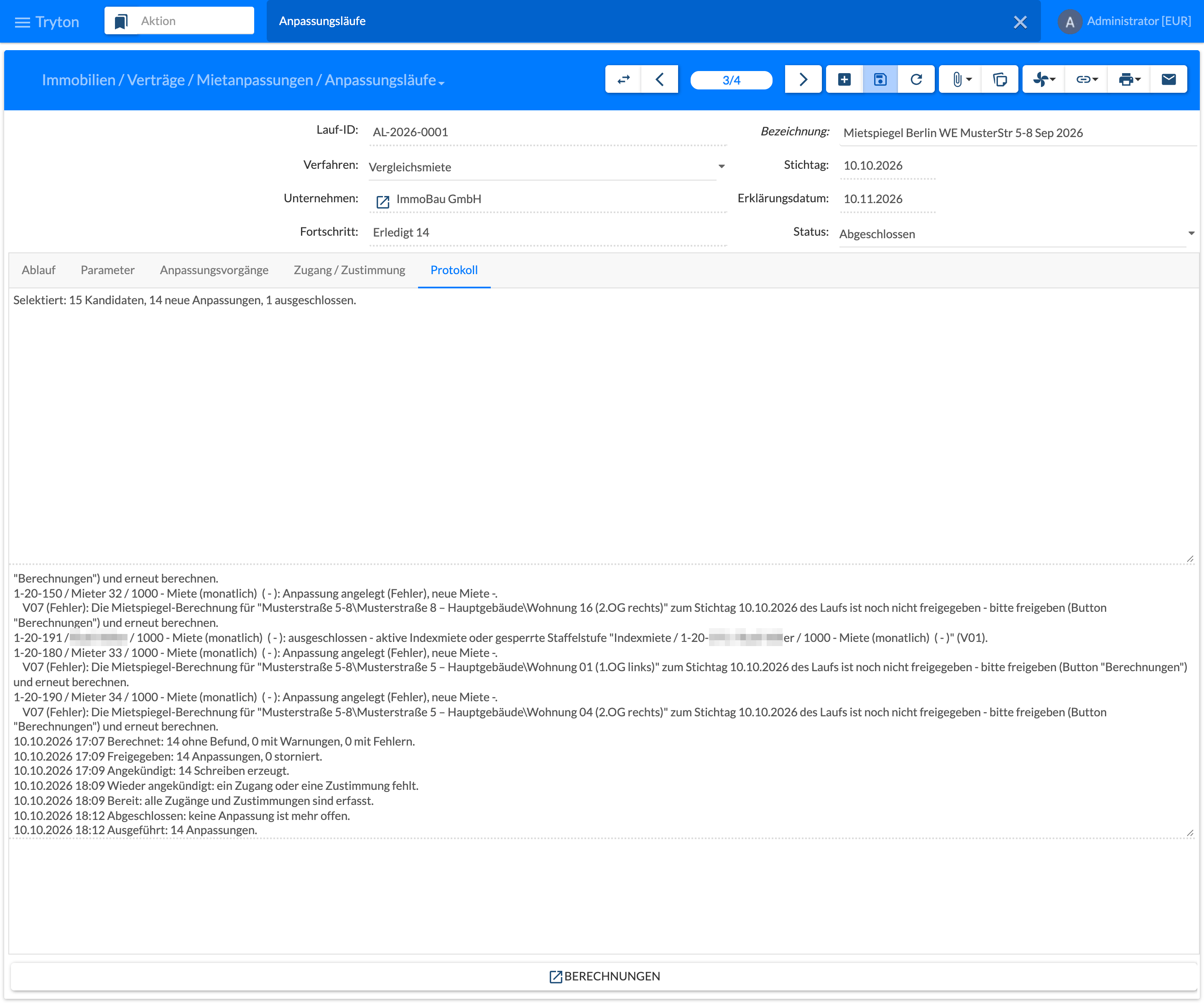
The tab Protokoll (protocol) shows the summary of the selection at the top (in the figure 15 candidates, 14 new adjustments, 1 excluded) and below the running protocol:
- per candidate the result with the findings, e.g. V01 (excluded because of an active index rent) or V07 (rent survey calculation not yet accepted – accept it via Berechnungen and calculate again);
- per step a line with time stamp: calculated, approved, announced, ready, executed, closed.
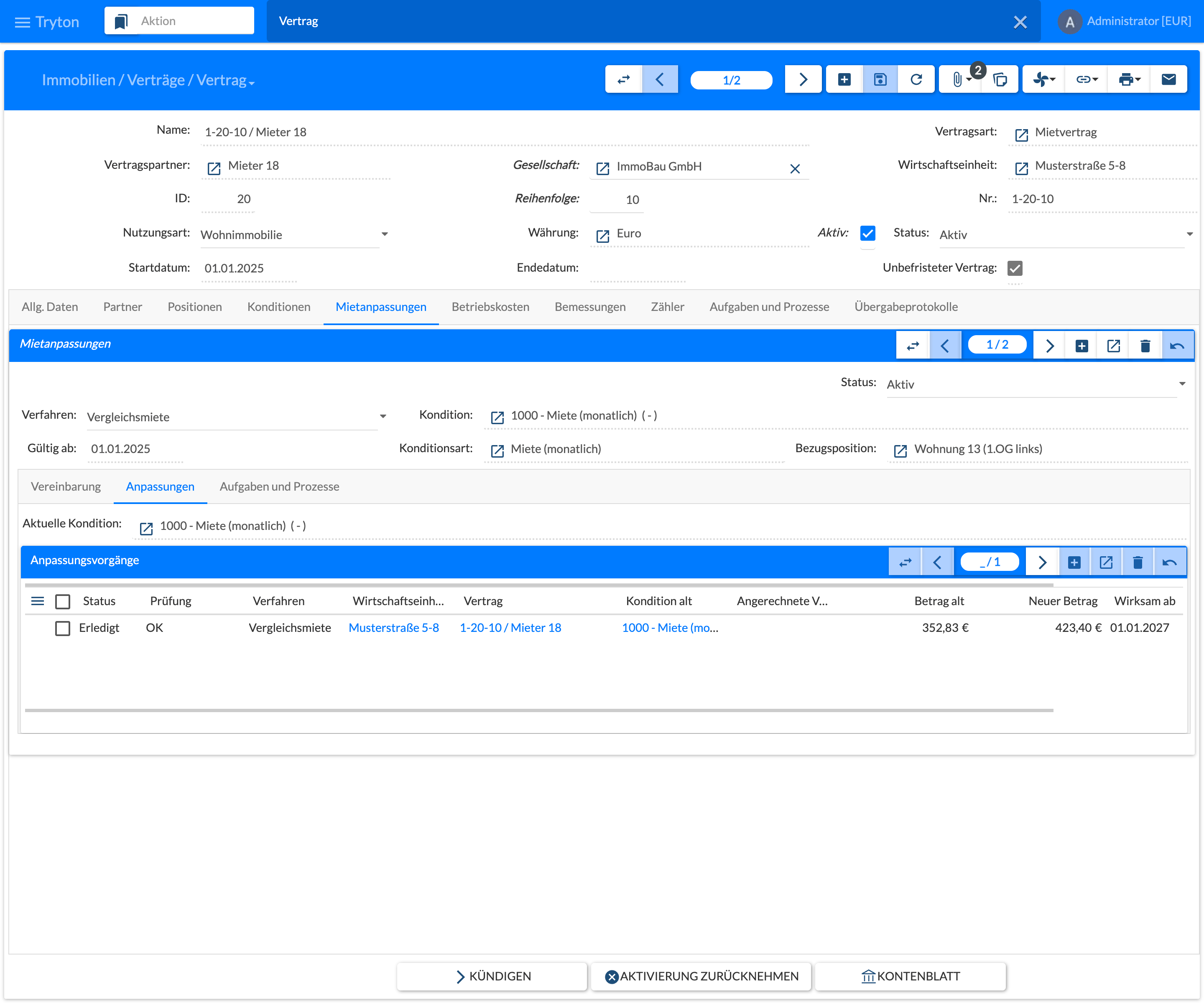
On the contract the comparative rent appears in the tab Mietanpassungen as a rent adjustment of its own with procedure Vergleichsmiete, term, term type and reference item (apartment). It is created automatically at selection. The sub-tab Anpassungen (adjustments) shows the Aktuelle Kondition (current term) and all adjustments with state, check, old amount, new amount and Wirksam ab (effective from) – in the figure the executed increase from 352.83 € to 423.40 € from 01.01.2027.
Legal Framework
| Rule | Implementation in the module |
|---|---|
| Rent unchanged for 15 months, request at the earliest 1 year after the last increase (§ 558 para. 1) | V03 / V04; modernisation and operating costs excluded. |
| At most up to the local comparative rent | Accepted rent survey calculation (V07). |
| Cap 20 % or 15 % in 3 years (§ 558 para. 3) | Automatic; 15 % via the flag on the property. |
| Justification in text form, here rent survey (§ 558a) | Letter with table field, range and classification; only this means of justification. |
| Consent by the end of the 2nd month after receipt, legal action within 3 further months (§ 558b) | Periods calculated, tasks created. |
| Effective from the start of the 3rd month after receipt (§ 558b para. 1) | Effective date from the receipt. |
| Excluded for index or graduated rent (§§ 557a, 557b) | V01, locks. |
| Residential space only | Via the type of use. |
| New letting: rent cap +10 % (§ 556d), otherwise +20 % as orientation (§ 5 WiStG) | Wizard Prüfung Vergleichsmiete Neuvermietung on the draft contract, incl. modernisation amount (§ 556e para. 2) and exception for comprehensive modernisation (§ 556f). |
Not implemented or the user’s responsibility
- Expert opinions or comparable apartments as justification.
- The deduction of third-party funds (§ 558 para. 5) is open.
- The classification itself (residential location, features) is the landlord’s responsibility.
- The rent survey data must be checked against the official original before productive use.
- The letter template has not yet been legally reviewed.
6.7.4 Modernisation
After a modernisation the landlord may increase the annual rent by a share of the costs (§§ 555b–555f, 559–559e BGB). Unlike index and comparative rent, the starting point is not a single term but a measure on buildings of a property whose costs are allocated to several rental units. The modernisation therefore has two phases:
- the measure – planning, announcement, work, costs;
- the rent increase by adjustment run – increase declaration and split of the rent term.
A process with tasks and deadlines accompanies both phases.
Prerequisites (once)
Modernisation rule under Immobilien › Einstellungen › Modernisierungsregeln (Real Estate › Configuration › Modernisation Rules; group real estate administration only). The statutory values as of 01.01.2024 are shipped:
- rate 8 %, heating 10 %;
- simplified procedure up to 10,000 € per apartment, with a maintenance flat rate of 30 % (heating 15 %) and a lock of 5 years;
- cap 3.00 €/m², or 2.00 €/m² for a rent below 7.00 €/m², within 6 years; heating additionally 0.50 €/m²;
- announcement period 3 months, extension 6 months, tolerance 10 %.
The rule valid on the announcement date applies (otherwise on the planned start).
Set the cap measurementSet the Kappungs-Bemessung (cap measurement) once in the rule, e.g. living area. It provides the area for the cap and the increase per m² in the letter. Without it Ankündigen (Announce) is not possible (M02).
Allow the procedure: modernisation on the contract type and on the term type of the rent, see 2.5.4 Contracts. Only such a term becomes the rent term of an apartment.
Maintain measurements: the measurement for the allocation key on the apartments, usually living area.
For the planning calculation (optional): rent survey on the property and classification of the objects, see 6.7.3 Comparative Rent.
Create and Plan the Measure
Menu Verträge › Mietanpassungen › Modernisierungen (Modernisations) with the tabs Planning, In Progress, Completed, Settled and All; New creates a measure (number MOD-year-no.). The process Modernisierung starts automatically and is shown in the tab Ablauf (workflow).
Tab Maßnahme (measure):
- name, company, property, buildings (empty = all buildings of the property);
- measure types according to § 555b BGB: no. 1 energetic, 1a heating system, 2 primary energy/climate protection, 3 water, 4 utility value, 4a fibre optics, 5 living conditions, 6 not attributable to the landlord, 7 new living space – nos. 2 and 7 alone do not allow an increase;
- variant: Standard (§ 559, 8 %), Simplified (§ 559c) or Heating system (§ 559e, 10 %);
- description and energy saving (flat values allowed);
- flags Bagatelle (trivial measure, § 555c para. 4, with reason), Leerstand (vacancy), Umfassende Modernisierung (comprehensive modernisation, § 556f, with reason), Nicht vom Vermieter zu vertreten (not attributable to the landlord) and JAZ Wärmepumpe nachgewiesen (heat pump SPF proven).
Tab Termine (schedule): planned start and duration, later actual start and end.
Tab Kosten (costs):
- cost lines per trade, not per invoice, e.g. facade, windows, heating: kind planned, later actual; net, tax, gross; measure type; maintenance share (none, percent or net amount – only for the standard variant, otherwise the flat rate applies) and optionally a single rental unit, e.g. for a balcony.
- Expected costs and expected operating costs; both belong in the announcement.
Tab Drittmittel (third-party funds, § 559a): a grant or third-party payment reduces the costs, the interest advantage of a loan reduces the annual amount; optionally for a single rental unit.
Allocation key: equal shares, measurement (default, with a selectable measurement type, e.g. living area or number of windows) or manual (quantity per rental unit, reason required). The share is quantity / total of the participating units.
Mietobjekte ermitteln (Determine Rental Units): the module takes over the apartments of the buildings with contract, rent term and quantity; running it again updates them and keeps manual settings. In the tab Mietobjekte you can correct per rental unit:
- In Verteilung (in allocation): deselect only with a reason – the share of the others increases; a vacant unit always takes part, its share is borne by the owner (M09);
- Vorsteuerabzug (input tax deduction): costs net instead of gross; proposed if a term of the contract carries VAT;
- Keine Erhöhung (no increase) with a reason (vacancy, commercial, graduated/index rent, hardship accepted, termination, waiver …): the unit stays in the allocation but gets no increase and no letter. Vacancy and commercial are set automatically.
Per rental unit you see share, allocable costs and the expected increase per month after the cap.
Planning calculation (optional, tab Kalkulation, in planning and draft): enter planned features per building and apartment – rent survey classes or features (add/remove) and measurements after the modernisation, e.g. the new energy consumption value. Kalkulieren (Calculate) shows per apartment:
- increase according to § 559 and the rent afterwards;
- comparative rent before and after, the rent according to § 558 and from when it can be requested;
- limit for a new letting;
- additional rent p. a. and yield.
This lets you decide whether the cost allocation according to § 559 or a later comparative rent in the modernised state (§ 558) yields more.
Planung übernehmen (Take Over Planning): state planning → draft.
Calculation of the Allocation
- Share per participating rental unit by the key; costs and funds of a single unit go to that unit only.
- Cost basis net or gross (input tax deduction).
- Allocable costs = costs − maintenance share (percent, amount or flat rate 30 % / 15 %) − grants and third-party payments.
- Annual amount = allocable costs × 8 % or 10 % − interest advantage; monthly amount = annual amount / 12.
- Cap: area × 3.00 €/m² (2.00 €/m² for a rent below 7.00 €/m²), heating additionally area × 0.50 €/m²; previous increases within the last 6 years are taken into account by the adjustment run.
Example: building with 420 m², costs 180,000 €, maintenance share 25 %, grant 15,000 € → allocable 120,000 €; an apartment with 64.20 m² bears 18,342.86 € × 8 % = 1,467.43 € per year, i.e. 122.29 € per month.
Announcement (§ 555c BGB)
Optionally Probeschreiben (Sample Letter): the announcement of the first rental unit marked ENTWURF, not archived.
Ankündigen (Announce). The module checks:
- M01: at least one measure type allowing an increase;
- M02: required details – description, planned start and duration, expected costs and operating costs, cap measurement;
- M03: start at the earliest 3 months after the announcement;
- M04: heating only with no. 1a;
- M05: limit of the simplified procedure (warning);
- M10: quantities for the key measurement or manual.
Then a letter to all main tenants is created per rental unit with an increase (report Modernisierungsankündigung) with kind and scope, energy saving, start and duration, the expected increase per month and per m², the future operating costs, the note on the hardship objection with form and deadline (§ 555d) and the special termination right (§ 555e). The letters are archived on the rental unit and on the contract; the announced increase is frozen.
Zugang erfassen (Capture Receipts), for all units at once or per unit. From this the module calculates the deadlines Härteeinwand bis (hardship objection until) and Sonderkündigung bis (special termination until): end of the month after receipt. On the rental unit you also enter Ankündigung mangelhaft (announcement defective), Härtehinweis fehlt (hardship notice missing; then no hardship deadline), the hardship objection with date, note and decision, and Gekündigt (terminated).
Exceptions: trivial measures (§ 555c para. 4) and vacancy are not announced – the work starts directly.
Execution of the Work
- Arbeiten beginnen (Start Work). M06 warns if the start is less than 3 months after the receipt of the announcement.
- During the work enter the actual costs, preferably with reference to the supplier invoice line; net amount and tax are taken over. The measure is then visible and searchable on the invoice line.
- Fertigstellen (Complete). M07 checks that costs exist and, for the standard variant, that every line has a maintenance share. From then on the tab Prüfmeldungen (check messages) shows M08: the input tax of the rental units compared with the option rate of the property (§ 15a UStG, consult a tax advisor); without a deviation it says “Keine Meldungen.”
- When using the rent survey, Geplante Merkmale übernehmen (Apply Planned Features): the planned classes, features and measurements apply to the objects from the completion (process step 90).
A vacancy measure is settled immediately on completion.
Rent Increase (§§ 559, 559b BGB)
In the completed measure click Anpassungslauf anlegen (Create Adjustment Run). The run opens with the measure as parameter; key date and declaration date are today, at the earliest the completion.
Selektieren (Select): one adjustment per rental unit. Skipped with a reason in the protocol: no increase, no contract or rent term, already an adjustment for the unit, procedure not allowed.
Berechnen (Calculate):
- increase = allocable costs × 8 % / 10 %, minus interest advantage; the actual costs are used, as long as there are none the planned costs;
- cap with the previous increases of the apartment within the last 6 years (heating separately);
- effective from the start of the 3rd month after receipt, + 6 months without announcement or its receipt, with a defective announcement or more than 10 % above the announced increase.
The values are shown on the adjustment in the tab Modernisierung. Checks E01–E14, e.g. graduated rent (E02), index rent only for circumstances not attributable to the landlord (E03), hardship objection open (E04), cap applies (E05), postponed by 6 months (E07), no cap area (E10), termination (E11), declaration before completion (E12).
Freigeben (Approve), optionally Probeschreiben, then Ankündigen. The increase declaration (report Modernisierungs-Mieterhöhung) contains the reference to the announcement, costs per trade, maintenance share, third-party funds, key and share, allocable costs, annual and monthly amount, old and new rent, effective date, cap or extension and the special termination right according to § 561. Schreiben drucken (Print Letters) prints all letters still to be sent.
In the tab Zugang / Zustimmung capture the receipt; the module calculates Sonderkündigung bis (end of the second month after receipt, § 561). The tenant’s consent is not required; the increase is a unilateral declaration. If the tenant has terminated according to § 561, set Gekündigt and cancel the adjustment.
Ausführen (Execute, in the background): the term is split at the effective date with the new rent; errors are written to the protocol. When the run is closed, the measure changes to Abgerechnet (settled).
The rental unit of the measure then shows the adjustment and the state of the increase.
Process and Deadlines
| No. | Process step | Completed by |
|---|---|---|
| 10 | Plan and calculate (optional) | state draft |
| 20 | Determine rental units | rental units exist |
| 30 | Announce the measure | state announced; not for vacancy and trivial measures |
| 40 | Capture receipts of the announcement | receipt at every unit with an increase |
| 50 | Handle hardship objections and special terminations | deadlines expired, no objection open |
| 60 | Start the work | state in progress |
| 70 | Complete the work, determine the costs | state completed |
| 80 | Start the adjustment run | measure settled; not for vacancy |
| 90 | Update rent survey features | manual; only with a rent survey |
Deadline tasks: hardship objection (per rental unit), start of work and increase declaration (on the measure) and special termination according to § 561 (on the adjustment), see 2.5.7 Tasks and Processes. The adjustment run has its own process Anpassungslauf Modernisierung.
Further Support
- Vacancy: in the process Leerstand / Neuvermietung (vacancy / new letting) of the rental unit the optional step Modernisierung planen creates a vacancy measure (wizard Modernisierung planen (Leerstand)), see 5.3 Rental Objects. It is carried out without announcement and settled on completion. Its amount counts for the next letting.
- New letting: the wizard Prüfung Vergleichsmiete Neuvermietung raises the limit of the rent cap by the modernisation amount of the last 3 years (§ 556e para. 2). After a comprehensive modernisation there is no limit for the first letting (§ 556f).
Not covered
- Commercial leases – there only the contract applies, possibly with a free adjustment.
- The legal review of the letter templates.
- For heating systems with a heat pump the 50 % rule must be checked manually (E08).
11 Information System and Correspondence
Subsections of 11 Information System and Correspondence
11.1 Reports and Analyses
Info
Further reports are work in progress.
Measurements
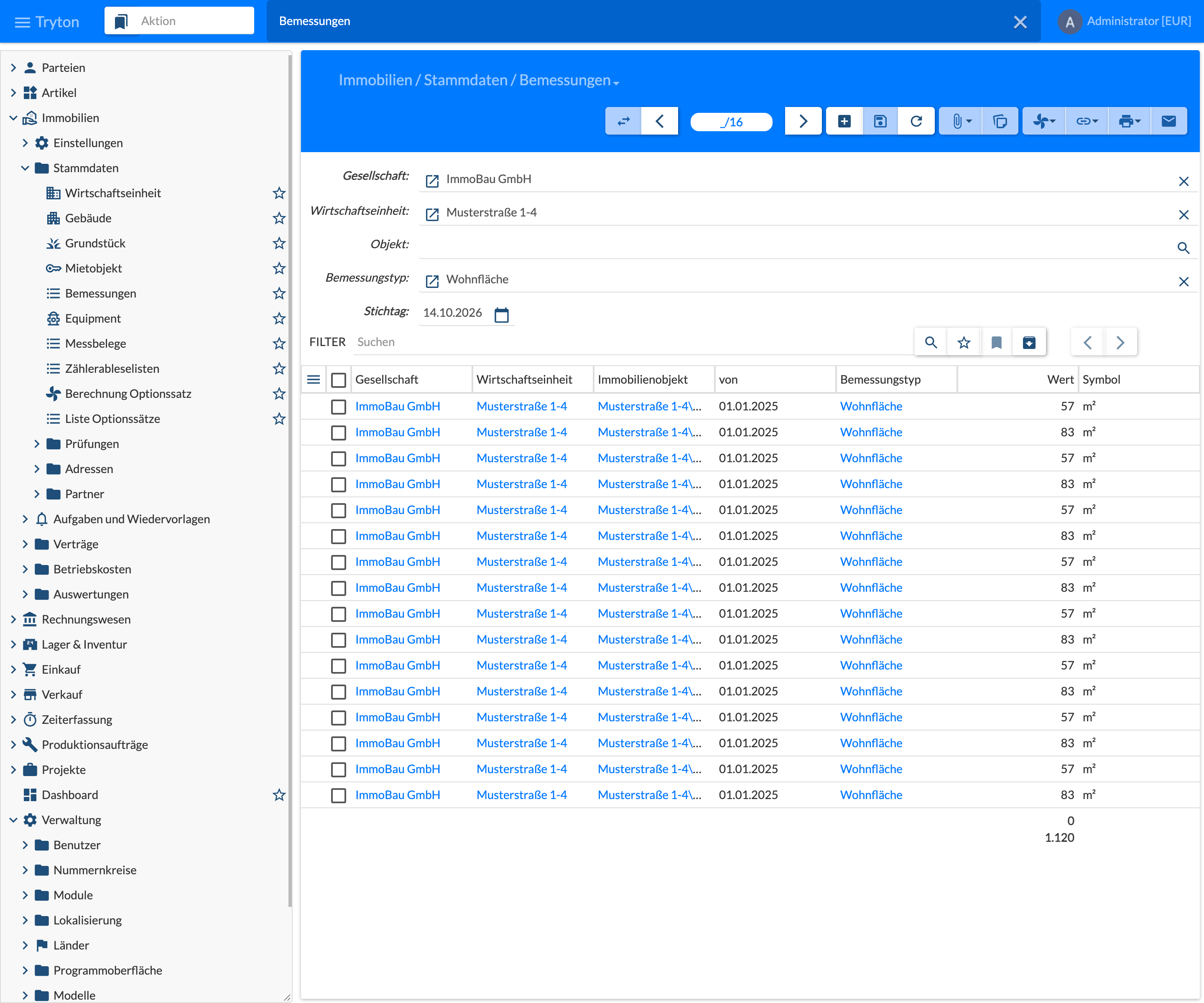
Open the menu Immobilien › Stammdaten › Bemessungen (Real Estate › Master Data › Measurements). The list shows the measurements of the objects, e.g. living areas, and sums the values at the end of the list. Measurements are entered on the object in the tab Bemessungen (Measurements), see 5.1 Property.
| Field | Description |
|---|---|
| Gesellschaft (Company) | Company whose measurements are shown. Required. |
| Wirtschaftseinheit (Property) | Restricts the list to the objects of this property. |
| Objekt (Object) | Restricts the list to this object and all objects below it; takes precedence over the property. |
| Bemessungstyp (Measurement Type) | Shows only measurements of this type, e.g. living area. |
| Stichtag (Key Date) | Only measurements valid on the key date are shown: “from” date on or before the key date and not yet replaced by a newer entry of the same object and measurement type. Default is today. |
The columns show company, property, object, valid from, measurement type, value and symbol (unit).
Note on the total
The total at the end of the list therefore gives the status on the key date, e.g. the total living area.
Addresses
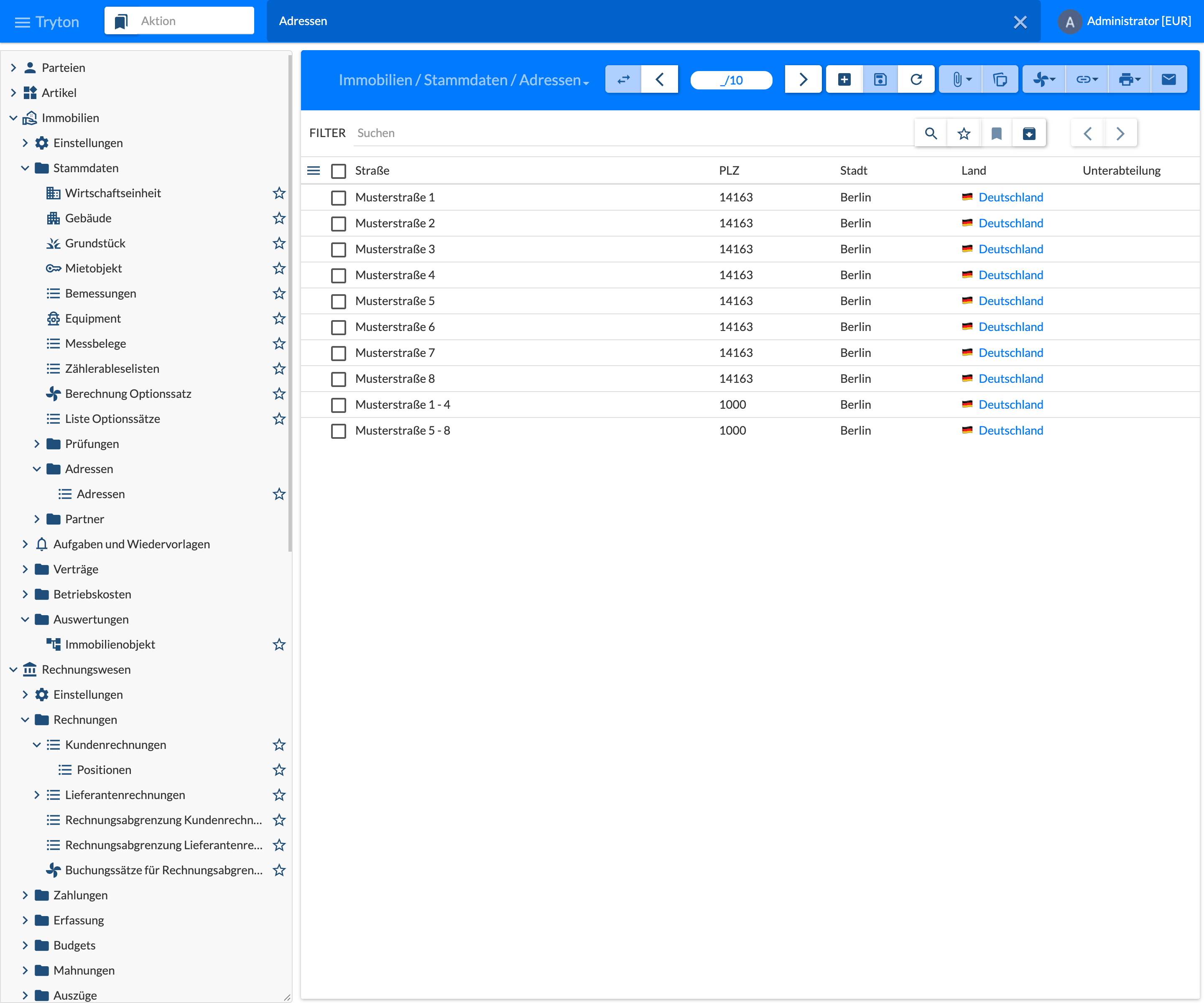
Open the menu Immobilien › Stammdaten › Adressen › Adressen (Real Estate › Master Data › Addresses › Addresses). The list shows the addresses of the real estate objects with street, postal code, city, country and subdivision (e.g. federal state). These object addresses are independent of the addresses of business partners. They are assigned on the object in the field Adresse (Address, tab Allg. Daten), see 5.1 Property; a new address can also be created directly there. With + (New) addresses can also be created in the list; the form corresponds to the Tryton address (street and number, postal code, city, country, subdivision).