Subsections of 5 Real Estate Master Data
5.1 Property
Getting Started
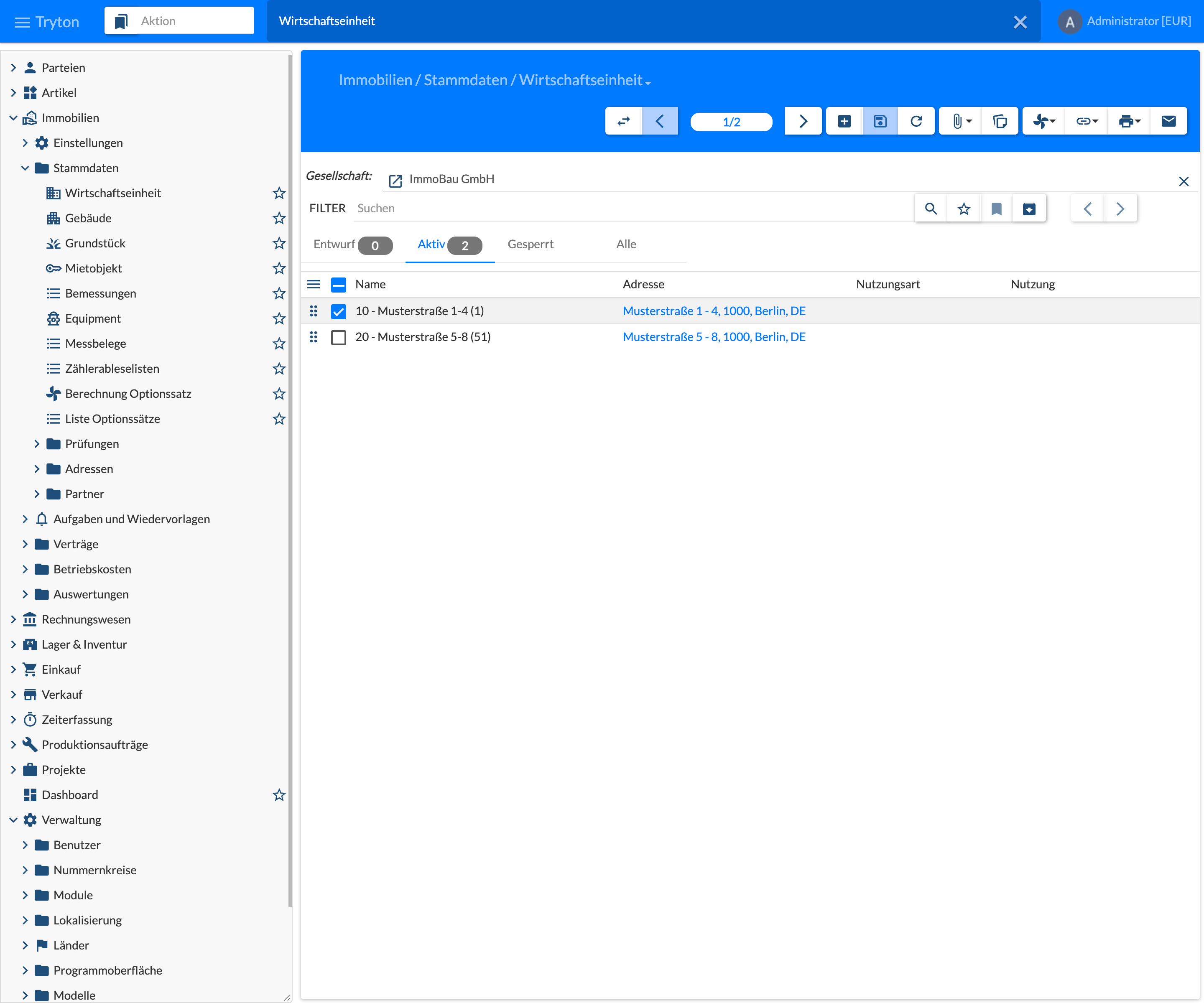
The property (Wirtschaftseinheit) is the top level of the real estate master data. Buildings, land and rental objects belong to it.
Open the menu Immobilien › Stammdaten › Wirtschaftseinheit (Real Estate › Master Data › Property). The list shows the properties of the company displayed at the top with name, address, type of use and use. The tabs Entwurf (Draft), Aktiv (Active), Gesperrt (Locked) and Alle (All) filter by state; the number shows the count.
- Create: button + (New) in the toolbar
- Edit: select a row and press Enter or use the Switch view button to open the form
Create and Edit
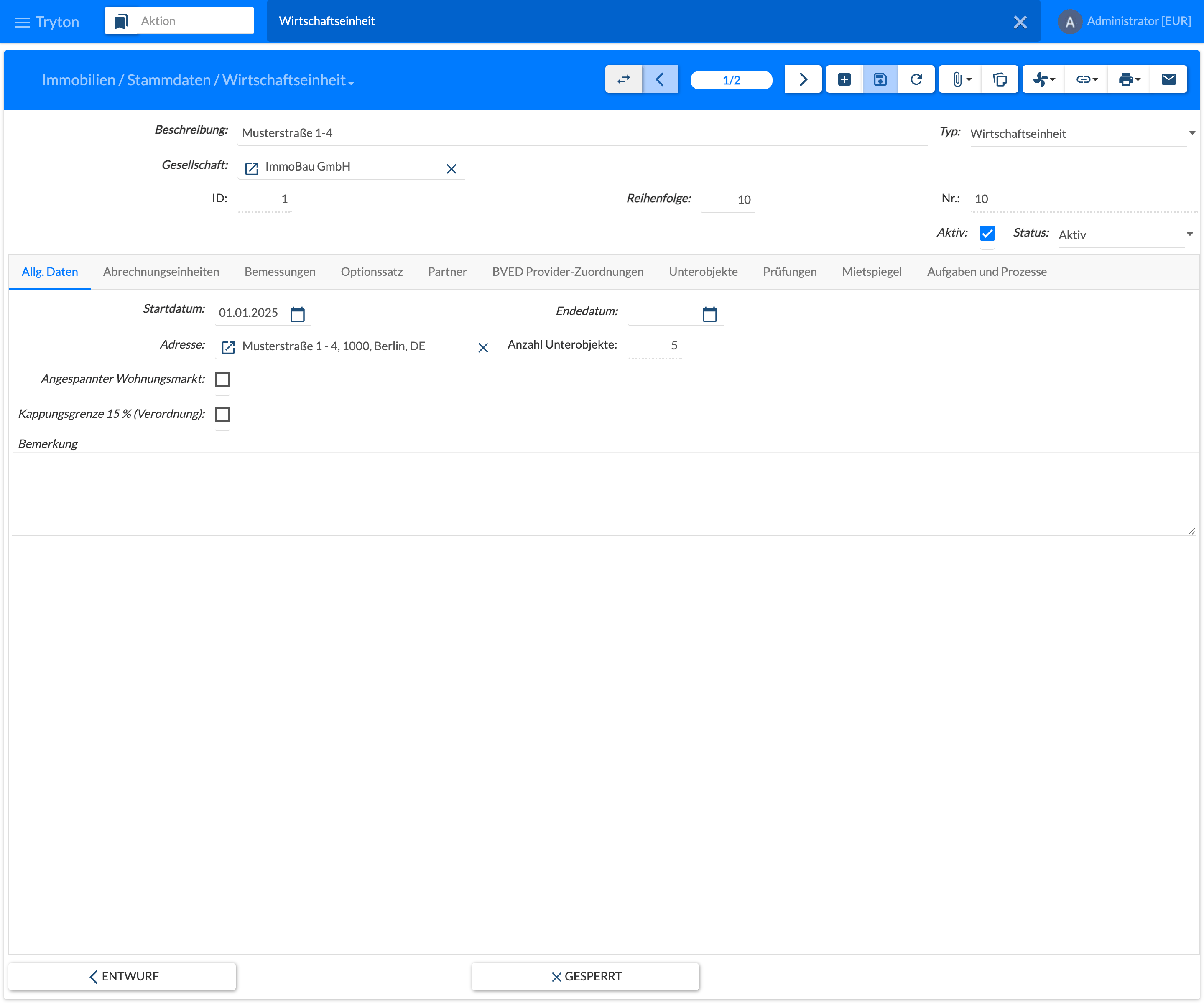
| Field | Description |
|---|---|
| Beschreibung (Description) | Name of the property, e.g. the address. Required. |
| Typ (Type) | Kind of object, here Wirtschaftseinheit (Property). |
| Gesellschaft (Company) | Company the property belongs to. Required. |
| ID | Internal record number, assigned by the system. |
| Reihenfolge (Sequence) | Position within the level; must be greater than 0 and unique per level. |
| Nr. (No) | Number of the property, set by the system, read-only. |
| Aktiv (Active) | Inactive properties are hidden in lists and selection fields. |
| Status (State) | Draft, Active, Locked or Deactivated. The state is changed with the buttons at the bottom of the form (e.g. Entwurf, Gesperrt). |
Tab Allg. Daten (General)
The tab is shown in the figure above.
| Field | Description |
|---|---|
| Startdatum (Start Date) | Start of the property. Required. |
| Endedatum (End Date) | End of the property, empty = unlimited. |
| Adresse (Address) | Address of the property, see 11.1 Reports and Analyses – Addresses. |
| Anzahl Unterobjekte (Number of Sub-Objects) | Number of directly assigned buildings and land; calculated. |
| Angespannter Wohnungsmarkt (Tight Housing Market) | The property is located in an area with a tight housing market according to state regulation (relevant for the cap rule of index rents). |
| Kappungsgrenze 15 % (Reduced Cap 15 %) | The property is located in an area where state regulation lowers the cap for rent increases up to the local comparative rent from 20 % to 15 % within three years (§ 558 (3) BGB). |
| Bemerkung (Comment) | Free text. |
Tab Abrechnungseinheiten (Billing Units)
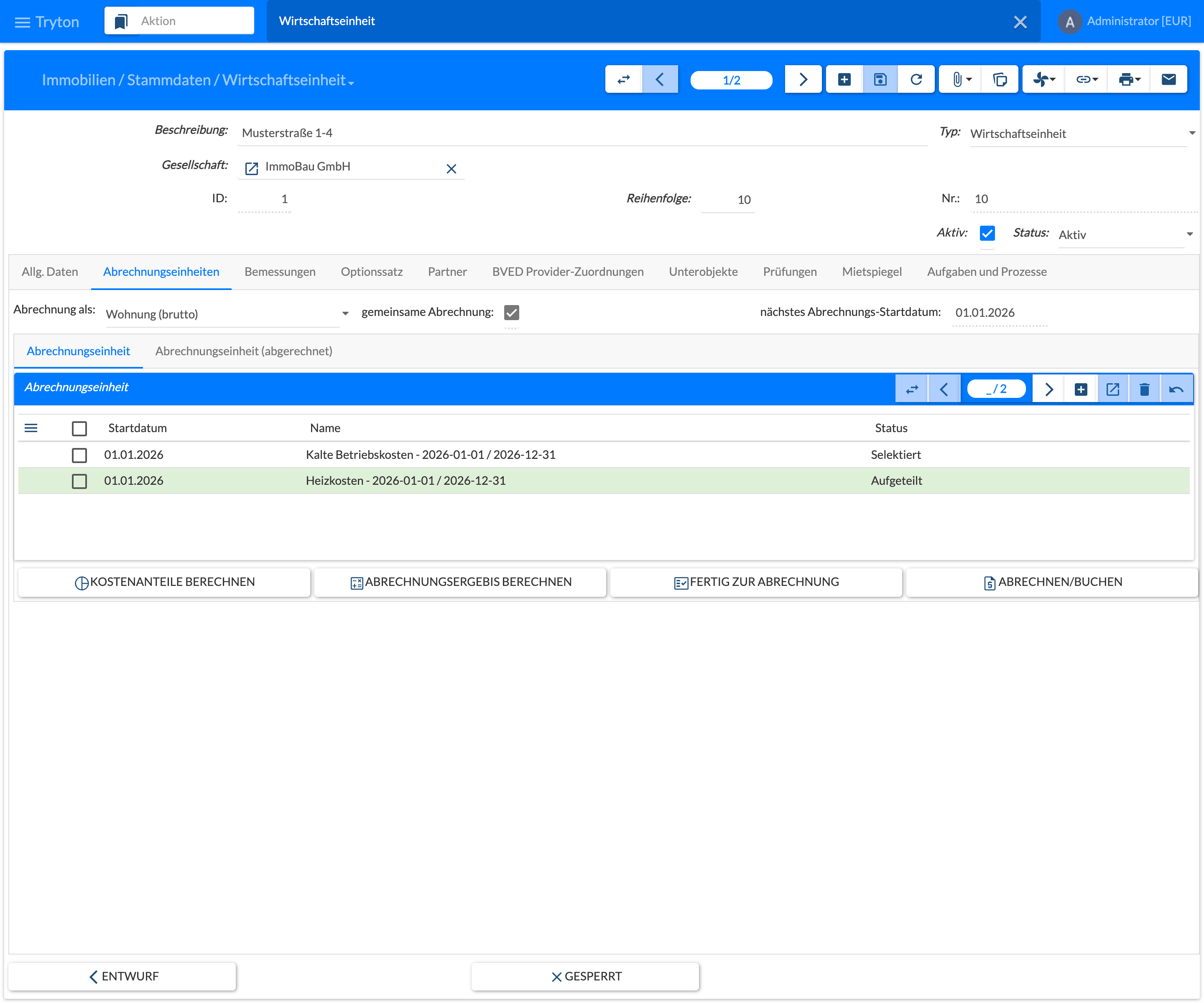
The tab shows the billing units of the operating cost settlement that belong to this property and offers the settlement steps for all billing units at once.
| Field | Description |
|---|---|
| Abrechnung als (Billing as) | Wohnung (brutto) (residential, gross) or Gewerbe (netto) (commercial, net): defines how operating costs are billed. Can only be changed in state Draft. |
| gemeinsame Abrechnung (Collective Billing) | All billing units with the same start date are billed together. Billing is then triggered here on the property, not on the individual billing unit. Can only be changed in state Draft. |
| nächstes Abrechnungs-Startdatum (Next Billing Start Date) | Earliest start date of all billing units not yet billed; calculated. Billing units with this start date are highlighted in green in the list. |
| Abrechnungseinheit (Billing Unit) | List of open billing units with start date, name and state. |
| Abrechnungseinheit (abgerechnet) (Billing Unit, billed) | List of billing units already billed. |
The buttons below the list apply to all billing units with the next billing start date:
| Button | Effect |
|---|---|
| Kostenanteile berechnen (Compute Cost Shares) | Computes the cost shares, see 7.3 Cost Shares and Allocation Keys. |
| Abrechnungsergebnis berechnen (Compute Settlement Result) | Computes the settlement result. |
| Fertig zur Abrechnung (Ready for Billing) | Sets the billing units to ready for billing. |
| Abrechnen/Buchen (Bill/Post) | Opens the billing wizard, see 7.5 Performing the Operating Cost Settlement. Only billing units in state ready for billing are billed. |
Tab Bemessungen (Measurements)
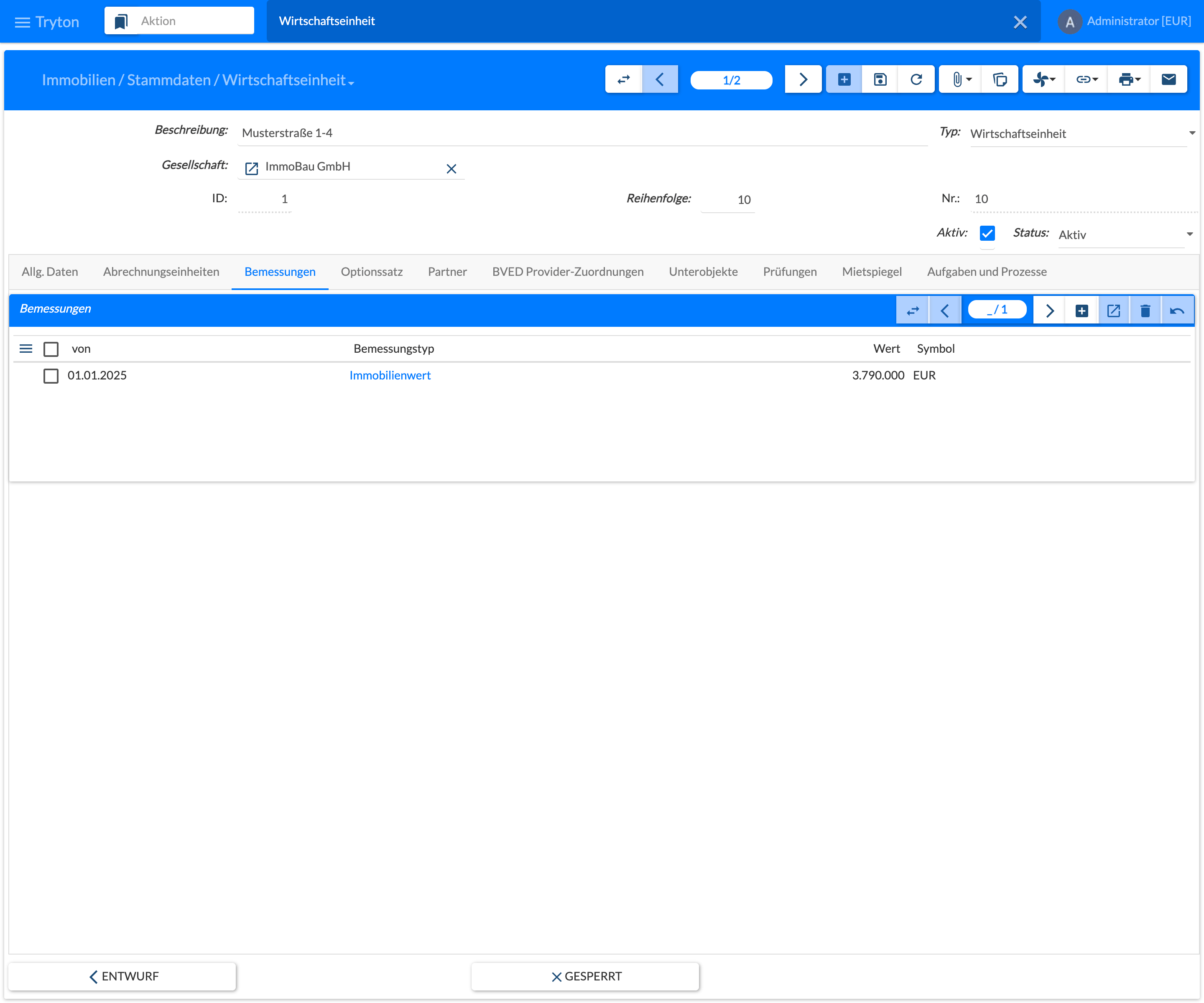
Measurements are time-dependent values of the property, e.g. areas or the property value. Among other things they are the basis for allocation keys and the option rate.
| Column | Description |
|---|---|
| von (from) | Date from which the value applies. |
| Bemessungstyp (Measurement Type) | Kind of measurement, e.g. Immobilienwert (property value) or Wohn/Nutzfläche (living/usable area); the types are defined in 2.5.3 Real Estate Master Data. |
| Wert (Value) | Value of the measurement. |
| Symbol | Unit of the value, e.g. EUR or m². |
In detail: 11.1 Reports – Measurements.
Tab Optionssatz (Option Rate)
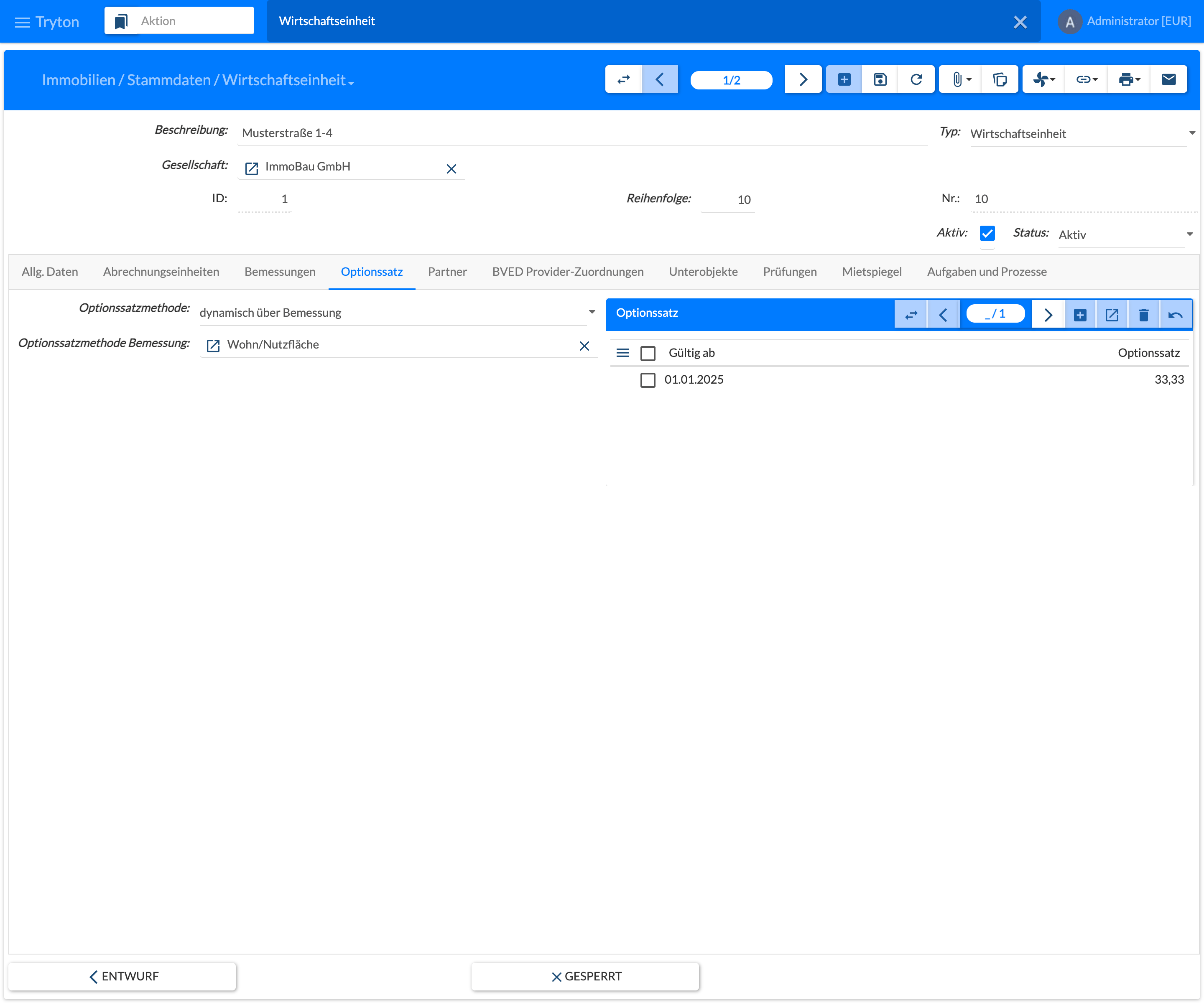
The option rate states which share of the input VAT on purchase invoices for the property is deductible (option for VAT, § 9 UStG). It is proposed automatically on purchase invoices. If the company is set to always book input VAT as an expense, the tab is hidden.
| Field | Description |
|---|---|
| Optionssatzmethode (Option Rate Method) | optiert nicht (0,0 %) fix (not opted, fixed 0 %), optiert (100,0 %) fix (opted, fixed 100 %), Optionssatz fix nach Wert (fixed by value) or dynamisch über Bemessung (dynamic by measurement – calculated from the measurements of the rental objects). |
| Optionssatzmethode Bemessung (Option Measurement Type) | Only with “dynamic by measurement”: measurement type used for the calculation, e.g. living/usable area. If a measurement group is selected, all its measurement types are summed per rental object. |
| Optionssatz (Option Rate) | History of option rates with Gültig ab (valid from) and the rate in percent. |
In detail: 5.6 Option Rates.
Tab Partner (Parties)
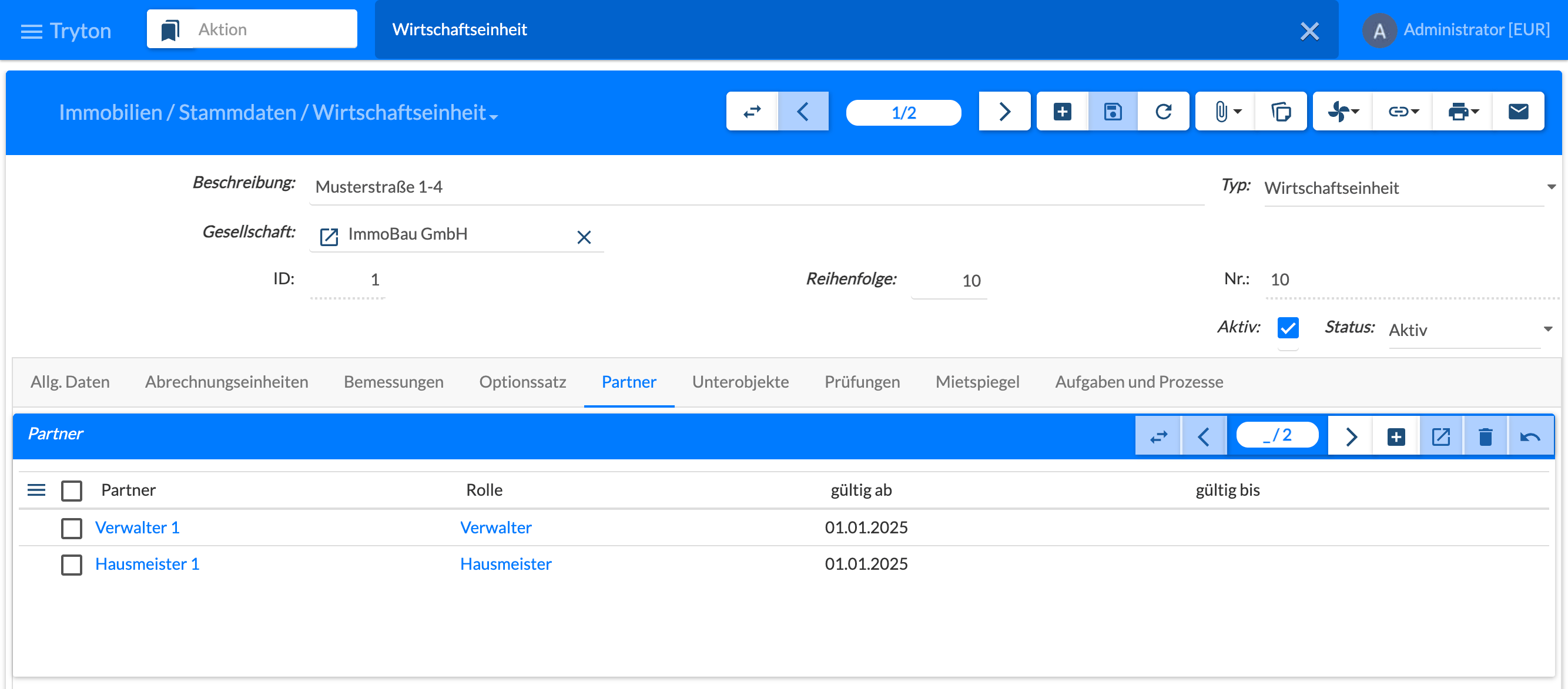
Here parties are assigned to the property in a role, e.g. owner, administrator or caretaker. Among other things, the role determines the responsibility for tasks.
| Column | Description |
|---|---|
| Partner (Party) | Business partner, see 3.1 Managing Parties. |
| Rolle (Role) | Role of the party; roles are defined in 2.5.2 Business Partners. |
| gültig ab / gültig bis (valid from / to) | Period of the assignment; empty = unlimited. |
The module ships these roles:
| Role | Object types | Use |
|---|---|---|
| Hausmeister (Caretaker) | Property | Default role. Responsible for the smoke detector check and for the first two steps of the process vacancy / reletting. |
| Verwalter (Administrator) | Property | Responsible for the annual walkthrough. |
| Eigentümer (Owner) | Property, rental object | Owner of the property or of a single unit, e.g. a condominium. |
No role is shipped for buildings, land and equipment. The object types a role can be used for are set on the role in 2.5.2 Business Partners.
In detail: 3.3 Party Roles for Properties and Contracts.
Responsibility for Tasks and Processes
The party assignment determines which user receives a task – e.g. for processes and task rules on the property:
- The task type defines a responsible party role, e.g. caretaker or property manager, see 2.5.7 Tasks and Processes.
- On the object the party holding this role on the key date is searched (in the figure e.g. Verwalter 1). The most specific level wins: rental object before building before property; on one level the assignment with the latest gültig ab (valid from).
- This party must be an employee of the company, see 3.2 Companies and Employees.
- The employee must be assigned to exactly one active user (tab Benutzer, list Mitarbeiter), see 2.3 Users, Login and Permissions. This user becomes the Zuständiger Benutzer (responsible user) of the task.
If a link of the chain is missing, the party is only shown on the task; the user or group entered on the task type is then responsible.
Tab BVED Provider-Zuordnungen (BVED Provider Assignments)
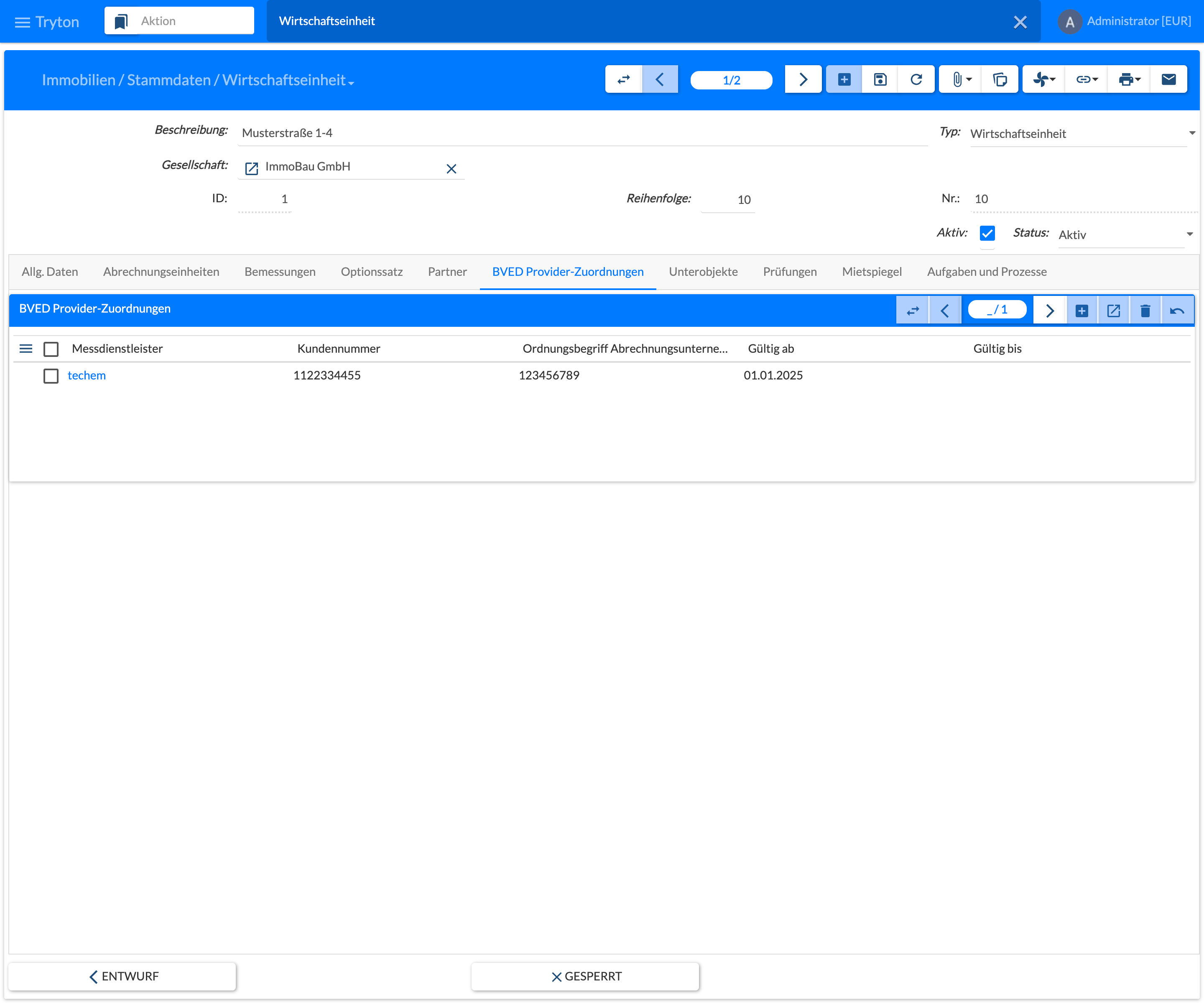
Overview of the assignments to metering service providers for data exchange according to BVED. The tab is only shown if at least one assignment exists. The assignments are maintained in 7.8 External Billing (BVED).
| Column | Description |
|---|---|
| Messdienstleister (Service Provider) | BVED provider, e.g. techem. |
| Kundennummer (Customer Number) | Customer number of this company at the provider (A record field 3). |
| Ordnungsbegriff Abrechnungsunternehmen (Provider Property Number) | 9-digit property number assigned by the provider to this property or building. |
| Gültig ab / Gültig bis (valid from / to) | Period of the assignment. |
Tab Unterobjekte (Sub-Objects)
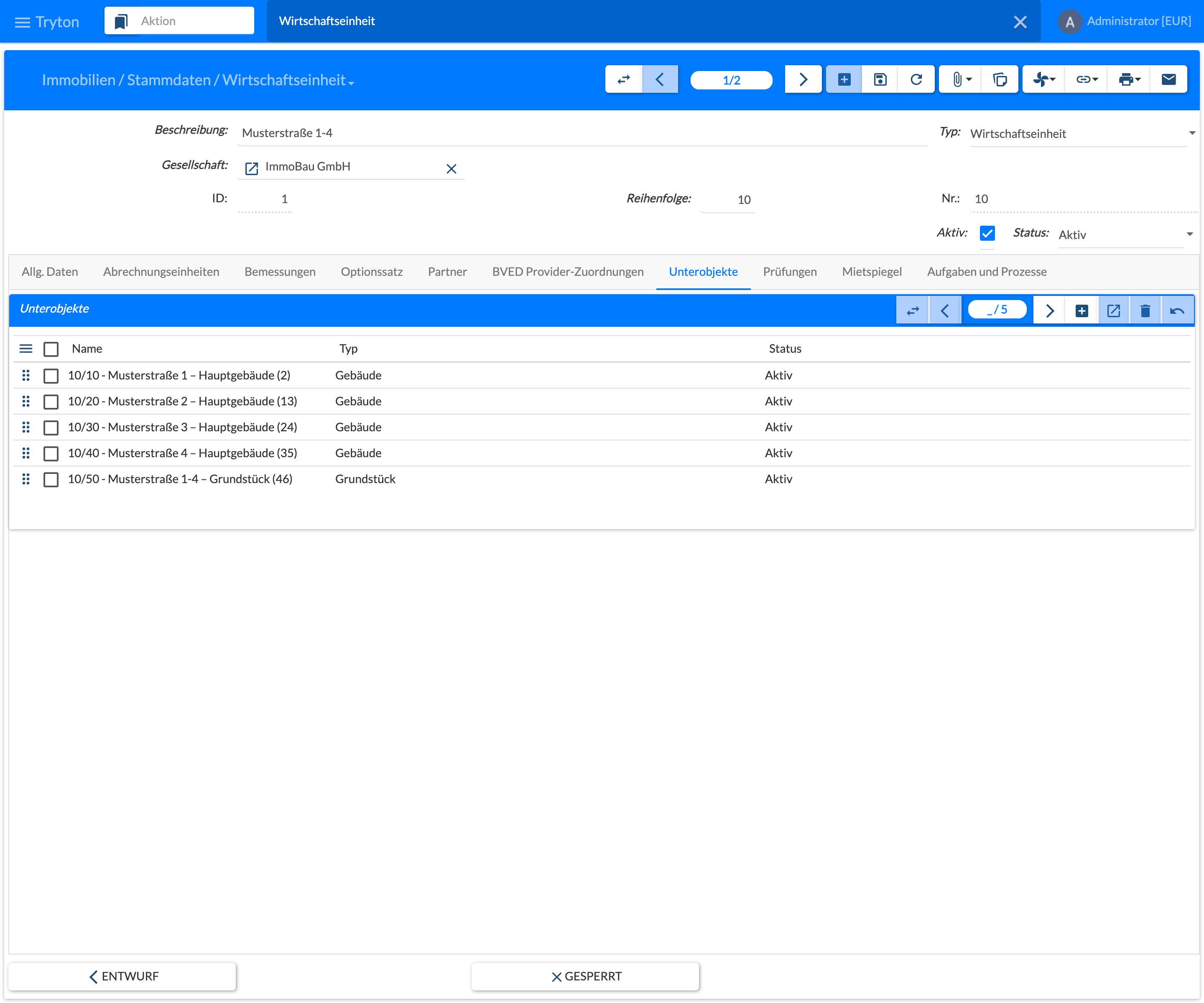
The objects directly below the property, e.g. buildings and land, with name, type and state. The name contains the numbers of the levels, e.g. “10/20 - Musterstraße 2 – Hauptgebäude”.
The system checks on saving which object types may be placed below each other:
| Object | Allowed sub-objects |
|---|---|
| Property | Building, land, rental object, equipment |
| Building | Building (e.g. side wing), rental object, equipment |
| Land | Rental object, equipment |
| Rental object | Equipment |
| Equipment | Equipment |
The property itself has no parent object.
In detail: 5.2 Buildings and Land.
Tab Prüfungen (Inspections)
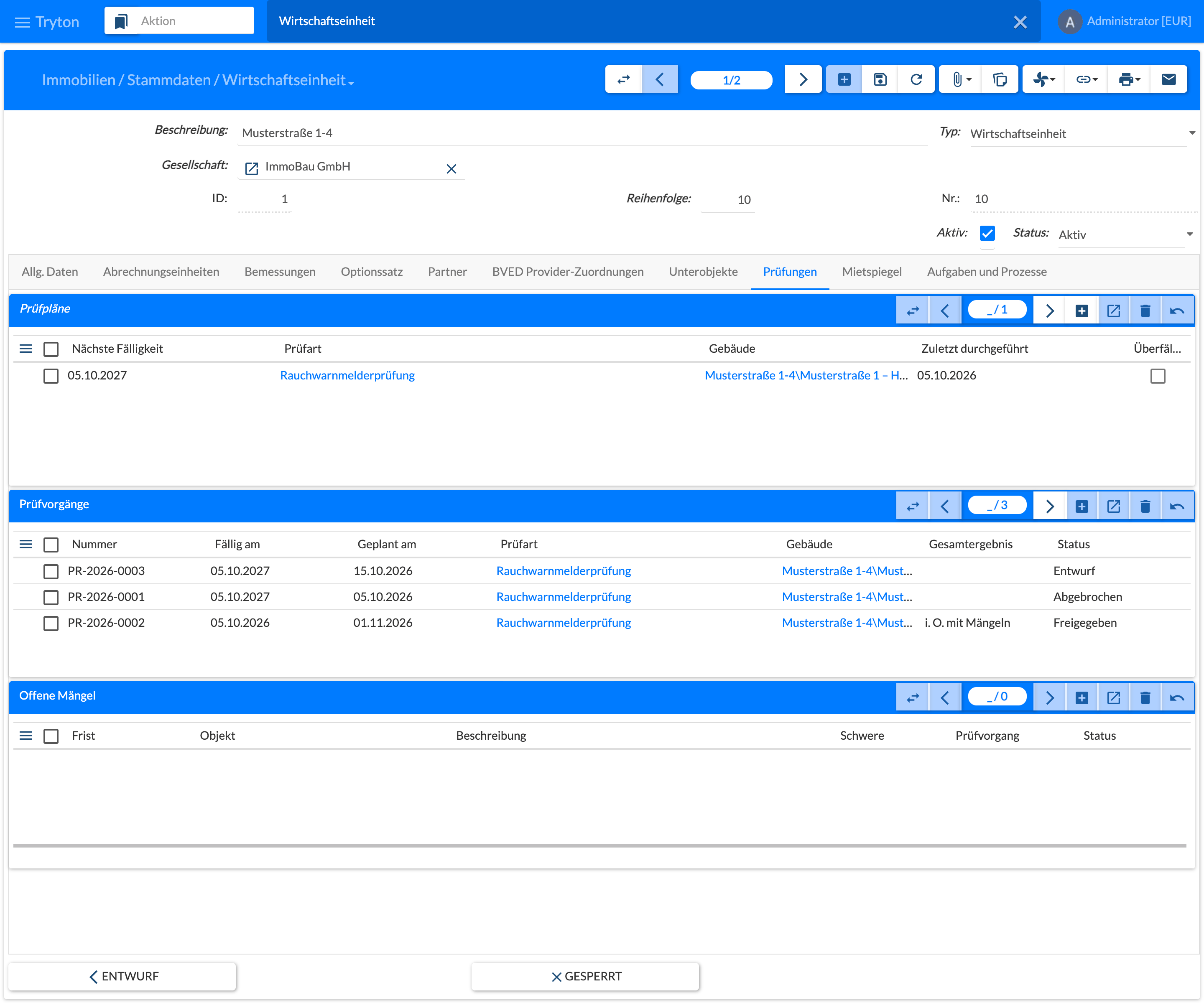
Overview of the recurring inspections of the property, e.g. smoke detector inspection.
| Area | Content |
|---|---|
| Prüfpläne (Inspection Plans) | Next due date, inspection type, building, last performed, overdue. |
| Prüfvorgänge (Inspections) | Number, due date, planned date, inspection type, building, overall result and state of the individual inspections. |
| Offene Mängel (Open Defects) | Deadline, object, description, severity, inspection and state of the open defects. |
The module ships two inspection types. Both are carried out yearly per building and require approval:
| Inspection type | Content |
|---|---|
| Jährliche Objektbegehung (Annual Walkthrough) | Walkthrough of the building with the checklist “Annual Walkthrough - Building”, e.g. roof, entrance, staircase, escape routes, basement and outdoor areas. Responsible: the administrator. Legal basis: duty to maintain traffic safety (§ 823 BGB). |
| Rauchwarnmelderprüfung (Smoke Detector Check) | One inspection per building with one line per apartment (type of use residential) and the checklist “Smoke Detectors - per Apartment”. The equipment with the equipment kind smoke detector is included. Responsible: the caretaker; access to the apartment must be arranged. Legal basis: state building code (e.g. § 48 (4) BauO Bln) and DIN 14676-1. |
Inspection plans are created on the property and the building. Land has no such tab; for rental objects and equipment it shows the inspection lines and open defects.
In detail: 8 Maintenance.
Tab Mietspiegel (Rent Survey)
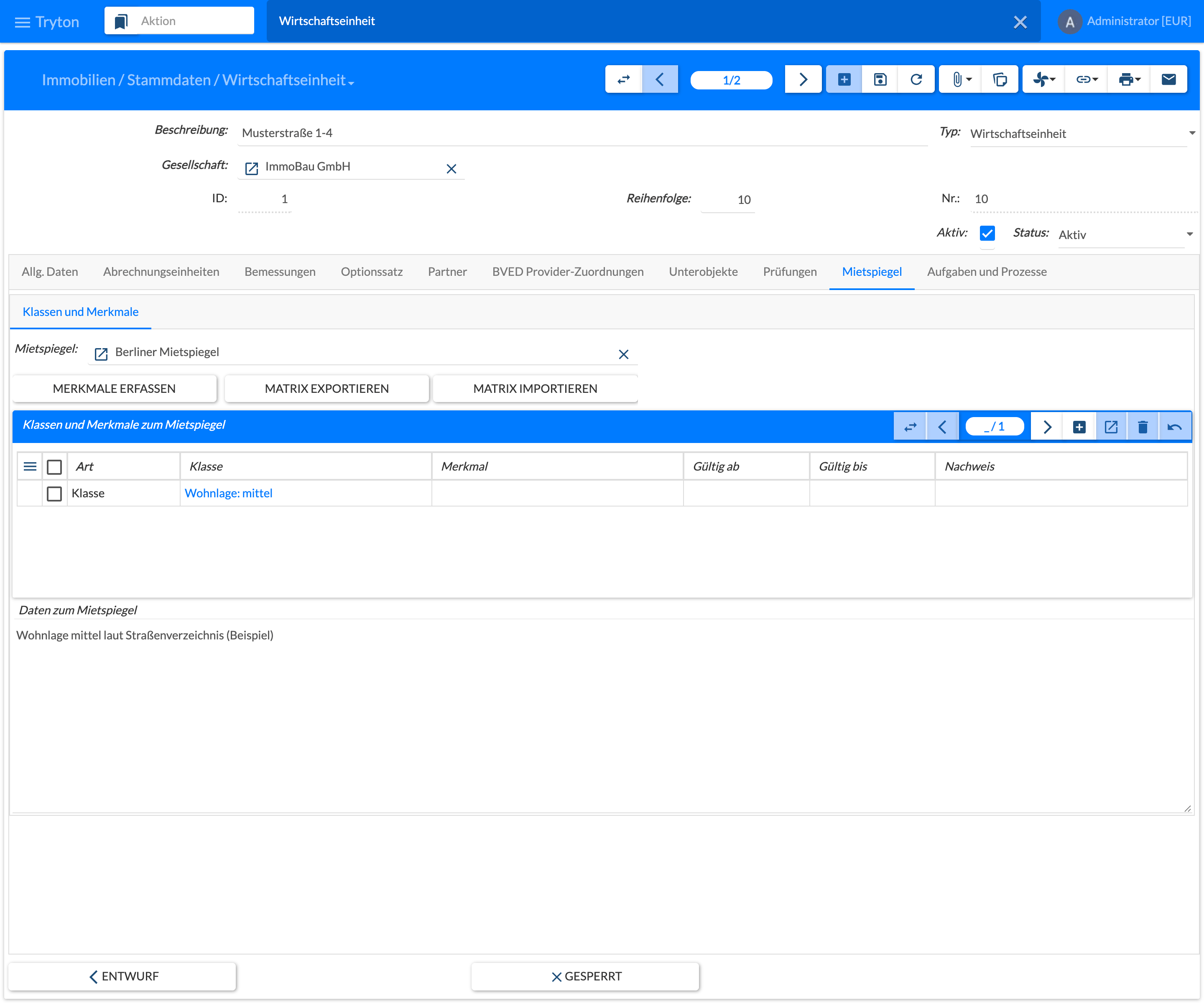
Rent survey data for the residential leases of the property, e.g. the residential location.
| Field | Description |
|---|---|
| Mietspiegel (Rent Survey) | Rent survey for the residential leases of the property, e.g. Berliner Mietspiegel. |
| Merkmale erfassen (Assign Features) | Checklist of the features of this level. |
| Matrix exportieren / Matrix importieren (Export / Import Matrix) | Export the classes and features of all apartments or buildings as a CSV file, edit it e.g. in a spreadsheet and import it again. |
| Klassen und Merkmale zum Mietspiegel (Classes and Features) | Kind (class or feature), class, feature, valid from, valid to and evidence. |
| Daten zum Mietspiegel (Rent Survey Data) | Remarks and reasons (e.g. reference in the street directory) – shown in the calculation record, not used for the calculation. |
In detail: 6.7 Rent Adjustments.
Tab Aufgaben und Prozesse (Tasks and Processes)
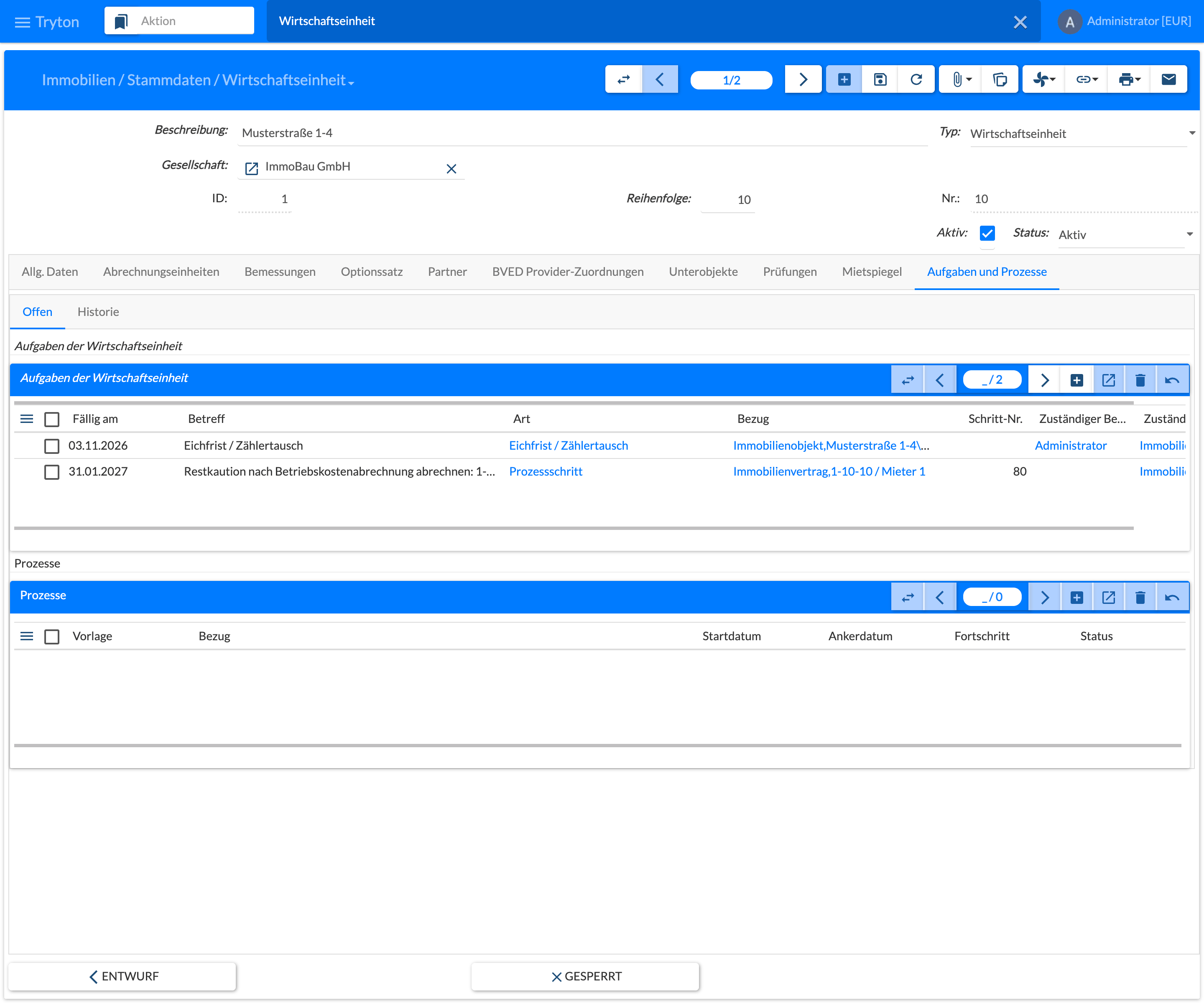
The sub-tabs Offen (Open) and Historie (History) show open resp. done and cancelled tasks and processes. On the property, the tasks and processes of its objects, contracts and billing units are shown as well.
| Area | Content |
|---|---|
| Aufgaben der Wirtschaftseinheit (Tasks of the Property) | Due date, subject, type, reference, step no. (for process steps), responsible user and responsible role. |
| Prozesse (Processes) | Template, reference, start date, anchor date, progress and state. |
These shipped task rules create tasks on objects. They are inactive on delivery and are activated in 2.5.7 Tasks and Processes:
| Rule | Objects | Task |
|---|---|---|
| Zählerstände erfassen (Record meter readings) | Property | 7 days before the next reading date: order the reading and record the readings of all meters. |
| Gebietsverordnung endet (Tight market regulation ends) | Property with tight housing market and expiry date | 2 months before expiry: check whether the regulation has been extended. |
| Eichfrist läuft ab (Meter calibration expires) | Meters | 3 months before the calibration expires: order a meter replacement or recalibration, see 5.5 Meters and Meter Readings. |
| Objekt endet (Object ends) | All objects with an end date | 3 months before the end date: end or transfer running contracts, meters and assignments. |
Inspections and defects create tasks of their own through the rules “Inspection overdue” and “Inspection defect overdue”. The process shipped for objects is Leerstand / Neuvermietung (Vacancy / Reletting); it is started on the rental object, see 5.3 Rental Objects.
In detail: 10 Tasks and Processes.
Actions
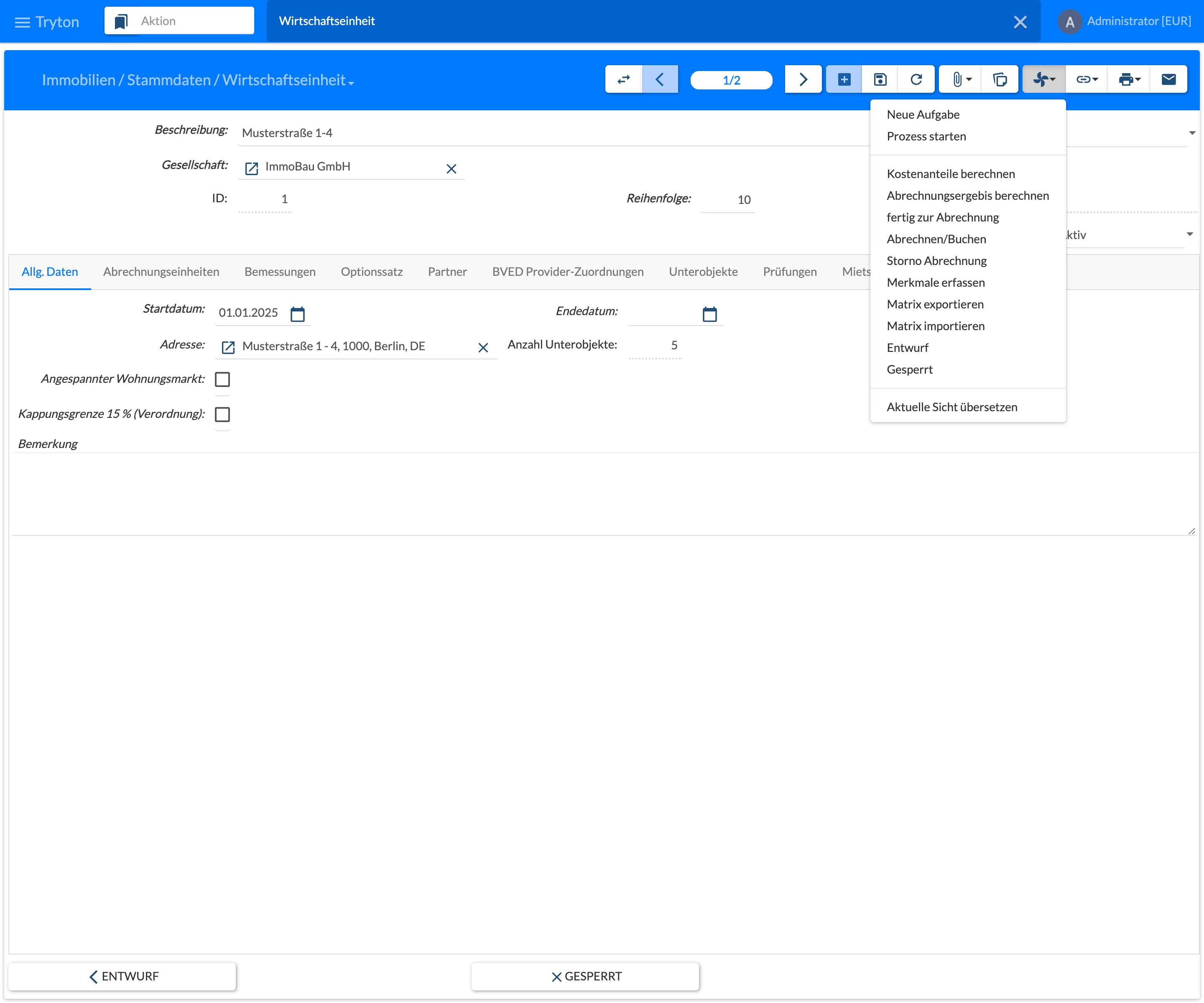
The Actions button (propeller icon) in the toolbar offers:
| Action | Effect |
|---|---|
| Neue Aufgabe (New Task) | Creates a task for the property. |
| Prozess starten (Start Process) | Starts a process from a template. |
| Kostenanteile berechnen, Abrechnungsergebnis berechnen, fertig zur Abrechnung, Abrechnen/Buchen | Same as the buttons in the tab Billing Units. |
| Storno Abrechnung (Cancel Billing) | Cancels an operating cost settlement. |
| Merkmale erfassen, Matrix exportieren, Matrix importieren | Same as the buttons in the tab Rent Survey. |
| Entwurf, Gesperrt (Draft, Locked) | Change of state, same as the buttons at the bottom of the form. |
| Aktuelle Sicht übersetzen (Translate View) | Tryton standard function to translate the labels. |
Relate
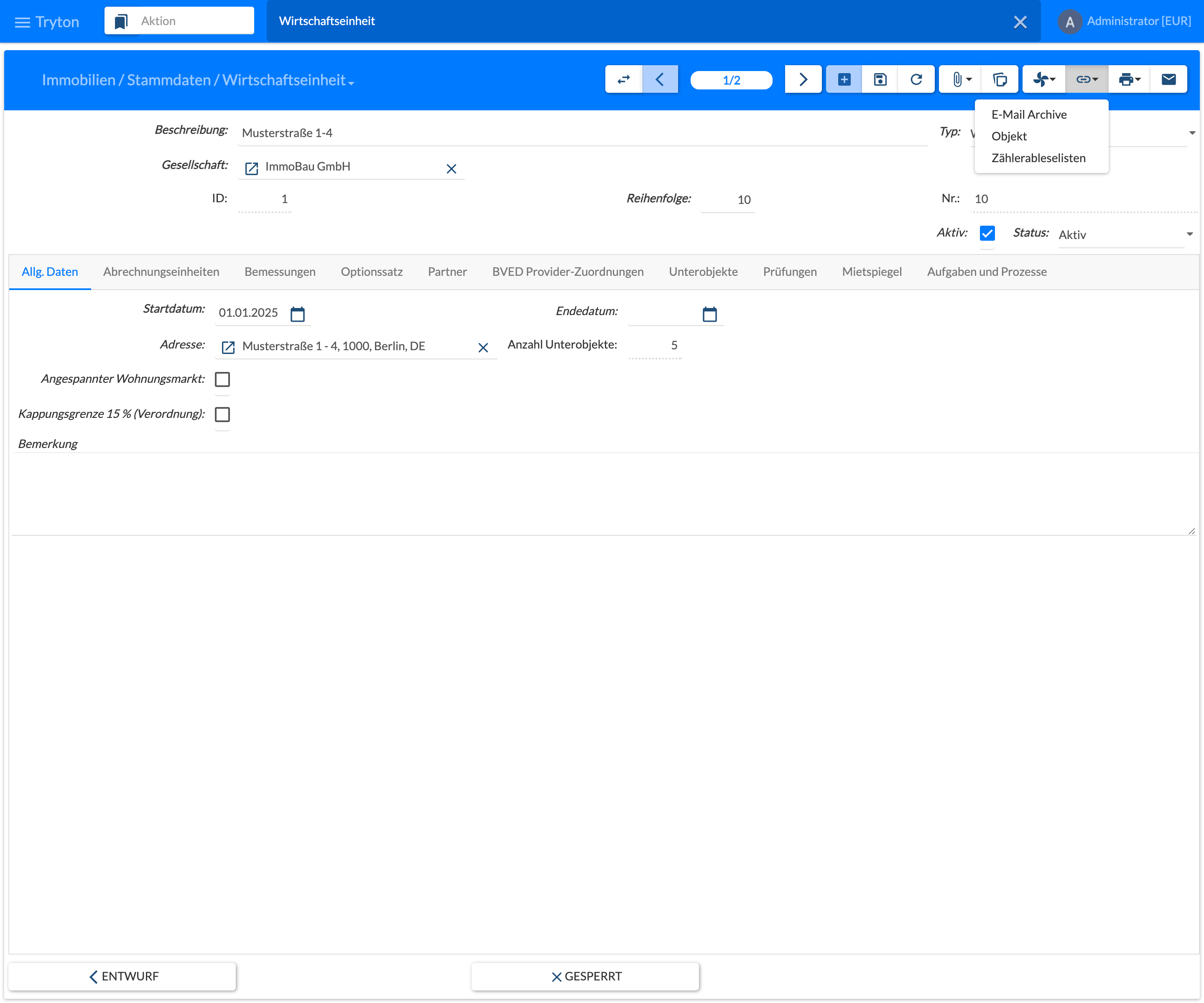
The Relate button (chain link icon) opens related records in a new tab: E-Mail Archive, Objekt (Object) and Zählerableselisten (Meter Reading Sheets).
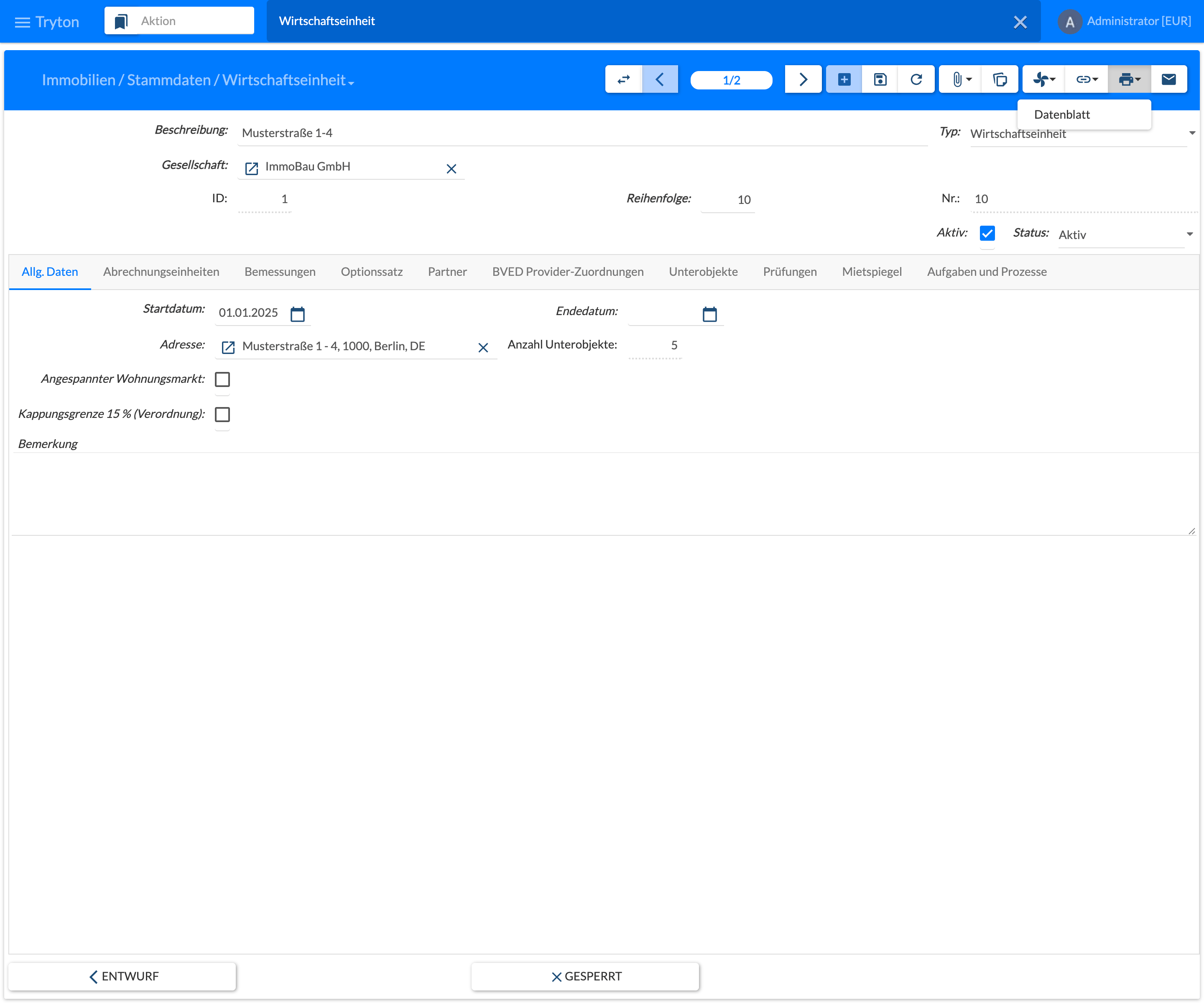
The Print button provides the Datenblatt (fact sheet) of the property.
5.2 Buildings and Land
Buildings and land are the level below the property. Both are maintained with the same form as the property; only the differences are described here.
Building
Getting Started
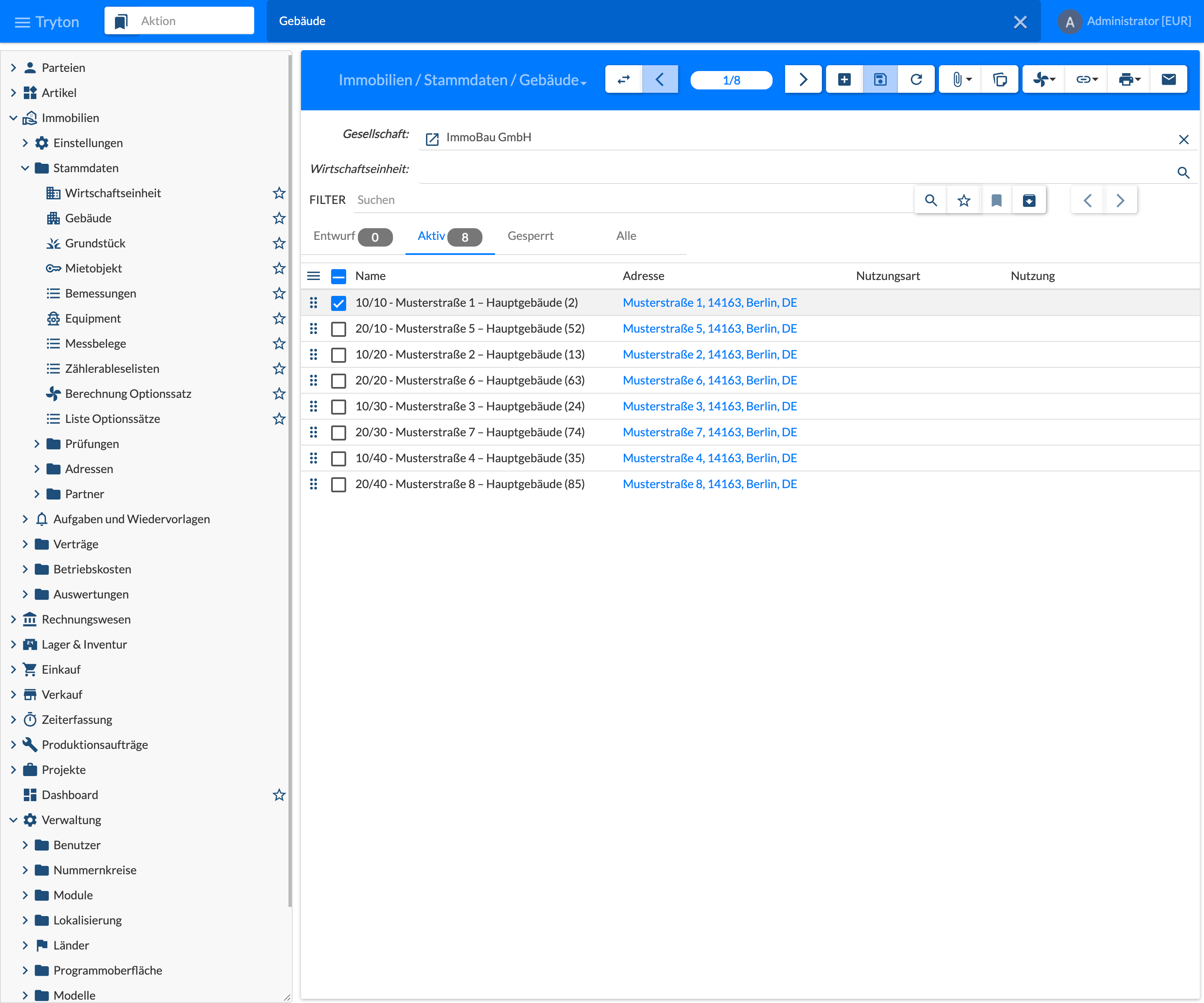
Open the menu Immobilien › Stammdaten › Gebäude (Real Estate › Master Data › Building). The list shows the buildings of the company displayed at the top. The field Wirtschaftseinheit (Property) restricts the list to one property. Tabs, creating and editing as for the property.
Create and Edit
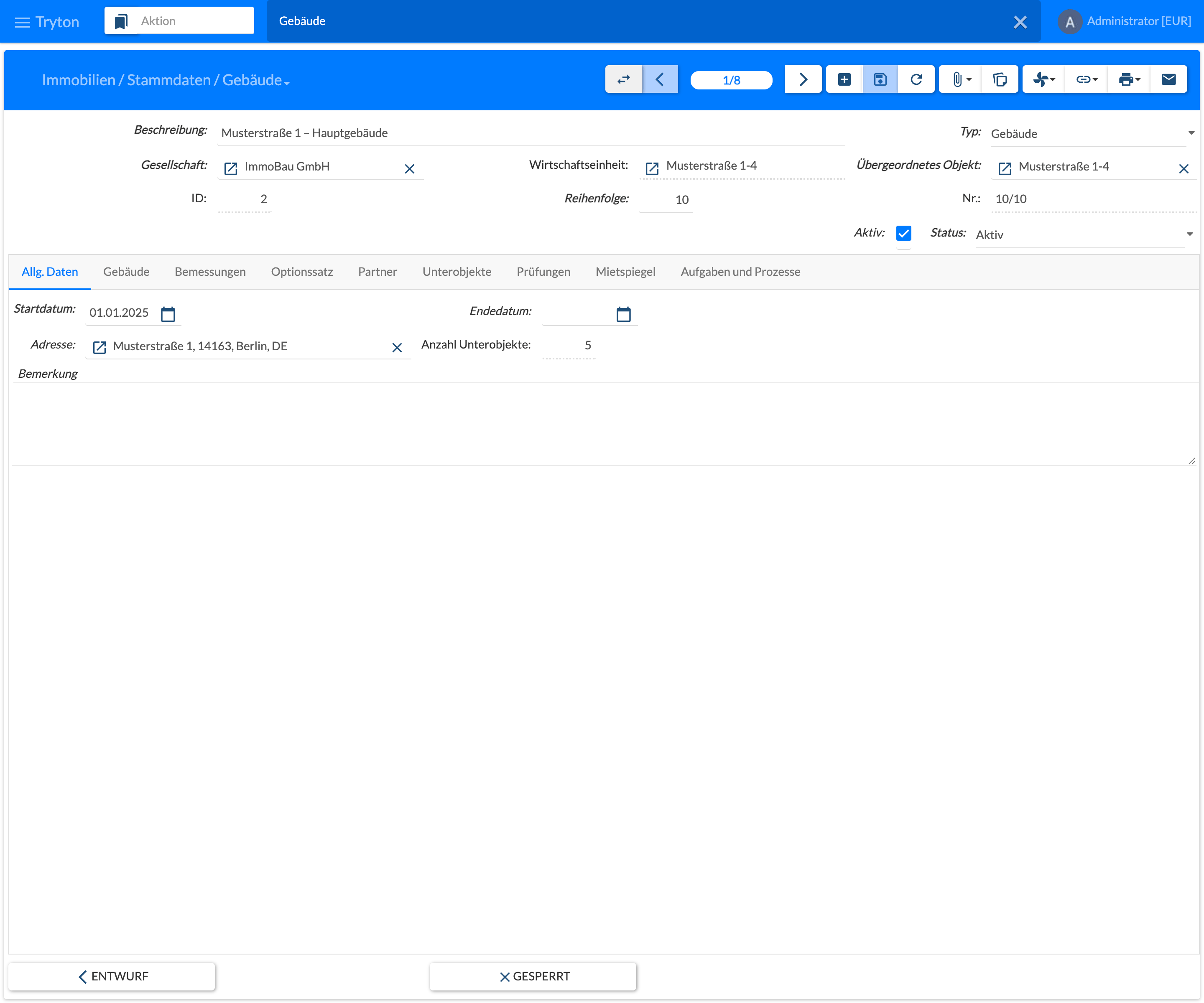
The header of the form corresponds to the property. Additional or different:
| Field | Description |
|---|---|
| Typ (Type) | Here Gebäude (Building). |
| Wirtschaftseinheit (Property) | Property the building belongs to; taken from the parent object, read-only. |
| Übergeordnetes Objekt (Parent) | Object the building belongs to: a property or another building. Required. |
| Nr. (No) | Built from the number of the parent object and the sequence, e.g. 10/10. |
The tab Allg. Daten (General) contains start date, end date, address, number of sub-objects and comment as for the property; the fields on the housing market and the reduced cap only exist there.
Tab Gebäude (Building)
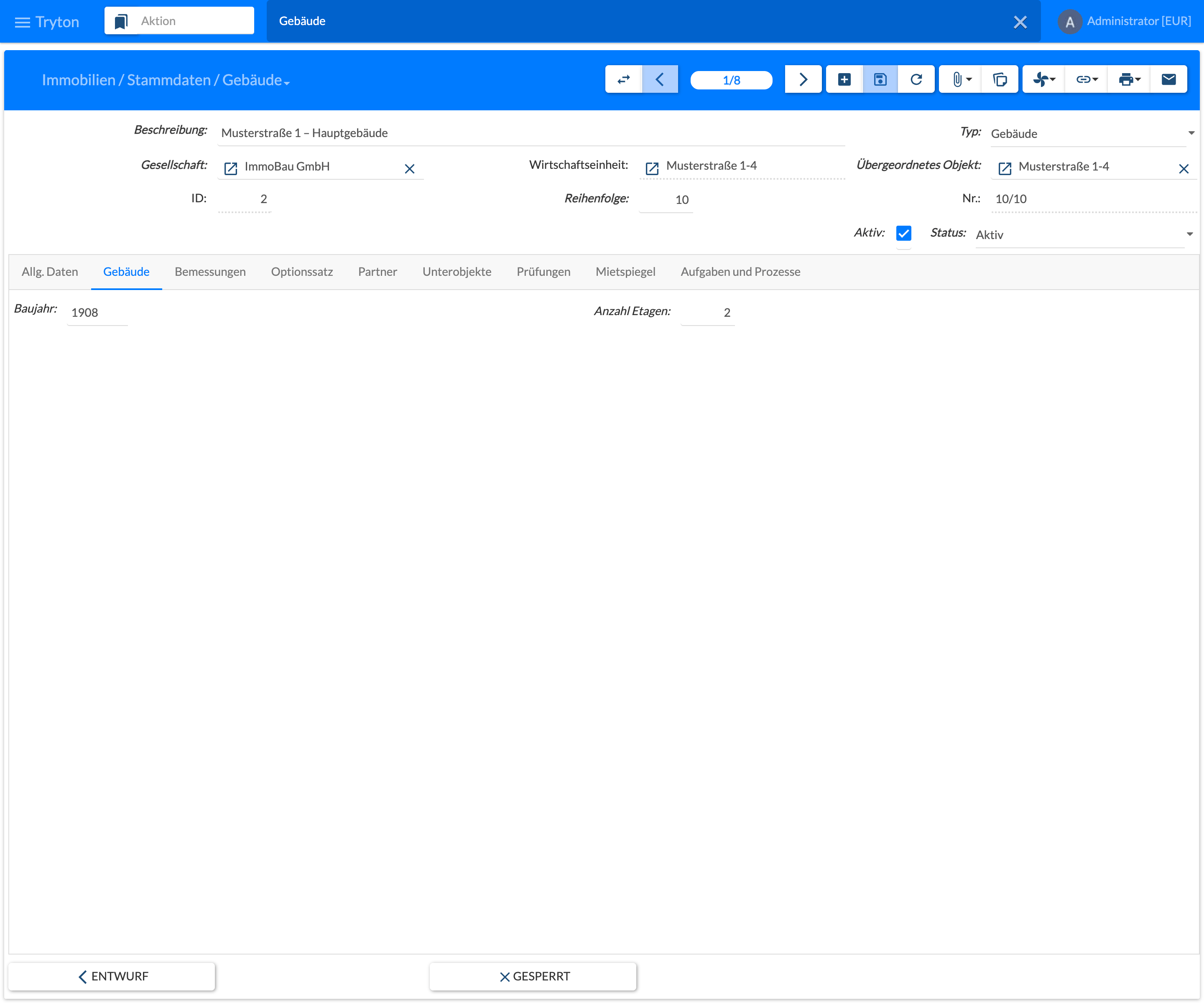
| Field | Description |
|---|---|
| Baujahr (Year of Construction) | Year the building was constructed. |
| Anzahl Etagen (Number of Floors) | Number of floors of the building. |
Further Tabs
The tabs Bemessungen, Optionssatz, Partner, Unterobjekte, Prüfungen, Mietspiegel and Aufgaben und Prozesse are structured as for the property. For buildings:
- Partner (Parties): No role is shipped for buildings; caretaker and administrator are assigned on the property.
- Unterobjekte (Sub-Objects): Buildings (e.g. side wing or rear building), rental objects and equipment. Sub-objects of a building are mainly the rental objects, see 5.3 Rental Objects.
- Prüfungen (Inspections): The inspection plans of the building are created here. Both shipped inspection types, annual walkthrough and smoke detector check, apply per building, see 8.1 Inspection Plans.
- Aufgaben und Prozesse (Tasks and Processes): If an end date is entered, the rule Objekt endet (Object ends) creates a task here.
Actions, Relate and Print
| Menu | Entry | Meaning |
|---|---|---|
| Actions | Neue Aufgabe (New Task) | Creates a task for the building. |
| Actions | Prozess starten (Start Process) | Starts a process from a template. |
| Actions | Merkmale erfassen (Assign Features) | Checklist of the rent survey features of the building, see tab Rent Survey. |
| Actions | Kopieren von Gebäude (Copy from Building) | Take over classes and features of another building of the property. |
| Actions | Entwurf, Gesperrt (Draft, Locked) | Change of state, same as the buttons at the bottom of the form. |
| Actions | Aktuelle Sicht übersetzen (Translate View) | Tryton standard function to translate the labels. |
| Relate | E-Mail Archive, Objekt, Zählerableselisten | Opens related records in a new tab, as for the property. |
| Datenblatt (Fact Sheet) | Fact sheet of the building. |
Land
Getting Started
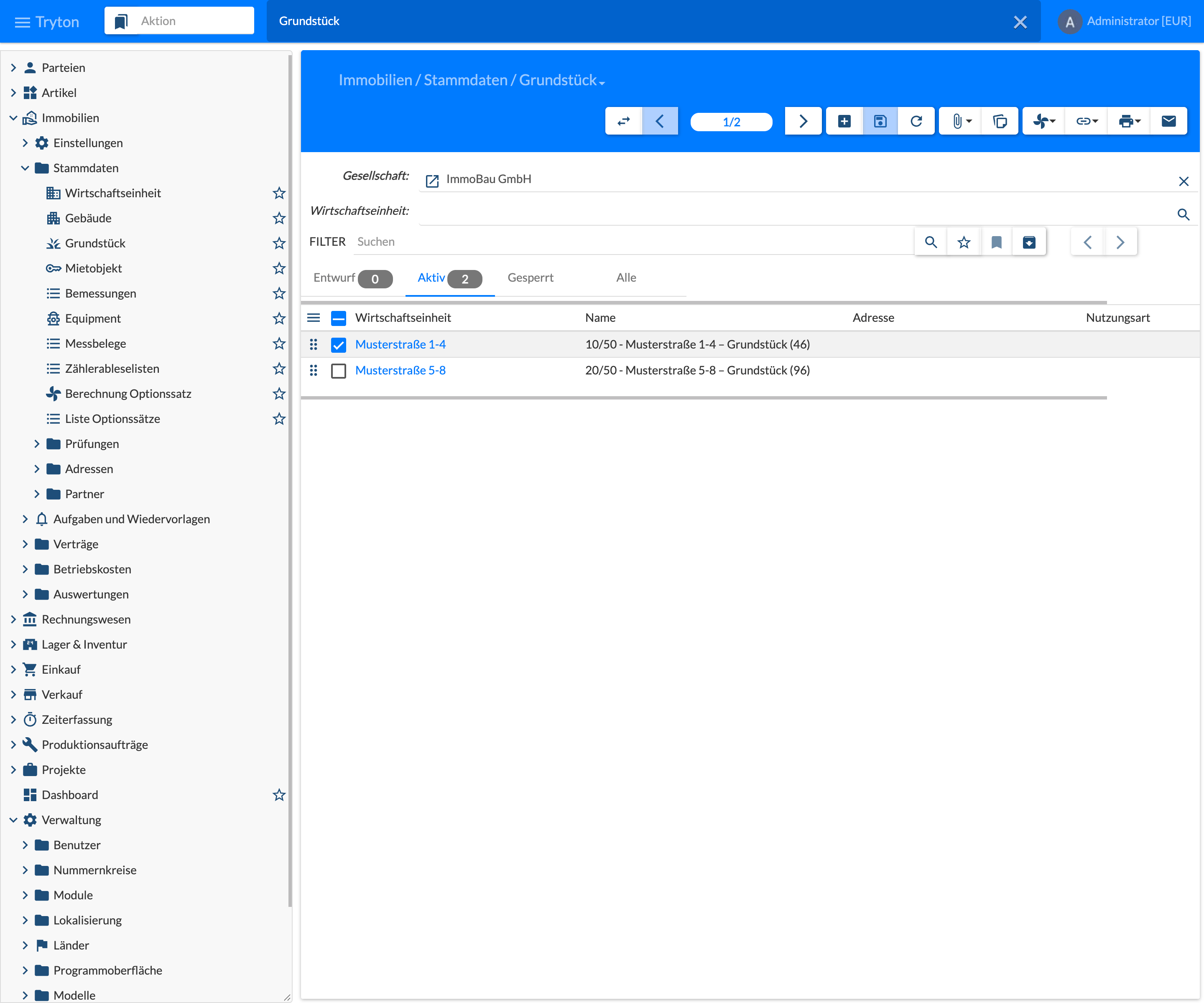
Open the menu Immobilien › Stammdaten › Grundstück (Real Estate › Master Data › Land). The list shows the land with its property; filter and tabs as for buildings.
Create and Edit
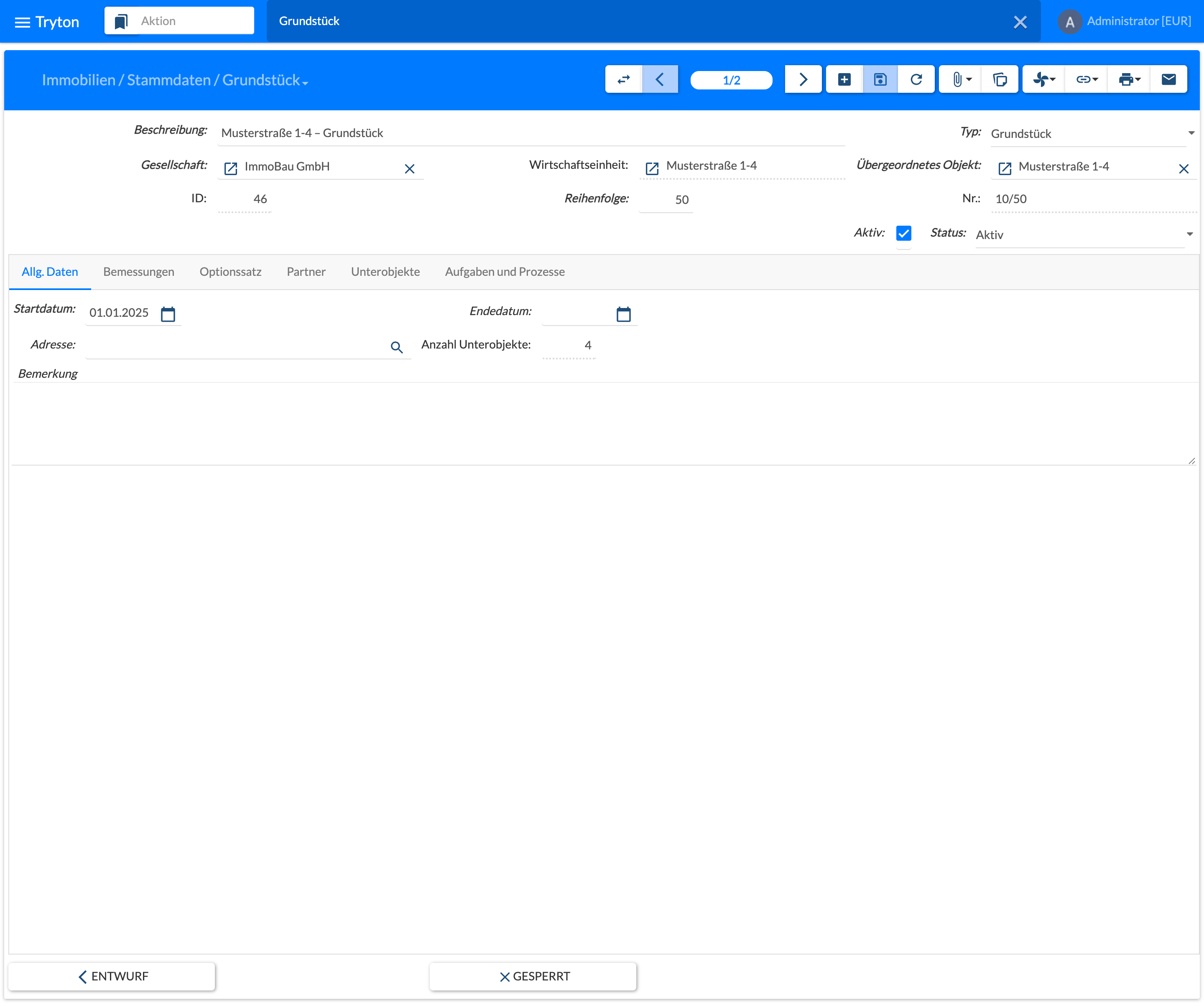
Header and tab Allg. Daten (General) as for buildings. Different:
| Field | Description |
|---|---|
| Typ (Type) | Here Grundstück (Land). |
| Übergeordnetes Objekt (Parent) | For land always a property. |
The tabs Bemessungen, Optionssatz, Partner, Unterobjekte and Aufgaben und Prozesse are structured as for the property. Land has no tab Prüfungen (Inspections). For land:
- Partner (Parties): No role is shipped for land.
- Unterobjekte (Sub-Objects): Rental objects (e.g. parking spaces) and equipment (e.g. a playground).
Actions, Relate and Print
| Menu | Entry | Meaning |
|---|---|---|
| Actions | Neue Aufgabe (New Task) | Creates a task for the land. |
| Actions | Prozess starten (Start Process) | Starts a process from a template. |
| Actions | Entwurf, Gesperrt (Draft, Locked) | Change of state, same as the buttons at the bottom of the form. |
| Actions | Aktuelle Sicht übersetzen (Translate View) | Tryton standard function to translate the labels. |
| Relate | E-Mail Archive, Objekt, Zählerableselisten | Opens related records in a new tab, as for the property. |
| Datenblatt (Fact Sheet) | Fact sheet of the land. |
5.3 Rental Objects
Rental objects are the units that can be let, e.g. apartments, commercial units or parking spaces. They belong to a building, to land or directly to the property and are maintained with the same form as the property; only the differences are described here.
Getting Started
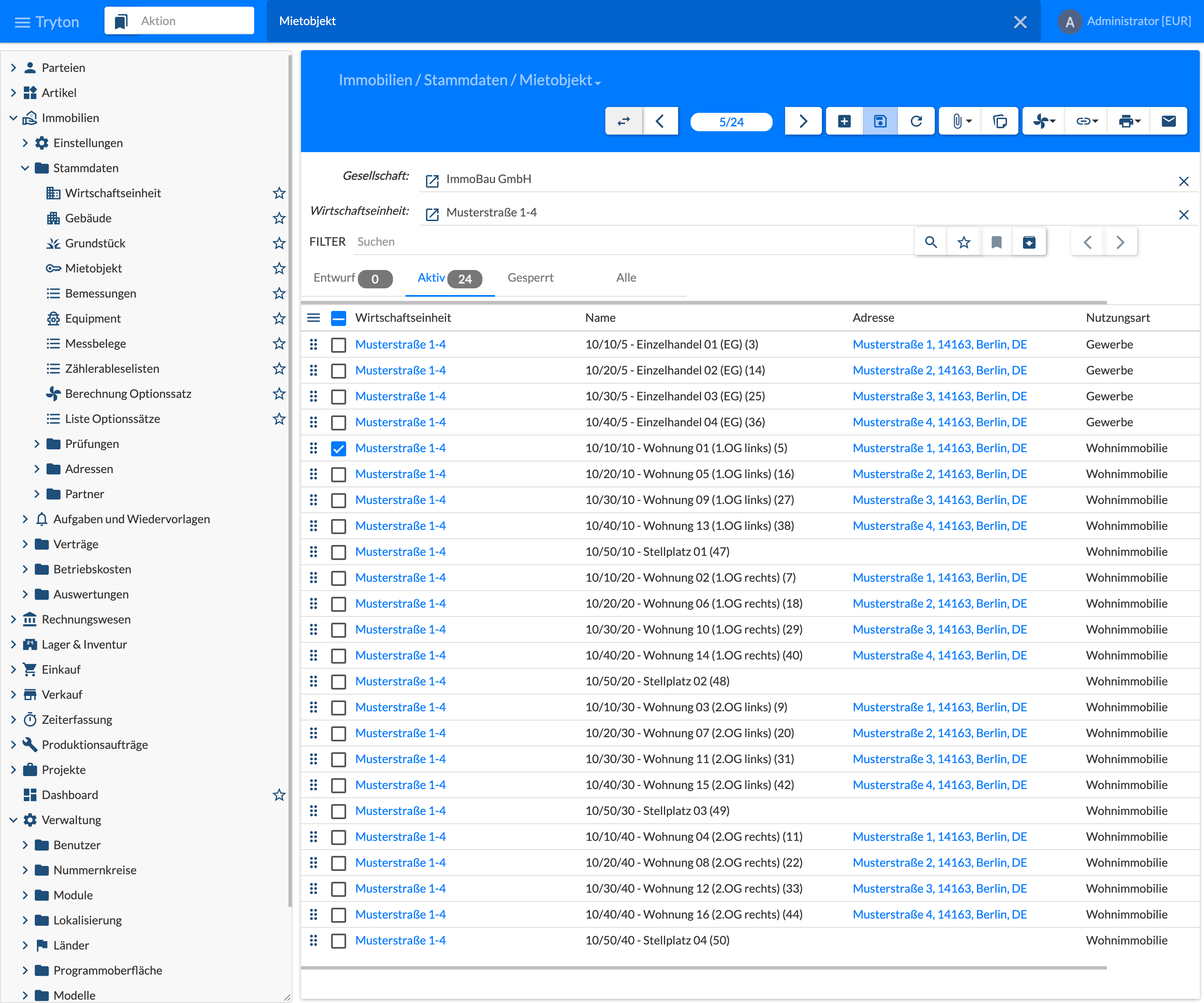
Open the menu Immobilien › Stammdaten › Mietobjekt (Real Estate › Master Data › Rental Object). The list shows the rental objects of the company displayed at the top with property, name, address and type of use. The field Wirtschaftseinheit (Property) restricts the list to one property. Tabs, creating and editing as for the property.
Create and Edit
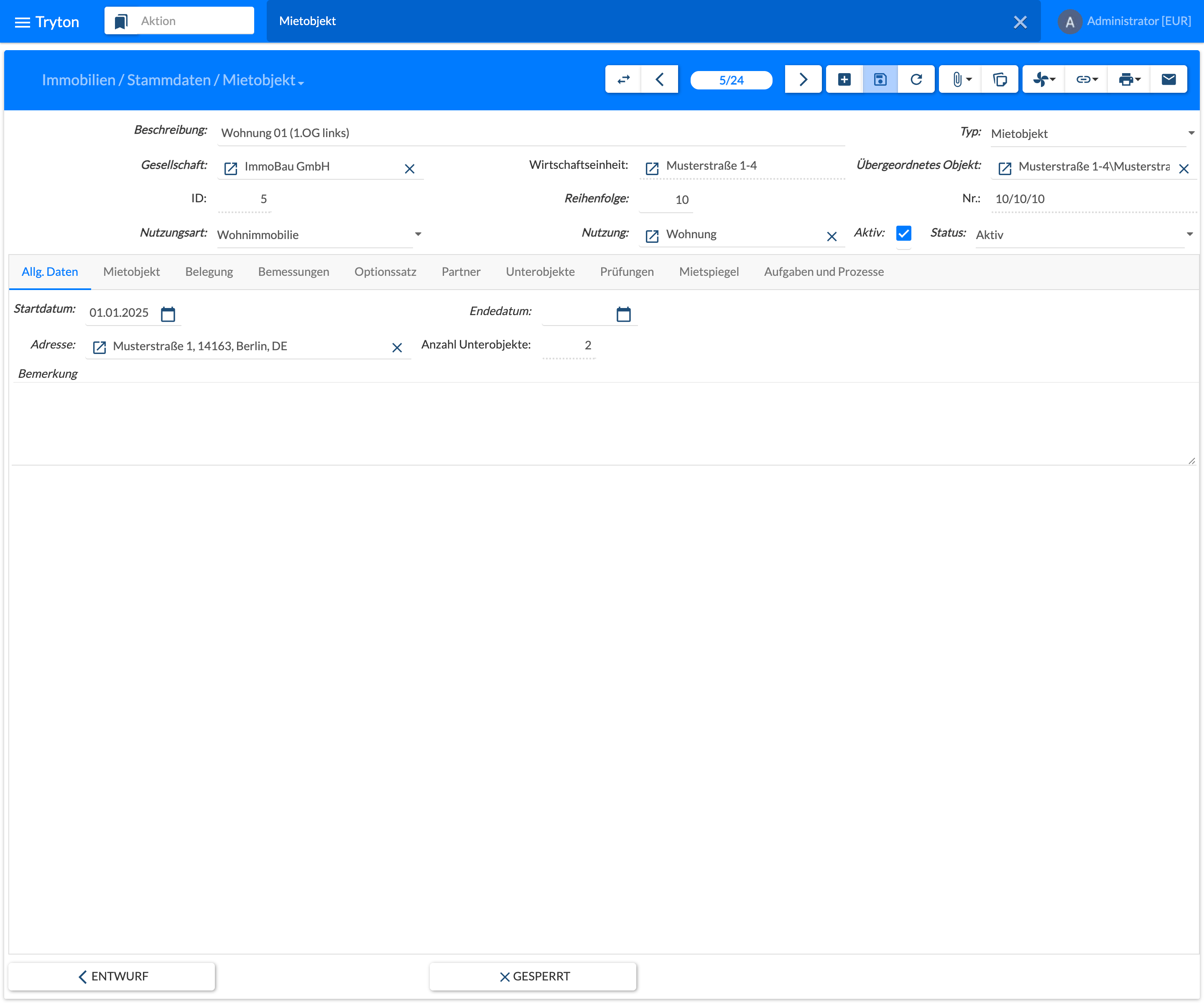
The header of the form corresponds to the building. Additional or different:
| Field | Description |
|---|---|
| Typ (Type) | Here Mietobjekt (Rental Object). |
| Übergeordnetes Objekt (Parent) | Property, building or land the rental object belongs to. Required. |
| Nr. (No) | Built from the number of the parent object and the sequence, e.g. 10/10/10. |
| Nutzungsart (Type of Use) | Economic use: Wohnimmobilie (residential), Gewerbe (commercial), Wohneigentum (owner-occupied) or Interne Nutzung (internal use). It determines which contract types can be selected and presets the option rate method (commercial: opted 100 %, otherwise 0 %). |
| Nutzung (Use) | Use class, e.g. Wohnung (apartment), Büro (office), Einzelhandel (retail), Lager (warehouse), Garage or Stellplatz (parking); the classes are defined in 2.5.3 Real Estate Master Data. Among other things it controls whether a basement or parking number is entered. |
The tab Allg. Daten (General) contains start date, end date, address, number of sub-objects and comment as for buildings.
Tab Mietobjekt (Rental Object)
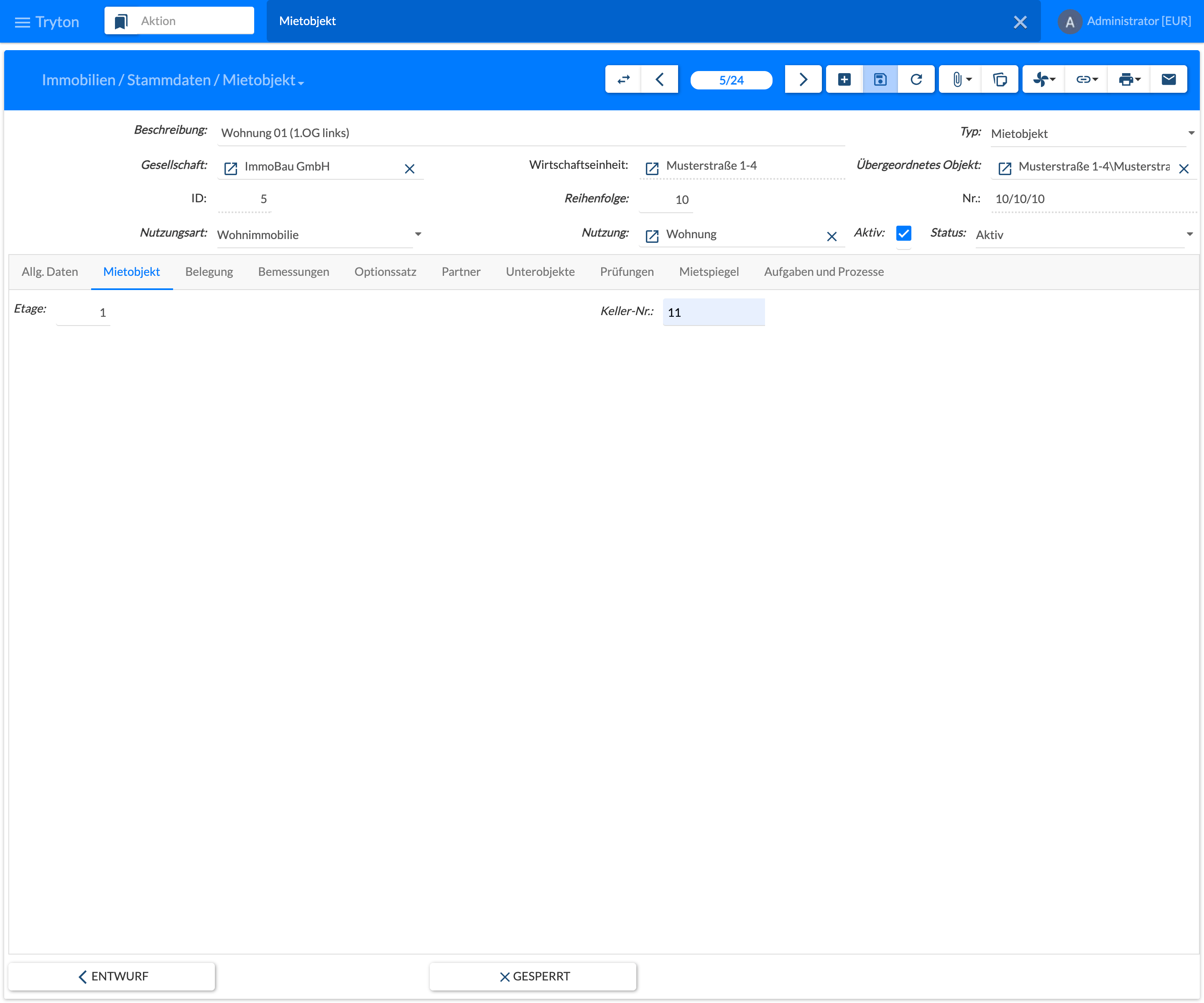
| Field | Description |
|---|---|
| Etage (Floor) | Floor on which the rental object is located. |
| Keller-Nr. (Basement Number) | Number of the related basement compartment; only shown if the use provides for a basement compartment. |
| Stellplatz-Nr. (Parking Number) | Number of the parking space; only shown if the use provides for a parking number (not in the figure). |
Tab Belegung (Occupancy)
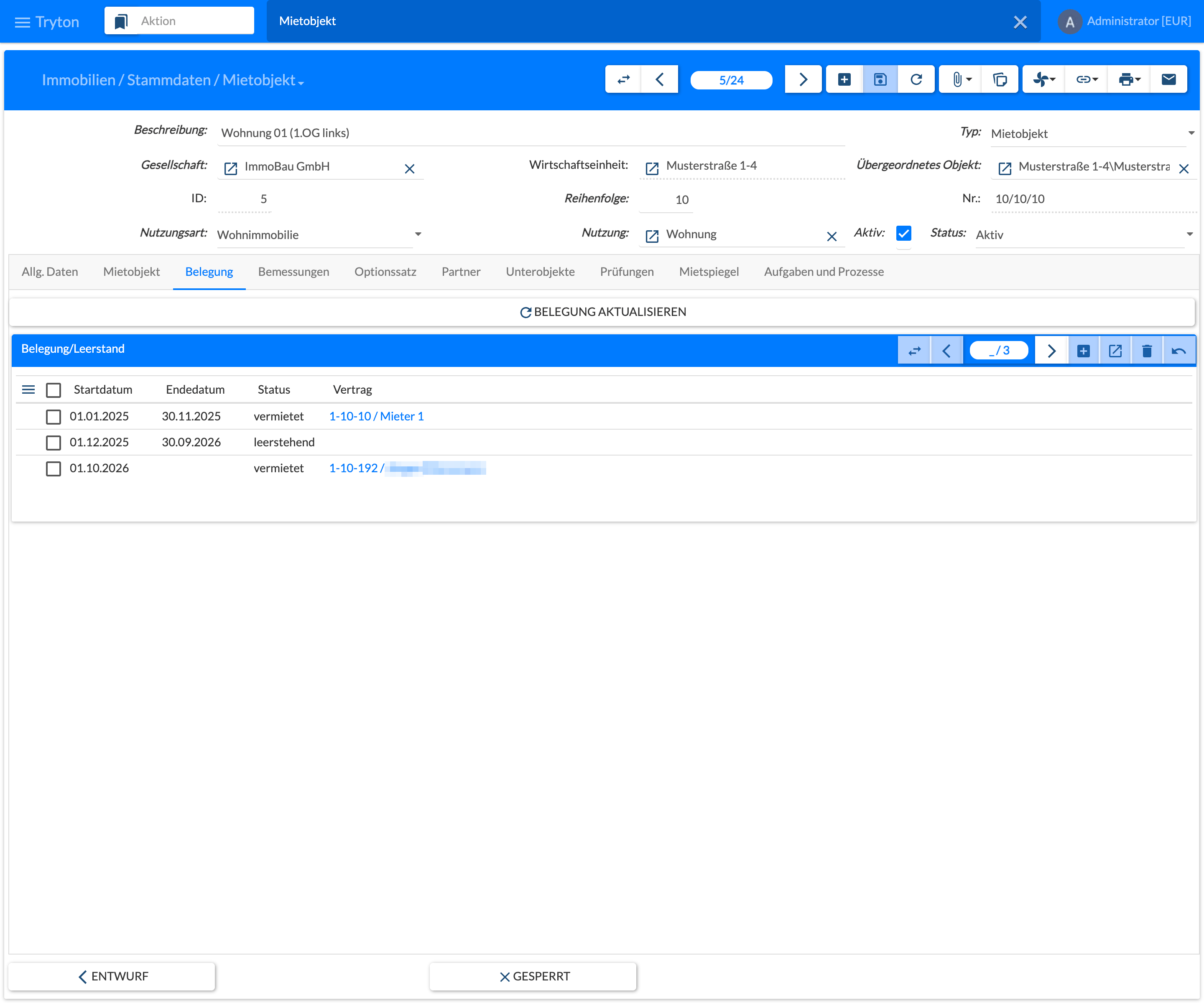
Time overview of when the rental object was let or vacant. The occupancy is derived from the contracts.
| Field | Description |
|---|---|
| Belegung aktualisieren (Refresh Occupancy) | Recalculates the occupancy of the rental object from the contracts. |
| Startdatum / Endedatum (Start / End Date) | Period of the entry; empty end date = open. |
| Status (State) | vermietet (rented), leerstehend (vacant) or in Verhandlung (under negotiation). |
| Vertrag (Contract) | Lease of the period, see 6.1 Creating and Maintaining Contracts. |
An overview of all rental objects is provided by 6.5 Occupancy and Vacancy.
Further Tabs
The tabs Bemessungen, Optionssatz, Partner, Unterobjekte, Prüfungen, Mietspiegel and Aufgaben und Prozesse are structured as for the property. For rental objects the option rate method “dynamic by measurement” is not available. In addition, for rental objects:
- Partner (Parties): The shipped role Eigentümer (Owner) is available, e.g. for the owner of a condominium.
- Unterobjekte (Sub-Objects): Only equipment, e.g. smoke detectors, fitted kitchen or meters, see 5.4 Equipment and Technical Installations.
- Prüfungen (Inspections): Instead of inspection plans the tab shows the inspection lines of the rental object, e.g. the line of the apartment in the smoke detector check, and its open defects.
- Aufgaben und Prozesse (Tasks and Processes): In addition to the tasks of the rental object, the tasks of the contracts of the rental object are shown. If the rental object is vacant, the process Leerstand / Neuvermietung (Vacancy / Reletting) is started via Actions › Prozess starten. It creates six tasks: record meter readings and secure the unit, inspect the unit and commission repairs (both for the role caretaker), determine the new rent, advertise the unit, viewings and selection of the tenant, create the new lease contract. See 10.2 Processes.
Actions, Relate and Print
| Menu | Entry | Meaning |
|---|---|---|
| Actions | Neue Aufgabe (New Task) | Creates a task for the rental object. |
| Actions | Prozess starten (Start Process) | Starts a process from a template. |
| Actions | Belegung aktualisieren (Refresh Occupancy) | Same as the button in the tab Occupancy. |
| Actions | Merkmale erfassen (Assign Features) | Checklist of the rent survey features of the rental object, see tab Rent Survey. |
| Actions | Kopieren von Mietobjekt (Copy from Rental Unit) | Take over the features – optionally also the classes – of another rental object of the same property. |
| Actions | Vergleichsmiete berechnen (Calculate Comparative Rent) | Calculates the local comparative rent according to the rent survey (apartments), see 6.7 Rent Adjustments. |
| Actions | Entwurf, Gesperrt (Draft, Locked) | Change of state, same as the buttons at the bottom of the form. |
| Actions | Aktuelle Sicht übersetzen (Translate View) | Tryton standard function to translate the labels. |
| Relate | E-Mail Archive, Objekt, Zählerableselisten | Opens related records in a new tab, as for the property. |
| Datenblatt (Fact Sheet) | Fact sheet of the rental object. |
5.4 Equipment and Technical Installations
Equipment covers the technical installations and fittings of an object, e.g. smoke detectors, elevators, heating systems, fitted kitchens or meters. Equipment belongs to a property, a building, a plot of land, a rental object or another piece of equipment and is maintained with the same form as the property; only the differences are described here. Meters are equipment with the equipment type Meters; their meter data and readings are described in 5.5 Meters and Meter Readings.
Getting Started
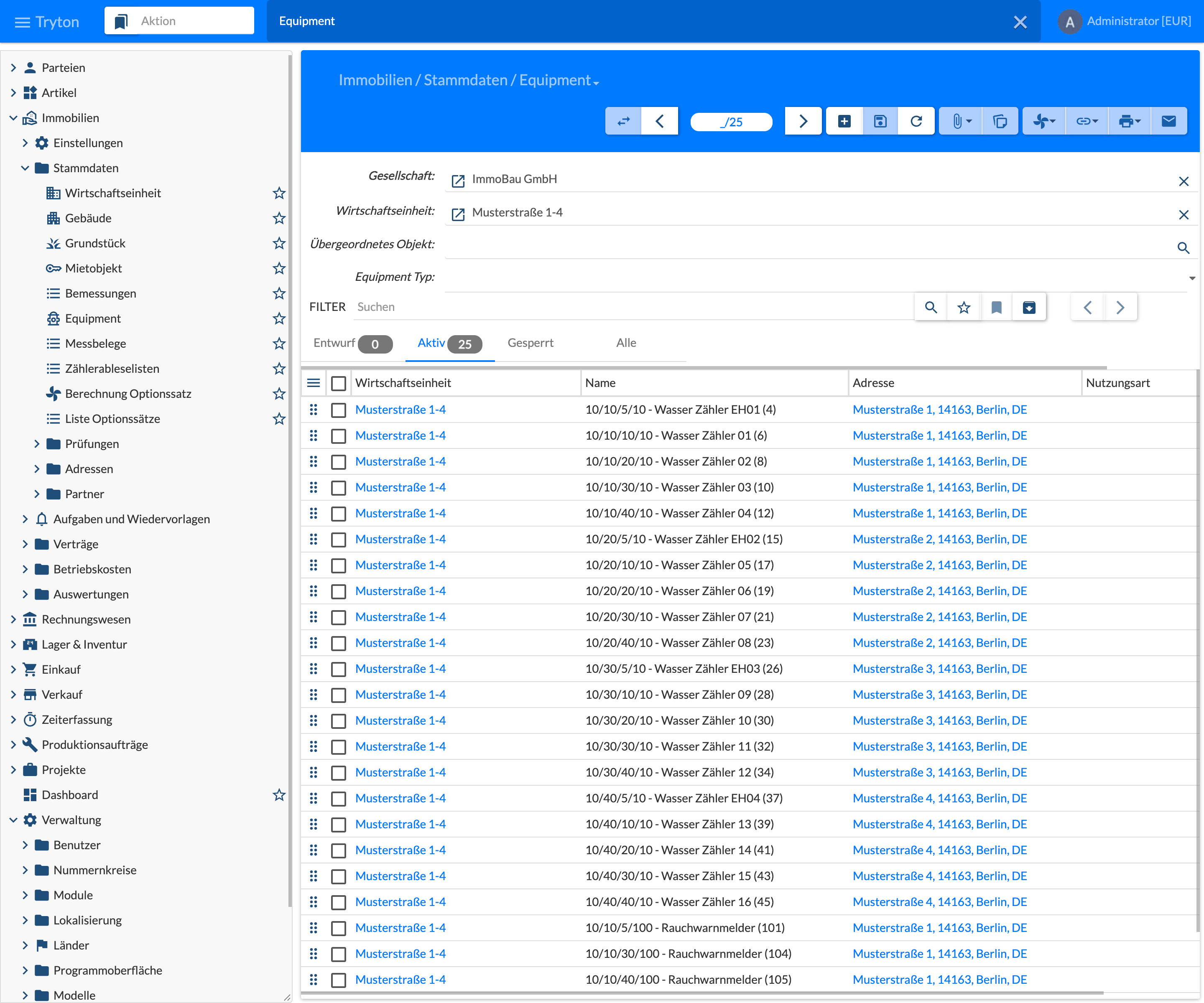
Open the menu Real Estate › Master Data › Equipment. The list shows the equipment of the company displayed at the top with property, name, address and type of use; the name starts with the number of the equipment. The fields Property, Parent Object and Equipment Type narrow down the list, e.g. to all meters of a building. The tabs Active, Locked and All filter by state. Creating and editing as for the property.
Creating and Editing
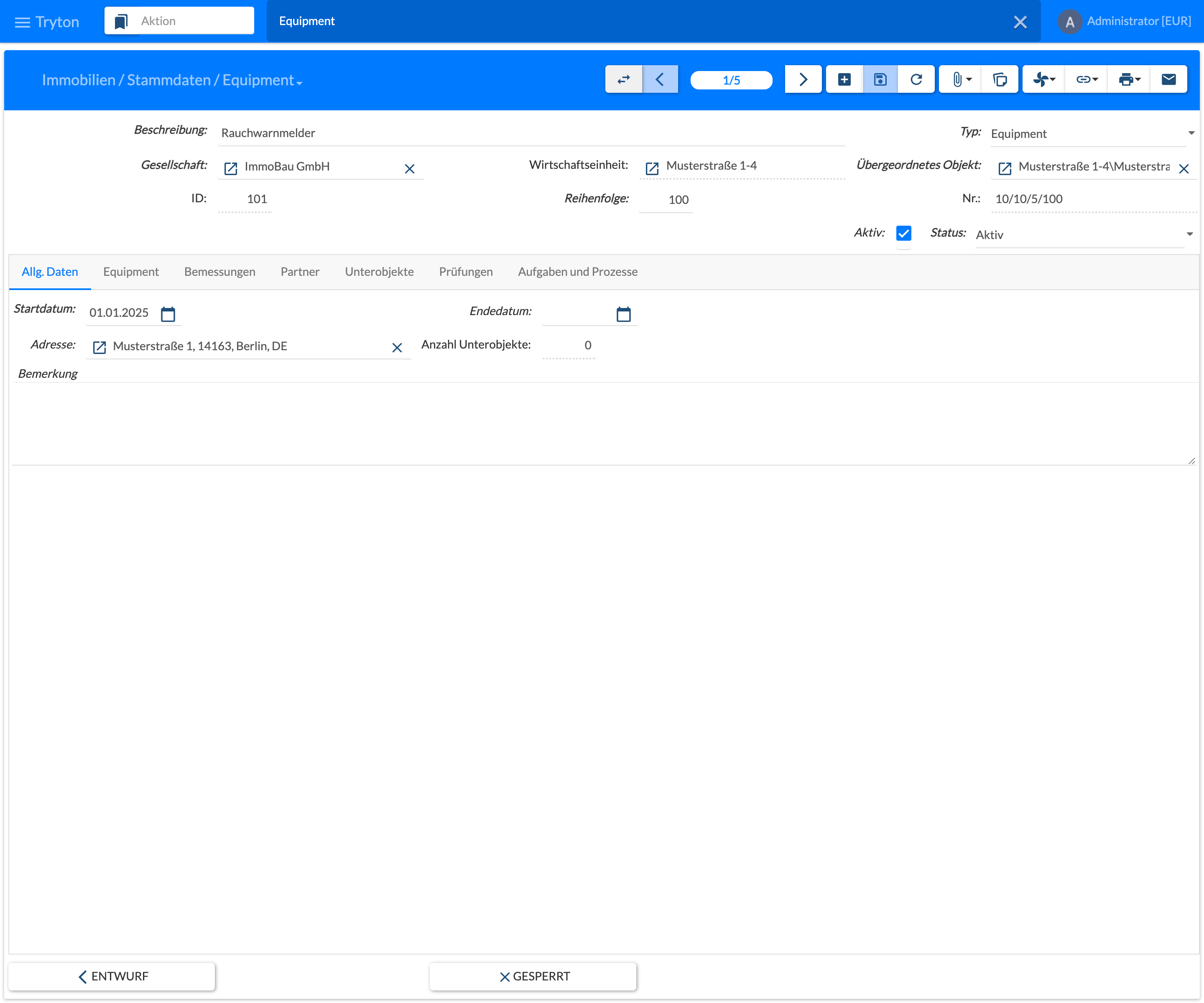
The header of the form corresponds to the rental object. Differences:
| Field | Description |
|---|---|
| Type | Here Equipment. |
| Parent Object | Object the equipment belongs to: property, building, land, rental object or another piece of equipment. Required. |
| No. | Built from the number of the parent object and the sequence, e.g. 10/10/5/100. |
The tab General Data contains start date, end date, address, number of sub-objects and remarks as for the building.
Tab Equipment
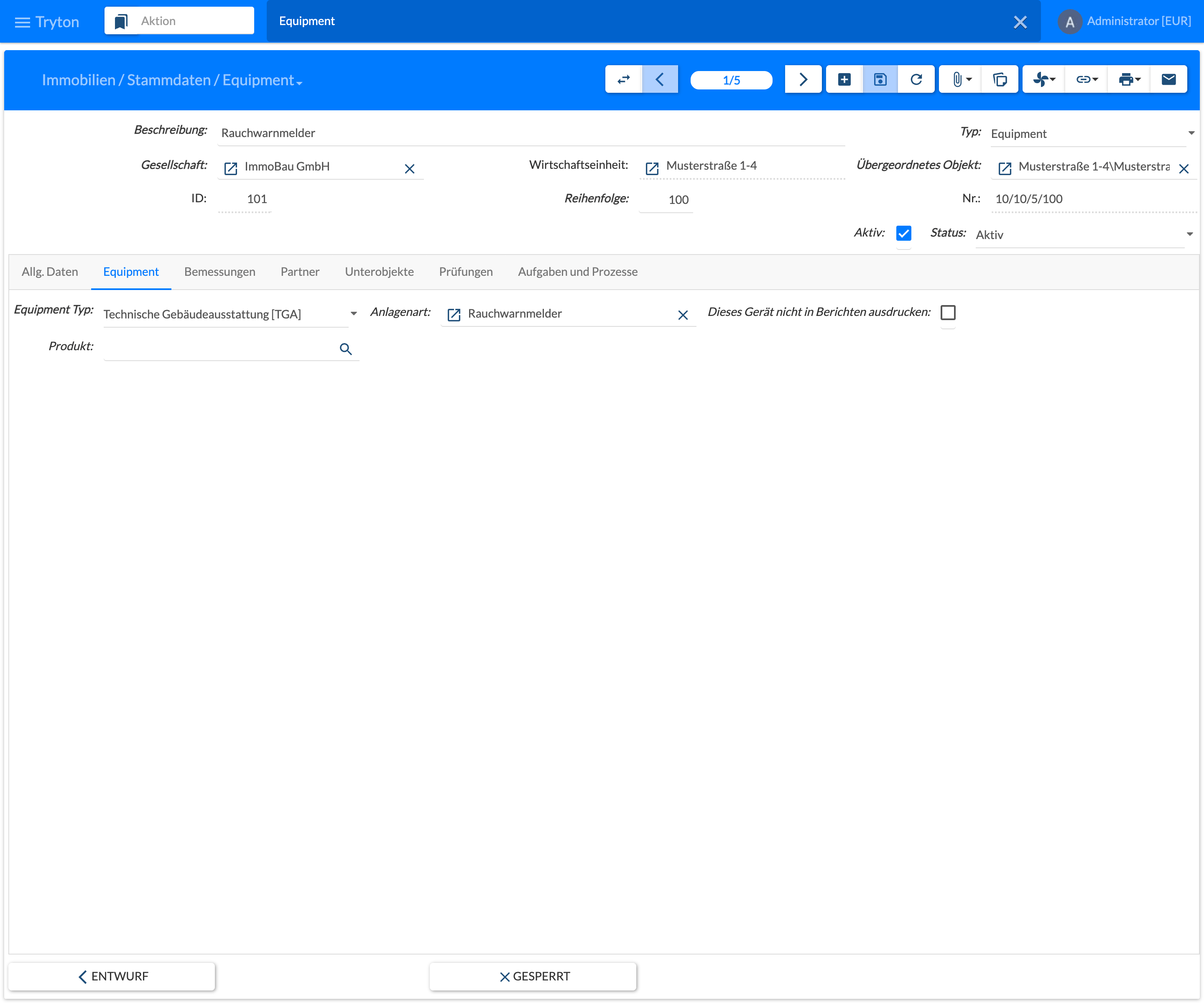
| Field | Description |
|---|---|
| Equipment Type | Rough classification: Technical Building Equipment [TGA], Structures (e.g. masonry, windows, doors), Installation (e.g. furniture) or Meters. Required. With Meters the additional tab Meters appears, see 5.5 Meters and Meter Readings. |
| Equipment Kind | Kind of installation, e.g. Smoke Detector or Elevator. The equipment kind determines which equipment is included in an inspection, e.g. all smoke detectors for the smoke detector check. |
| Do not print this equipment in reports | The equipment is not listed in reports. |
| Product | Optional: product from the Tryton product master, e.g. a specific device model. |
The module ships these equipment kinds: Smoke Detector, Elevator, Playground, Fire Extinguisher, Backflow Preventer, Heating System and Smoke and Heat Exhaust System. Further kinds are created in 2.5.6 Maintenance.
Tab Measurements
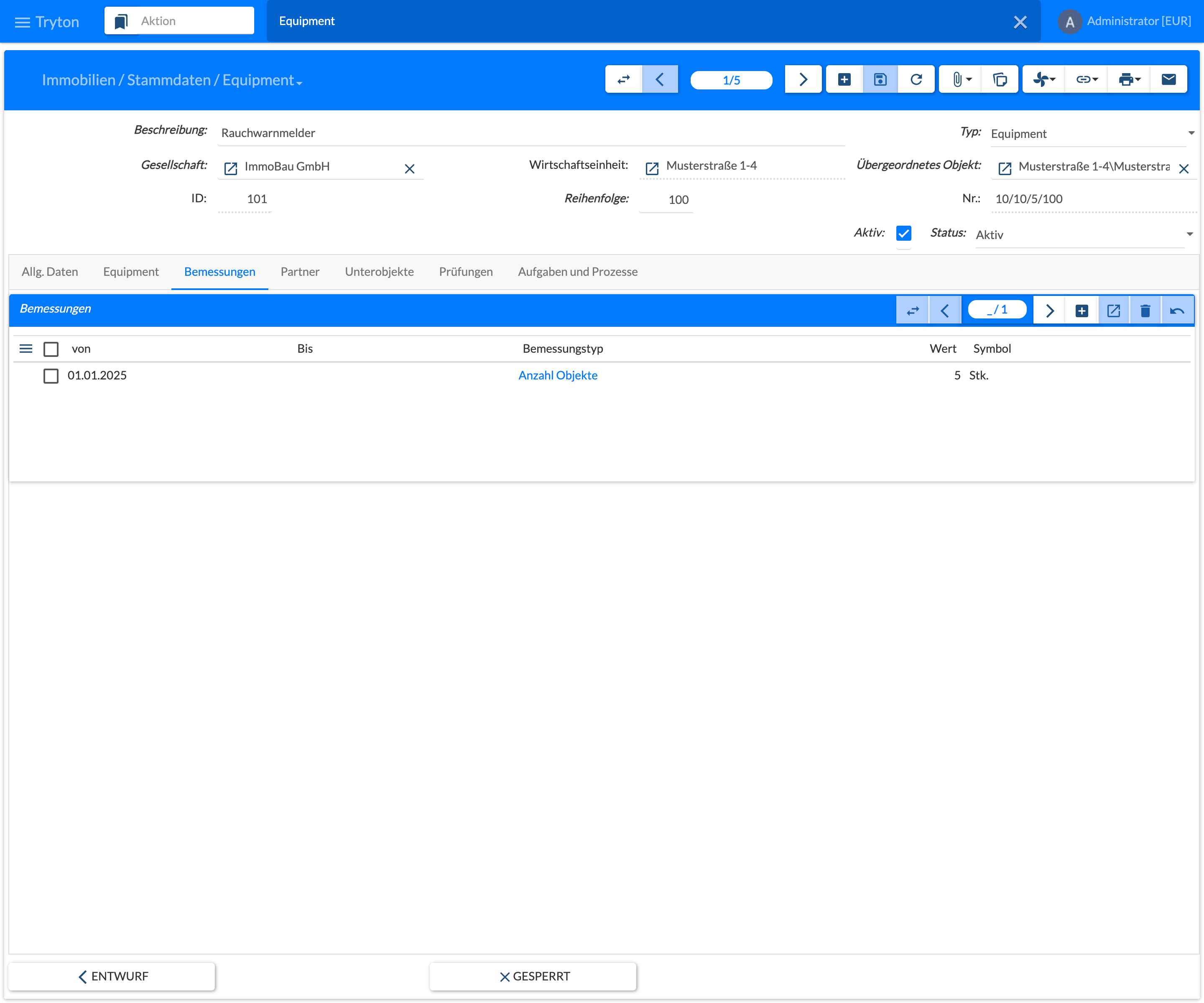
Structure as for the property. For equipment this is mainly where the Number of Items is kept: devices of the same kind need not be created one by one. In the example one equipment “Smoke detector” stands for the 5 smoke detectors of an apartment. Inspections propose this number as the expected quantity per apartment.
Further Tabs
The tabs Parties, Sub-objects, Inspections and Tasks and Processes are structured as for the property. For equipment:
- Parties: The roles shipped with the module (caretaker, administrator, owner) are not intended for equipment. For equipment, e.g. a maintenance company, a role of its own with the object type Equipment is needed, see 2.5.2 Business Partners.
- Sub-objects: Only further equipment can be placed below equipment, e.g. the components of a heating system.
- Inspections: Instead of inspection plans the tab shows the inspection lines in which the equipment was checked and its open defects. Inspection plans exist only on property and building, see 8.1 Inspection Plans.
- Tasks and Processes: Tasks and processes of the equipment itself. For meters the rule Meter calibration expires creates tasks here, see 5.5 Meters and Meter Readings.
Equipment has no tabs Option Rate and Rent Survey.
Actions, Relate and Print
| Menu | Entry | Meaning |
|---|---|---|
| Actions | New Task | Creates a task for the equipment. |
| Actions | Start Process | Starts a process from a template. |
| Actions | Draft, Locked | State change, like the buttons at the bottom of the form. |
| Actions | Translate view | Tryton standard function for translating labels. |
| Relate | E-Mail Archives, Object, Meter Reading Sheets | Opens related records in a new tab, as for the property. |
| Data Sheet | Data sheet of the equipment. |
5.5 Meters and Meter Readings
Meters are equipment with the equipment type Zähler (Meters), e.g. water, heat, electricity or gas meters. They usually belong to the rental object, main meters to the building or property. Every reading is stored as a Messbeleg (meter reading); the meter readings are the basis for the consumption-based allocation in the operating cost settlement. For the regular reading of many meters there are the Zählerableselisten (meter reading sheets).
Meters
Meters are created like any equipment via Immobilien › Stammdaten › Equipment, see 5.4 Equipment and Technical Installations. In the tab Equipment the equipment type Zähler is selected; the tab Zähler then appears.
Tab Zähler (Meters)
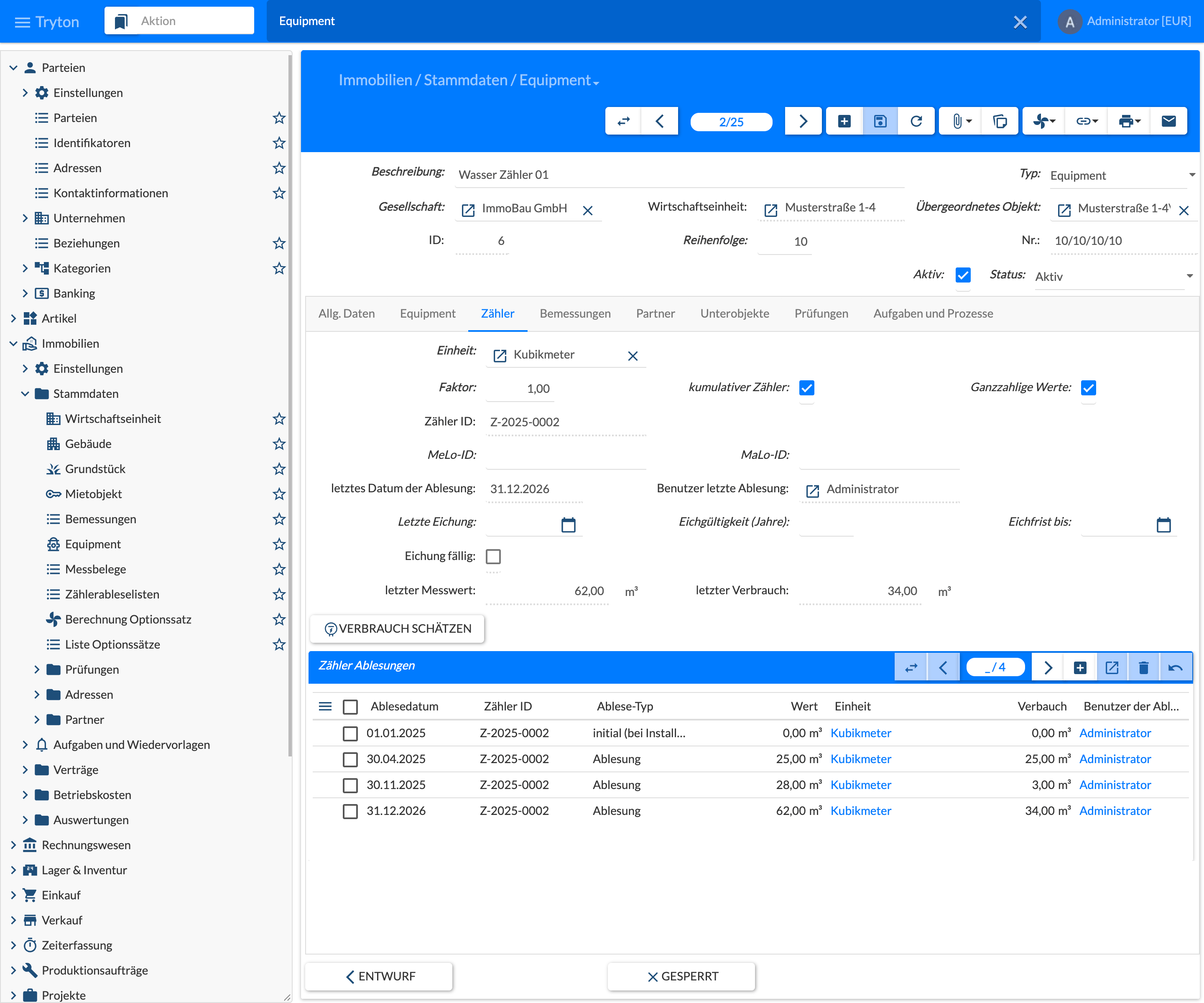
| Field | Description |
|---|---|
| Einheit (Unit) | Unit of the meter values, e.g. cubic metre or kWh. |
| Faktor (Factor) | Factor the consumption is multiplied by, e.g. for an electricity meter with a transformer. |
| kumulativer Zähler (Is Counter) | The meter value increases continuously; the consumption is the difference of two values. If not set, the meter measures absolute values, e.g. a fill level. |
| Ganzzahlige Werte (Integer Values) | Meter values are recorded without decimals. |
| Zähler ID (Meter ID) | Number of the installed meter (device number). It changes on a meter exchange, see meter readings. |
| MeLo-ID / MaLo-ID | Metering point ID resp. market location ID, e.g. for electricity and gas meters. |
| letztes Datum der Ablesung, Benutzer letzte Ablesung (Last Reading Date, Last Reading User) | Date and reader of the last meter reading; computed. |
| Letzte Eichung (Last Calibration) | Date of the last calibration or of the installation of a calibrated meter. |
| Eichgültigkeit (Jahre) (Calibration Validity, Years) | Validity of the calibration in years. |
| Eichfrist bis (Calibration Valid to) | End of the calibration validity; proposed as 31 December of the year of the last calibration plus validity, can be overwritten. |
| Eichung fällig (Calibration Due) | The calibration validity ends within the next 3 months or has ended. |
| letzter Messwert / letzter Verbrauch (Last Value / Last Consumption) | Value and consumption of the last meter reading; computed. |
| Zähler Ablesungen (Meter Readings) | All meter readings of the meter with reading date, meter ID, reading type, value, unit, consumption and reader. New readings can also be entered here. |
The button Verbrauch schätzen (Estimate Consumption) opens a wizard that creates an estimated meter reading for a date. If readings exist before and after the date, the value is interpolated between them; otherwise it is extrapolated from the last two readings within one year. Meter ID, date and reason have to be entered.
With the task rule Eichfrist läuft ab (Meter calibration expires) a task for a meter exchange or recalibration is created 3 months before the calibration expires, see 10 Tasks and Processes.
Meter Readings
Getting Started
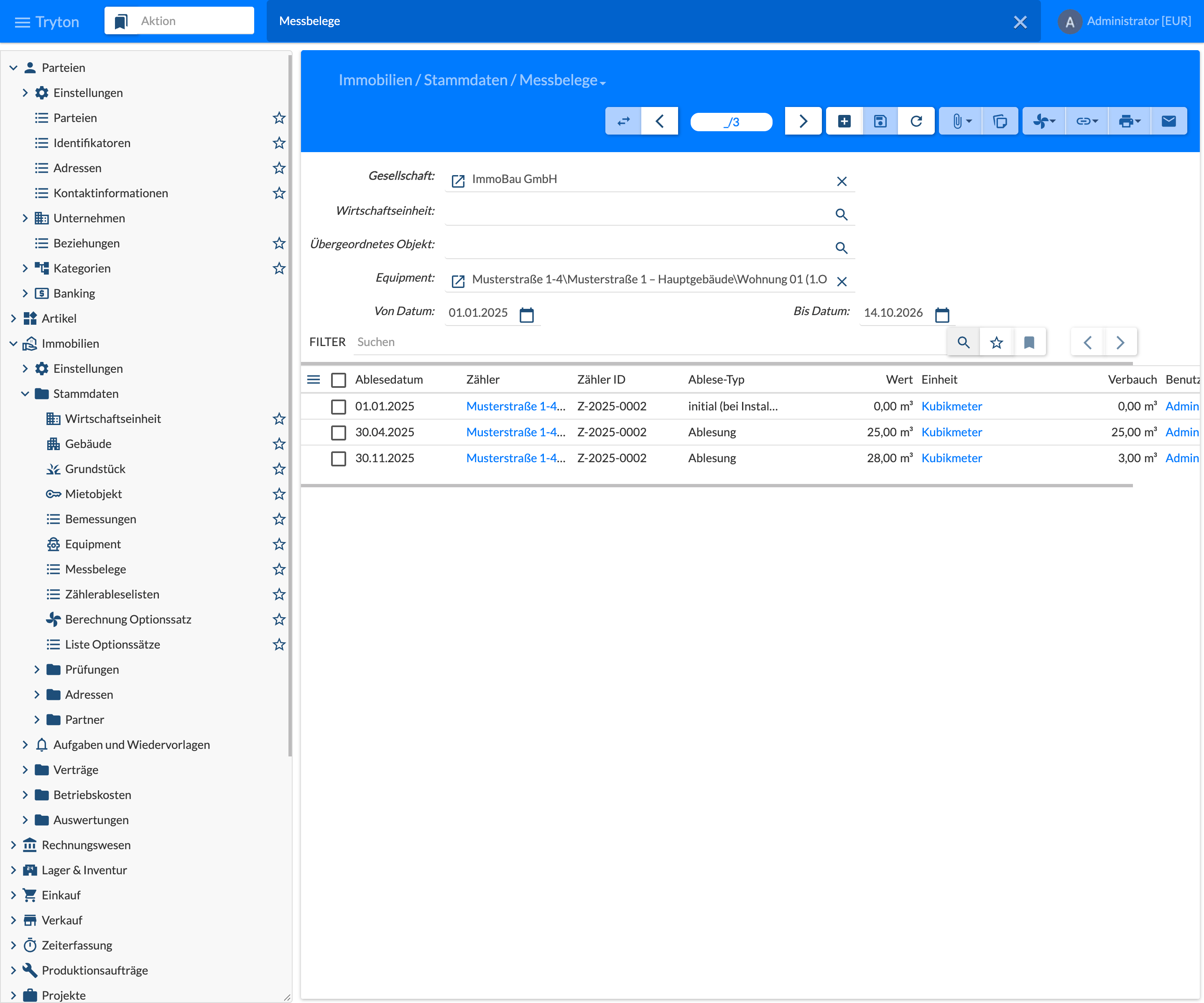
Open the menu Immobilien › Stammdaten › Messbelege (Real Estate › Master Data › Meter Readings). The list shows the readings of all meters. The fields Gesellschaft (Company), Wirtschaftseinheit (Property), Übergeordnetes Objekt (Parent Object) and Equipment as well as Von Datum and Bis Datum (from / to date) restrict the list, e.g. to the meters of an apartment in a billing period. New meter readings can be entered directly in the list with + (New).
Fields
| Column | Description |
|---|---|
| Ablesedatum (Reading Date) | Date of the meter value. |
| Zähler (Meter) | Meter (equipment) the reading belongs to. |
| Zähler ID (Meter ID) | Number of the meter read. |
| Ablese-Typ (Reading Type) | initial (bei Installation) (initial, installation), Ablesung (reading), geschätzt (estimate), lineare Interpolation (linear interpolation) or Endablesung vor Ausbau (final reading, removal). |
| Wert (Value) | Meter value read. |
| Einheit (Unit) | Unit of the meter. |
| Verbrauch (Consumption) | Consumption since the previous reading; computed. |
| Benutzer der Ablesung (Reading User) | Reader. |
Rules When Entering
- The first reading of a meter must have the reading type initial (bei Installation).
- Readings and estimates must have the same meter ID as the previous reading.
- For a cumulative meter the value must not be lower than the previous one.
- Meter exchange: for the old meter a Endablesung vor Ausbau (final reading) with the old meter ID is entered, for the new meter on the same day a reading initial (bei Installation) with the new meter ID.
- Only one reading per meter, date and meter ID is allowed.
- With Ganzzahlige Werte (integer values) no decimals are allowed.
Readings of the type lineare Interpolation are created by the operating cost settlement itself when a meter value between two readings is needed for the start or end of a billing period.
Meter Reading Sheets
A meter reading sheet collects all meters below an object for one reading date. It is printed, filled in while reading and then entered. On completion the system creates the meter readings.
Getting Started
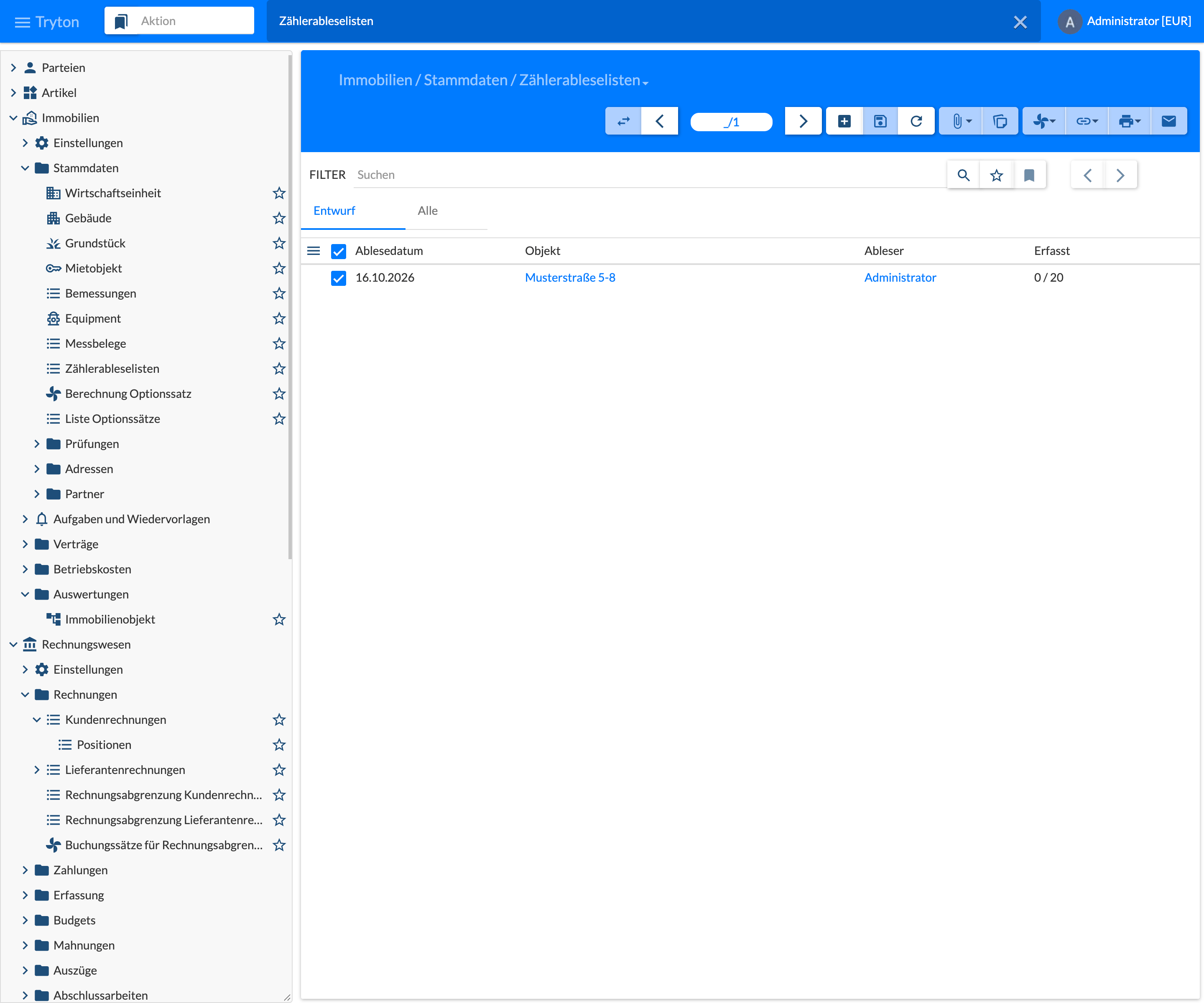
Open the menu Immobilien › Stammdaten › Zählerableselisten (Real Estate › Master Data › Meter Reading Sheets). The tab Entwurf (Draft) shows the open sheets with reading date, object, reader and progress (Erfasst: meters with a value entered / all meters, e.g. 0 / 20 for a new sheet). The tab Alle (All) also shows completed and cancelled sheets with their state.
- Create: button + (New) in the toolbar
- Edit: select the row and switch to the form
Create and Edit
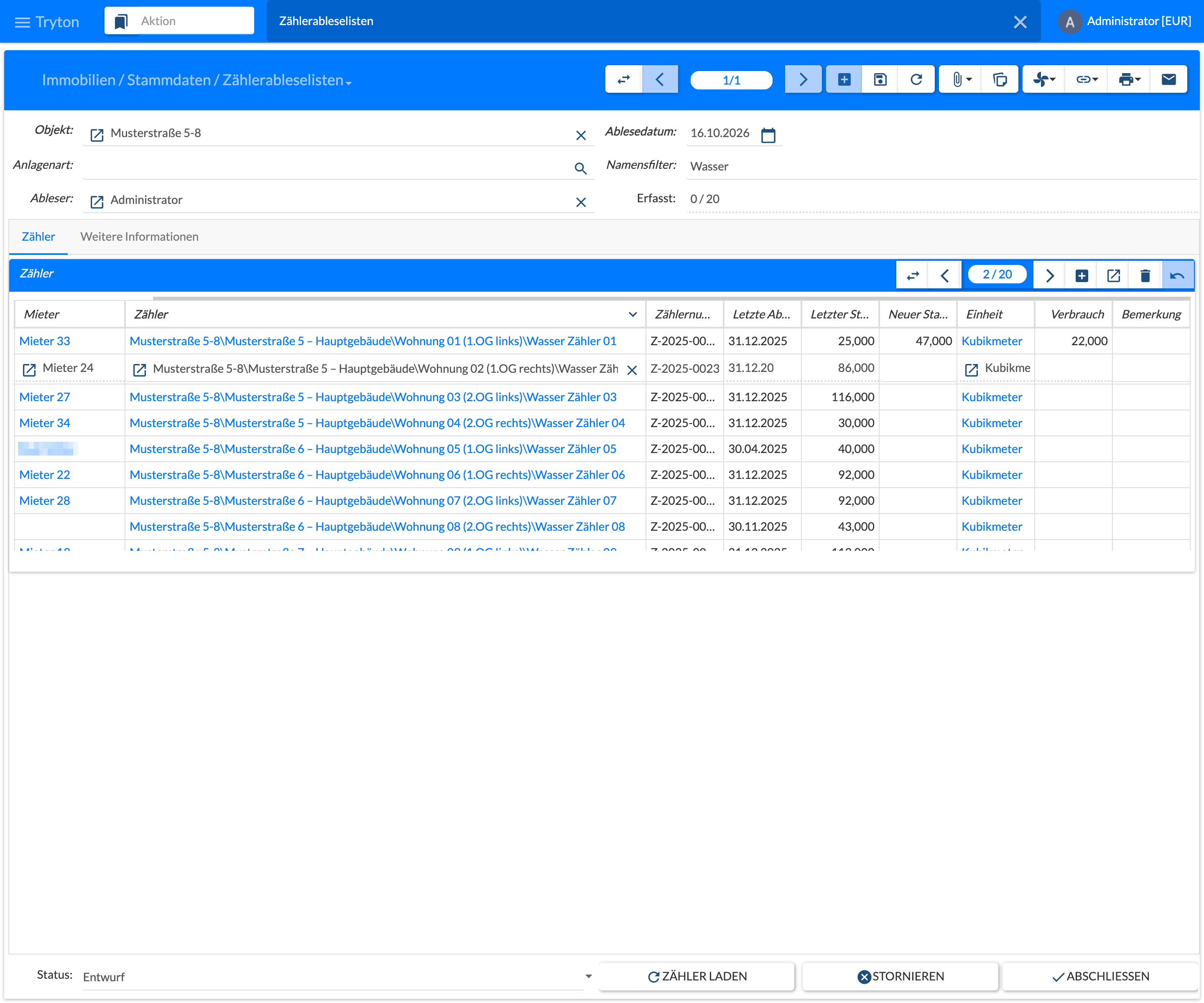
| Field | Description |
|---|---|
| Objekt (Object) | Property, building or rental object; the meters below it are listed. Required. |
| Ablesedatum (Reading Date) | Date of the reading; date of the meter readings created. Required. |
| Anlagenart (Equipment Kind) | Optional: only meters of this equipment kind. |
| Namensfilter (Name Filter) | Optional: only meters whose name contains this text, e.g. “Wasser” or “Warmwasser”. |
| Ableser (Reader) | User entered as reader in the meter readings created. |
| Erfasst (Progress) | Number of meters with a value entered / number of all meters of the sheet. |
| Status (State) | Entwurf (Draft), Abgeschlossen (Done) or Storniert (Cancelled). The sheet can be edited in draft. |
The tab Zähler (Meters) contains one line per meter; only the Neuer Stand (new value) is entered:
| Column | Description |
|---|---|
| Mieteinheit (Rental Unit) | Rental object the meter belongs to. |
| Mieter (Tenant) | Main tenant of the rental object on the reading date (from the occupancy). |
| Zähler (Meter) | Meter (equipment). |
| Zählernummer (Meter ID) | Meter ID; proposed from the last meter reading. |
| Letzte Ablesung / Letzter Stand (Previous Date / Value) | Date and value of the last reading before the reading date. |
| Neuer Stand (Value) | Meter value read. |
| Einheit, Verbrauch (Unit, Consumption) | Unit of the meter and consumption since the last value. |
| Bemerkung (Remarks) | Note on the reading, e.g. “meter not accessible”. |
The new value is entered directly in the line; the consumption is calculated immediately (in the figure for the first meter 47 − 25 = 22 m³). With many columns the table can be scrolled sideways. Via ≡ the columns Zählerablesung (meter reading created) and Ablesung erzeugt (reading created) can be shown in addition.
The tab Weitere Informationen (Other Info) contains property and company (set automatically), Abgeschlossen von (done by), Abgeschlossen am (done on) and Notizen (notes).
Procedure
- Create the sheet: choose object, reading date and, if needed, equipment kind or name filter.
- Zähler laden (Load Meters): the meters below the object are entered with rental unit, tenant and last value. Loading again adds new meters and refreshes the data; values already entered are kept.
- Print the sheet via Drucken › Ableseliste (de) and read the meters.
- Enter the new values.
- Abschließen (Complete): for every line with a new value a meter reading of the type Ablesung is created. If the meter already has a reading on the reading date, that one is linked. If values are missing, a warning appears that can be confirmed.
- Folgeliste (Follow-up Sheet): creates the sheet for the next date – same object and filters, reading date one year later – and opens it.
Auf Entwurf zurücksetzen (Reset to Draft) deletes the meter readings created by the sheet; linked, already existing readings are kept.
Actions, Relate and Print
| Menu | Entry | Meaning |
|---|---|---|
| Actions | Zähler laden, Abschließen, Stornieren (Load Meters, Complete, Cancel) | Only in the state draft, see procedure. |
| Actions | Auf Entwurf zurücksetzen (Reset to Draft) | For a completed or cancelled sheet, same as the button at the bottom of the form. |
| Actions | Folgeliste (Follow-up Sheet) | Only for a completed sheet, see procedure. |
| Actions | Aktuelle Sicht übersetzen (Translate View) | Tryton standard function to translate the labels. |
| Relate | E-Mail Archive | E-mails of the reading sheet. |
| Ableseliste (de) (Reading Sheet) | Reading sheet to fill in while reading. |
From every object, Verknüpfungen › Zählerableselisten (Relate › Meter Reading Sheets) opens the reading sheets of that object.
5.6 Option Rates
The option rate states which share of the input VAT on purchase invoices is deductible because the owner has opted for VAT on the letting (§ 9 UStG). It is kept per object, billing unit and settlement unit with a valid-from date and is proposed automatically when purchase invoices are entered. The method is maintained in the tab Optionssatz (Option Rate) of the object, see 5.1 Property.
| Option rate method | Option rate |
|---|---|
| optiert nicht (0,0 %) fix (not opted, fixed 0 %) | always 0 % – the input VAT is an expense |
| optiert (100,0 %) fix (opted, fixed 100 %) | always 100 % – the input VAT is fully deductible |
| Optionssatz fix nach Wert (fixed by value) | fixed percentage entered in the tab Option Rate |
| dynamisch über Bemessung (dynamic by measurement) | calculated: average of the option rates of the rental objects, weighted by a measurement (e.g. living/usable area); not for rental objects themselves |
If the company is set to always book input VAT as an expense, there is no option rate; the tab is hidden then.
Berechnung Optionssatz (Update Option Rates)
The wizard recalculates the option rates for a selection and creates a new entry where the rate changes. It is run e.g. after a change between residential and commercial letting or after changed areas.
Automatically as a job
The same calculation can also run periodically: as the job Optionssatz aktualisieren (Update Option Rate), e.g. monthly on the 1st. It calculates all properties of the company as of the current date; the new rate is valid from the first of the month. The job is set up in 2.6 Jobs and Periodic Tasks.
Selection
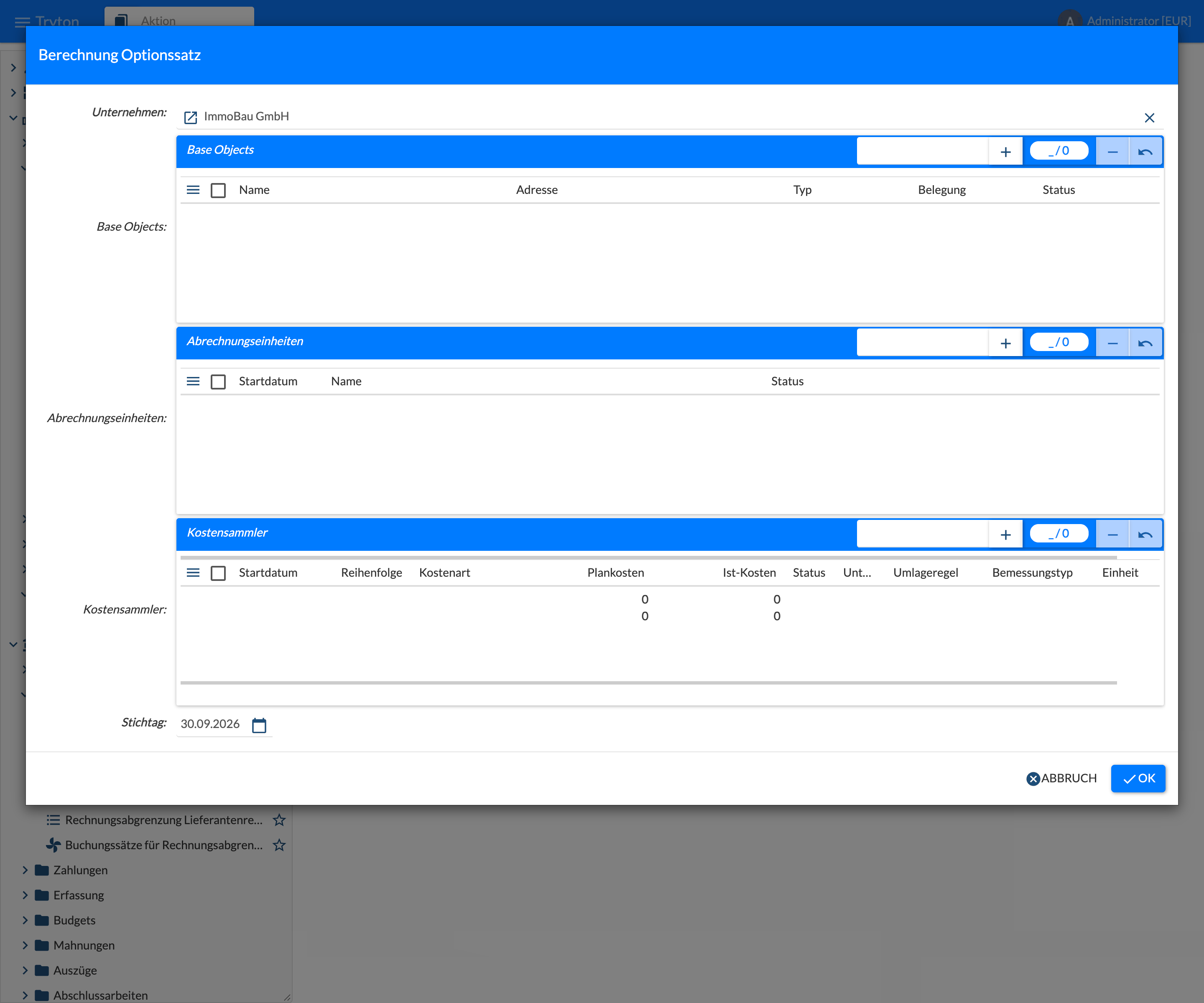
Open the menu Immobilien › Stammdaten › Berechnung Optionssatz (Real Estate › Master Data › Update Option Rates).
| Field | Description |
|---|---|
| Unternehmen (Company) | Company whose objects are calculated. Required. |
| Base Objects | Properties, buildings, land or rental objects. Selected properties, buildings and land are expanded to all objects below them, a property additionally to its billing units and settlement units. |
| Abrechnungseinheiten (Billing Units) | Billing units; they are expanded to their settlement units. |
| Kostensammler (Settlement Units) | Individual settlement units. |
| Stichtag (Cut-off Date) | Date of the calculation. The new option rate is valid from the first of this month. Default: today. |
If the three lists are left empty, all properties of the company are calculated.
Confirm
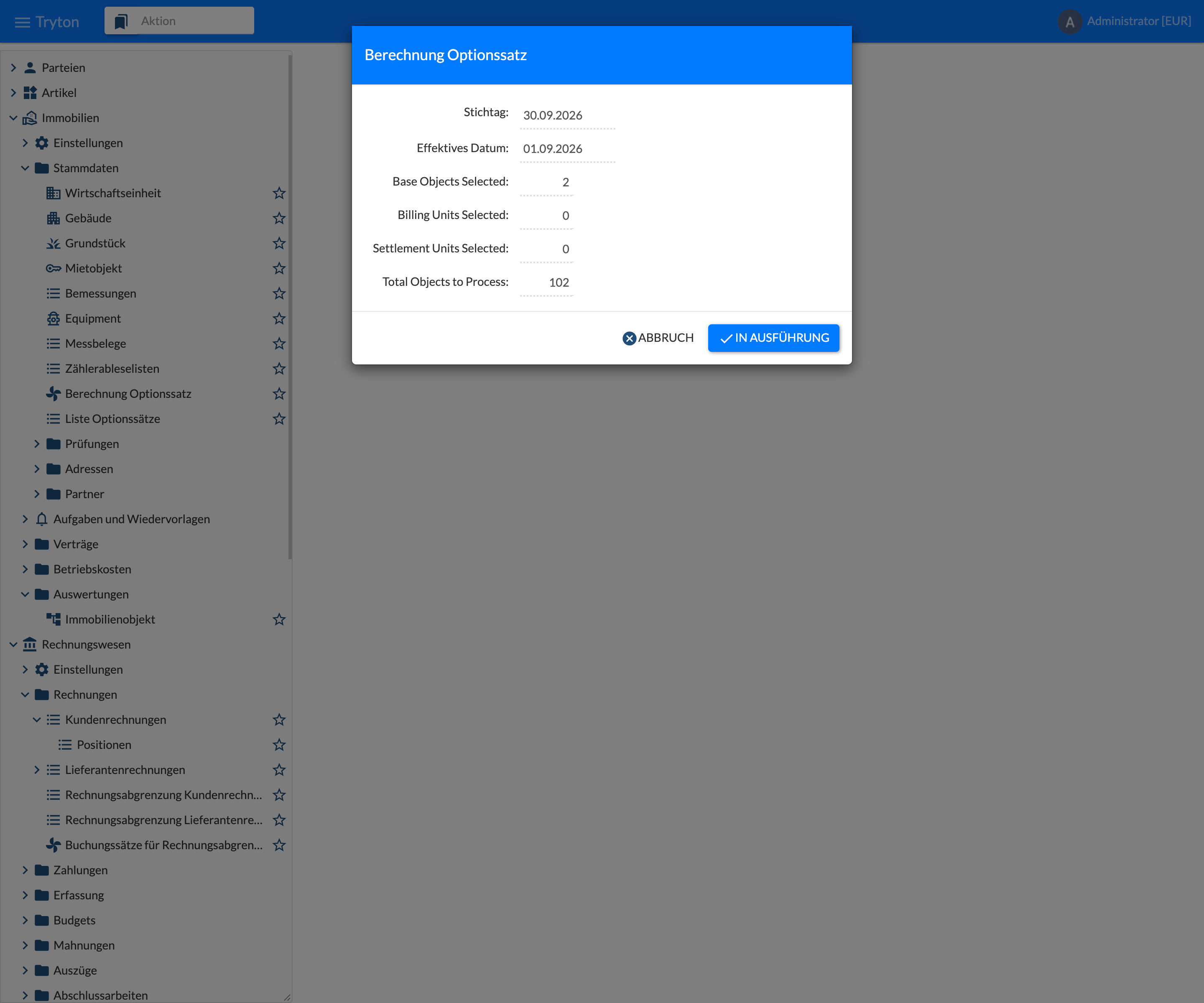
The second step shows Stichtag and Effektives Datum (effective date: first of the month from which the new rate applies), the number of selected base objects, billing units and settlement units and the total number of objects to process after expansion. In the example 2 properties become 102 objects. In Ausführung (Process) starts the calculation.
Calculation per object:
- fixed 0 % / fixed 100 % / fixed by value: the rate is taken over directly.
- dynamic by measurement: every active rental object below contributes its measurement at the cut-off date as weight and its own option rate; the result is the weighted average, rounded to 2 decimals. An object that is not active excludes its whole subtree. For billing units and settlement units their assigned rental objects count.
- Objects that are not Aktiv (active) as well as billing units and settlement units in the state draft or billed are not processed.
Result
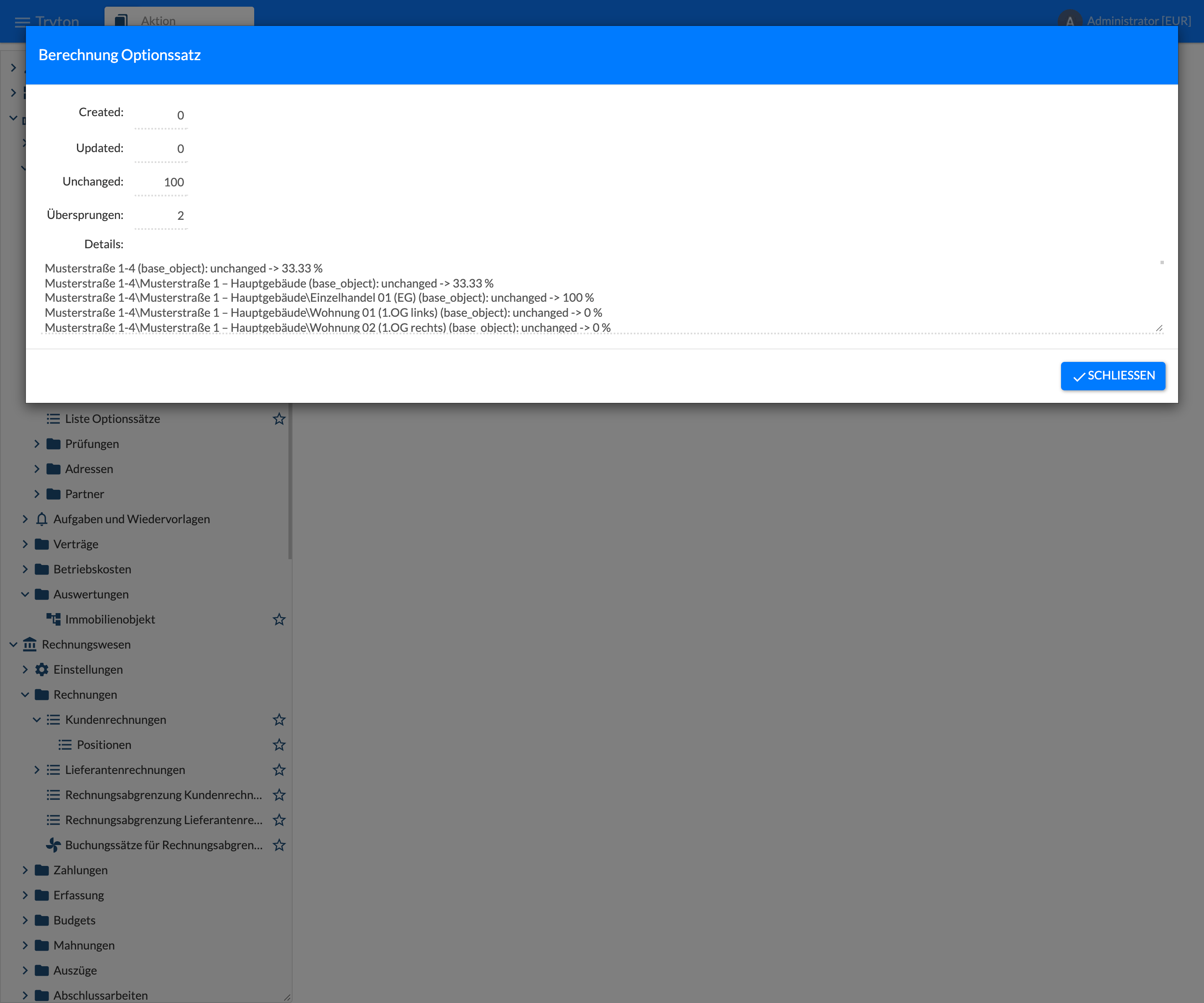
| Field | Meaning |
|---|---|
| Created | New option rate entry, valid from the first of the month. |
| Updated | An entry for the same first of the month already existed; it was overwritten. |
| Unchanged | The calculated rate equals the current one; nothing is written. |
| Übersprungen (Skipped) | No rate could be calculated, e.g. for “dynamic by measurement” without measurements. |
| Details | One line per object with result and rate, e.g. “Musterstraße 1-4 (base_object): unchanged -> 33.33 %”. |
In the example the apartments have 0 %, the commercial unit 100 % and building and property the weighted rate of 33.33 %.
Liste Optionssätze (Option Rates)
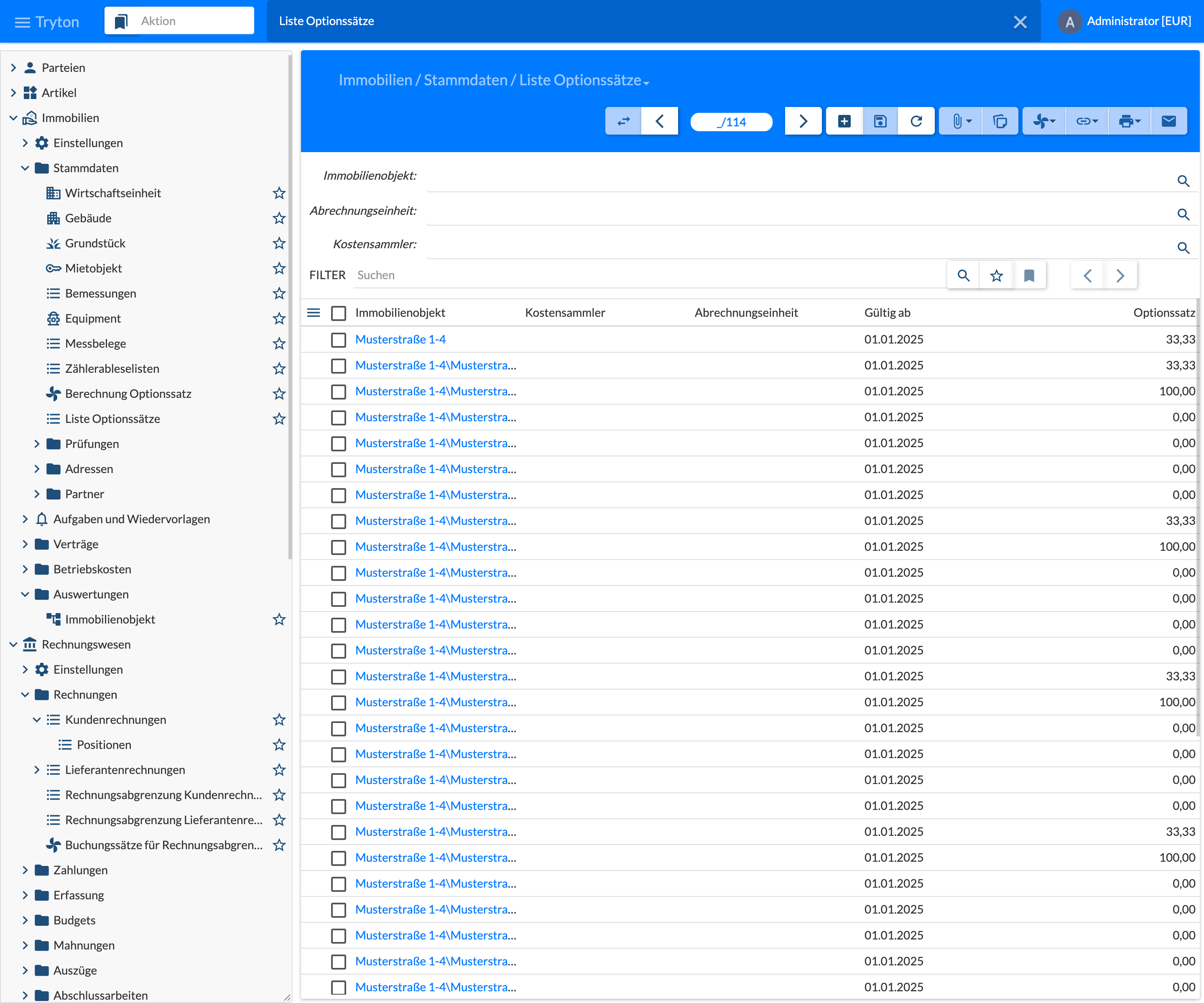
Open the menu Immobilien › Stammdaten › Liste Optionssätze (Real Estate › Master Data › Option Rates). The list shows all booked option rates with real estate object, settlement unit or billing unit, Gültig ab (valid from) and Optionssatz (option rate) in percent. The fields Immobilienobjekt, Abrechnungseinheit and Kostensammler restrict the list. The list is for reference only and cannot be edited; entries are created by the wizard or in the tab Optionssatz of the object.
Which option rate is proposed on a purchase invoice depends on the most specific reference of the invoice line – object before settlement unit before billing unit before property – and on the invoice date: the last entry with Gültig ab on or before that date applies. See 4.1 Invoices.